Sharing your Mac’s connection can be useful if others can’t access the Internet for whatever reason. Besides creating networks on your device, you can also easily share your Wi-Fi password. This guide reveals everything you need to know to share your Mac’s Internet connection and/or Wi-Fi password.
Share Your Mac Internet Connection
To share your computer’s Internet connection, you need to configure your settings. Click on the Apple logo in the top-left corner, and when the drop-down menu appears, select System Settings.

Navigate to General -> Sharing.
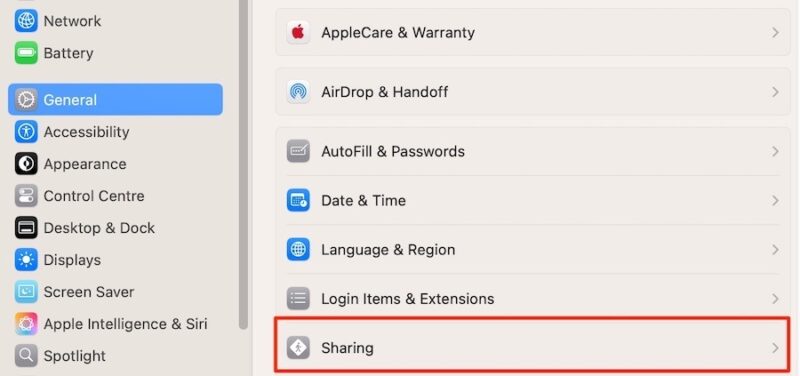
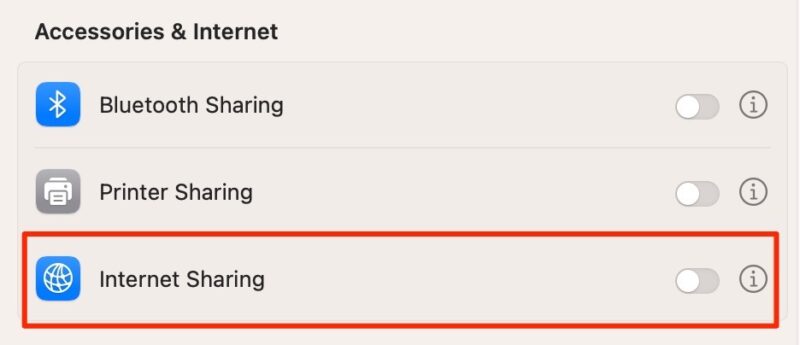
Go to Accessories & Internet, and toggle on Internet Sharing.
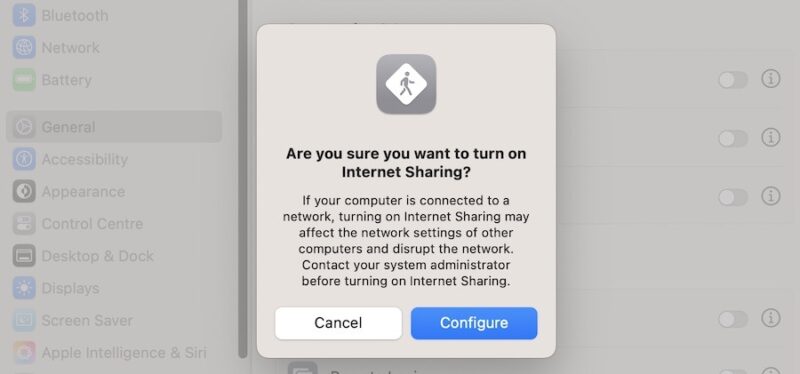
A pop-up window will ask you to confirm your choice. Click on Configure to do so.
Use the drop-down menu to select how you want to share your connection: Wi-Fi, Ethernet adapters, your iPhone and USB, or the Thunderbolt Bridge. When you’re ready, configure the devices you want to share your connection with.
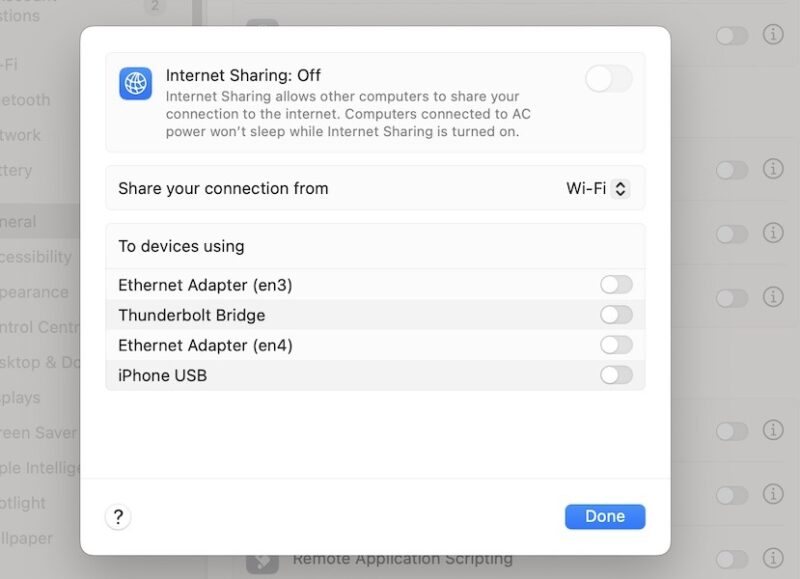
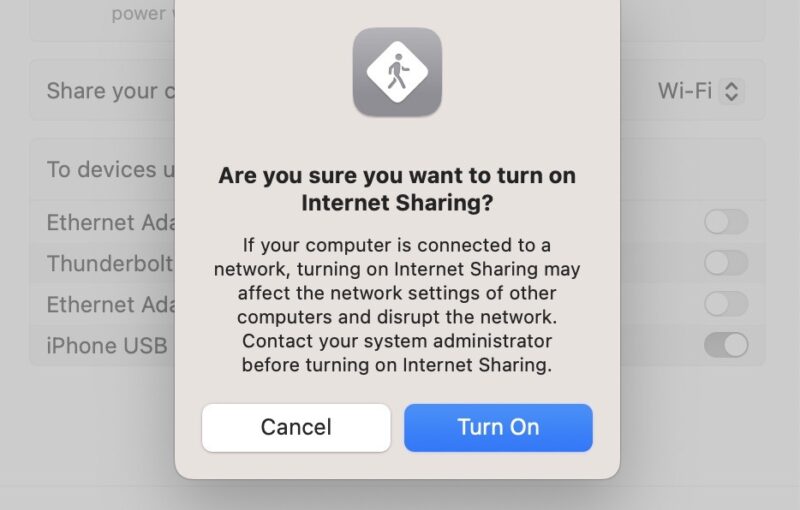
You’ll also need to toggle on the Internet Sharing section at the top of the next window. When the pop-up window appears, select Turn On.
Tap Done when you’ve finished. To change your settings later, first toggle off your Internet connection sharing settings, then adjust the other toggles.
The other device will need to connect to your Mac’s internet via the selected method. For example, if you chose iPhone USB, you’ll need to connect your iPhone via one of your device’s cable ports.
Make sure you only share your connection with people you trust. To feel comfortable with your level of safety, it’s worth fully securing your Mac.
Share Your Mac Wi-Fi Password
Another simple way to help others connect to your device is by sharing your Wi-Fi password through one of two options.
The first option is to open the Wi-Fi network you want to connect to on another Apple device. Then, share the password when prompted on your Mac. Select Share when the notification appears on your screen.

Alternatively, open the Passwords app, and select Wi-Fi. You’ll first need to enter your Mac login details or verify your identity with Touch ID.

Choose the Wi-Fi information you want to share, tap the password once to copy it, then paste and send to the desired recipient.
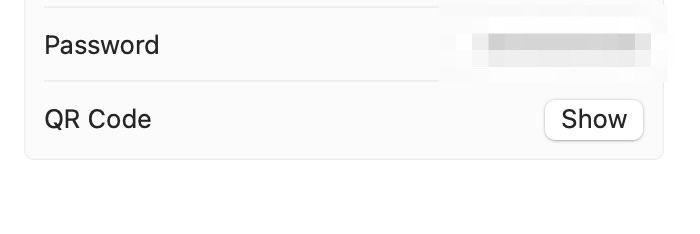
Others can also join a network via a QR code. You’ll find this option in the Passwords app beneath the Wi-Fi password. Select Show and point the device’s camera at your computer screen.
By Wary of These Issues When Sharing Your Mac’s Internet Connection
Depending on how you choose to share your Mac’s connection, you may encounter problems with lagging and dropped connections.
Though it’ll depend largely on your connection strength, other devices may struggle to connect to the Internet. If you or another person is having issues connecting to a network, make sure you know how to fix problems with the dropped connections and general Wi-Fi issues.
Sharing your Mac connection is very straightforward, and you can customize how you want others to use it. It’s also very simple to connect all kinds of devices. Besides the connection, you can also share your Mac screen.
Image credit: Unsplash. All screenshots by Danny Maiorca.