Although the mouse is the most convenient way to control the cursor, certain circumstances may make you more efficient by using the keyboard to swiftly move the cursor without resorting to a mouse. Additionally, if you encounter hardware failures or issues with the trackpad, you can still navigate using the keyboard on your Chromebook.
Enabling Keyboard Mouse Control on Chromebook
Just like any other operating system (OS), ChromeOS offers a wide range of features that enhance user interaction. One of its accessibility features can be quite beneficial for users experiencing difficulties with their touchpad. You can control the mouse cursor using a keyboard, and for that, you don’t have to consider third-party applications as ChromeOS has an in-built setting.
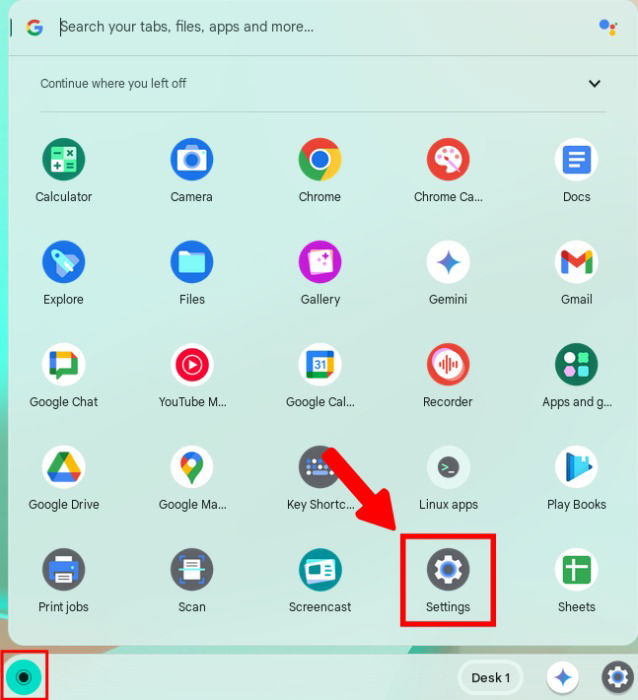
Go to the Settings app by using Shift + I or accessing it via Launcher.
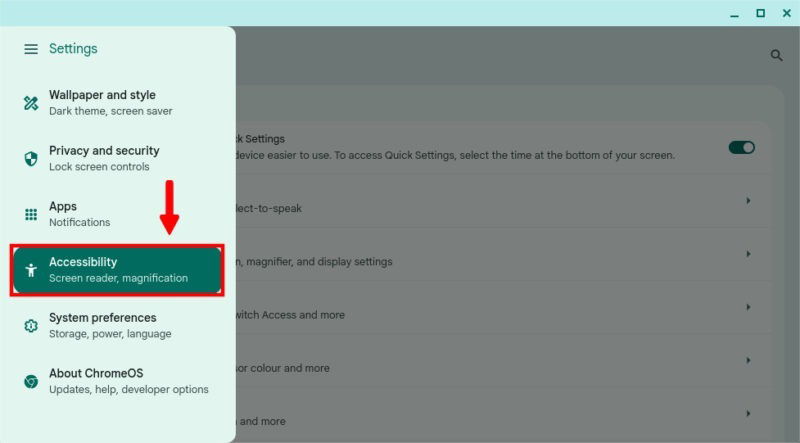
From the left panel, select Accessibility.
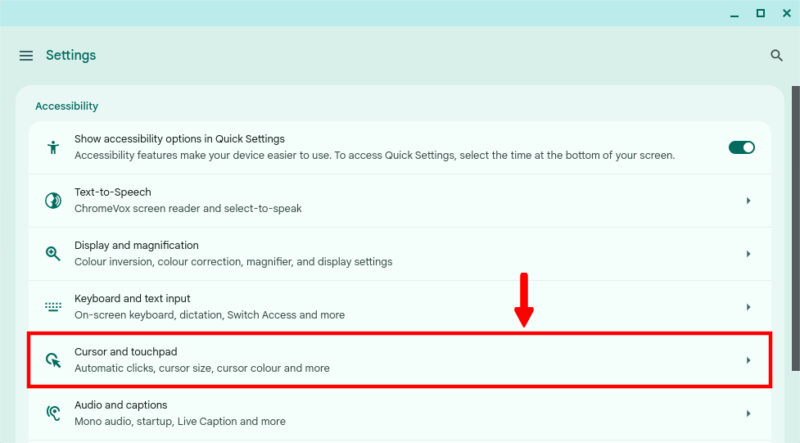
Under the Accessibility group, click on Cursor and touchpad.
Toggle on the Mouse keys and then open the Mouse keys settings.
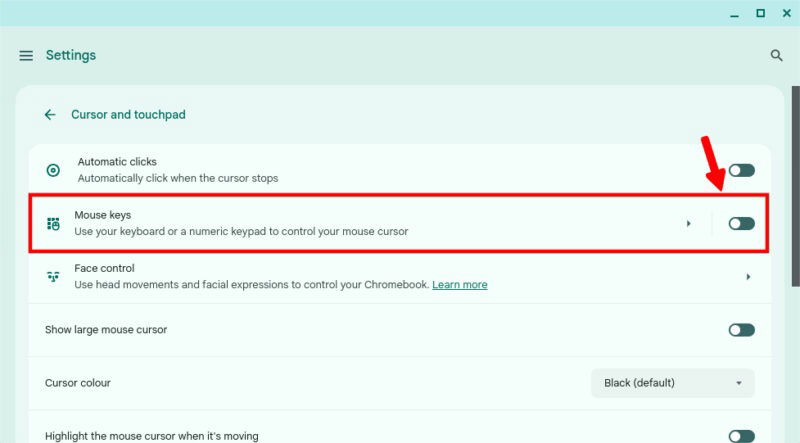
Once enabled, the Mouse keys feature allows you to control the cursor using your keyboard. If you don’t see any notification in the Shelf (Taskbar), press the Alt + Search button + 4. You will use the same shortcut to pause the Mouse keys.
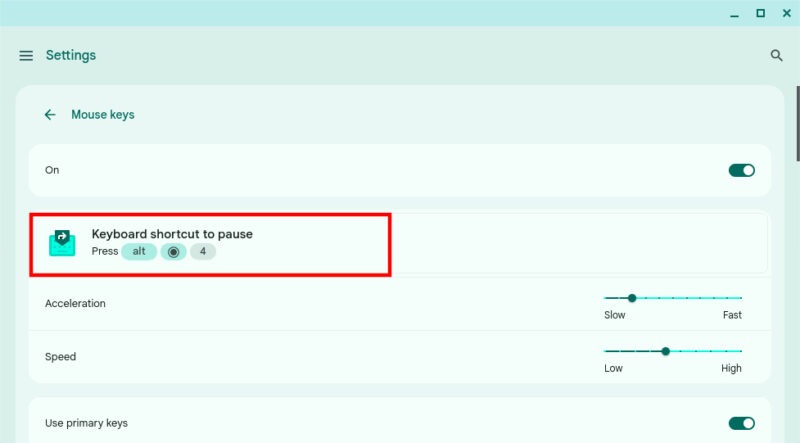

After completing the given steps, you can use your primary keyboard to control your mouse cursor around the screen.
Keyboard Shortcuts for Primary Keys
If you prefer using alphabet keys to move your cursor, ensure that the Use primary keys toggle is enabled. The primary keys offer two different sets of shortcuts; one for the right side of the keyboard and another for the left side.
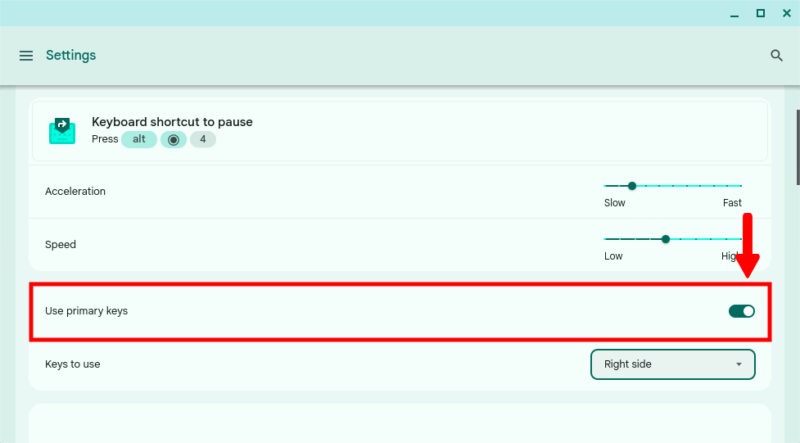
Right Side Keyboard Shortcuts
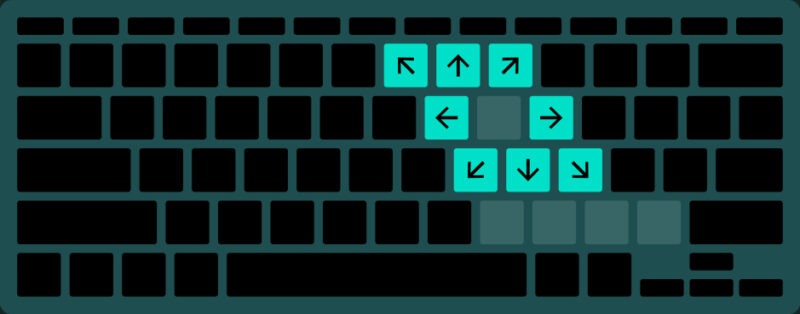
| To Move the Cursor (From the right side of the keyboard) | Use |
|---|---|
| Up | 8 |
| Up to the left | 7 |
| Up to the right | 9 |
| Left | u |
| Right | o |
| Down | k |
| Down to the left | j |
| Down to the right | l |
| Press a mouse button | i |
| Change the mouse button selection between the Right click and Left click | , |
| Double-click. This works only when the left-click button is selected. | / |
| Press and hold a mouse button | m |
| Release a mouse button | . |
Left Side Keyboard Shortcuts
Most users, especially gamers, prefer controlling the cursor with their left hand. If you are one of them, use the left-side Mouse key shortcuts. First, choose the Left side option from the Keys to use drop-down menu.
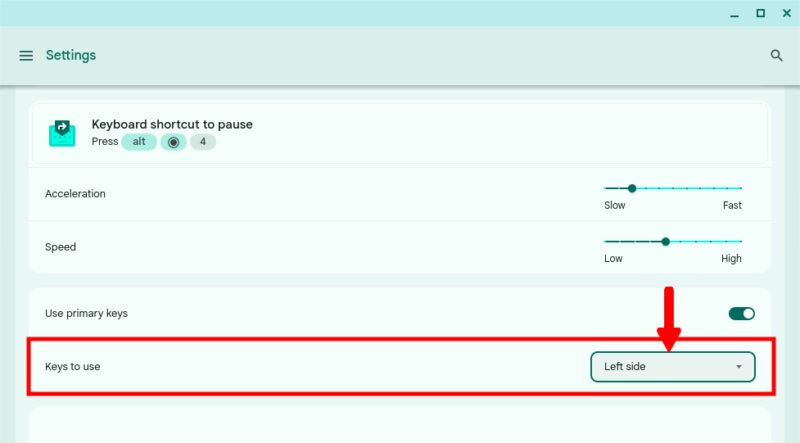
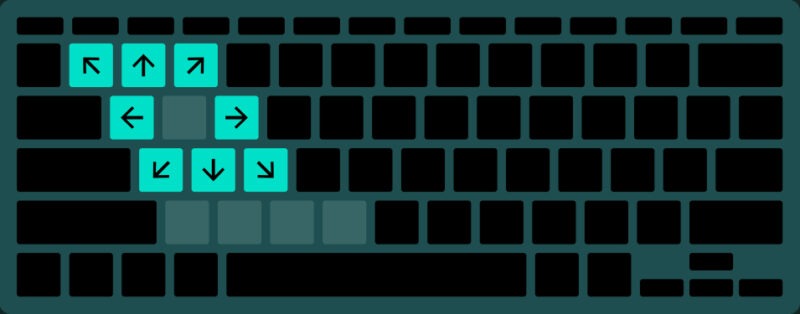
| To Move the Cursor (From the left side of the keyboard) | Use |
|---|---|
| Up | 2 |
| Up to the left | 1 |
| Up to the right | 3 |
| Down | s |
| Down to the left | a |
| Down to the right | d |
| Right | e |
| left | q |
| Press a mouse button | w |
| Change mouse button selection between left-click and right-click | x |
| Double click. Works only when the left-click button is selected | v |
| Press a mouse button and hold | z |
| Release a mouse button | c |
Keyboard Shortcuts for Numpad Keys
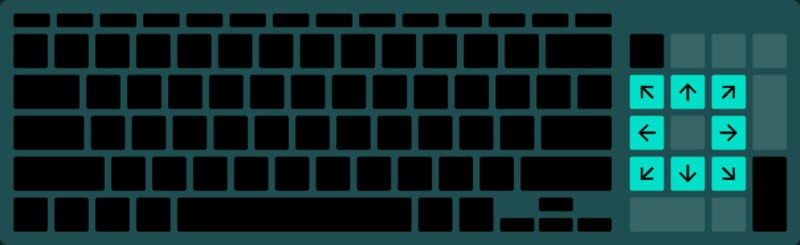
In case the alphabet key shortcuts are hindering your workflow, try using the numeric keypad instead. To do so, just toggle off Use primary keys (as shown in the image above).
| To Move the Cursor (using Numpad keys) | Use |
|---|---|
| Up | 8 |
| Up to the left | 7 |
| Up to the right | 9 |
| Down | 2 |
| Down to the left | 1 |
| Down to the right | 3 |
| Right | 6 |
| Left | 4 |
| Press a mouse button | 5 |
| Left click | / |
| Right click | – |
| Double click | + |
| Press a mouse button and hold | 0 |
| Release a mouse button | . |
In this guide, we explored the easiest way to control the mouse cursor using keyboard shortcuts. This practical solution might come in very handy in case of hardware failures. It may also boost efficiency for many users, especially graphics designers, who require pixel-perfect accuracy. They may find it easier to use the keyboard to make fine movements.
Image credit: DALL.E. All screenshots by Jay Kakade