Rooting is far from the only way to customize an Android phone. Between changing settings and downloading apps, it’s a simple process to make your Android phone completely your own, with no pesky rooting required.
Create/Set Custom Ringtones and Notifications
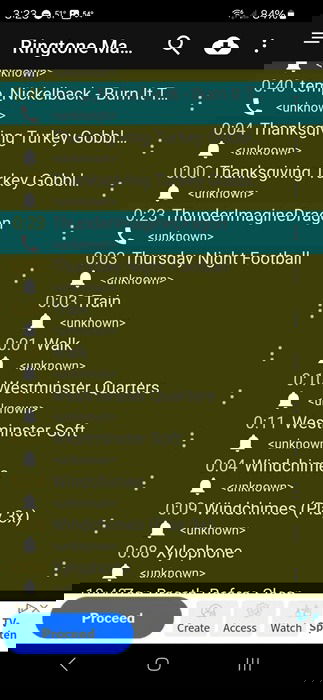
I know Android devices come preloaded with numerous ringtones and notification sounds, but honestly, I cringe every time I hear those generic sounds in public. One of the first things I do to customize a new Android phone is set custom ringtones.
If you want something completely custom, try a ringtone creator app like Ringtone Maker or MP3 Cutter and Ringtone Maker. Easily record audio or download music for free to create ringtones. Don’t want to cut and create your own? Download free or premium sounds on apps like Audiko and ZEDGE.
Get Custom Wallpapers
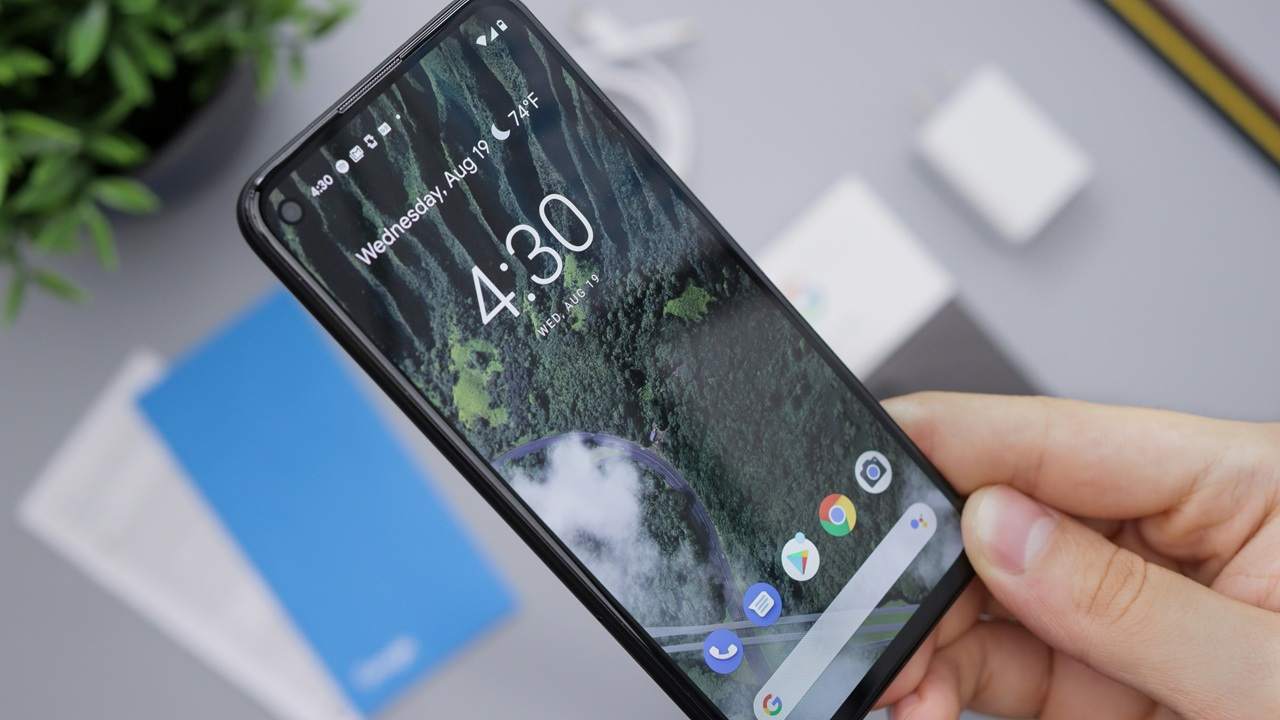
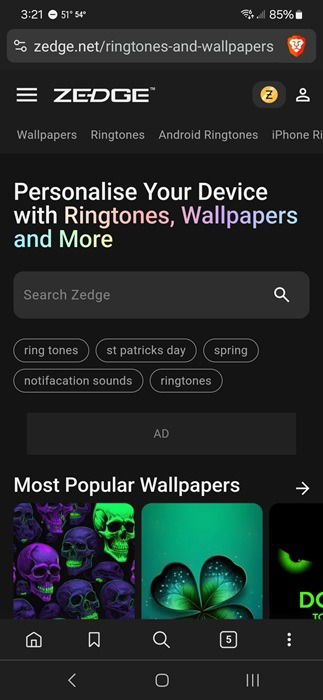
One of the easiest things to customize on Android devices is the wallpaper. And, thanks to lock screens, you get to set two wallpapers: one for the lock screen and the other for the home screen. My personal favorite app is ZEDGE, as it offers you all kinds of things for your phone: wallpapers, ringtones, notification tunes, games and even custom icon packs. But be prepared for a massive number of ads. I find that the Web version is actually more user-friendly.
You can also take pictures or screenshots and turn those into wallpapers. Or, use a weather app that changes your wallpaper based on weather conditions. And, if you love a rotating selection of wallpapers, use a wallpaper changer app. If you want something more dynamic, live wallpapers are a great choice, but they can drain your battery faster.
Use Some Home Screen Widgets
Custom home screen widgets are a great way to add convenience and extra functionality to your Android device. Most apps come with a widget, or multiple widgets, to fully customize your phone.
There are two easy ways to access widgets. If you want to see all available widgets in a handy list, long-tap on an empty section on the screen. Tap Widgets at the bottom of your screen, then explore and add what you want.
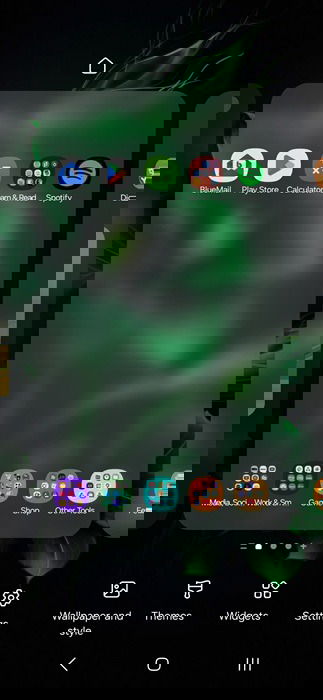
Alternatively, long-tap on any app icon, then tap Widgets. If there isn’t a widget option, that app doesn’t have one.
If you’re not sure where to start to choose the best widgets, try this guide. Personally, I highly recommend having a weather widget at the very least.
Install a Custom Launcher
Did you realize that your Android launcher is the most used part of your device? It handles everything from your home screen, app drawer, and the look and feel of your device. When you want to customize an Android phone, a custom launcher is a great start.
Nova is by far the most well-known launcher, but it’s been having issues due to operational challenges and not getting the developmental support it deserves. It could be glitchy. There are multiple alternatives that work just as well, if not better.
To start using these apps, install them and start using them as your home launcher.
Use a Custom Keyboard App
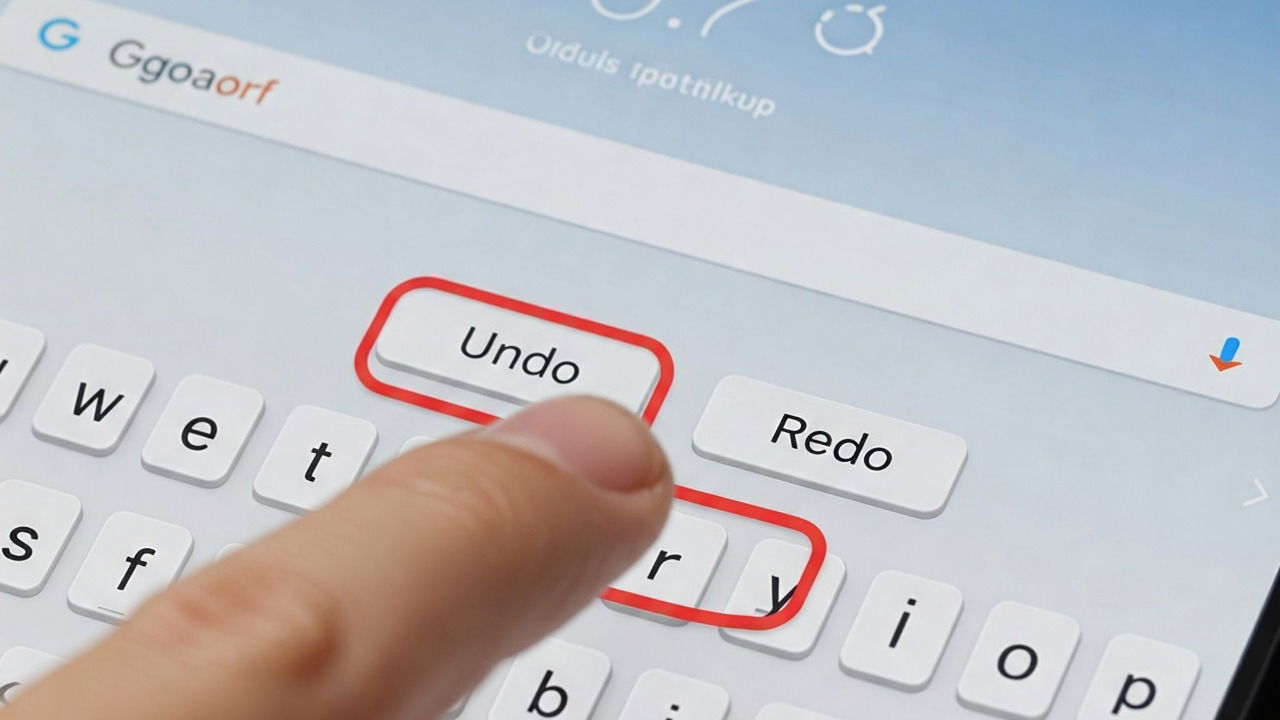
Where would we be if we didn’t talk about keyboards? Not only is a custom keyboard one of the best ways to customize an Android phone, but typically, they correspond with a massive leap in usability and speed at which you can use the device to text your friends or browse the Web.
Today’s Android stock keyboards offer far more customization options than ever, including built-in glide typing. Two of the most popular options are Gboard and SwiftKey. They offer customizable themes, easy GIF and emoji searches, and even built-in AI, if you want to use it.
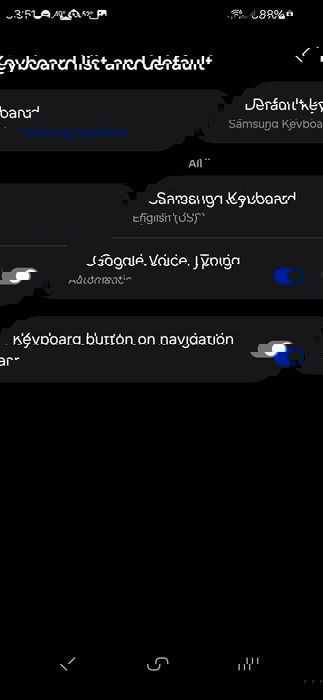
Just make sure to set the new keyboard as your default in your Android settings (Settings -> General Management -> Keyboard list and default).
Change Home and Lock Screen Layouts
An ultra-simple way to customize an Android phone is to change your home and lock screen layouts. Go to Settings, and select Home screen to adjust the grid size, folder grid size, add/remove the media page, hide apps you don’t want but can’t remove without rooting, add/remove search, and more.
For the lock screen, go to Settings -> Lock screen and AOD. Choose your lock screen type, turn Always On Display on/off, add a clock, and even add widgets for quicker access.
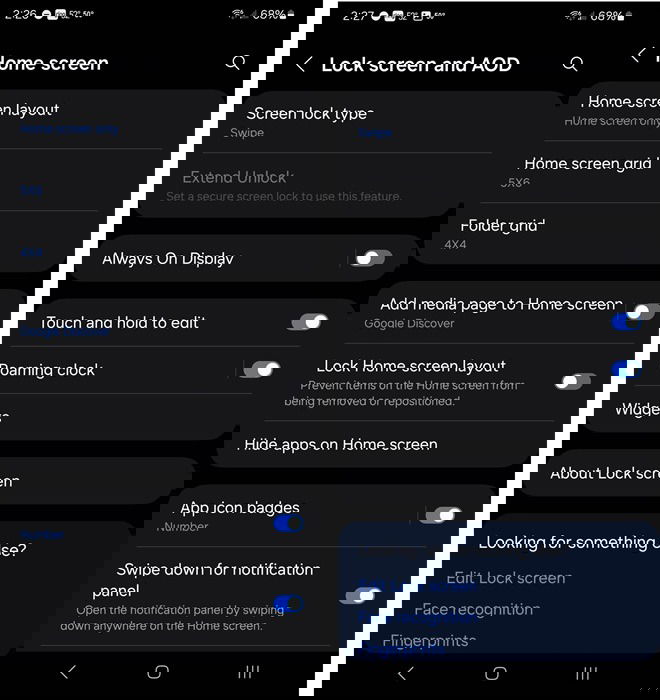
These may seem too basic, but just switching my grid size and adding a few widgets to my lock screen makes my phone feel more like mine than just a generic phone.
Adjust Fonts and Size
Another often overlooked Android customization option is the font and size. It’s easy to just stick with the default, but it’s nice to make the font easier to read. Go to Settings -> Display -> Font size and style.
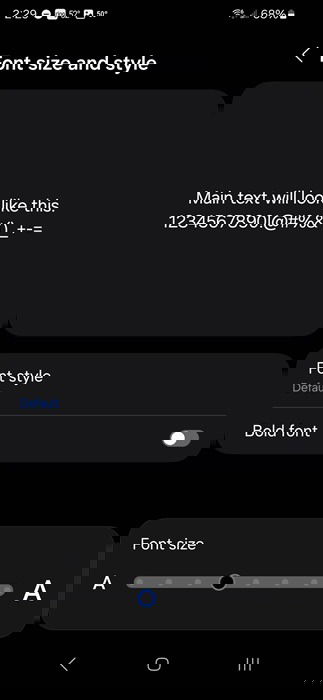
Change the font style to one of the preloaded options, or upload one of your own. You can also decrease or increase the font size, which applies to nearly everything on your device.
Enable Android Gestures
Customizing how you use your phone is just as important as how things look. If you’re not already using Android gestures, you’re missing out. I don’t use every gesture available, but you’re free to customize the way you interact with your device. For instance, choose to keep the traditional navigation buttons, or remove them and opt for gesture navigation. We’ve put together a list of the best gestures to get you started.
Take some time to customize an Android phone to make it easier and more fun to use. The best part is, you never have to root your device to do it.
Image credit: Pexels. All screenshots by Crystal Crowder.