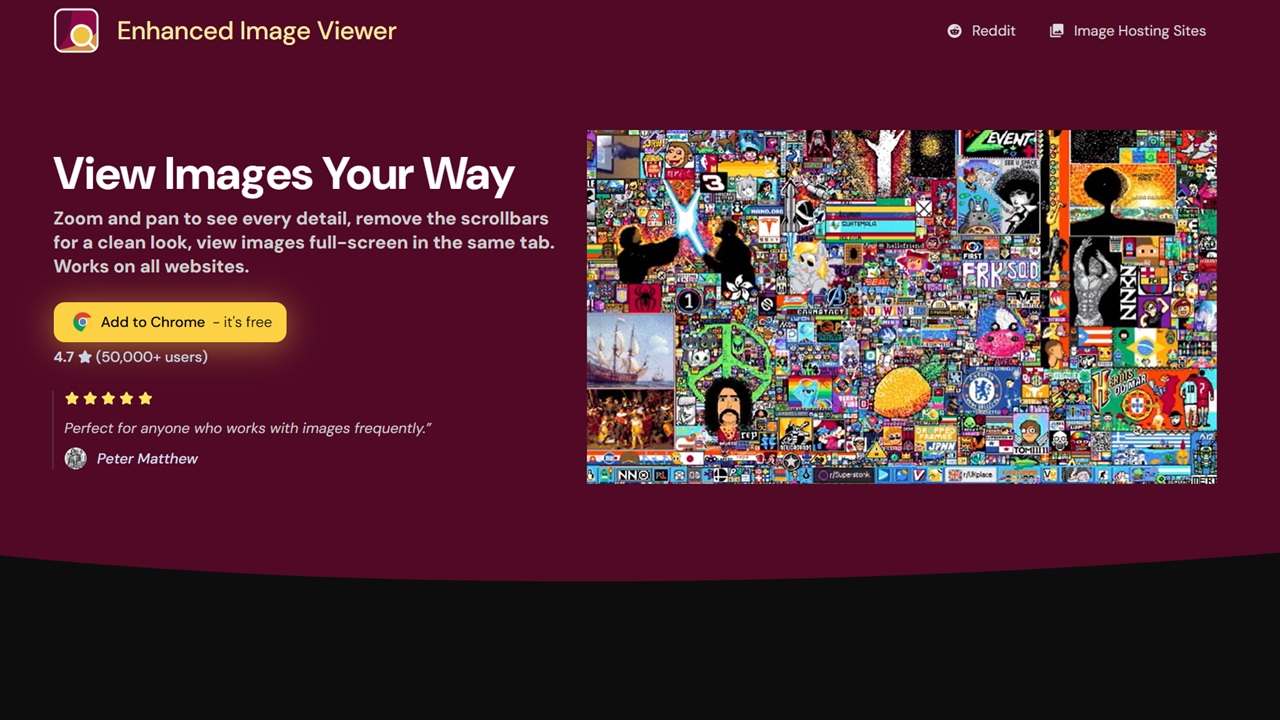
The Enhanced Image Viewer is a versatile Chrome extension that allows you to view and manipulate images directly in the Chrome and Edge browsers. Whether you need to zoom, rotate, pan, or flip images, this extension eliminates the need for desktop applications. Find out more about this free extension in this review.
This is a sponsored article and was made possible by Enhanced Image Viewer. The actual contents and opinions are the sole views of the author, who maintains editorial independence even when a post is sponsored.
What Is Enhanced Image Viewer?
With its tagline, “View Images Your Way,” Enhanced Image Viewer delivers on its promise, allowing you to control image viewing directly in your browser. This simple Chrome extension effectively provides many commonly used functions of desktop image editing tools, saving you time, especially when managing multiple images across different tabs.
While Google Chrome’s default image viewer appears to be enough for basic zooming, after installing Enhanced Image Viewer and making it my default, I discovered a range of powerful features I hadn’t seen before.
Although I’m not a digital artist or graphic designer, I work with images frequently. Once I got the hang of this robust extension, its intuitive features significantly enhanced my Chrome experience. (It works perfectly with the Edge browser as well.)
Zoom In and Zoom Out With Precision
With Enhanced Image Viewer, I discovered that you could control the zooming with the mouse scroll wheel, making it feel more natural and intuitive. This mouse wheel technique is familiar to users of professional design software, like Adobe Premiere Pro, and now you can use it directly in your browser.
Simply position your cursor, and the mouse wheel will reveal the finer details. This is very useful for reading small text within an image. There’s no need to download the image to view it properly. I often take photos of retail products on store shelves. With this extension, I can now zoom in to view the prices without leaving the browser tab.
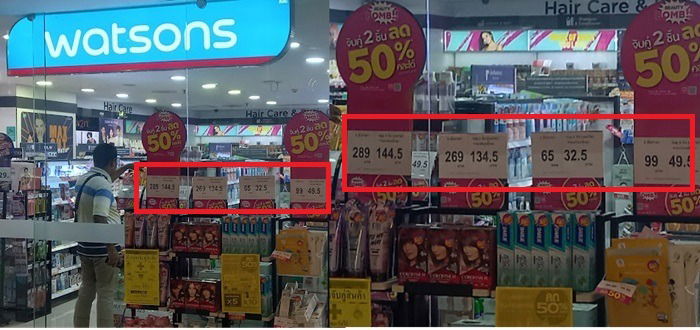
While Chrome’s built-in image viewer lets you zoom in and out with easy clicks, the effect can often feel deprecated, partly due to the image’s original dimensions that were set by the hosting website. Using this extension, the scroll wheel allows you to precisely view the images in the exact region you want to focus on. It feels like having an extra pair of eyes. Continue zooming in until the image starts to blur.
Effortless Panning in the Browser Window
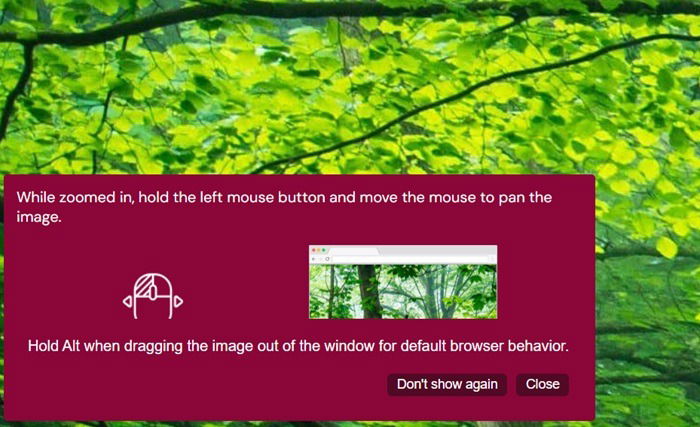
The extension makes panning an image a breeze. Zoom in once, hold the left mouse button, and drag it wherever you need it. It works just as easily on a laptop trackpad. The ability to effortlessly pan within a zoomed image is incredibly useful. For example, when referring to an electronic circuit, quickly navigate to the tiniest components without leaving the browser window.
Graphic designers will find this feature invaluable for working with high-resolution photos and clips, capturing every detail of brushstrokes and color variations. For students and researchers, it enhances academic work for in-depth study. Whether you’re examining medical imaging scans or real estate floor plans, panning is often why we rely on desktop software. There’s finally a browser-based alternative.
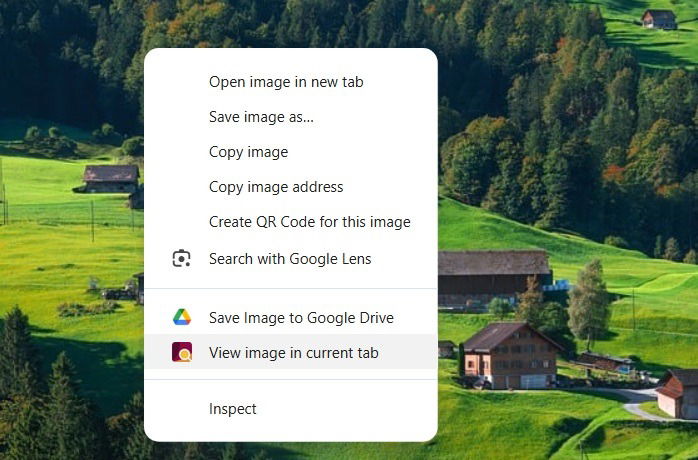
While there are other Chrome extensions with pan capabilities, Enhanced Image Viewer stands out by effortlessly slipping into the Chrome context menu, making panning second nature. You really need to experience this firsthand to appreciate how it works, as there’s only so much that can be conveyed in writing.
Rotate the Image in Any Direction
Google Chrome’s built-in image viewer doesn’t support image rotation. While there are many extensions and browser-based tools that can handle this, Enhanced Image Viewer stands out. After installing it, simply hold the Alt button and scroll the mouse wheel to rotate images in any direction. You can look at any object from multiple angles directly in the browser tab.

For trackpad users, although the precision might not match that of a mouse wheel, you can still rotate images clockwise by pressing E or counterclockwise by pressing Q. I find this feature quite useful for correcting my smartphone camera images to be synced to online image-hosting sites that sometimes appear inverted. I am now able to straighten them directly in the browser.
Flip Images Horizontally or Vertically
Flipping an image directly from a browser tab is a much-desired feature, alongside rotation. Previously, I relied on various online tools to achieve this, flipping each image individually, then downloading it – an inefficient and time-consuming process. With this extension, flipping an image is as simple as pressing the H key for horizontal flipping or the V key for vertical flipping.

Flipping is especially effective for symmetrical interfaces, allowing for instant edits without any hassle. This feature is particularly useful on e-commerce websites like Amazon, where you can view products, such as T-shirts or shoes, from multiple angles. The enhanced perspective allows you to catch many details or minor issues that would have otherwise escaped your vision. Of course, if you’re a designer or graphics person, you can check for symmetry and balance from multiple angles.
Unlock the Full Potential of Reddit
After testing Enhanced Image Viewer on various stock and free image sites, I found its image manipulation features work flawlessly. It shines the best on Reddit, where many original photos are uploaded by Redditors, serving as a popular source for memes and useful texting forwards. In the past, you had to download each image individually.
This extension revolutionizes the way you use Reddit images. Instead of opening an image in a separate tab, click once in the center of the image, directly on a Reddit browser tab, and it will zoom in and expand to fill your browser window. As advertised, it lets you “ditch the header and footer,” allowing you to focus directly on the image for detailed observations. This is great for working with Reddit galleries featuring multiple images.
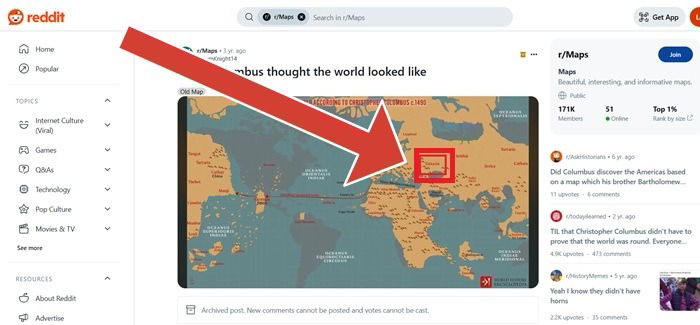
Scroll through and zoom in on specific details with ease. Reading the tiniest details on a map is now an effortless task. This magnifying feature seamlessly carries over across multiple tabs, making your Reddit browsing uninterrupted and very fast. Although I’m not a frequent community user, I access Reddit’s vast collection of images and wallpapers. This feature is something I’ll definitely find useful in the long run.
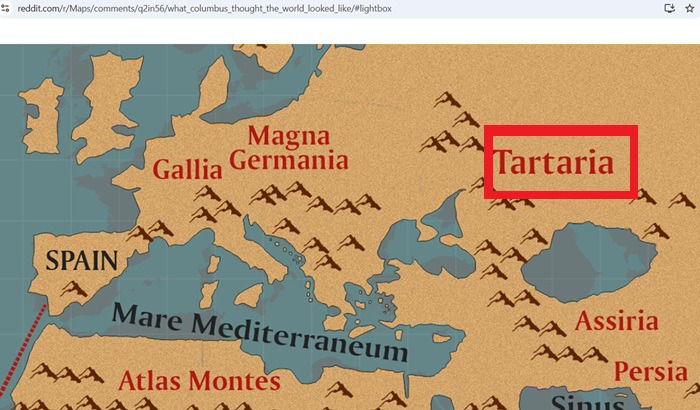
Other Features Worth a Mention
Some of the other useful features of Enhanced Image Viewer include:
- Full-screen image viewing: view an image at its full size while hiding the scrollbars
- Pixelating an image: just press the P key to pixelate an image
- Mini editor: the extension serves as a mini-imaging editor, allowing you to set a custom background color, work with local files, and in incognito mode.
Enhanced Image Viewer: Our Verdict
When it comes to Chrome image extensions, Enhanced Image Viewer is impressive. Its free availability makes it readily accessible for every Chrome (and Edge) user. I have yet to encounter another extension on the Google Chrome platform that offers such a wide range of advanced image manipulation controls, like zoom, pan, and scroll, all in one free package.
Clearly, there’s no reason not to start using it right away. Personally, though, I’d have wanted this extension to work with Google Photos and OneDrive, where I upload a lot of my cloud pictures. This is something the developers should be looking at in the future.