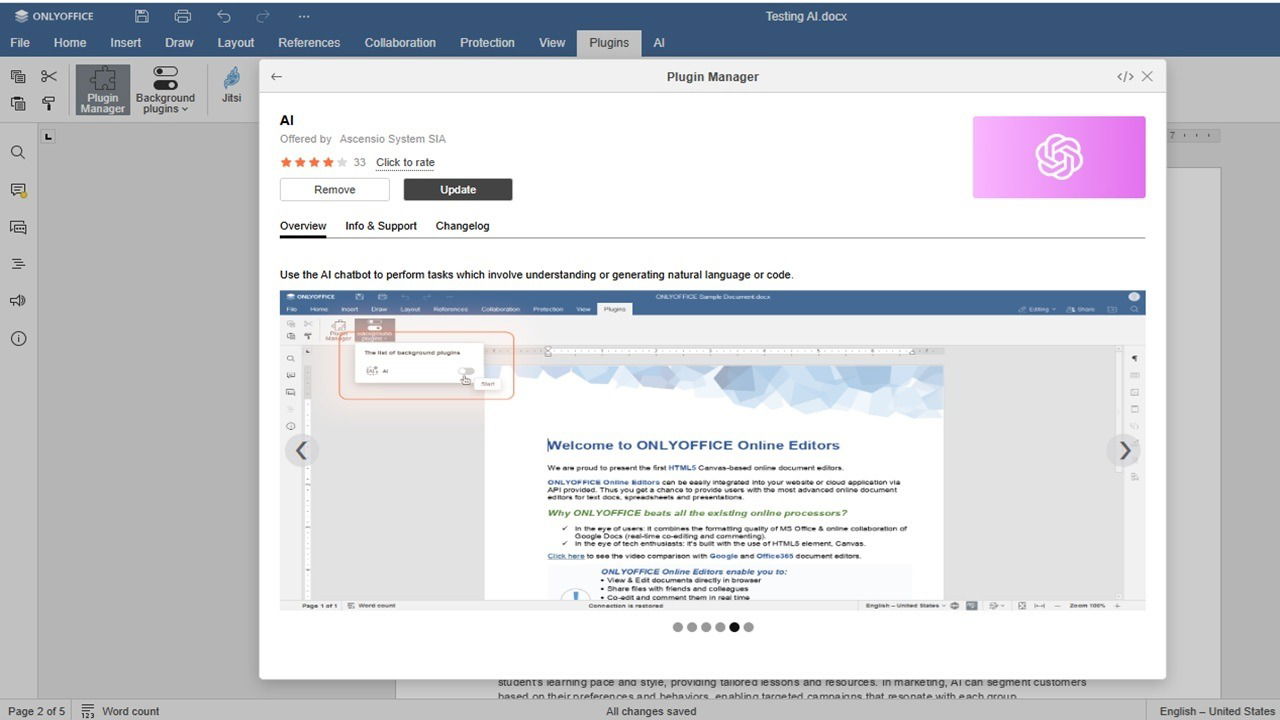
Many productivity suites are adding in AI functionality, but they’re usually limited to their own proprietary AI or a select one or two options. The ONLYOFFICE AI plugin is doing things differently, and it’s a breath of fresh air.
This is a sponsored article and was made possible by ONLYOFFICE. The actual contents and opinions are the sole views of the author who maintains editorial independence even when a post is sponsored.
The Flexible OnlyOffice AI Plugin
Originally, ONLYOFFICE Docs only worked with ChatGPT, which is fairly common. After all, OpenAI is one of the most commonly used AI platforms. But, it’s far from the only option. Recently, the cloud-based productivity suite released a new version of their AI plugin that allows you to connect nearly any AI model.
It currently allows you to connect to the following providers:
- OpenAI
- Together AI
- Mistral
- Anthrophic
- Google-Gemini
- Deepseek
- Ollama
- Groq
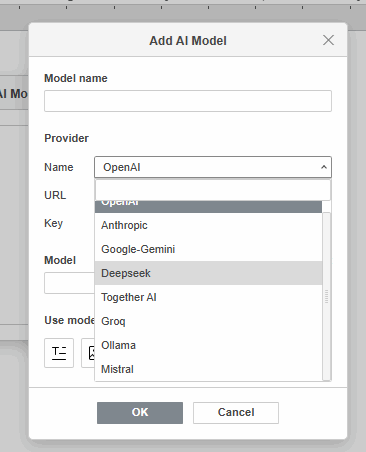
Additionally, if you’re using the desktop version of OnlyOffice, you can also connect GPT4All. What’s even more impressive is that once you’ve connected to a provider, you also get to choose the model(s) you want to use. For instance, if you’re using OpenAI, you can use GPT-4 for text output and DALL·E for image creation.
My favorite part is that you’re not limited to a single AI provider or model. The AI plugin lets you fully customize which providers and models to use for specific scenarios. You’re also free to switch your preferences at any time.
Installing the AI Plugin
If you don’t already have an ONLYOFFICE DocSpace account, it’s free to sign up. I already had an account, so I just needed to create a new document to install the plugin. This method works with any ONLYOFFICE editor, not just Docs.
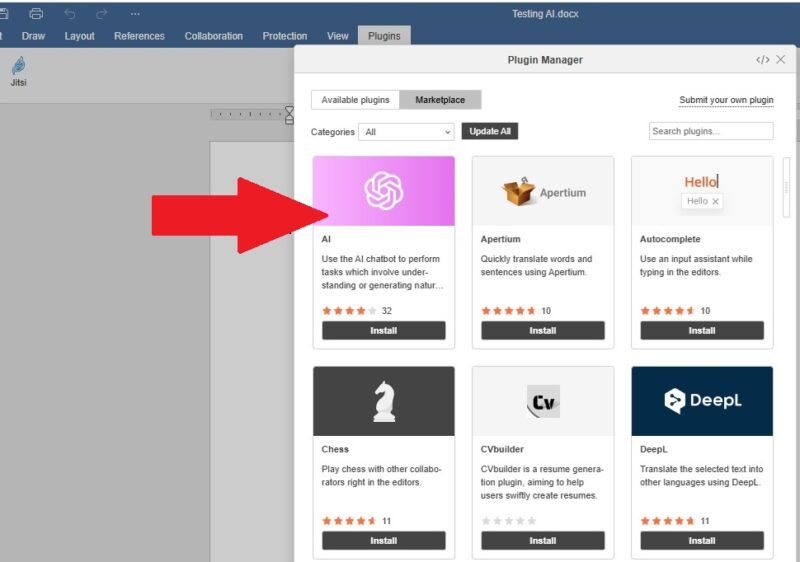
Click the Plugins tab above the editor window to view available plugins. Click Install under the AI plugin. This installs it but doesn’t enable it.
Open the Plugins tab again, and select Background Plugins. Slide to enable the ONLYOFFICE AI plugin.
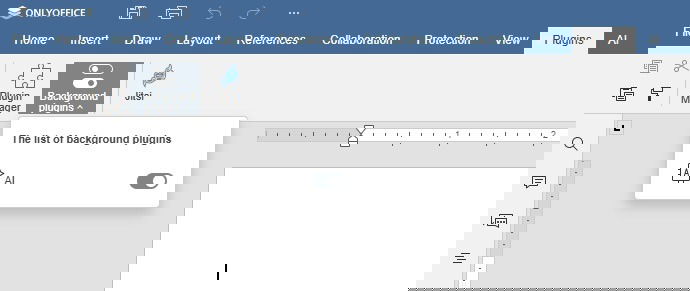
Overall, it only takes a minute or two to install and activate the plugin – but then you get to customize the plugin to your needs.
Configuring the Plugin
Before you start, you must have an account with the AI provider you want to use. You’ll need an API key, which you can get from the provider. Please note that some providers don’t offer API keys in the free versions. ONLYOFFICE does not provide API keys. The plugin is only for connecting your AI account to your ONLYOFFICE account.
I originally tried to use the free version of OpenAI, but the policies have updated, and they no longer provide API keys in the free plan, so I switched to Mistral for my review and tests.
Select the new AI tab beside the Plugin tab within the chosen ONLYOFFICE editor. I’m using Docs as an example.
I had to set up my AI preferences before I could actually use anything. To do this, I just click Settings above the editing window, then click Edit AI models to initially set up your provider.
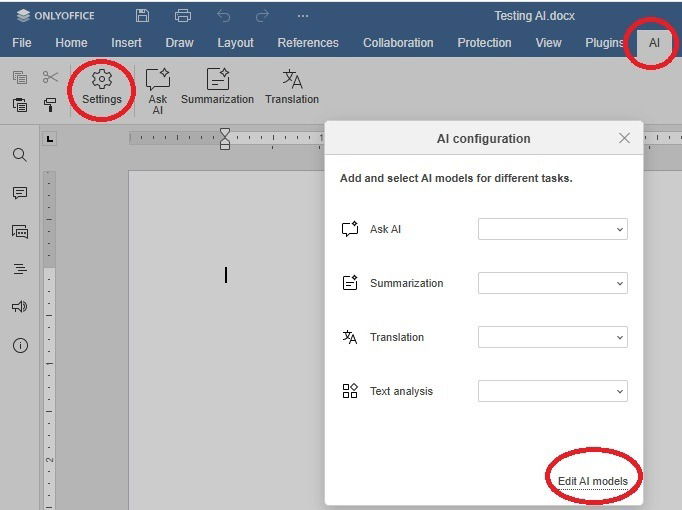
Click Add to set up a model for the first time. Later, you will go here to edit existing preferences or add in other models.
Fill in all the required details. I just stuck with the name of the provider for the name of my model, but you can name it anything you want. Once you choose one, the URL fills in automatically. Add in your API key, then choose the model you want.
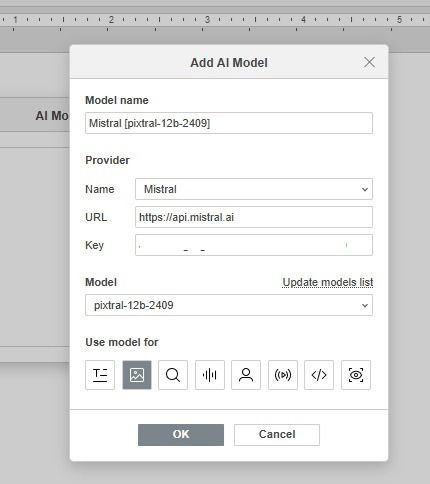
At the bottom, select what you want to use the model for, such as text, image creation, coding, analysis, etc. Click OK when you’re done, then exit the editor window. Choose which model you’re using – if you’ve setup multiple models – you want to use for each task, including:
- Ask AI
- Summarization
- Translation
- Text analysis
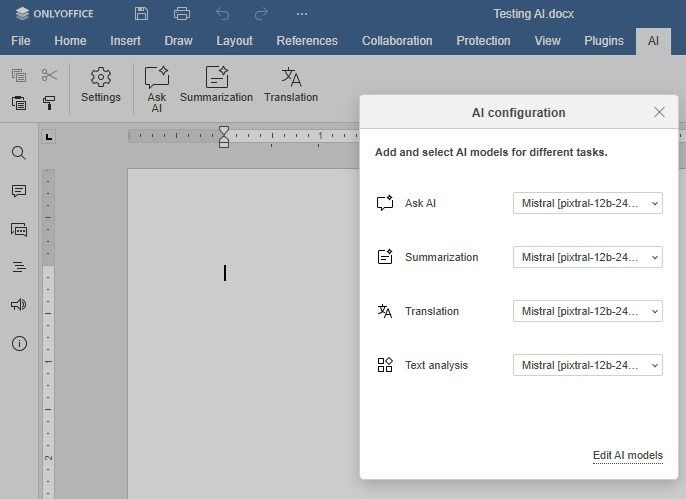
Once everything’s set up, it’s time to get to the best part: actually using the AI within ONLYOFFICE.
Using the AI Plugin
The ONLYOFFICE AI plugin tab gives you several options beyond just the Settings. Click Ask AI, Summarization, or Translation to start using your favorite AI model.
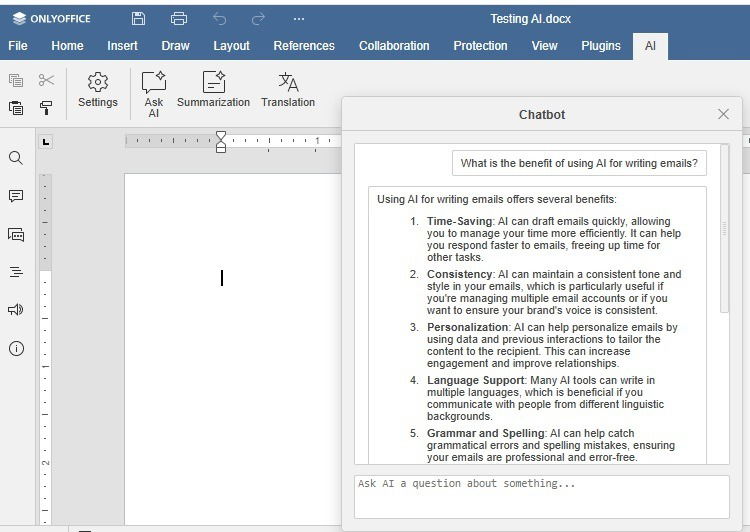
I started with Ask AI. It opens a separate chatbot window. Personally, I’m glad it doesn’t do anything to my existing document. This lets me use the AI plugin without altering anything I’ve already written.
As a test, I asked the chatbot what the benefits of AI are for writing emails. It only took about five seconds to generate a detailed response. I could copy it to my document, follow up with more prompts, or just exit the window.
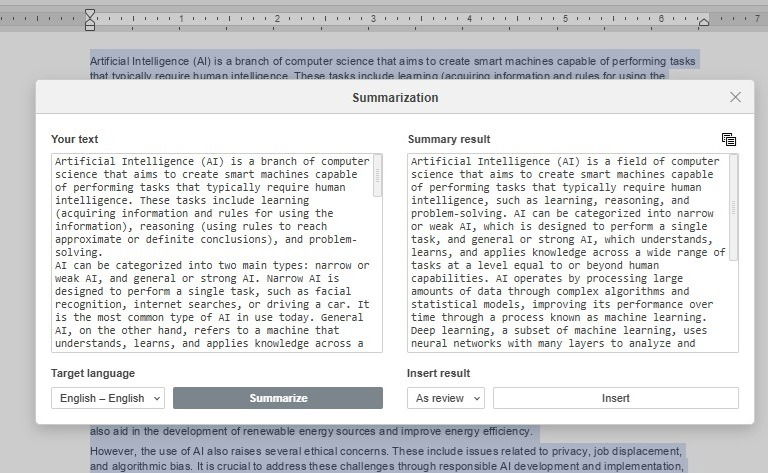
I also tried summarizing content using AI. I first asked the chatbot to write 500 words about the benefits of AI. I know it’s a very general concept, but it works well for testing. I copied the response and opened the Summarization tool. After pasting this into the tool, I chose to summarize as a review.
You can also add the summary to the end of your document, replace the existing document, or add it as a comment. For the review, I previewed the details, then had the option to insert it into my document.
There’s one more way to use the ONLYOFFICE AI plugin besides just using the AI toolbar.
Let’s face it, sometimes our writing needs a little cleaning up. Whether it’s phrasing issues, grammar, or making text longer/shorter, the AI plugin lets you do it.
All I had to do was highlight the text I wanted to edit or analyze using AI. You can right-click to explore more options.
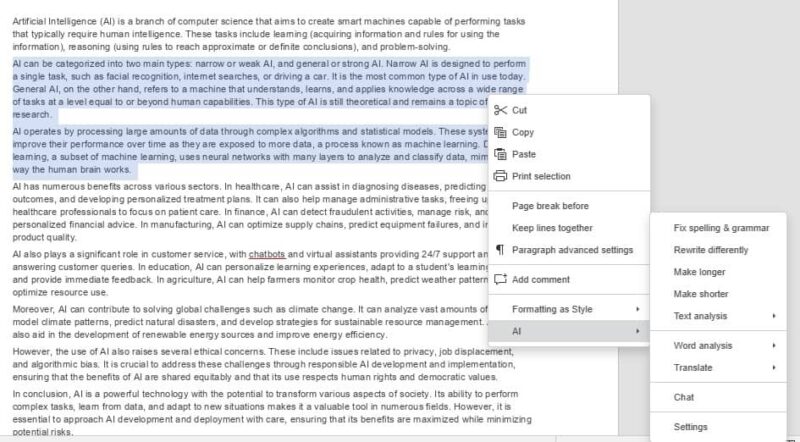
My favorite option is Fix spelling & grammar. Having that built in means I don’t have to rely on other plugins, like Grammarly, to edit documents for me.
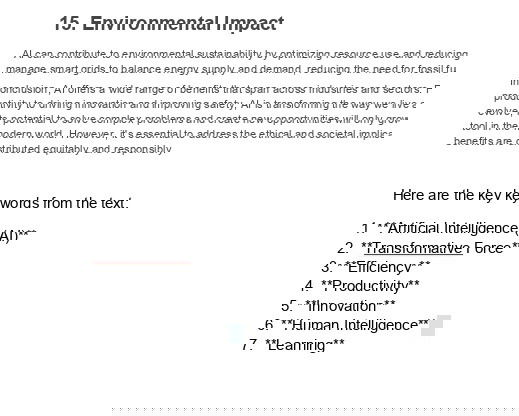
Also, if you’re focusing on SEO, try the Text analysis option and pull the keywords. These are added to the end of your document and helps you to see if your content is focused on what it should be. It ranks keywords from most to least used, which is helpful.
AI is Easier When It’s Built In
Sure, I could do all the same AI tasks by copying and pasting content back and forth between my favorite AI provider and ONLYOFFICE. But why do twice the work when I could just do it within ONLYOFFICE?
Having the option to connect nearly any major AI provider and model I want makes ONLYOFFICE even more productive than before. I’d highly recommend trying the ONLYOFFICE AI plugin yourself. If you use a free AI provider, it’s entirely free to try in ONLYOFFICE’s Startup plan.