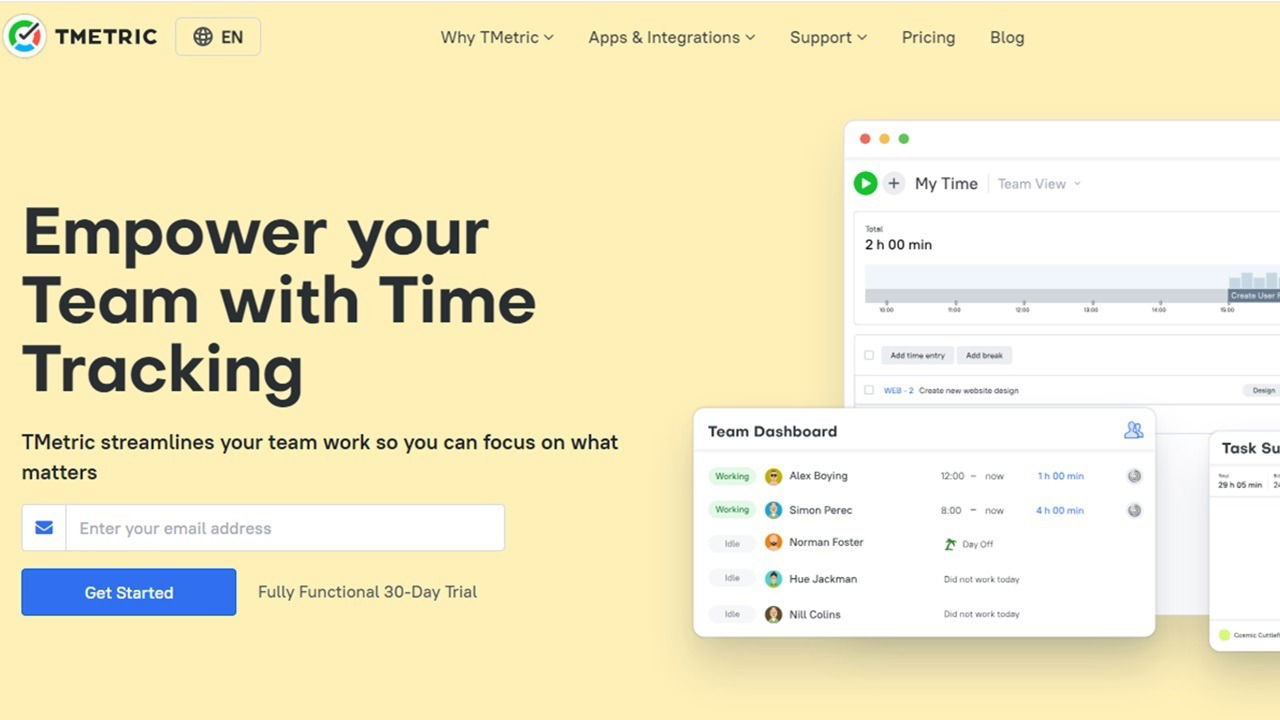
Many time-tracking apps are complicated and difficult to set up. I recently tried out TMetric, the simple, yet more effective way to track time for all types of projects for teams of all sizes. Was it as easy to use as it seems? Read on to find out.
This is a sponsored article and was made possible by TMetric. The actual contents and opinions are the sole views of the author, who maintains editorial independence even when a post is sponsored.
Complete Setup in Just Minutes
I’ve tried some time-tracking apps that take hours to set up. Usually, it’s because the interface is so cluttered and complicated that it’s difficult to find everything I need. With TMetric, I had an account set up, a new workspace created, and had gone through the tutorial in less than five minutes.
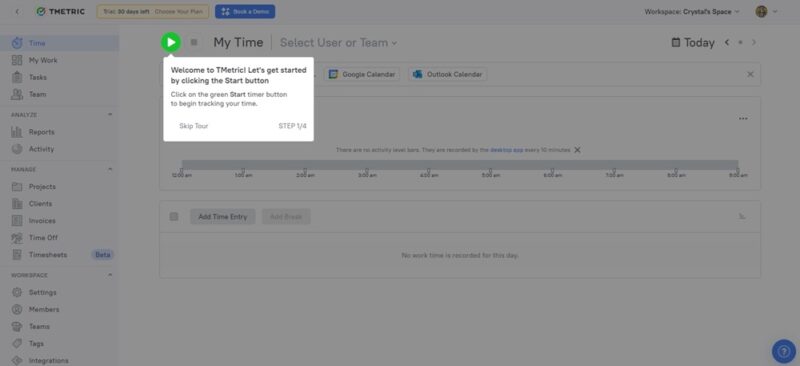
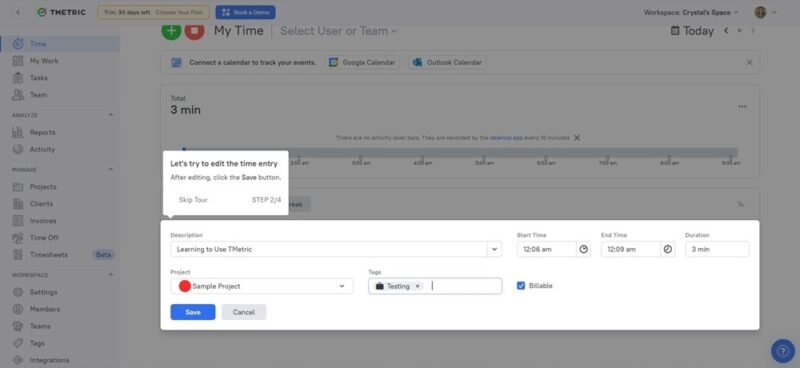
From here, it’s just exploring. During the tutorial, you’re asked to set up a sample task that immediately starts tracking your time. This gives you a little data to explore reports and see how the basics work.
I even had the Android app and Windows desktop app installed and logged in. This is ideal if you don’t want to constantly keep the browser version open. The cross-platform time-tracking app is also available for macOS, iOS, and Linux.
The demo setup includes a few sample employees, but the tutorial takes you through inviting new members to your team as well. As soon as they respond to the invitation, you’re able to set up their data, including schedule, time off, and assigning tasks/projects.
Incredibly Accurate Time Tracking
As mentioned earlier, the moment I set up a task, time tracking started. Or, I can just set up a task and manually start tracking by tapping the start button when I’m ready. This is perfect for assigning tasks and letting your team start them on their own time.
Of course, you can still set deadlines, so things will stay on track. What I like is that tracking is accurate to the last second, and everything stays synced, no matter the platform you’re on. For example, tracking looked the same on the browser, Android app, and desktop app at any given time.
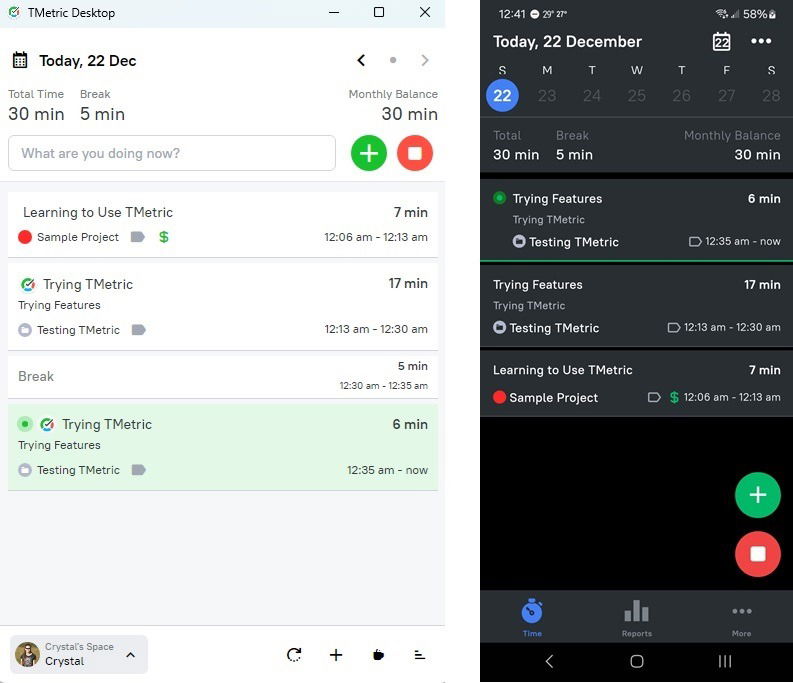
TMetric even takes breaks into account. Employees just add a break, set the duration, and keep their active and inactive time separated.
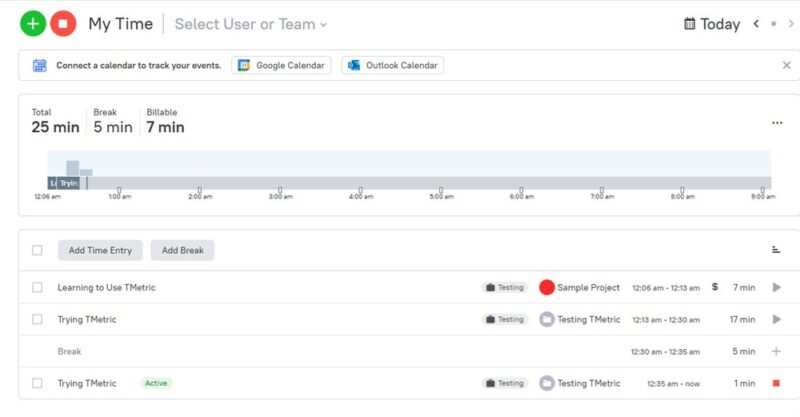
We’re all guilty of forgetting to pause time when taking a break. I purposely left my PC idle for a while to see what would happen. The desktop app popped up to let me know I’d been idle for a while. I had to take action to continue time tracking. This included setting it as a break, continuing as idle, or starting a new task.
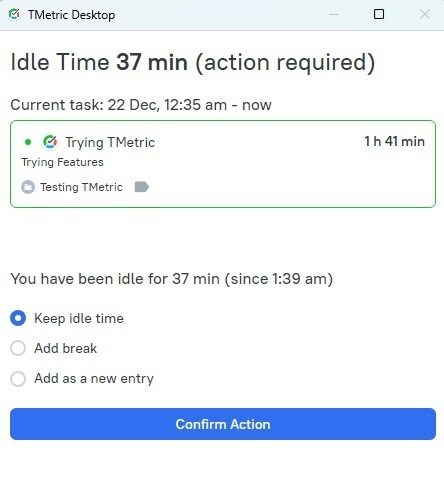
Every TMetric app lets you add and manage tasks/projects. Personally, I enjoy the apps. The ultra-clean interfaces make it easy to see what tasks you have to work on, current time, reports, and check what’s upcoming.
Better Manage Employee Time
Ever wonder how efficient your team is and which employees are focusing on what? TMetric offers six different reports to track overall performance, including:
- Projects
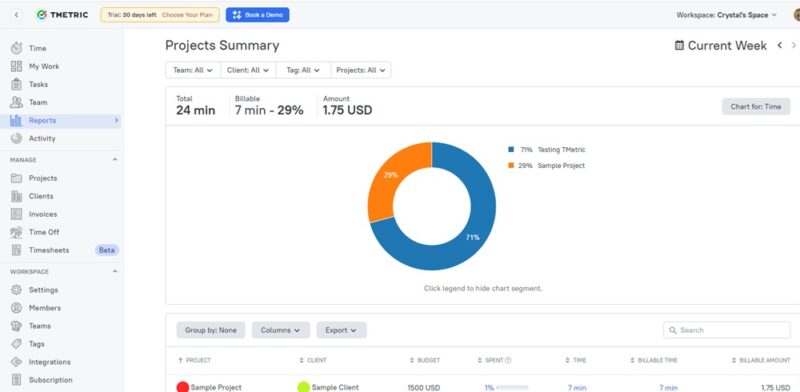
- Tasks
- Team
- Activity
- App usage
- Detailed summary
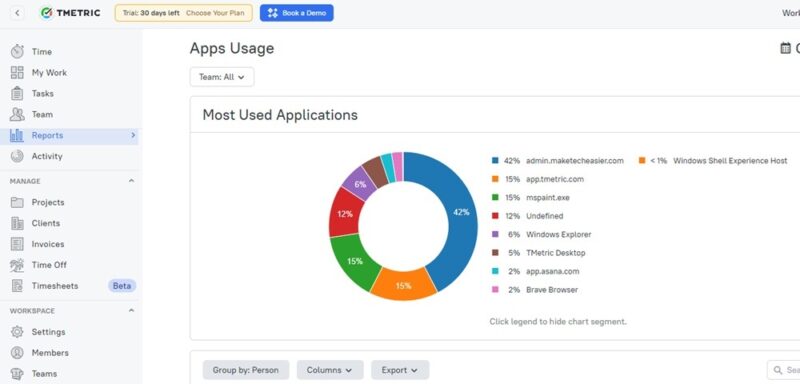
I was impressed with how well the app usage summary tracked every open window throughout the entire project. If I need more data, I just jump to the Activity screen, which shows more details about app usage and even screenshots.
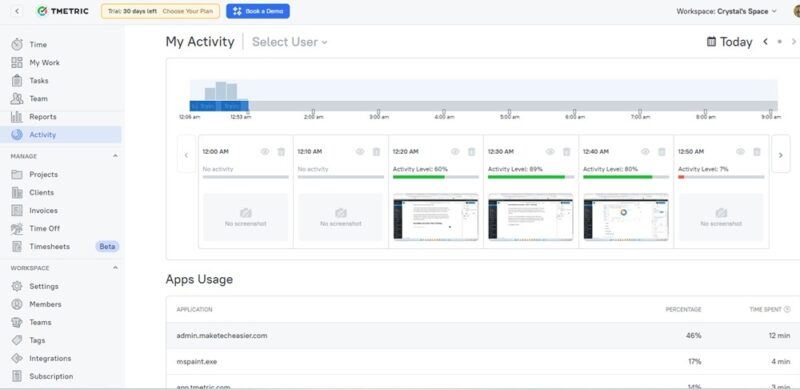
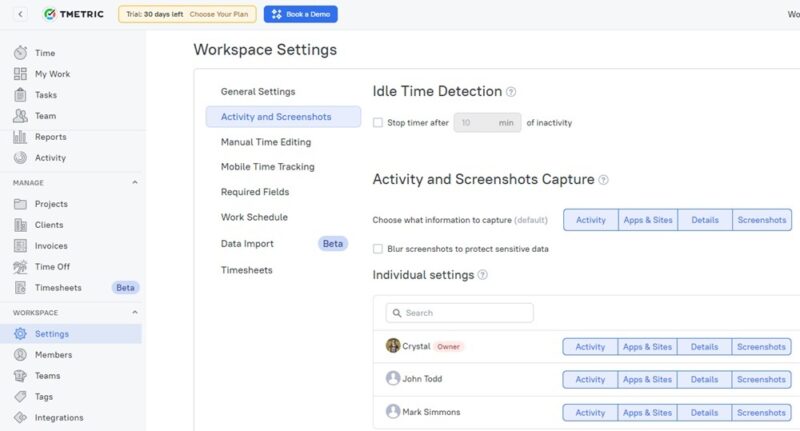
Please note that you do need to turn on screenshots and app tracking in Settings. This can be for all users or just specific users. It’s important to note that if a user has the timer turned off, even if they’re logged into TMetric, no activity or screenshots are recorded. Also, if someone forgets to turn off the timer when they’re done and starts using their device for personal activities, they can go back, delete that specific time interval, re-add it, and set it for zero percent activity. This removes personal screenshots, which I personally think is a great idea.
Finally, TMetric offers scheduling, time sheets, and time-off management. While you don’t have to set up a schedule, you can. And employees are able to view and submit time sheets. They can even download them for their own records.
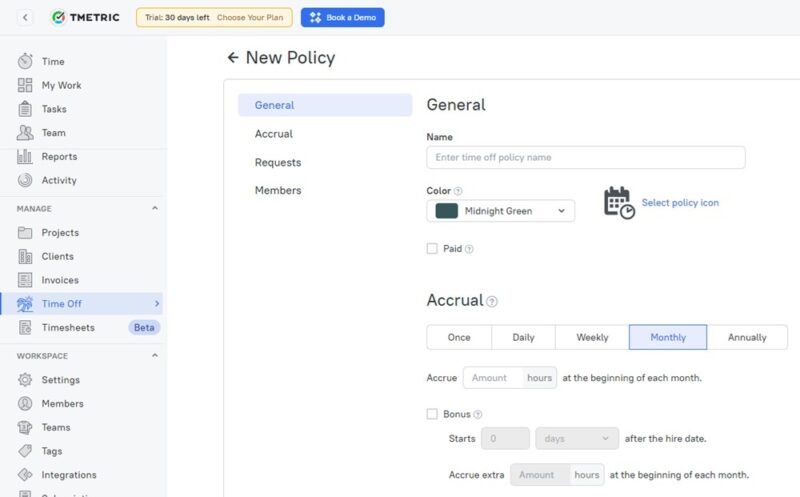
You do have to set up a policy first for time off, but it can be rather simple or as complex as you would like. Then, team members submit requests, and you just have to review and approve or deny them. It’s that simple.
Take Better Control Over Billing
Whether you’re a freelancer or a business with numerous employees, you’re going to have billable and non-billable hours. Sure, you could manually try to sort it all out, but isn’t it easier to just set it up to track automatically?
TMetric lets you set up billable and non-billable projects. Maybe a team member has to do a training exercise that’s not billable to clients. They complete a project that is billable. Both tasks show up on their activity, but when determining the total cost of the project, having the two separated makes things easier.
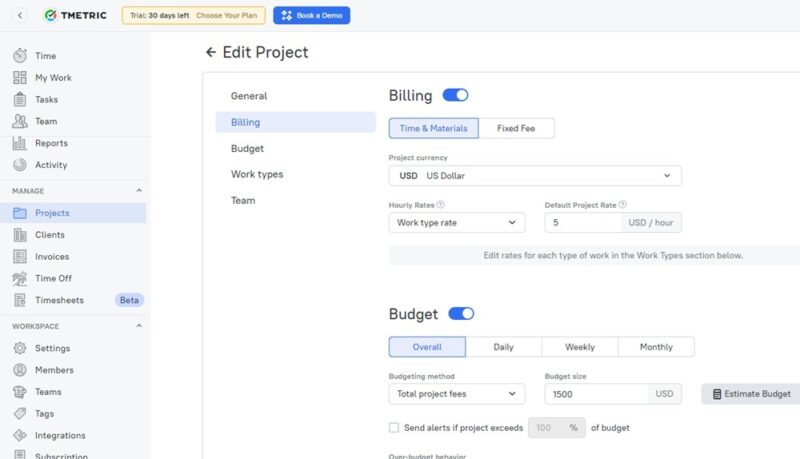
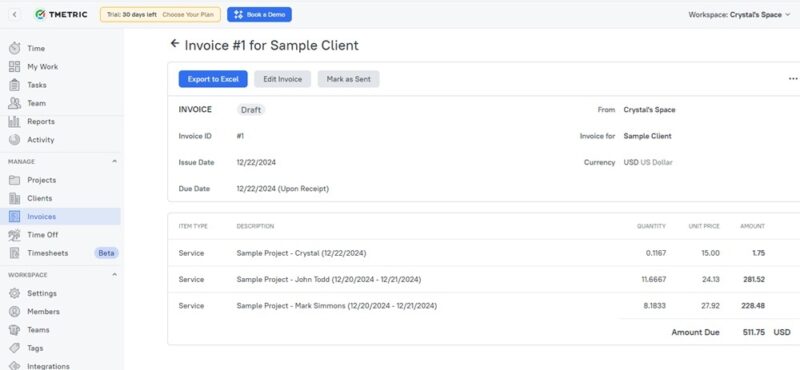
Another nice feature is the invoicing. As long as you set a client when you create a project, it’ll automatically show as an option when creating a new invoice. If I have a client that I write 10 articles for, I could track each article separately under the same client, then create an invoice that details each task.
The best part is that if multiple team members work on tasks for the same client, it’ll all show up together. One invoice for the whole team’s work. Plus, you can even export it to your favorite accounting software or just Excel.
Integrates With Other Project Management Tools
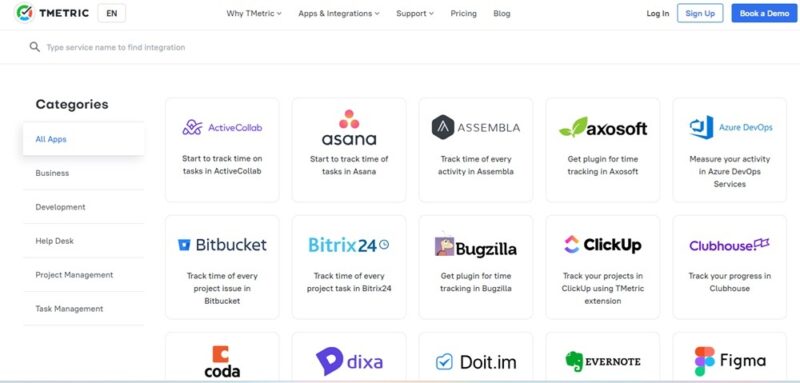
TMetric has a wide variety of integrations to better track your team. For instance, we’re using Asana at Make Tech Easier to assign and manage certain projects. If I tied the two together, I could use TMetric to track the time I spent on projects assigned to me in Asana.
As a writer, another great integration is Microsoft Office. This lets me see just how much time I spend actively using Office when crafting a new article.
Integrations range from project management tools and productivity software to software/app development and help desk tools. Naturally, there are calendar integrations to keep you on track at all times.
Competitive Pricing
While many time tracking apps only give you a week to try things out, TMetric gives you a full 30 days to test all the features, with no credit card required. You can even book a demo during the trial to get a more in-depth tour on how everything works.
If you choose to continue after the trial, there are several plans to choose from:
- Free (up to five users) – features time tracking, unlimited projects and clients, timesheets, reporting, and a timer button in over 50 web apps.
- Professional (starts at $5/user/month or $50/user/year) – adds billable hours, invoicing, activity levels, timesheets, more integrations, and importing.
- Business (starts at $7/user/month or $70/user/year) – adds apps and sites usage reports, screenshots, payroll, scheduling, team dashboard, and more.
Larger teams do get a discount. For instance, teams of 40 get a $20 a month discount. While the free version is rather limited, it does work well enough for a small group or a freelancer to keep track of hours spent on a project, along with general project management.
Simple Setup for Accurate Time Tracking
Despite how it looks on the surface, TMetric is very simple. It has a well-laid-out interface, making it easy to learn how to use it within minutes. Plus, you can start time tracking immediately after setting up a workspace. Whether you’re a large team or a single freelancer, TMetric has the tools you need to accurately track your time on any project and on almost any platform.