Snapped a photo and need to get it from your phone to Microsoft 365 Copilot immediately? This new feature simplifies and fast-tracks the process for you.
Microsoft is removing the usual hassle involved in sending a photo from your mobile to Copilot with this feature. No more emailing yourself pictures or digging through cloud folders.
Now, you can simply upload images from your Android or iOS to Microsoft 365 Copilot using the mobile app or a QR code. This removes the clunky transfers and allows Copilot to analyze images or pull text instantly.
If you’re a Microsoft 365 Insider, this will roll out to you first. Although it’s a small tweak, it makes a big difference, especially if you’re already syncing workflow between Android and Windows.
Share Images with Microsoft 365 Copilot from Mobile
Here’s a breakdown of how to share images with Microsoft 365 Copilot:
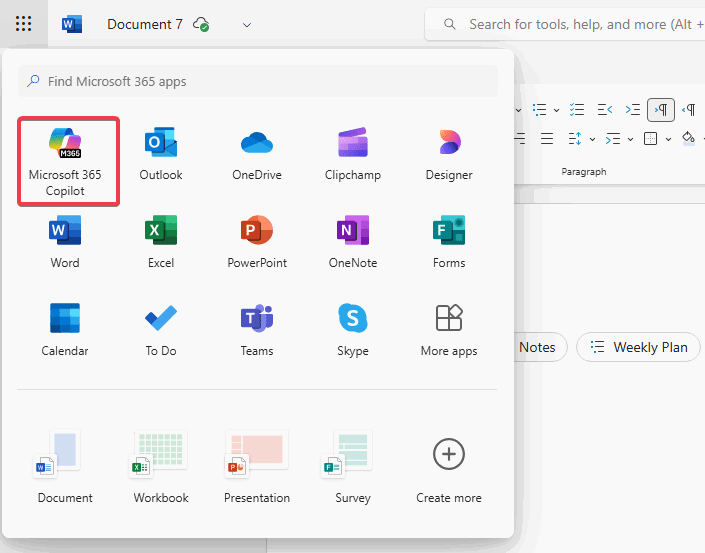
On your computer, launch Word, Excel, PowerPoint, or OneNote Windows app or the web version. Tap the Copilot button on the Home tab in the ribbon.
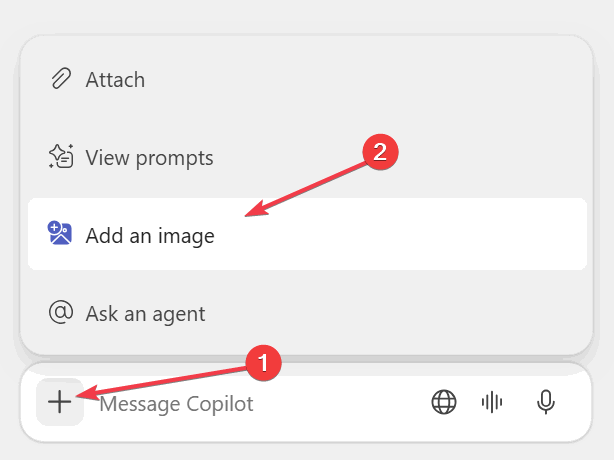
Click the + button in the bottom left corner and click Add an image. Choose Upload from phone from the options outlined in the new prompt.
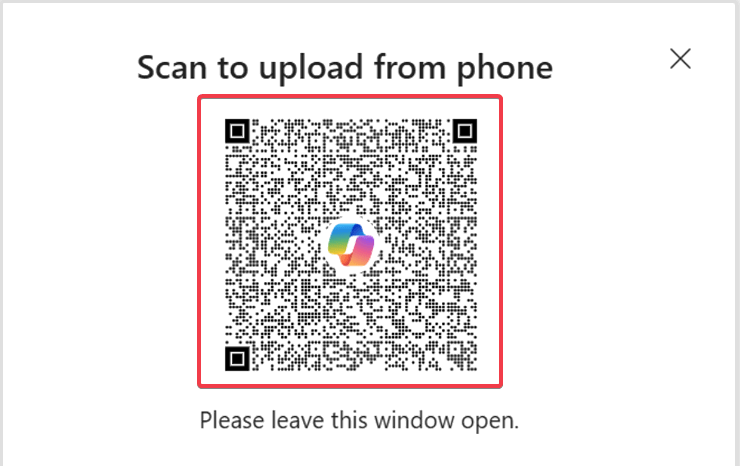
A QR code will pop up on your screen. Grab your phone or tablet and scan the generated QR code. Doing this will redirect you to open a new web page on your phone’s browser.
Now choose from the two options – Take a photo for a new shot or Select an image from your photo library.
Once you are done, click Upload to send it over. The image immediately pops up in the Copilot chat box on your desktop. You may need to accept cookies to open the files on your PC.

Once the image is there, you can follow these tips to place images in Word doc like a pro. Also, you can use Copilot to analyze, extract, and summarize texts on the image.
Note: You can also use the Microsoft Drop app for more quick file transfer tricks.
Who Can Use this Feature
To use this feature now, you need a Microsoft 365 subscription and Insider access. It’s available on Windows Version 2504 (Build 18603.20000) or later, or on the web.
If you’re still on the fence about subscribing, you can check out our reasons to buy Microsoft 365’s subscription. In addition, if you lack Insider access, just hang tight, Microsoft tends to push a general release to everyone once it’s been tested and trusted by the Insiders.
There you go on how to share images with Microsoft 365 Copilot from Mobile without hassle. This feature bridges the gap between your phone and Copilot while boosting your workflow. Give it a shot and your productivity will increase. Also, if you have any thoughts or questions on this, drop them in the comments below!