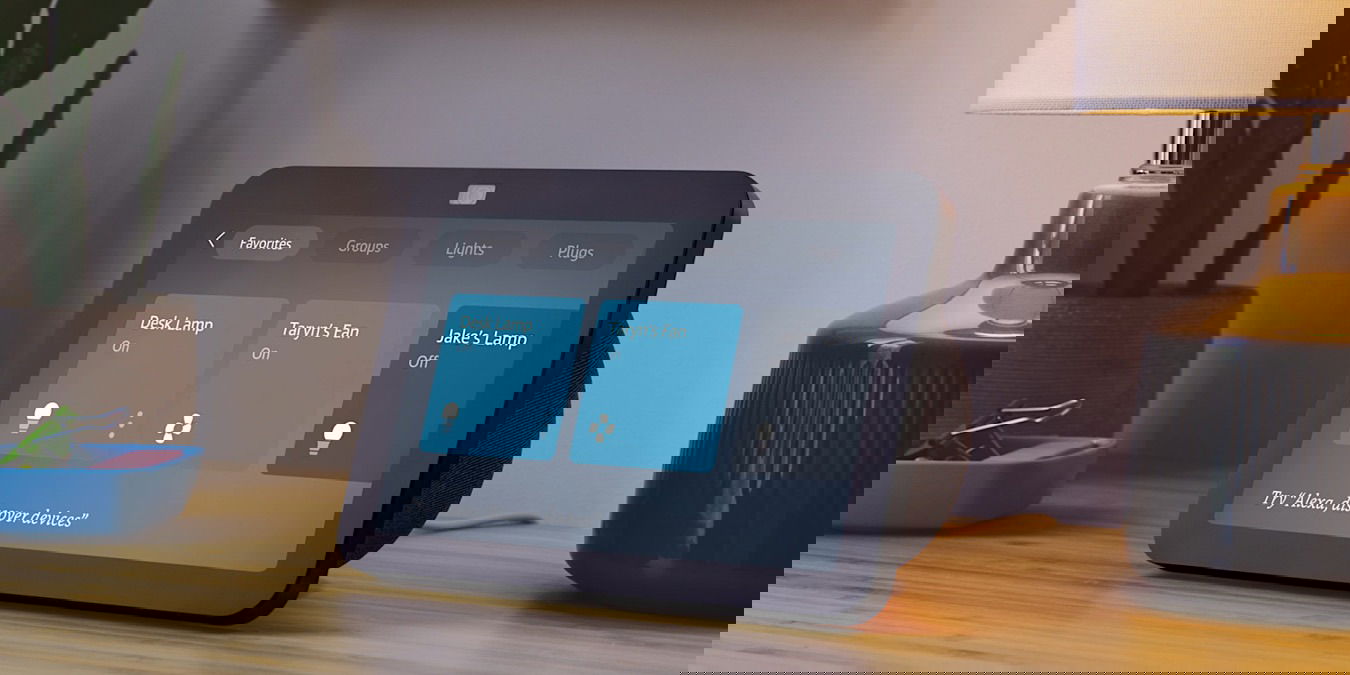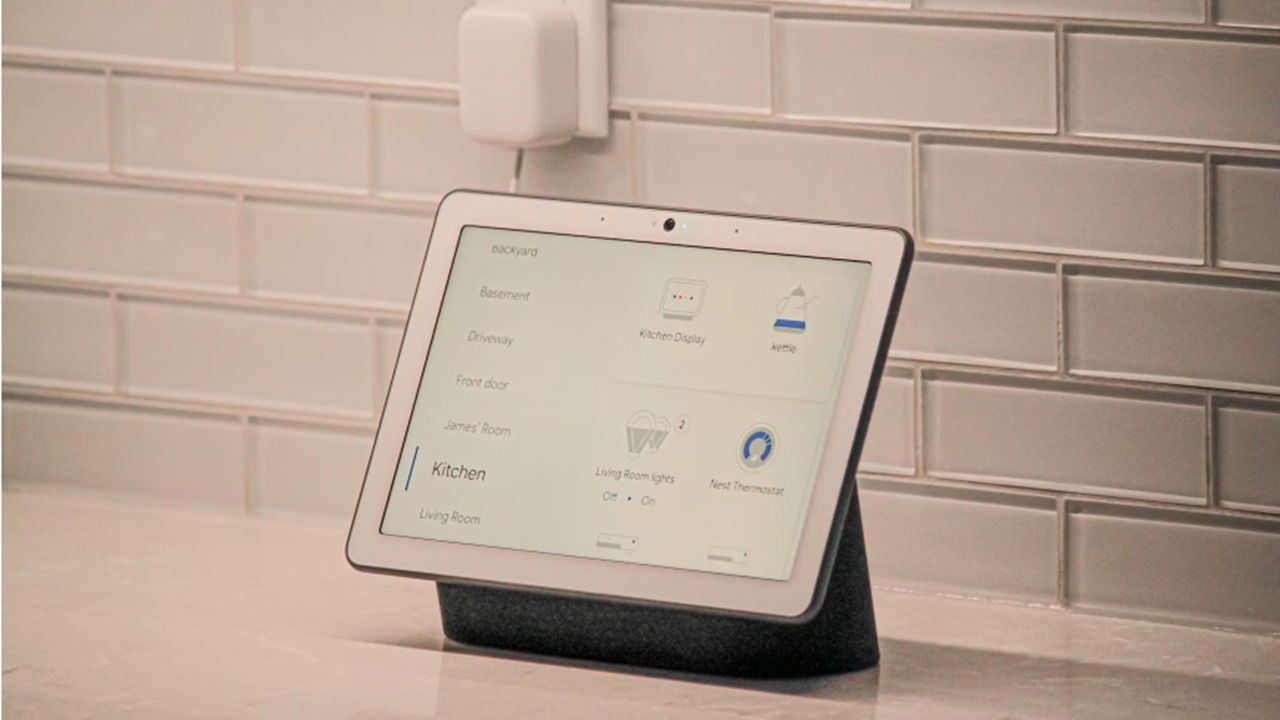
Getting answers to questions, controlling your smart home, or playing your favorite tunes just by using your voice is convenient, but Google Home and Amazon Echo devices don’t always put your security and privacy first. Enjoy the convenience, but master a few smart home privacy tips to stay a bit safer.
Smart Home Privacy Risks With Google Home and Amazon Echo
The trade-off to simply saying “Hey Google” or “Hey Alexa” is your devices always listening. The devices are only supposed to “wake” when you say the wake phrase, but as we’ve all experienced, they randomly speak up, even if we don’t use the wake phrase.
Naturally, cyber attackers are working overtime to exploit every security vulnerability to not only keep your AI assistants listening, but take advantage of what they hear.
Multiple consumer reports have been filed about voice-activated devices spying on everything. In one case, a reviewer from AndroidPolice reported that his Google Home Mini was listening and recording, even when he hadn’t said the wake phrase. While Google acknowledged the issue and fixed it with a firmware update, it proves vulnerabilities do exist.
Of course, since everything you say to your speakers is automatically stored on remote servers, law enforcement can subpoena Amazon and/or Google to get those records.
The following are some of the most common privacy risks you should be aware of:
- Conversations with the device are recorded
- Unauthorized purchases
- Listening and recording even when you’re not using the wake word
- Hackers using devices to spy on users
- Recording sensitive information without permission
- Malware posing as an app to ask for sensitive information
Luckily, there are ways to lock your devices.
Prevent Unauthorized Purchases
Both Amazon Echo and Google Home allow voice purchasing; however, you can set up protections to prevent unauthorized purchasing. The exact steps depend on the device, but most settings are within the Alexa and Google Home apps.
If you don’t want to make any purchases via your smart speaker or display, turn off voice purchasing. If you have a family group set up on a Google device, turn off purchasing for child accounts.
Turn Off the Mic and Camera When Not In Use
It’s not convenient physically pressing the microphone button on your device to use it, but it’s one of the simplest smart home privacy tips. I turn off the mic before going to bed simply because I’ve talked in my sleep and had Alexa respond. Now I sleep without an assistant listening.
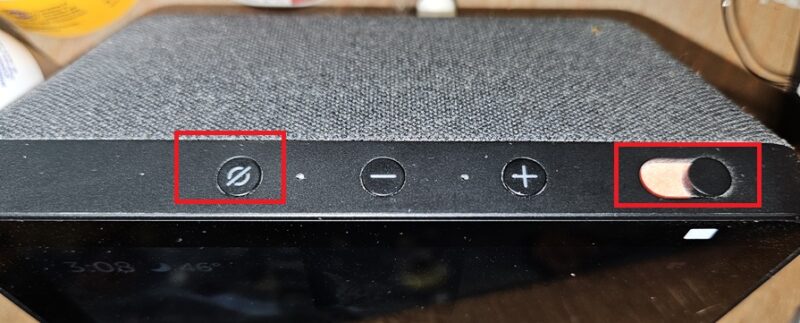
Of course, if you think you may need to use your voice to call 911, you may want to leave the mic on.
Also turn off the camera, if applicable, when not in use. Even if someone hacks your device, if the camera cover is on, they still can’t see you.
Delete Old Recordings
Smart assistants save all your interactions. Creepy, I know, but part of the reason is to better train the AI helpers to better serve you.
If using a Google Home, open the Google app, tap your profile icon, and select Search history. Tap Saving to Web and App Activity, and select Google Assistant from the app list. Alternatively, visit the Google Assistant My Activity page.
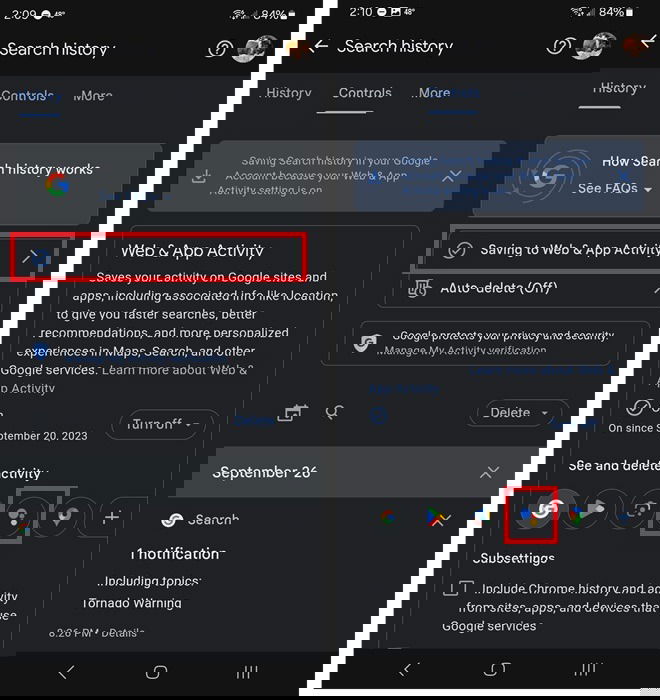
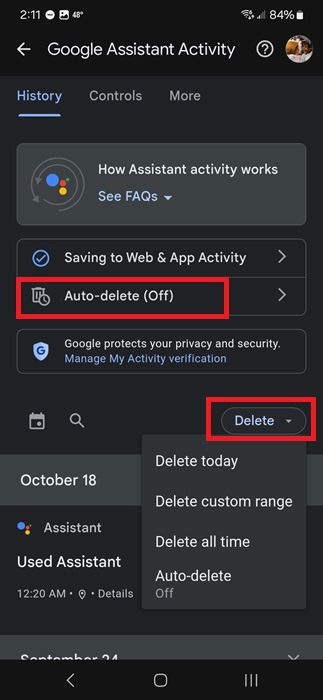
Select the Delete drop-down box, and choose your deletion range. Or, set Google to auto-delete activity after a set period. Select Auto-delete, and choose your time range. I went with 3 months, as it’s the shortest period.
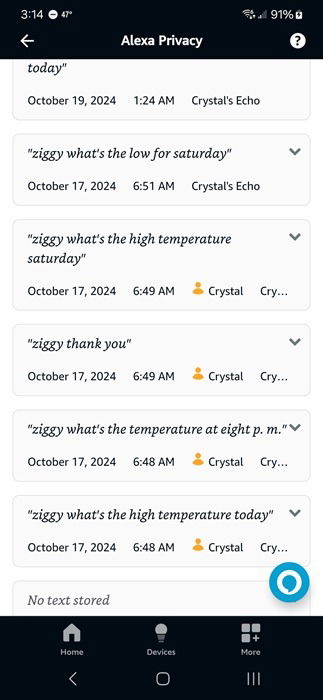
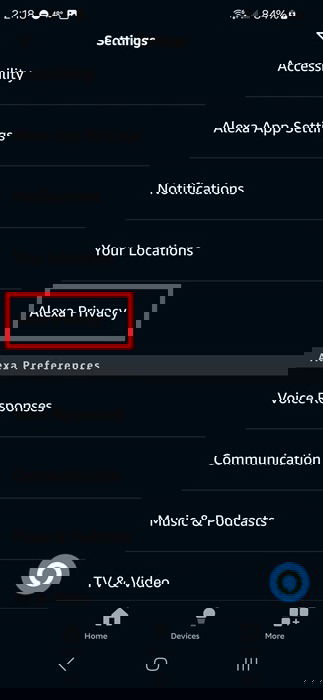
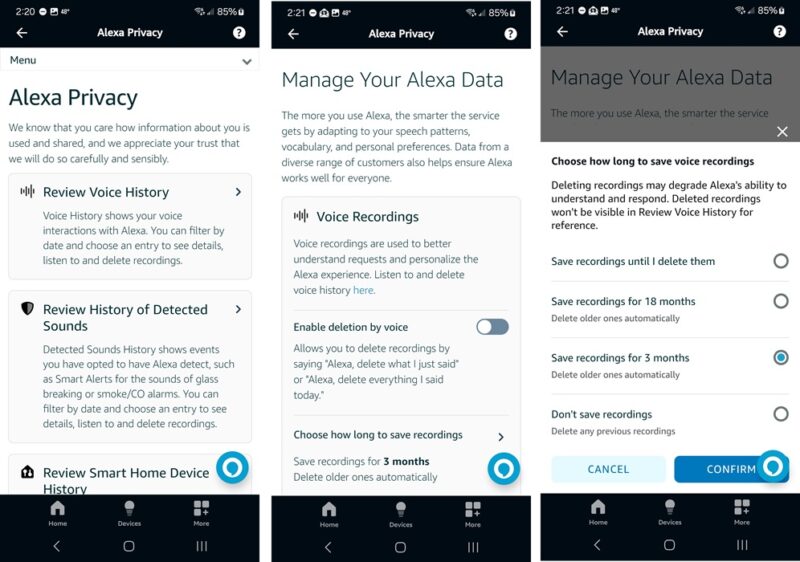
If using an Amazon Echo device, open the Alexa app, tap More, select Settings, and tap Alexa Privacy. From here, review your activity history in each category, and delete what you don’t want to keep.
I recommend going to Manage Your Alexa Data and turning on Enable deletion by voice. Then, just say “Alexa, delete everything I said today” at the end of each day. Or, tap Choose how long to save recordings. Set it for 3 months, or turn on Don’t save recordings to stop recording data and delete all previous data.
Never Provide Sensitive Information to Apps
Hackers don’t care what type of device you’re using – they just want in. I hate that I have to be careful about which apps or skills I use on my smart speakers, but malware is a growing issue for these devices.
Take a moment to review any third-party app or skill before enabling it. Of course, sticking with official options are the easiest, such as using Google Weather Frog. And never, under any circumstances, hand over sensitive information. No legitimate app or skill will ever ask you to announce your username, password, or payment details. All payments should go directly through your Google and Amazon default payment method.
Set Strong Passwords
No matter how much you secure your Google Home and Amazon Echo devices, if your Google or Amazon account password isn’t strong, hackers can still get in and gain access to your devices.
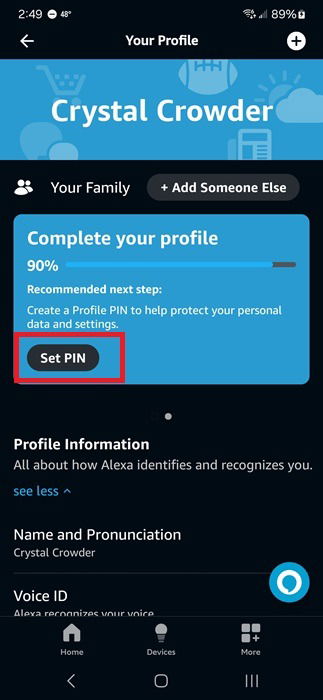
For Amazon Echo devices, you can set up a PIN to prevent unauthorized access from other users in your home, such as guests. Open the Alexa app on your phone, tap More -> Settings. Tap Your Profile & Family, and select Set PIN. Follow the prompts to set up a four-digit PIN.
Use a Separate Wi-Fi Network
This one might be too extreme for some, but if you really want to keep your smart speakers and the rest of your network separate, set up a completely new network just for your smart home devices. It’s a more complicated setup but offers an extra layer of security and privacy.
Share With Caution
Google Home and Amazon Echo have revolutionized the way we do things, and their functionalities are getting better every day. However, cybercriminals are also getting better at hacking them. Use these smart home privacy tips, and share with caution. If you start changing settings, and something gets mixed up, reset your smart device to default settings.
Image credit: Unsplash. All screenshots and images by Crystal Crowder.