Hackers can use your PC webcam to spy on you, tracking and recording your every move. The consequences can be severe, ranging from blackmail and identity theft to sophisticated social engineering attacks. This guide lists proven methods to prevent unauthorized webcam access and protect your privacy.
1. Disable the Integrated Webcam on Laptop
While almost every laptop has a built-in webcam, it isn’t used daily by everyone – or even at all. However, just by existing, the webcam is a privacy concern. If you don’t use the webcam often, you can keep it disabled when not in use to maximize privacy.
The easiest method would be to disable it using the Windows Device Manager. It will make it inaccessible by Windows and other apps and can easily be turned back on when needed.
In Windows Search, type “device manager,” and open the Device Manager app. Under the Cameras section, right-click on Integrated Webcam, and choose Disable device. Use the same process, and click on Enable device to turn it back on.
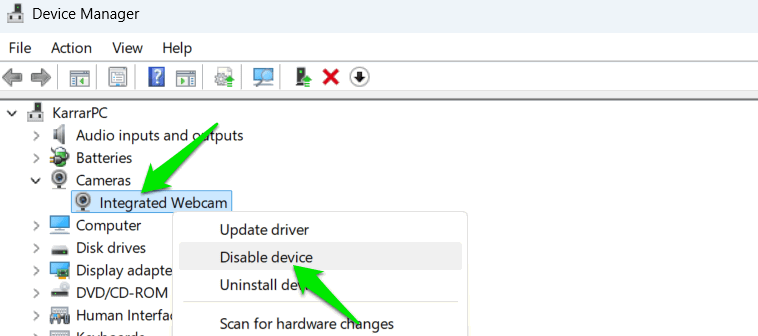
This will disable the webcam driver, so Windows won’t be able to interact with it or any hackers. In some cases, kernel-level malware may be able to turn on the driver again, but the chances are very low.
To completely shut it down, you’ll have to disable it from the BIOS/UEFI, if supported. Just enter BIOS/UEFI and navigate to the Miscellaneous Peripherals or Integrated Peripherals section. Look for an entry for the camera and disable it. Of course, this also means it would be difficult to turn it back on if you need it.
2. Monitor Camera Permissions
In most cases, spying happens when a malware program gains access to the camera. Windows keeps track of all the applications that can access the camera. If you make sure no unrequired camera permissions are given, you can greatly decrease the chances of webcam spying.
In Windows Settings, go to Privacy & security, and click on Camera under the App permissions section.
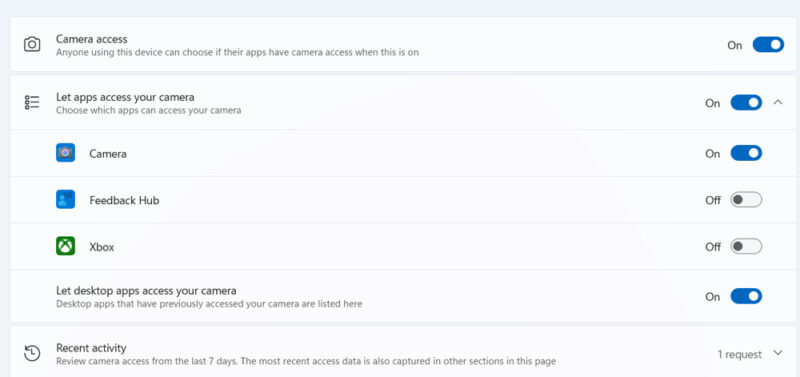
Under the Let apps access your camera section, you’ll see all the apps that require camera access. Make sure you only enable access for trusted apps. For improved security, disable access, even for trusted apps that you don’t often use. The apps will ask for access anyway when you use them.
Periodically review these permissions to make sure unauthorized apps don’t gain camera access permission.
3. Use an Antivirus With Webcam Protection
There are many third-party antivirus or anti-malware software that have dedicated webcam protection features for better privacy. Unlike Windows, they don’t depend on you to decide what to allow and what to block. They use their own algorithms to check which apps are safe and which are suspicious, to manage camera access.
For example, Avast has a webcam shield feature that allows trusted applications and prompts you to allow/block untrusted ones. Kaspersky and Bitdefender also have a similar feature to manage webcam access.
4. Update Webcam Drivers
While having the latest drivers is important for improved performance and the latest features, they are especially important for webcam security. The latest drivers have patches for vulnerabilities that could be exploited by hackers for the purposes of spying via your webcam. Regularly updating drivers is critical for both integrated and external webcams.
In most cases, using a third-party driver updater tool like SDI Origin can find the latest integrated and external webcams. However, for some external webcams, you may need to visit the manufacturer’s website. Search for your webcam model number with the keyword “latest driver” to find it on the manufacturer’s website.
5. Use a Physical Cover
If you don’t trust software, the best privacy solution for webcam spying is a physical cover. Hackers won’t be able to remove the physical cover or see through it. Additionally, it’s always visible, so you’ll have peace of mind. Many laptops and webcams come with a built-in cover, like the Lenovo ThinkPad series with the ThinkShutter or Razer Kiyo Pro webcams.
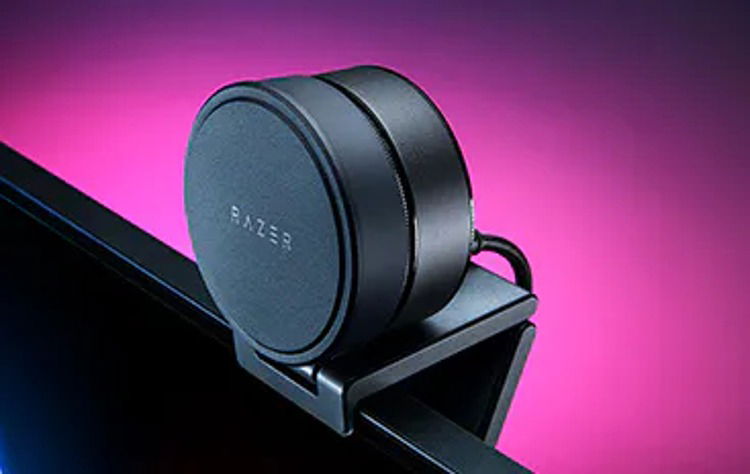
If you don’t have a webcam with a built-in cover, you can also buy a cover separately. Universal webcam covers are typically very thin and work with most laptops and webcams. They are slidable, so you can just slide them open when you want to use the webcam and close them afterward. The CloudValley Webcam Cover is a great webcam cover that is cheap and extremely thin.
Of course, you can also just use opaque tape to cover the lens, and it will serve the same purpose. However, to avoid damaging the lens, we recommend cutting a thin piece of microfiber cloth and placing it between the lens and the tape so that the tape doesn’t make direct contact.
6. Look for Signs of Webcam Use
Most hackers will try to keep a low profile to spy continuously. While it could be hard to find out whether a person or group is spying on you, there are still some telltale signs, as listed below.
- Webcam indicator light: most webcams have an indicator light that shows when it’s recording. If you notice it on even when you are not using the camera, it means someone is recording you.
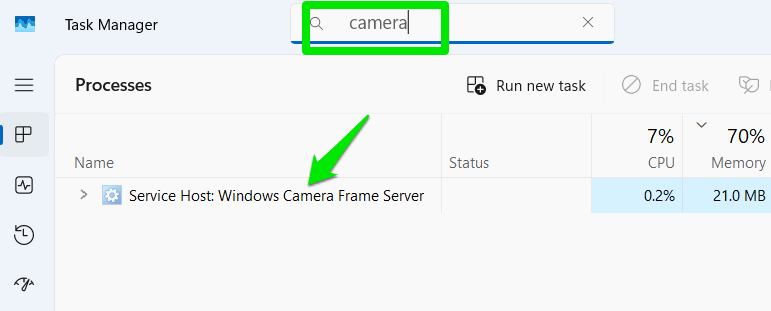
- Camera-related processes: open the Task Manager, and type “camera” in the search bar above. If you notice any camera-related processes while you are not using the camera, it could mean someone is using it.
- Unexpected video or image files: hackers often have to store the footage locally before transferring. If you notice unexplained videos or images from your webcam stored on your PC, you are probably the victim of spying. While the media may be hidden, you can still find the images and videos in the Media Player library.
- Unexpected access prompts: if you are receiving camera permission requests without doing anything related to the camera, it could be a sign, especially if the requests are inside your browser or from an unrelated app like the Calculator (fake) app.
- Unexplained changes to camera permissions: If you notice unusual camera permissions enabled or recent requests, it’s a solid sign. This could mean malware is secretly enabling the permissions without your authorization.
If you notice any of these signs, run a deep system scan with Windows Defender or any other antivirus software to get rid of malware infection.
7. Protect Your PC From Remote Access Trojans (RAT)
A Remote Access Trojan (RAT) is one of the main tools hackers use for webcam spying. This malware grants hackers remote control of your system, enabling unauthorized activities, such as webcam spying. Since webcam spying often involves enabling different restricted functions, a RAT is usually used to ensure privacy and uninterrupted monitoring.

RATs can be disguised as legitimate software or delivered via exploits, making them harder to detect. However, if you follow the below guidelines and enable all security features, it will minimize the chances of RAT infection.
- Avoid cracked/pirated content: illegal content is one of the main ways to spread RAT, as such content usually involves disabling security functions. Avoid such content, and never disable security functions for any app installation.
- Disable Windows Remote Desktop: RATs can use Windows Remote Desktop for control, but keeping it disabled can prevent its use. In Windows Settings, go to System -> Remote Desktop and disable it.
- Keep your system up to date: RATs often exploit outdated software vulnerabilities to infect software. Keep your operating system, apps, and drivers updated.
- Only use reputable remote access tools: fake remote access tools are often used to install RAT. Stick to trusted remote access tools, and never accept remote access requests from an unknown person.
Remember, privacy is a practice, not just a setting, so use these methods combined and ensure no one spies on you via your webcam. For even more privacy, check out these Windows privacy settings you can tweak.
Image credit: Freepik. All screenshots by Karrar Haider.