After a lot of teasing, Apple finally released iOS 18.4. A slew of great features are packed into this update, but there are a few, particularly the Ambient Music mode, are making my day easier already.
Enjoy Ambient Music to Improve My Focus
I love listening to lo-fi tunes while I work. They’re great for background noise that helps me stay focused. I typically use YouTube, Apple Music, or Spotify to stream ambient music while I work or read. Searching for tunes and creating playlists is time-consuming.
Now, iOS 18.4 places ambient music controls right in your Control Center. You just have to add it. This means I don’t need a separate app for my background music and noise.
Swipe diagonally from the upper right corner to open Control Center. Long-tap anywhere on the screen and then tap Add a control when it appears at the bottom of the screen. Locate Ambient Music and choose the genre(s) you want to add. Right now, you can choose between Sleep, Chill, Productivity, and Work.
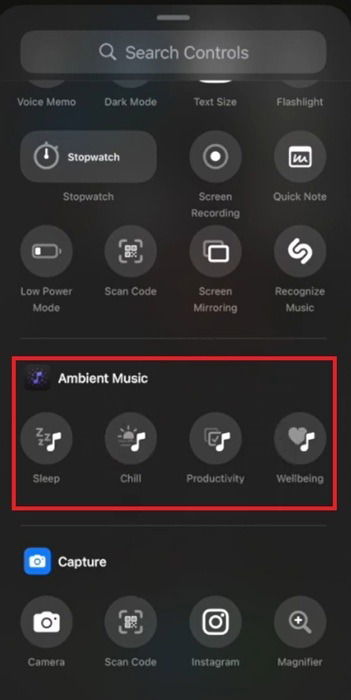
You’re free to only add the ones you want. Just want ambient sounds for sleep? Just add the Sleep control.
Each of the four options offers four playlists to choose from:
- Productivity – Classical Concentration, Binaural Frequencies, Pure Focus (my favorite), and BEATstrumentals
- Chill – Ambient Chill, Pure Chill, Piano Chill, and Lo-Fi Jazz (my other go-to for focusing and relaxing)
- Sleep – Bedtime Beats, Piano Sleep, Sound Bath, and Sleep Sounds
- Wellbeing – Pure Calm, Spa, Beats & Breath, and Pure Meditation
I’ve tried out all the playlists myself. Thanks to Ambient Music in iOS 18.4, I’ve already deleted several apps for sleep sounds and meditation music.
All you have to do is tap the Ambient Music control you added within your Control Center to choose a list or even set your own. Then, use your typical playback controls to control the sounds. Ambient Music even incorporates with the Dynamic Island feature.
I do wish everything was included in one control so I didn’t have to worry about space in Control Center. Plus, it’d make it easier to skip between the different genres. But, it’s a great addition to iOS that I never realized I wanted or needed.
Priority Notifications Keep Me Focused
In iOS 18.4, Apple’s expanded on Apple Intelligence’s capabilities to give us Priority Notifications. But, you don’t have to just rely on AI to determine what’s important to you. After all, we’ve all seen what happens on social media when something else tries to decide what we want and don’t want to see.
Go to Settings -> Notifications -> Prioritize Notifications. Turn on the setting if it’s not already on and choose which apps are priorities to you.
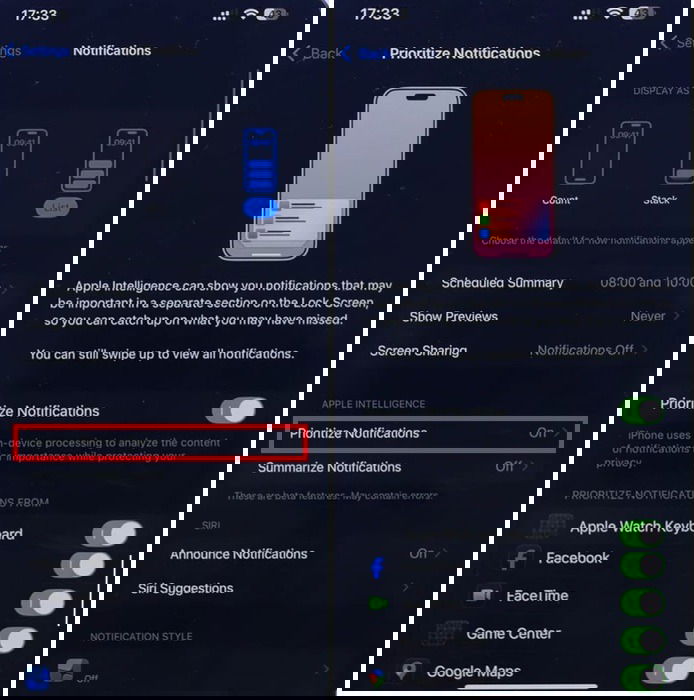
I suggest only adding 3-4 apps at most or otherwise, you’ll still just have notification clutter. Once everything’s setup, your lock screen will have a new section just for priority notifications. If you want to see all your other notifications, just swipe up to view the rest.
If you don’t see this option, you may not have Apple Intelligence turned on. Go to Settings -> Apple Intelligence & Siri. Ensure Apple Intelligence is toggled on.
If you’re in the European Union, you finally get access to Apple Intelligence, too. Plus, Apple Intelligence now supports eight other languages.
Start Cooking More With Tasty Recipes
For this iOS 18.4 feature, you do need Apple News+, but if you enjoy cooking and trying new recipes, it’s well worth subscribing. It’s only $13/month for numerous publications. Or, save money by bundling with the Apple One Premier Bundle which includes six Apple services that you can share with up to five people for just $38/month.
Now, instead of going out, I just check out Apple News+ and the Food section. I’ve found all my favorite food publications, such as Eating Well and Food Network. I get access to cooking tips, new recipes, interesting food tidbits, and much more.
But, that’s still not all. A built-in Recipe Catalog lets me quickly save any recipes I want to try. No need to go back to a publication and try to find what I need.
Once I’ve found a recipe, there’s one more feature that makes this iOS update a must-have. A step-by-step Cooking mode helps walk me through recipes.
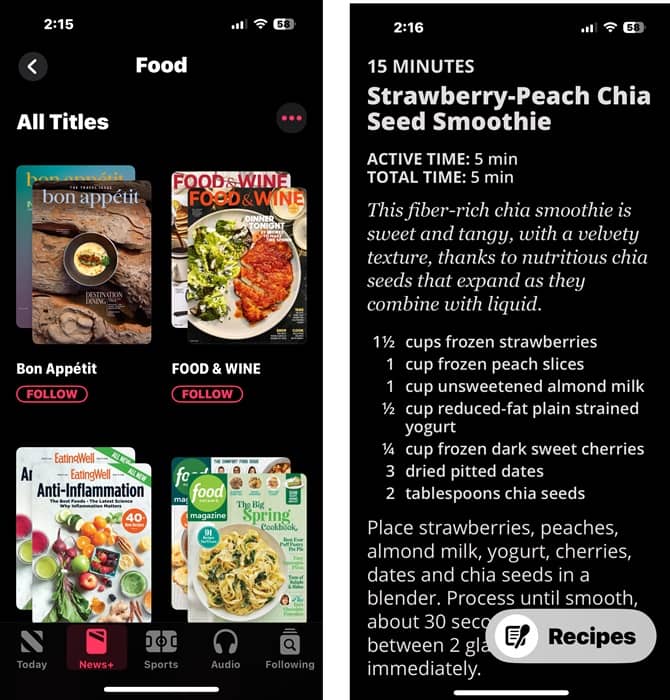
Sure, you can search for recipes through a general search. But, these are trusted publications with tried and true recipes. Plus, Apple News+ subscribers even get access to exclusive recipes.
If you’re tracking your diet, try these food diary apps. Or, learn new cooking skills with these apps.
More in iOS 18.4
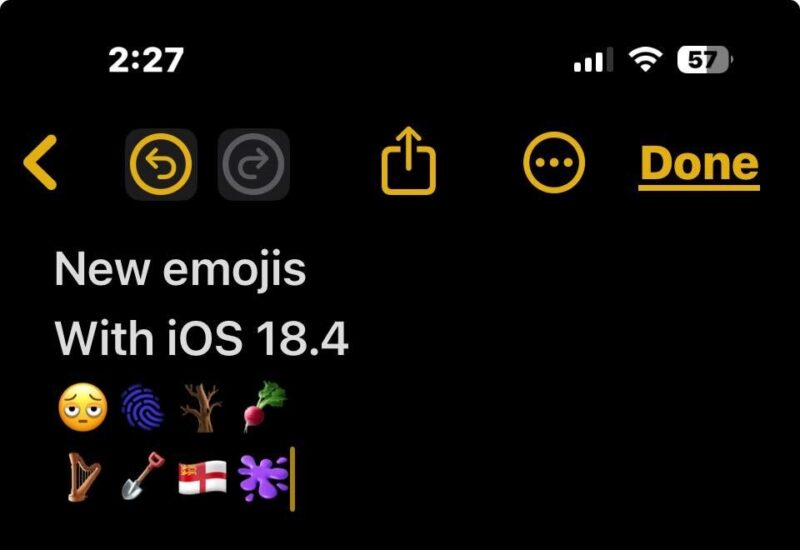
Obviously, there are far more features in iOS 18.4, but they haven’t impacted my day-to-day life quite as much. Though, admittedly, I am enjoying the new emoji with bags under its eyes.
Update and see what new features make your life easier. Maybe it’s the new Photo filters, AI summaries for app reviews, or even the fun Sketch option in Image Playground.
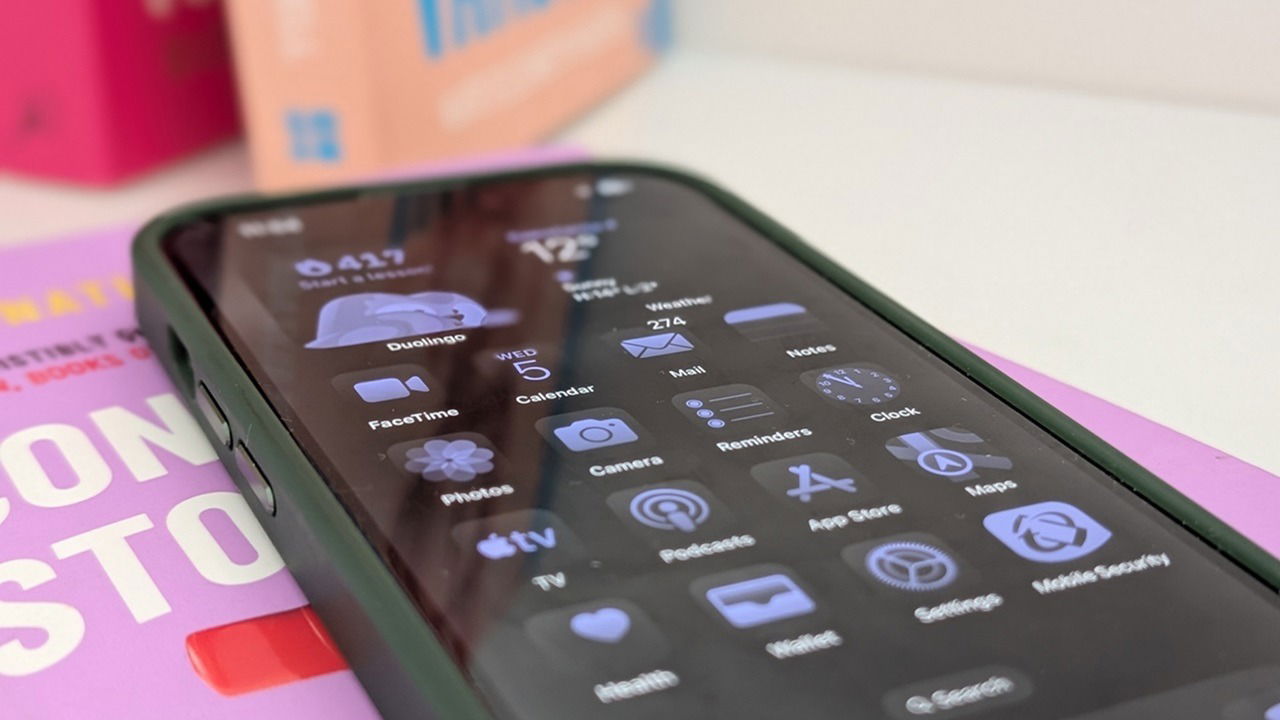
When you’re finished exploring all the new features, give your iPhone a makeover. Customize the icons on your iPhone for a brand new look.