Had enough of the same old icons on your iPhone home screen? Why not switch things up? Customizing your home screen icons is a simple, yet effective way to personalize your phone. This guide shows you how to customize your iPad icons.
Good to know: check out our quick guide on Apple Watch icons to easily understand what they’re all about.
Change iPhone Icons Through Home Screen Settings
The simplest way to quickly customize your iPhone icons is through your phone’s home screen settings. Note that your phone needs to run iOS 18 or higher to access these options.
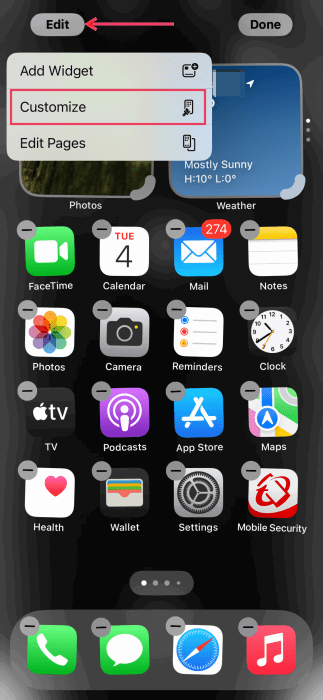
On your iPhone’s home screen, long-press on a blank space until all the icons start fluttering and an Edit button appears in the upper-left corner. Select Customize from the menu that appears.
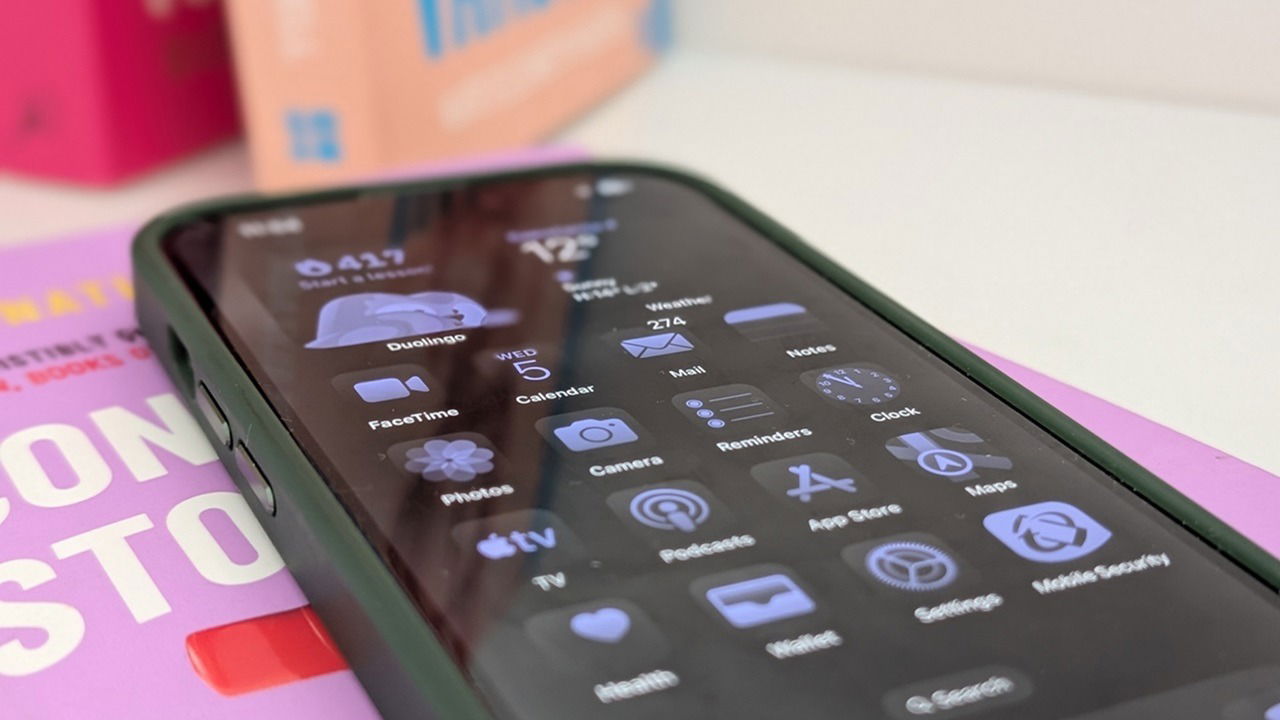
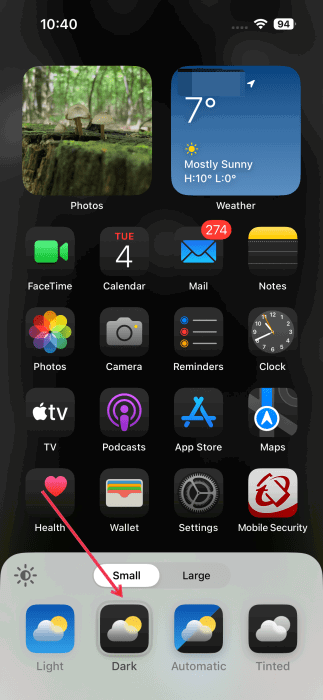
Go through the options at the bottom and make selections, such as changing your icons to a dark theme.
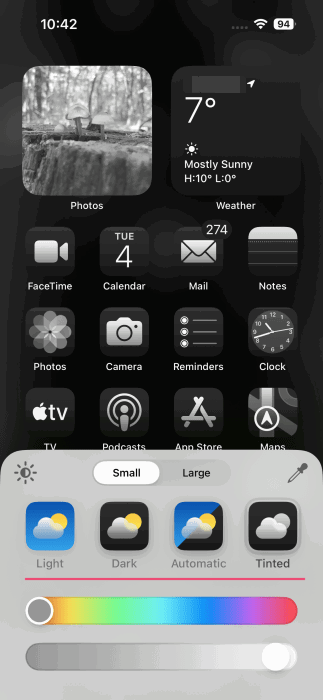
The last option – Tinted – is the most interesting, as it gives your icons a black-and-white makeover.
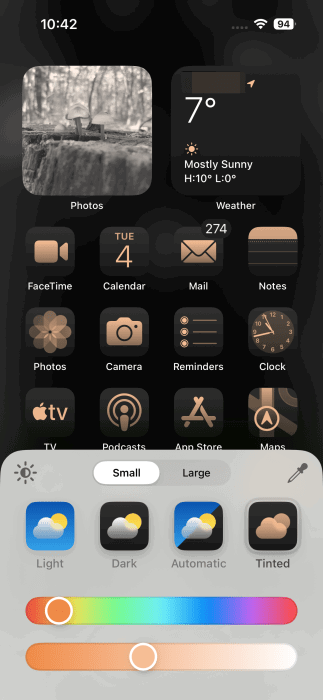
You can also add a tint of color by using the bar at the bottom to give your iPhone screen a truly refined look. If you have an image set as wallpaper, for example, you can match the tint to the main color of the image.
Note that if you switch to Large icons, the icons will get enlarged, and the text beneath (name of the apps) will disappear.
Tip: learn how to use your iPhone as a webcam for streaming on PC.
Change iPhone Icons via the Shortcuts App
If the options above aren’t to your liking, or you don’t have an iPhone running the latest software, there’s another way to customize your iPhone icons: the built-in Shortcuts app.
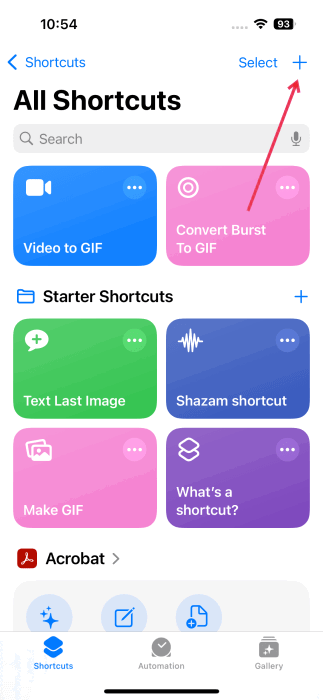
Open the Shortcuts app on your phone, and press the + button in the upper-right corner to create a new shortcut.
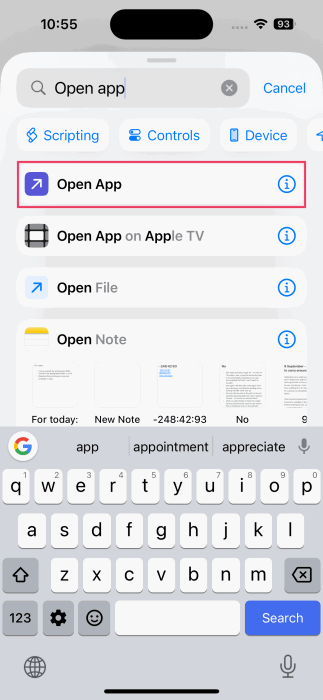
In the search bar, type Open App, and select the top result.
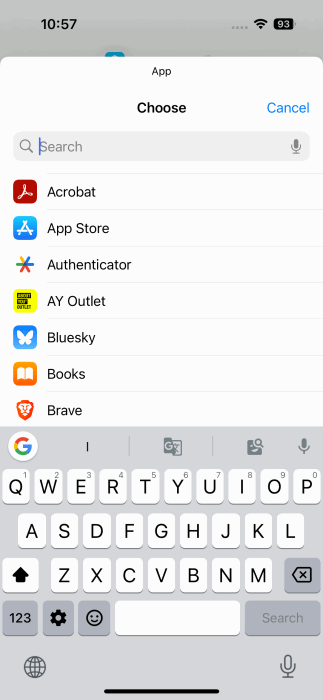
Tap on App on the next screen, then select an app from the list. For this example, I’m choosing Instagram.
Note: this method won’t change the look of ALL your home screen icons. It only applies to one icon at a time.
At the top, tap on Open App, and then select Rename.
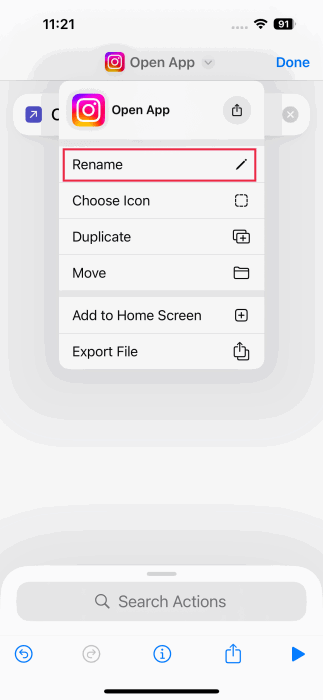
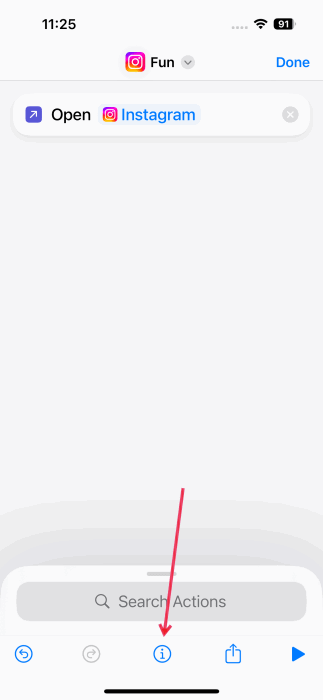
Name your shortcut and tap the i at the bottom.
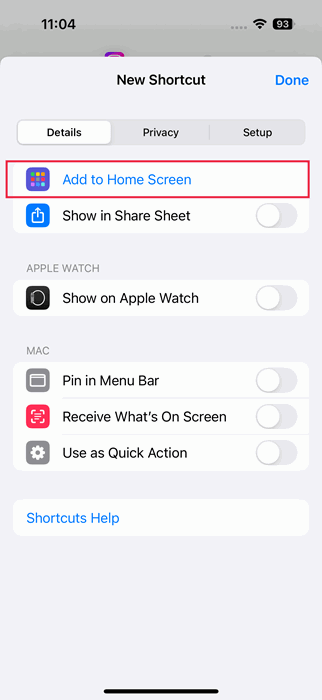
Tap on Add to Home Screen.
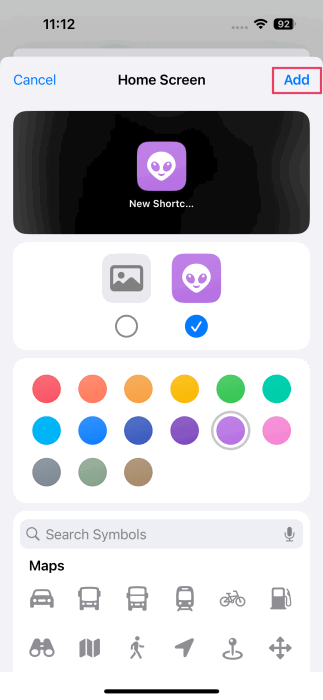
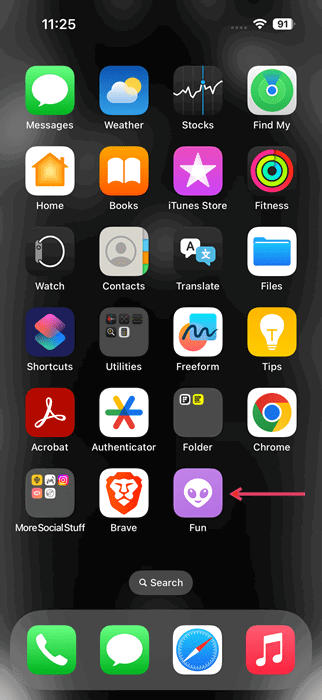
There are quite a few options to customize your app icon. I’m going with a different symbol from the stock options and a new color.
Alternatively, you can upload your own image from the gallery (or snap it using your camera) to use it for your app icon.
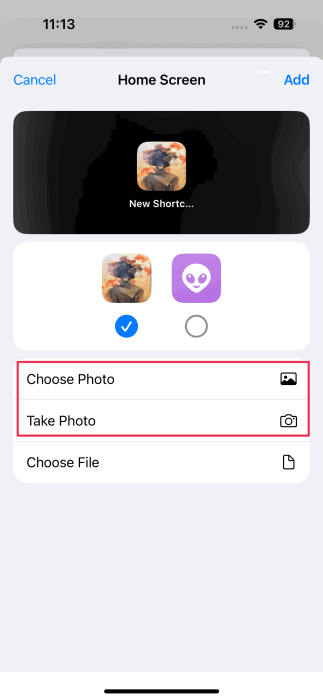
Press Add to change the icon for the app. Your new app icon will appear on the home screen.
FYI: try these iPhone apps that can help make your photos look like film.
Change iPhone Icons Using Third-Party Apps
Of course, there’s always the option to turn to third-party apps if you want to refresh the look of your icons on your iPhone (or iPad).
Theme Apps
For instance, an app like Brass offers a wide range of beautiful themes that are grouped into various categories. These aren’t individual icon packs but do come with complementary wallpapers and widgets.
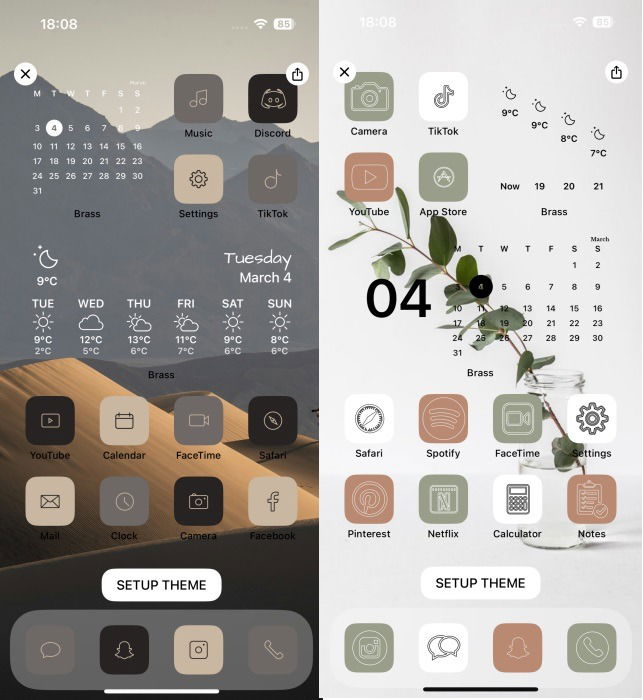
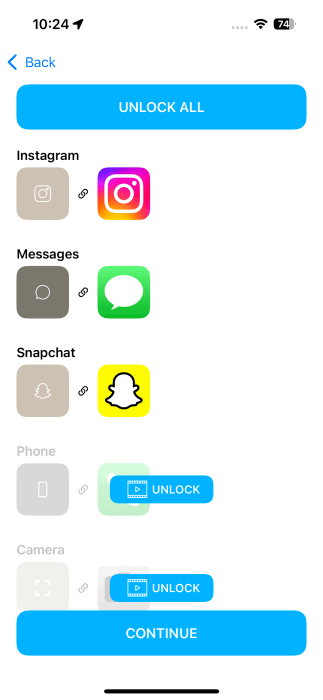
You should know, however, that Brass is mostly a paid app, although in some cases it gives you the option to unlock app icons one by one when you’re watching ads. This approach can be pretty time-consuming, as there will be a lot of app icons to unlock if you’re aiming for a cohesive look. But you can always unlock only select app icons.
Another similar app that offers many fun themes for a price is ScreenKit.
Apps for Quickly Customizing Individual Icons
If you wish to quickly customize select icons, you can try the X Icon Changer app. Before you install it on your phone, note that this app has many ads, and you’ll need to navigate quite a few before you can successfully change an app icon.
If you’re okay with that, install and open X Icon Changer, and select an app from the list. You can use the search bar to find the app you want faster.
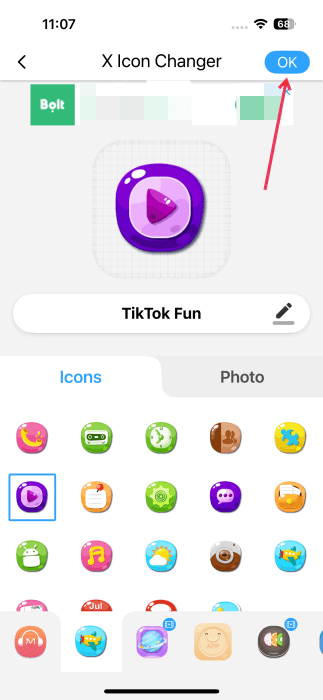
Rename the app shortcut to differentiate it from the main app. (Note: you can delete the main app shortcut later if you want.)
Check the icon options below, and select one. You can switch between the different icon packs at the bottom, but note that for some, you will have to watch a quick ad to unlock them.
Once you’ve made your choice, press the OK button in the upper-right corner. You’ll be redirected to your default browser with a few instructions on how to add the new app icon to your home screen. In Chrome on iOS, press the Share button in the upper-right corner.
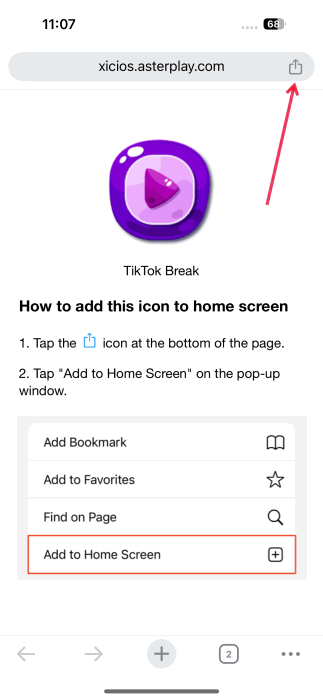
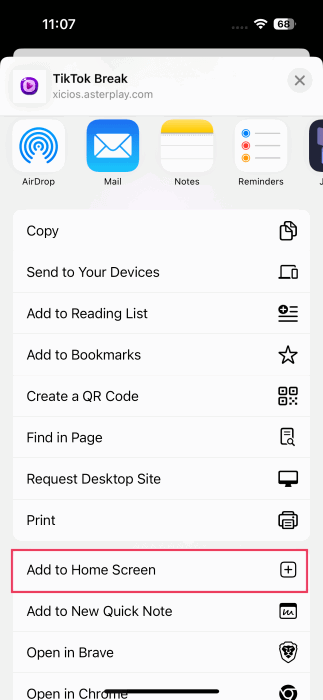
Select Add to Home Screen in the menu at the bottom.
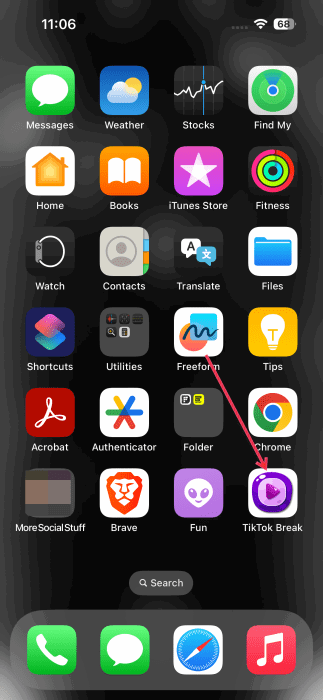
You will see the new app icon on your home screen.
Alternatively, the app allows you to set a photo as an app icon.
Select an app from the list in X Icon Changer, rename it, and switch to the Photo tab. Opt for either Camera or Gallery.
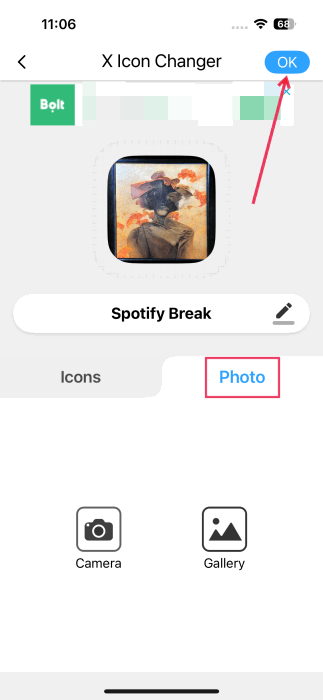
If you choose the latter, you’ll have to watch an ad. Upload your image from your phone and continue with the same steps outlined above to post your new icon on the home screen.
Another app that lets you customize individual app icons is Widgetsmith. You can upload images from your device and use them as app icons for free, but stock icon options are paid. The app also lets you upload your icon packs from files.
If you wish to continue to customize your iPhone icons, we recommend that you learn how to use iPhone lock screen widgets. Alternatively, learn how to hide and lock apps on your iPhone or iPad.
All images and screenshots by Alexandra Arici.