Still manually setting a timer for every selfie? There’s an easier way! Many Android phones, including Google’s Pixel, offer smart ways to take hands-free photos – like Google’s Palm Timer, which is now available even on the main camera. Here’s how to try it.
Good to know: recently switched to a Google Pixel? Check out these unique Pixel features to get familiar with.
While most people use the front-facing camera for selfies, the rear camera offers better quality. And even with the selfie camera, using a timer is often necessary for capturing more of your body or surroundings.
On Pixel phones, Google’s Palm Timer functionality eliminates the hassle of setting a timer and rushing to pose. Initially limited to the selfie camera, the feature is now available on the rear camera too, as per a recent Google community post.
Take Photos with Google’s Palm Timer
Google’s Palm Timer should come enabled by default, but to make sure that’s the case, open the camera app on your Pixel phone.
Tap on the small gear icon in the lower left side of the screen.
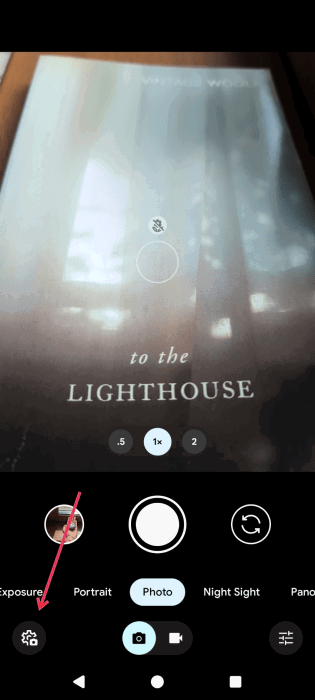
Now, press the More settings button in the Photo Settings pop-up that appears.
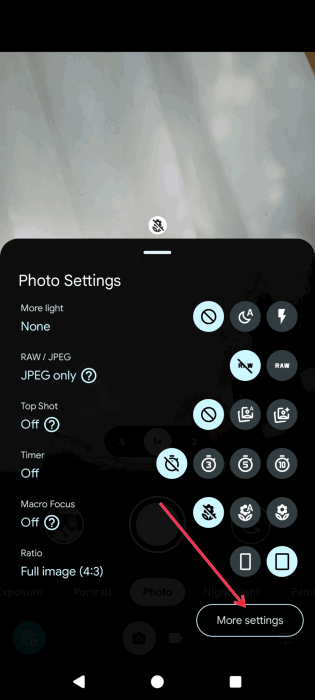
Find the Palm Timer option and make sure the toggle next to it is on.
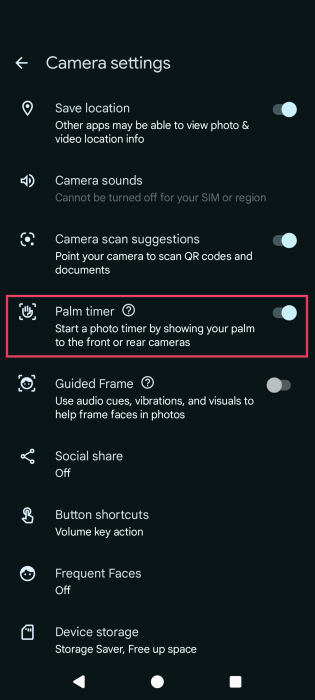
To snap a photo with the front or rear Pixel camera, position yourself in the frame and make sure you have good lighting. Raise your hand with the palm facing the camera, and wave steadily. Once you lower your hand, a 3-second timer will start – plenty of time to get your best smile ready!
What If I Don’t Have a Pixel Phone?
Even if you don’t have a Pixel phone, chances are that you can still take hands-free photos. Let’s explore your options.
Check your Android phone
Other Android manufacturers have included similar options on their phones. For instance, Samsung’s phones offer its own gesture control that allows you use your palm to trigger the selfie camera and snap a photo. Unfortunately, the option is not available for the main camera.
On your Samsung phone, open the camera app and switch to selfie. Then find the Settings icon and press on it.
On the Camera Settings screen, go to Shooting Methods.
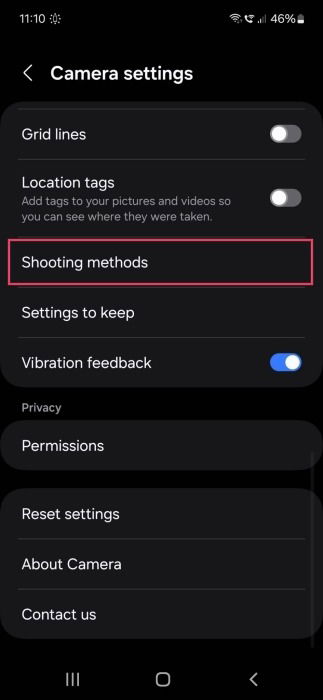
Make sure the Show Palm toggle is active.
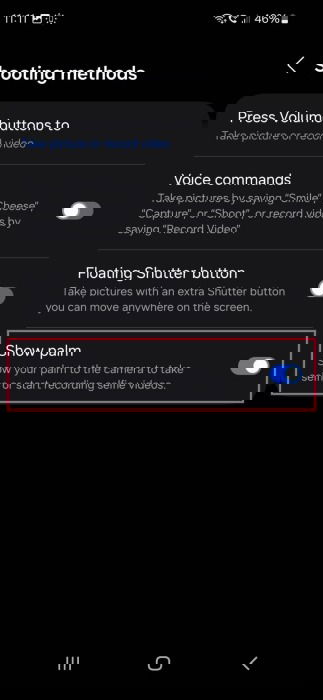
Now, when you want to take a selfie, raise your palm, and the camera will snap the image in a few seconds.
Other phone makers, such as OnePlus, Huawei, RealMe or Motorola, have similar options that allow you to easily snap hands-free photos.
Take photos with your voice
If your phone doesn’t have a gesture feature for snapping hands-free photos, no problem! Most Androids today offer the services of the Google Assistant (which is currently being replaced with Gemini) and you can use it to snap an image without touching your phone’s screen.
To be able to take a photo this way, you’ll first have to set up the Google Assistant on your phone and train it to recognize your voice. Go to Settings -> Apps -> Assistant -> Voice Match.
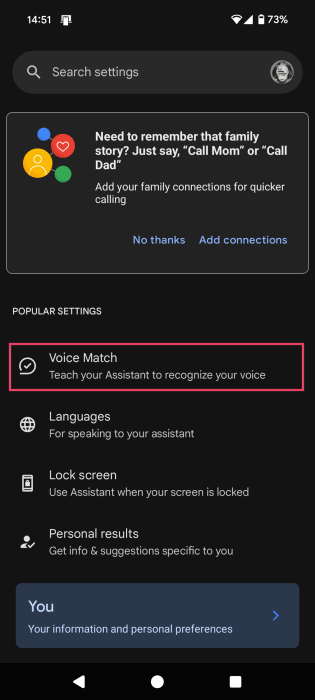
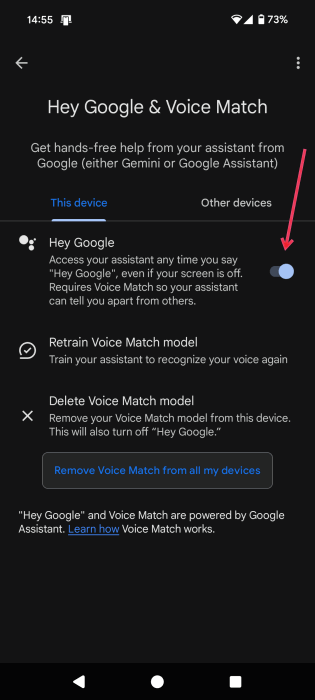
Make sure the hot word Hey Google is activated. If you need to retain the voice match model, select the appropriate option below.
Once that’s done, say something like “Hey Google, take a selfie.” You can also add something like in “10 seconds” so that it gives you time to get into the position you want.
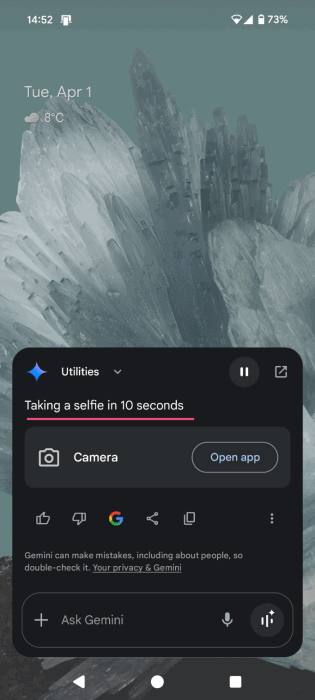
Alternatively, if you want to use the rear facing camera to take the picture, say something like “Hey Google, take a picture with the main camera.”
Install a third-party app
Alternatively, if you don’t like to go through all the hassle of training the Google Assistant to recognize your voice, and you have some free space, you can try a third party app. For instance, Camera for Android—Fast Snap will snap pictures from both the main and selfie camera when you make a sound.
Install and open the app. Tap on the hamburger option in the upper right corner and select Setting.
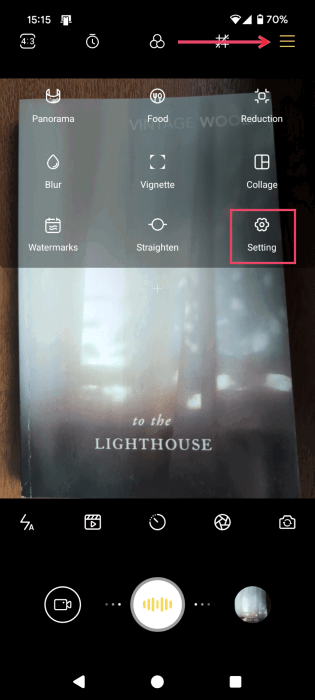
Find the Shooting methods section and toggle on the option for Voice capturing.
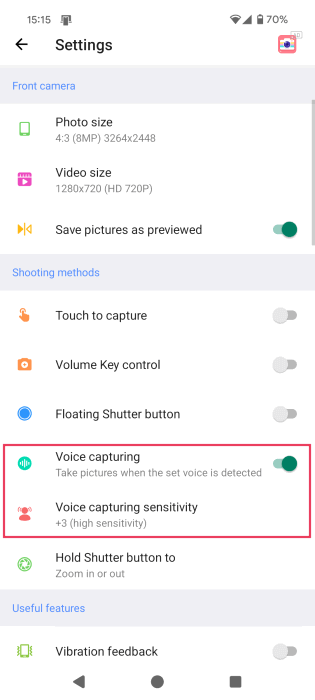
Also make sure to visit the Voice capturing sensitivity section. Here you can set the option to have low or high sensitivity. We recommend choosing something in the middle. When you opt for the maximum sensitivity, even the smallest sound (like typing on a laptop nearby) can trigger the camera.
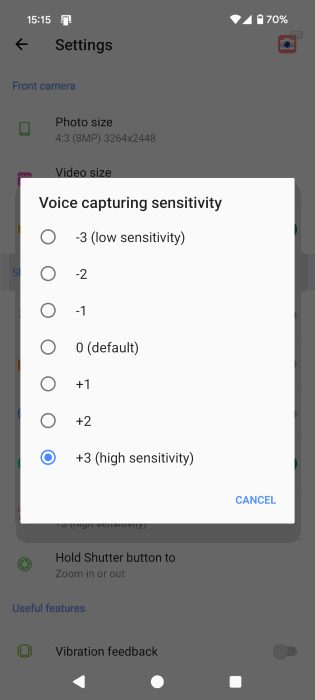
Anyway, with this option on, you can now say something like “Take photo” or “Snap” and the app will take a photo. The images will be saved to your phone’s Camera folder.
If you want to get better at Android photography, check our list of tips for taking better photos at night. Also, take a look at these photo editing apps that leverage AI to enhance your images.