While there are many apps for you to learn a new language, you can embark on your language journey without ever downloading an app. Actually, your iPhone comes equipped with free tools that can rapidly boost your new language knowledge. Here, I’ll show you how to convert your iPhone into a dynamic language-learning companion.
1. Easily Translate Words with Safari
Reading in the language you’re learning is a great way to build your vocabulary quickly. However, it can be challenging, especially when you’re constantly running into unfamiliar words.
Luckily, with Safari you can easily translate words from a new language to your phone’s default language. This can be especially useful, since constantly switching tabs to search for word definitions on Google can quickly become quite frustrating.
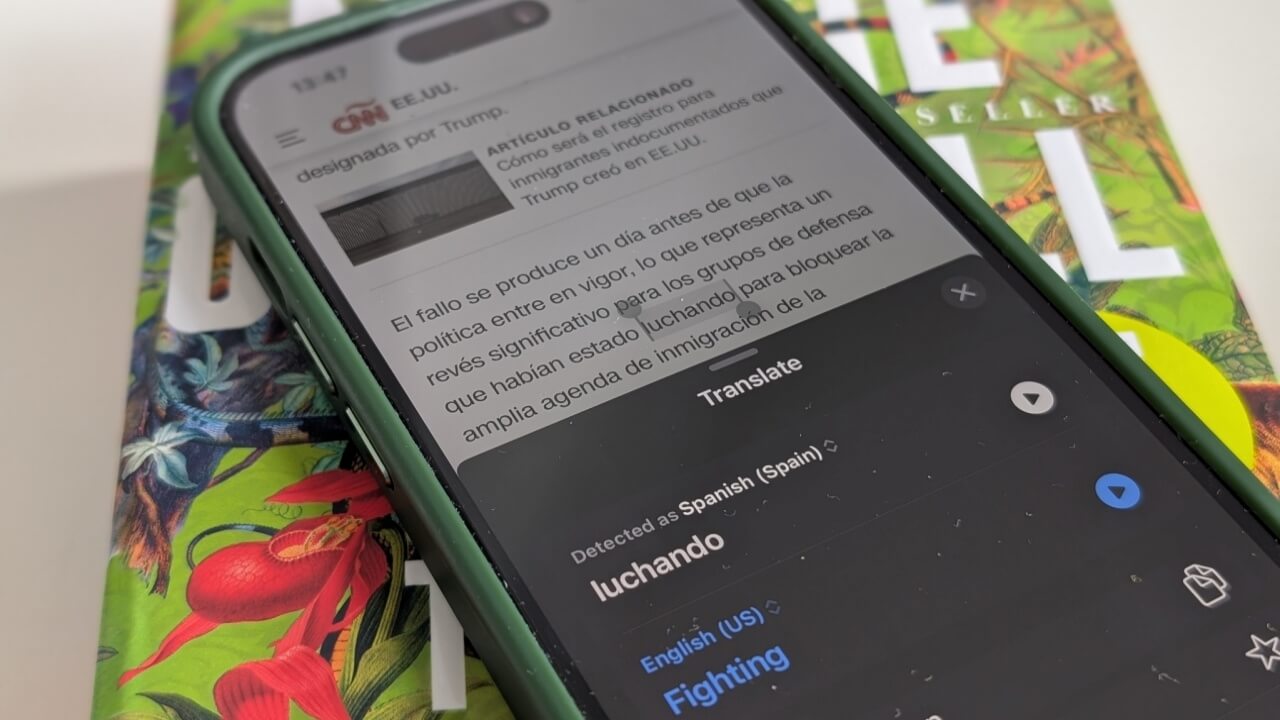
Open Safari and navigate to a page in a foreign language. In this case, we’re viewing a page in Spanish. Long press on a word you’re not familiar and select Look Up from the menu that pops up.
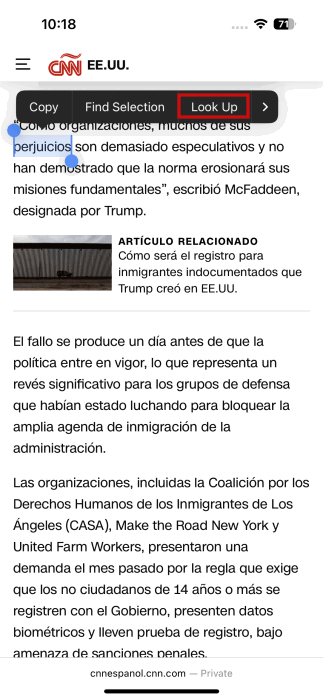
The word definition should appear at the bottom.
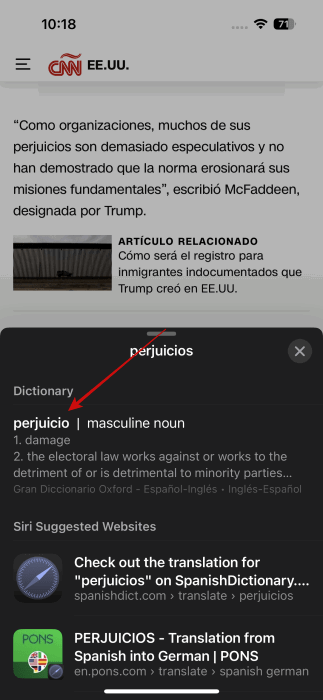
You can tap on it to view the entire definition, phrases or alternate meanings.
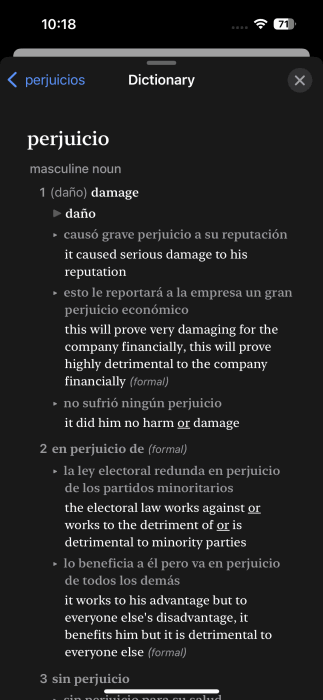
Opt for this option if you want to understand the term in depth and access additional information.
On the other hand, if you want a simple translation for a word, long press on the word and select Translate in the menu (you might have to swipe your finger to the right to find the option.)
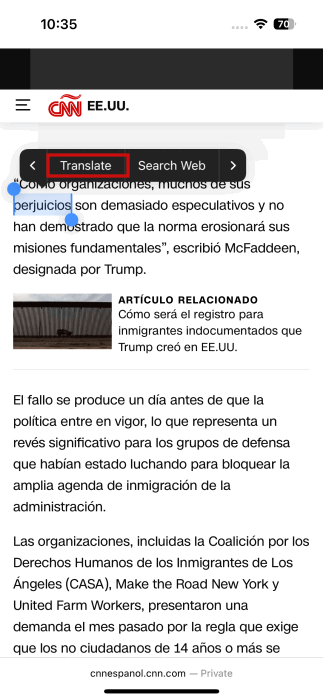
This gives you a quick translation for the term. The best part is that you can also hear the word’s pronunciation.
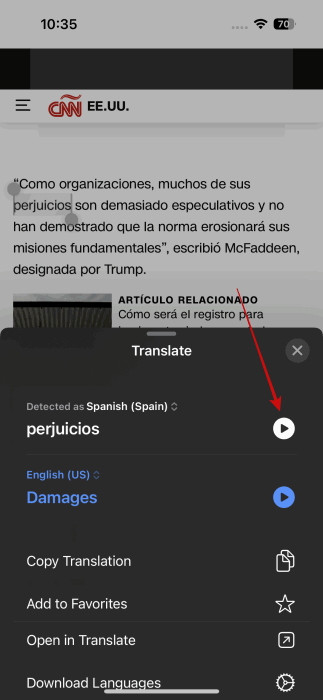
Now, if you’re not using Safari on your iPhone, Google Chrome taps into Google Translate to offer translations right from your mobile browser. Other browsers such as Brave offer the same options as Safari.
Tip: here’s how you can check and search your Safari history on Mac.
2. Convert Written Text into Digital Notes
If you rely on physical or online dictionaries for definitions, your iPhone can make things easier for you. You can quickly convert any page into a digital note, allowing you to save word definitions instantly – all in one place, without typing them out manually. You can use Apple’s preinstall Notes app for this.
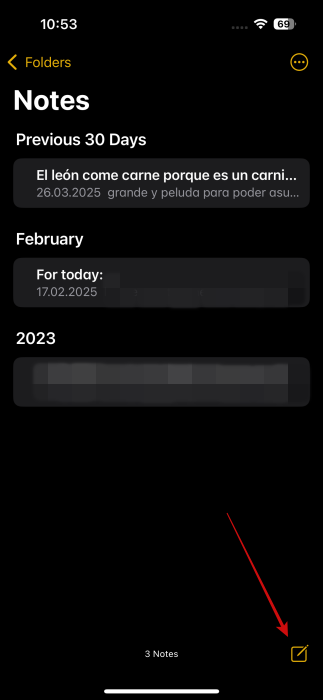
Open Notes on your iPhone and select, and tap the New Note icon in the lower right corner.
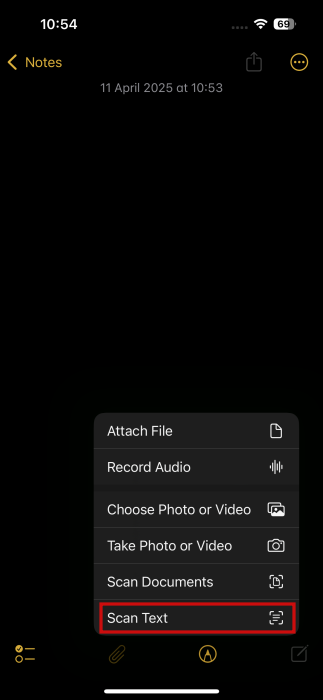
At the bottom, press on the paper clip icon and select Scan Text.
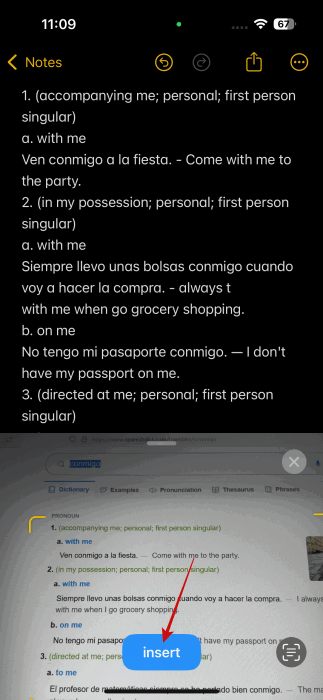
Now point your phone at the page in the book or at the screen of your laptop. Keep the phone steady and allow the phone to scan all the text.
The text will automatically appear in your note. Tap the Insert button at the bottom and the text will be added to the note. Make any edits you see fit and then save your note.
Good to know: you might want to also check our list of best apps to learn cooking if you’re trying to acquire this skill instead.
3. Practice Pronunciation Using Conversation Mode
Your iPhone also has the tools to help you practice pronunciation through Conversation Mode. This is a feature that can translate text, voice and conversations in real time.
You’ll need to use the phone’s Translator app for this. Open it on your device and switch to the Conversation option at the bottom.
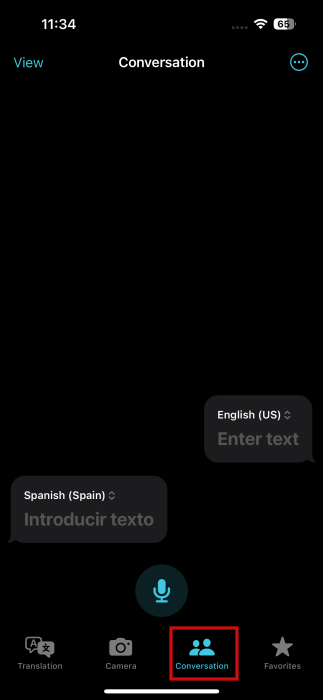
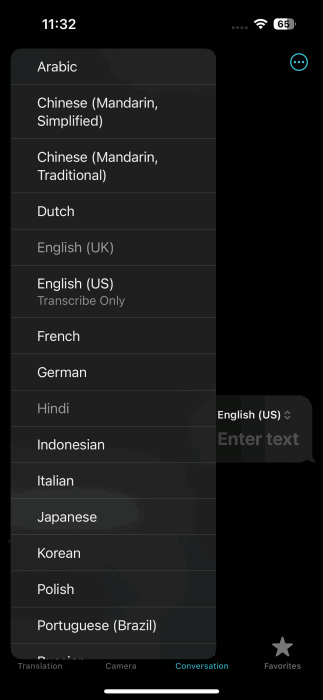
Set the source/target language if you haven’t done so yet. In our case, it’s English and Spanish, but if you want something different, tap the language and choose a different one from the menu.
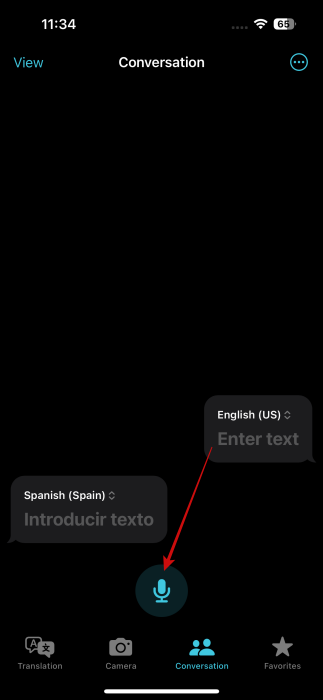
Tap on the mic icon to speak out your phrase.
The app will immediately display the translation. Press the Play button to hear the pronunciation.
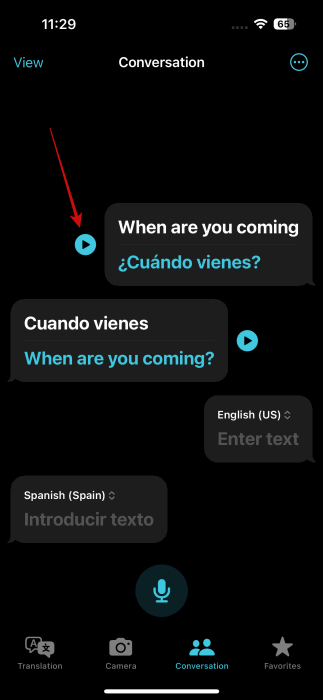
After you’ve heard the pronunciation a few times, tap the mic icon again and try speaking the phrase out yourself. See if the app can understand what you’re saying.
Tip: here’s how to make your keyboard bigger on iPhone and iPad.
4. Add a New Language Keyboard to Improve Writing Skills
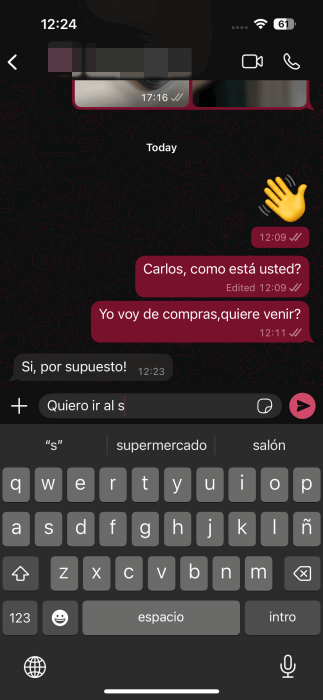
Practicing writing in the language you’re learning is a great way to speed up your progress. If you have a friend or acquaintance who can help by chatting with you, even better. To make this easier, we suggest installing a keyboard in the target language on your phone.
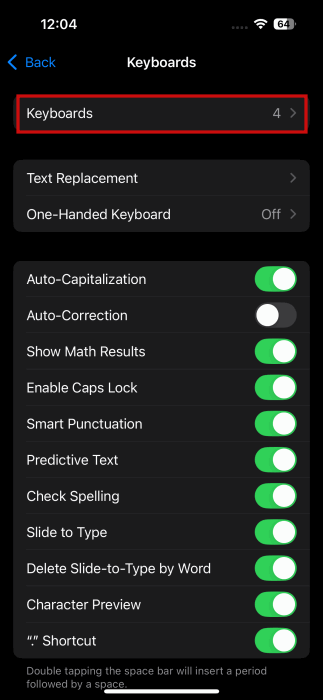
Open the Settings app on your iPhone and navigate to General -> Keyboard. Select Keyboards at the top.
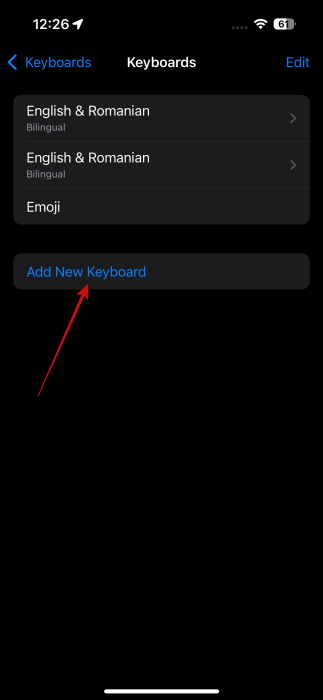
Tap on Add New Keyboard.
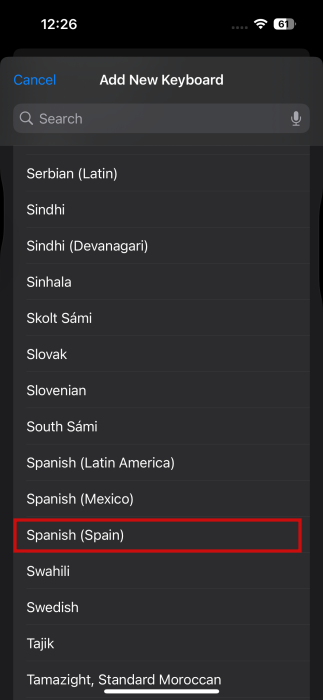
Search for the language you need and select it.
Now go to the app where you are having the conversation with your friend in the language you’re trying to learn. Start typing. Then press on the Globe-like icon on the keyboard to switch to them, in this case, Spanish keyboard.
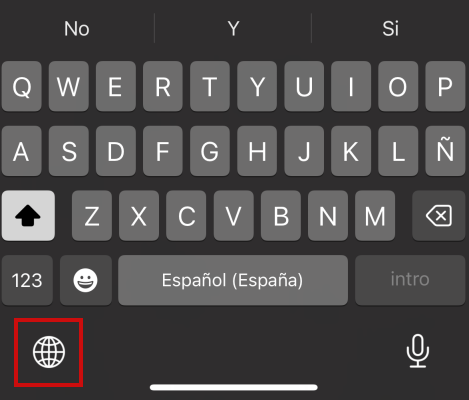
Once this is done, you can start typing, you’ll see suggestions for words while you type, which can be of great help when you’re unsure how to spell something.
5. Use Siri to Practice Speaking
When you’re learning a new language, you might not have the chance to practice speaking it very often. Here is where Siri can come in handy, as you can use the virtual assistant to practice speaking in the target language (provided it’s supported.)
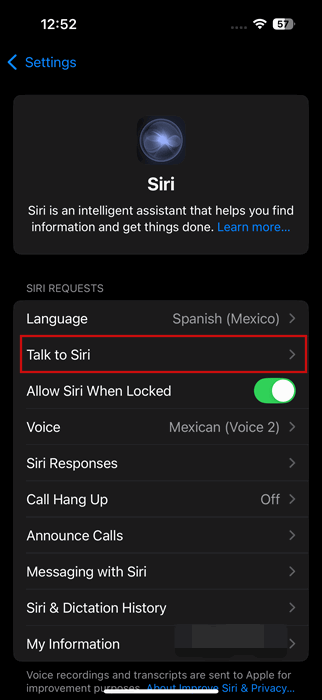
Open the Settings app on your phone and go to Siri. At the top, press on the default English option.
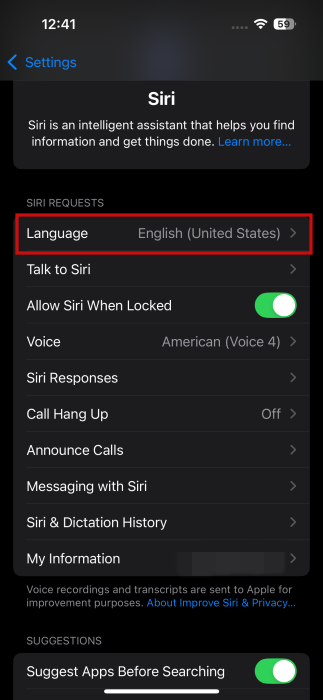
Find your language in the list. If you can’t find the target language in the list, it means Siri does not support it currently.
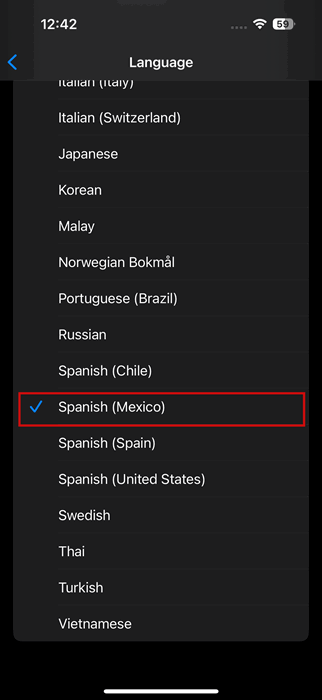
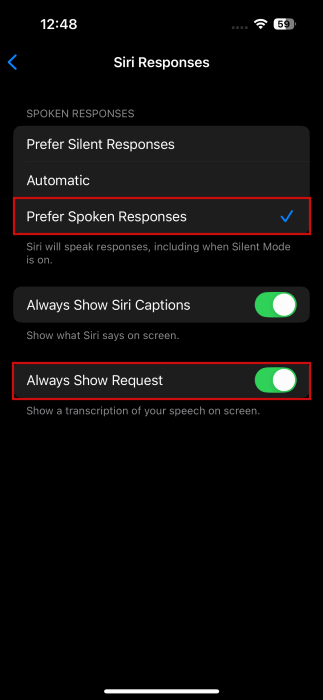
Now, go back to Siri’s settings page and access Siri Responses.
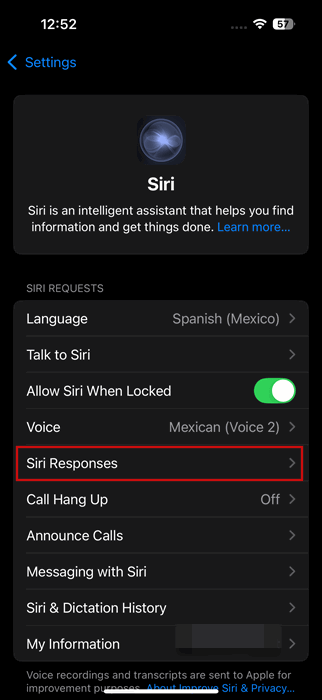
Select the Prefer Spoken Responses option. We also suggest enabling the toggle for Always Show Requests, so you can see a transcription of your speech on screen.
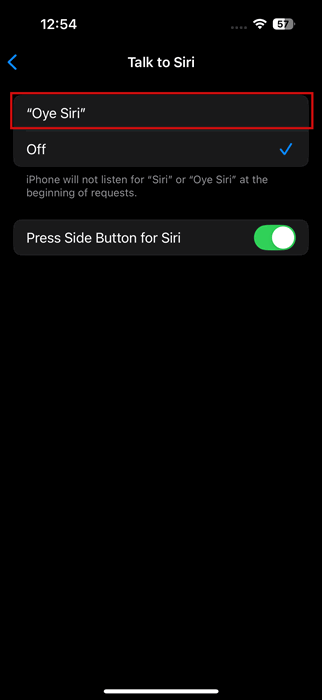
If you want to be able to wake up Siri by saying something like Hey Siri (but in your target language), go to Talk to Siri.
Select the first option and try the model by speaking out a few phrases in the target language.
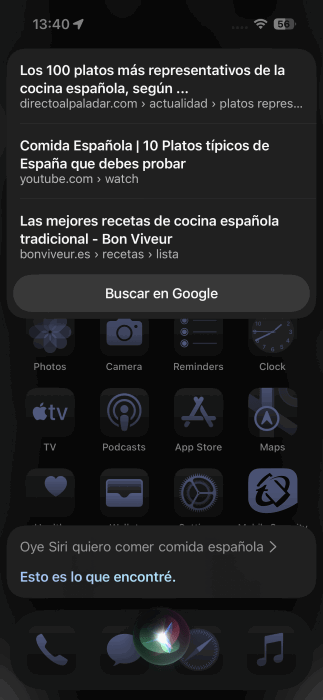
That’s it. Now, you’re good to start speaking to Siri. See if the assistant can understand what you’re saying and whether it replies.
6. Change iPhone Language
Finally, if you’re feeling confident, you can opt to change your iPhone’s system language in the language you’re trying to learn. Do this, if you’re already at a more advanced level in your learning journey.
You can do this by going to Settings -> General -> Language & Region.
Tap on Add Language and select it from the list that appears.
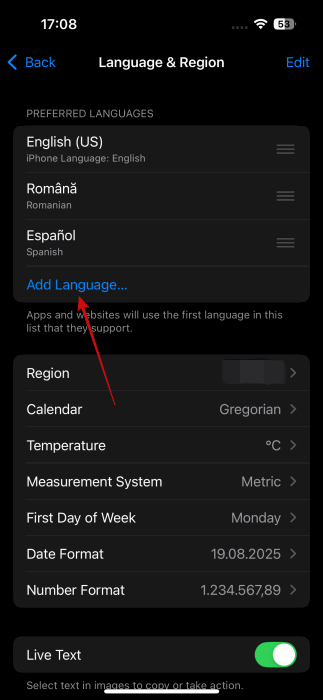
Go back to the Language & Region page, and then long press the hamburger menu on the new language. Add it at the top.
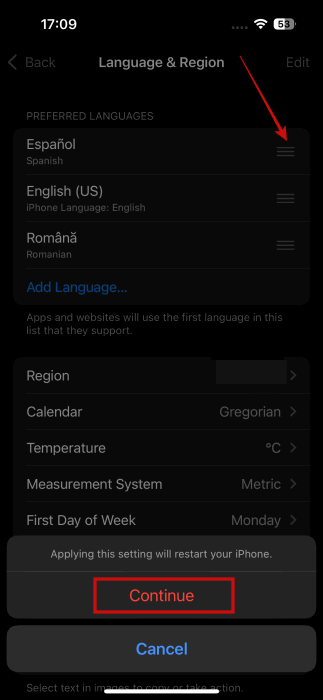
Press Continue at the bottom and allow your iPhone to restart with its new interface.
With these tricks, you can accelerate your language learning on your iPhone. However, if you still prefer to practice via language-learning apps, check our suggestions on the best options for you. However, keep in mind that using your iPhone all the time might put a strain on its battery life. This is why these tips on ways to extend your phone’s battery life might come in handy.