Are you just using Spotify to listen to a few playlists or check out the newest tunes? You might not be using the music streaming powerhouse to its full potential. Try out these Spotify tips and tricks to take your listening to the next level.
Table of Contents
- 1. View Song Lyrics
- 2. Discover Personalized Mixes
- 3. Search Better
- 4. Make Spotify Suggest Better Music
- 5. Set Music Quality
- 6. Use Spotify Keyboard Shortcuts
- 7. Recover Deleted Playlists
- 8. View Your Music History
- 9. Add Non-Spotify Music
- 10. Sync Spotify with Shazam
- 11. Create Collaborative Playlists
- 12. Put Your Playlists into Folders
- 13. Listen to Music Offline (Premium Only)
- 14. Enhance Created Playlists
1. View Song Lyrics
Forget about having to jump out of the Spotify app to find lyrics to the songs you’re listening to. Thanks to a partnership with Musixmatch, Spotify provides lyrics to a growing number of songs. Artists are encouraged to upload their lyrics.
Access lyrics on mobile, desktop, and web versions of Spotify. However, you must be a premium user to access full lyrics (versus a preview) on the desktop and web versions.
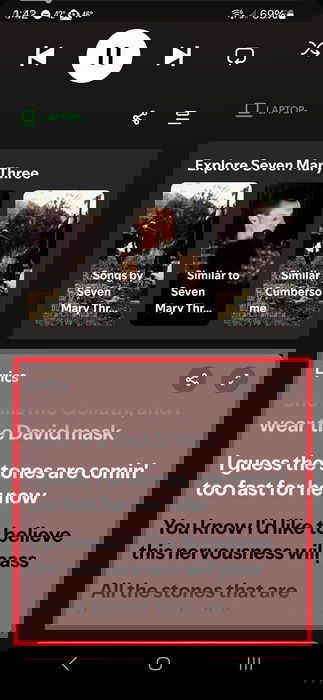
On the mobile app, tap the player at the bottom of your screen to expand a song to full-screen mode. Scroll down just below the Explore artist section to view the Lyrics window. Use the arrows at the top right to make the lyrics full screen. If you don’t see a Lyrics box, they’re not available for that song yet.
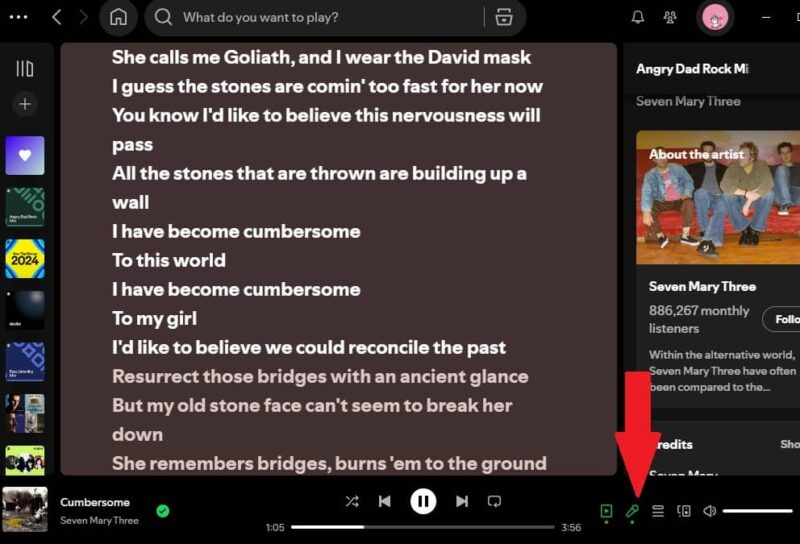
On desktop and the web, click the microphone icon to the right of the song progress/controls bar at the bottom.
2. Discover Personalized Mixes
Spotify’s filled with playlists, but it’s the personalized mixes I love most. One of my favorite Spotify tips and tricks is taking advantage of lists Spotify creates specifically for me based around what genres, moods, and decades fit my listening profile.
You might already know about Release Radar and Discover Weekly, but you also have Daily Mixes, daylist, Genre Mixes, Artist Mixes, Decade Mixes, Mood Mixes, Niche Mixes, and Soundtrack Your Day. All are unique to you and change multiple times a day, daily, or weekly (depending on the list).
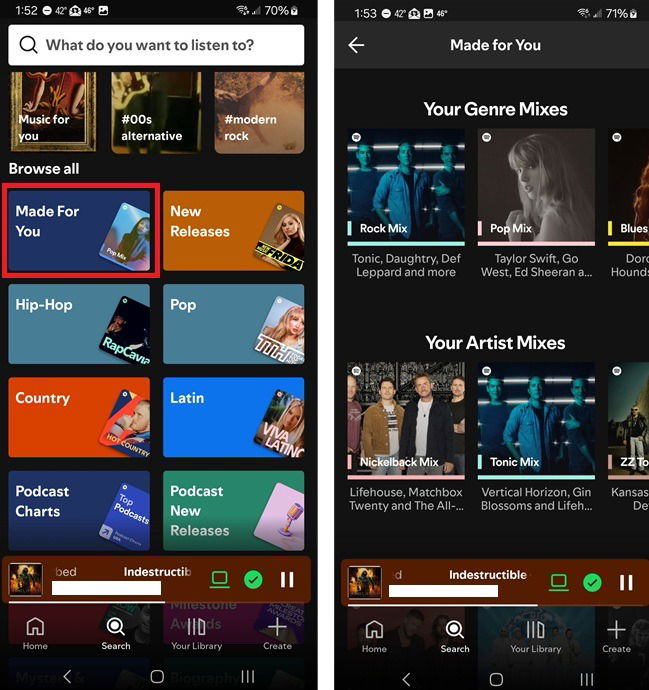
While some of these appear on the home screen, the easiest way to see everything in one place is by going to the Made for You section. In the mobile app, tap the Search icon at the bottom. Scroll down and tap Made for You. Then, explore all your playlists.
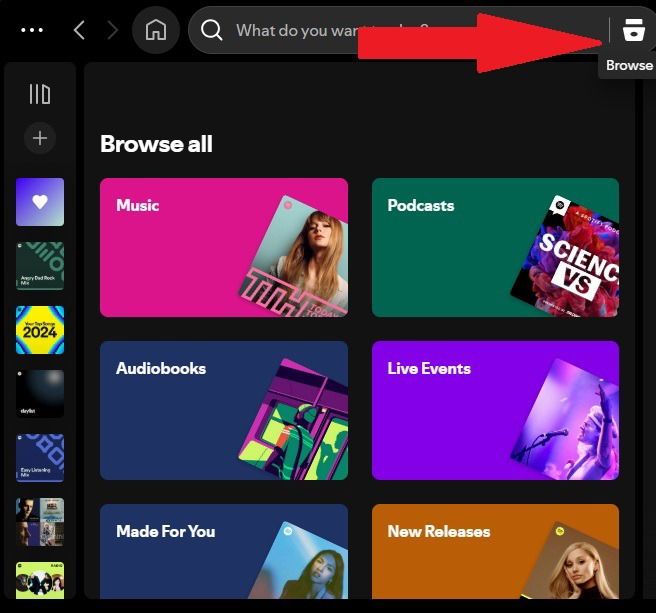
On desktop/web, click the Browse icon to the right of the search bar at the top of the window. Then, it’s the same as the mobile version.
3. Search Better
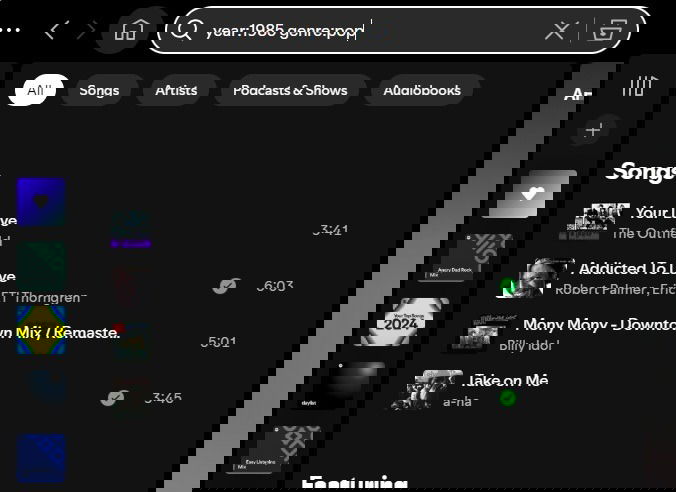
Searching for music using the artist, album or song name is all fine and dandy, but did you know Spotify also lets you use other terms to do a smart search? For example, you can use terms like “Year:1985” to find songs from this era only. Check out Spotify’s advanced search guide to learn these terms.
4. Make Spotify Suggest Better Music
Sometimes, Spotify either gets in a rut or starts recommending music you can’t stand. It may take a week or two to get Spotify back on track, but taking time to hide songs/artists you don’t like, adding new music to existing playlists, liking more songs, and even letting the Spotify DJ take over will make a difference. Use this guide to improve Spotify’s recommendations.
5. Set Music Quality
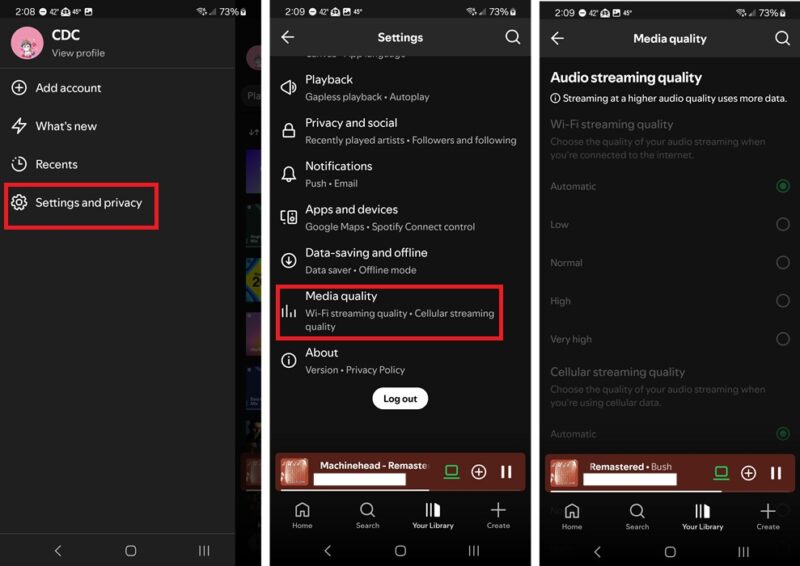
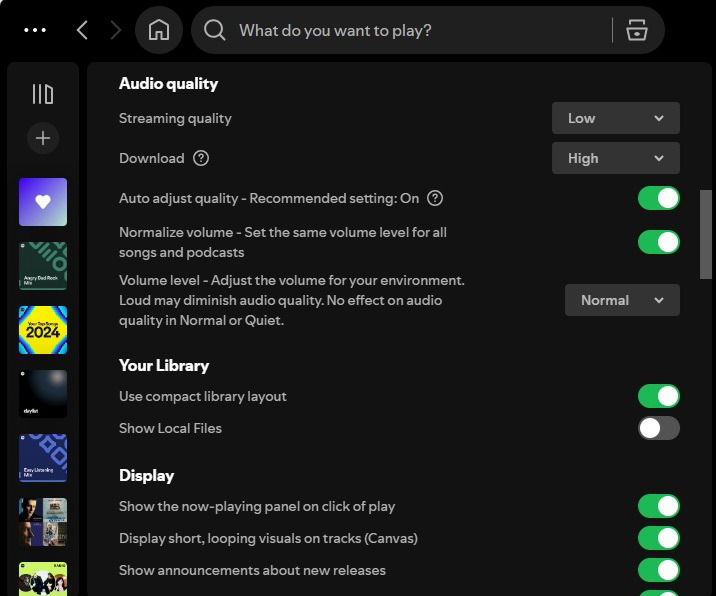
By default, Spotify sets the best music quality for your connection type. If you’re on mobile data, the quality’s less than if you’re on Wi-Fi. Manually set the quality you want on mobile by tapping your profile icon and selecting Settings and privacy. Tap Media quality. Set your preferred quality for Wi-Fi streaming and Cellular streaming.
On desktop, tap your profile icon, select Settings, and choose your preferences in the Audio Quality section.
6. Use Spotify Keyboard Shortcuts
For desktop users, Since you probably have your hands over the keyboard anyway, controlling Spotify from it will definitely come in handy.
- Space Bar – Play and Pause
- Ctrl + Right arrow / Ctrl + Command + Right arrow (Mac) – Next Track
- Ctrl + Left arrow / Ctrl + Command + Left arrow (Mac) – Back
- Ctrl + Up or down / Command + up or down (Mac) – Control volume
- Ctrl + N – Make a new playlist
You can see all the keyboard shortcuts on the Spotify support page.
7. Recover Deleted Playlists
You can easily recover all your deleted playlists from the Spotify web interface. All you have to do is log in to Spotify in your favorite browser. Click your profile icon and select Account. This also works from the desktop app. Select Recover Playlists.
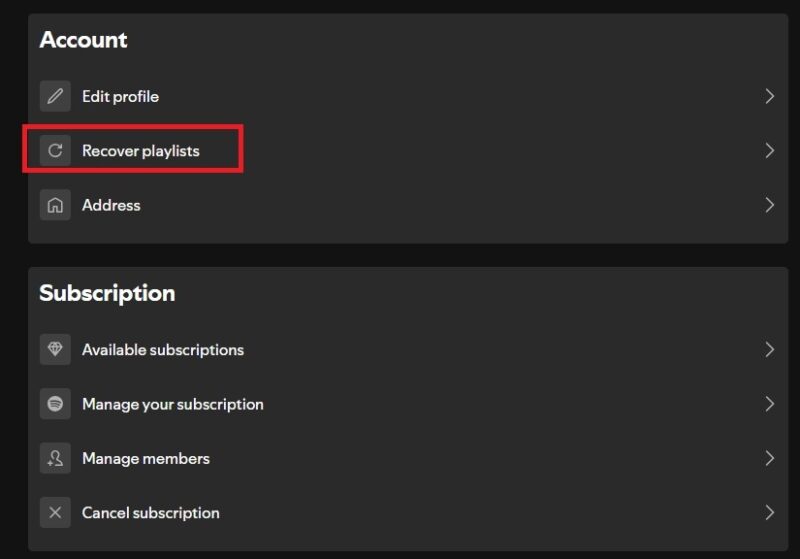
After that, select the Playlist you want to recover and click on Restore to restore it on all your devices.
8. View Your Music History
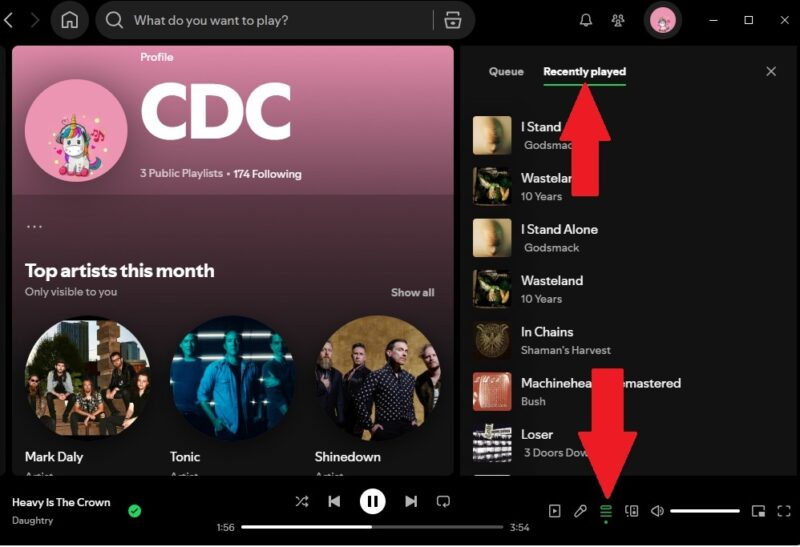
Ever been listening to Spotify and wanted to go back and see what songs played? Just view your music history. On the desktop and web versions, you’re limited to only the last 50 songs played. Click the Queue icon near the volume control at the bottom of your screen. Select Recently played.
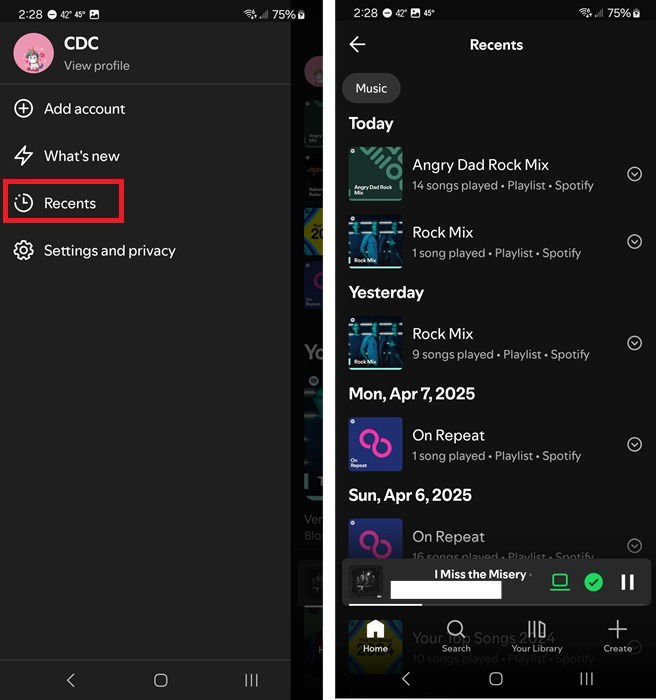
One of the lesser known Spotify tips and tricks is the mobile app shows you far more history. I gave up after scrolling through several months’ worth of history. Tap your profile icon, select Recents, and scroll until you find the day you want. For playlists, expand the list to see what songs you played.
9. Add Non-Spotify Music
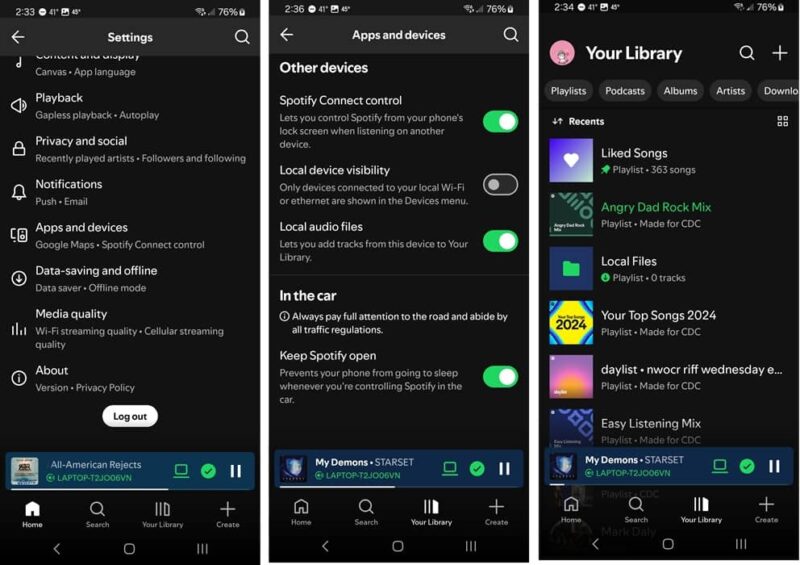
If the song you want to listen to is not on Spotify, easily add an outside source. On mobile, tap your profile icon and select Settings and privacy -> Apps and devices. Toggle on Local audio files. Open your Library and select Local Files to listen to your locally stored music.
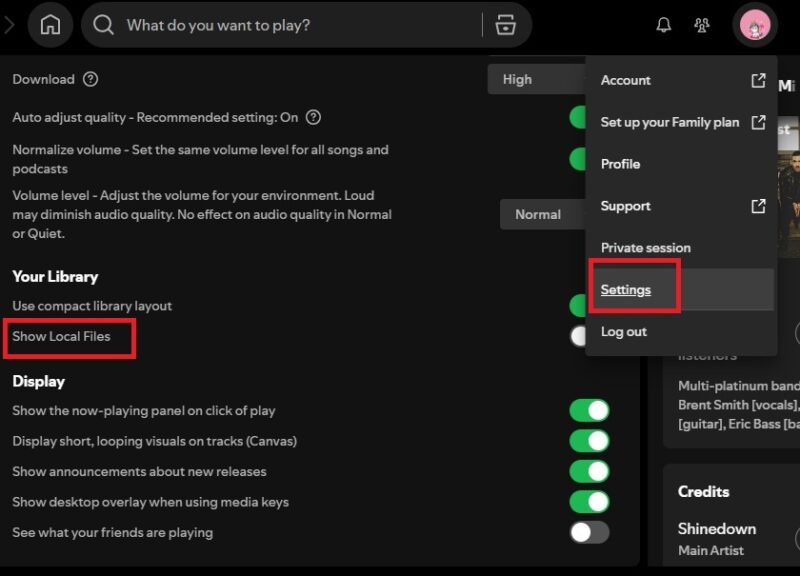
For desktop users, click your profile icon, select Settings, and toggle on Show Local Files.
10. Sync Spotify with Shazam
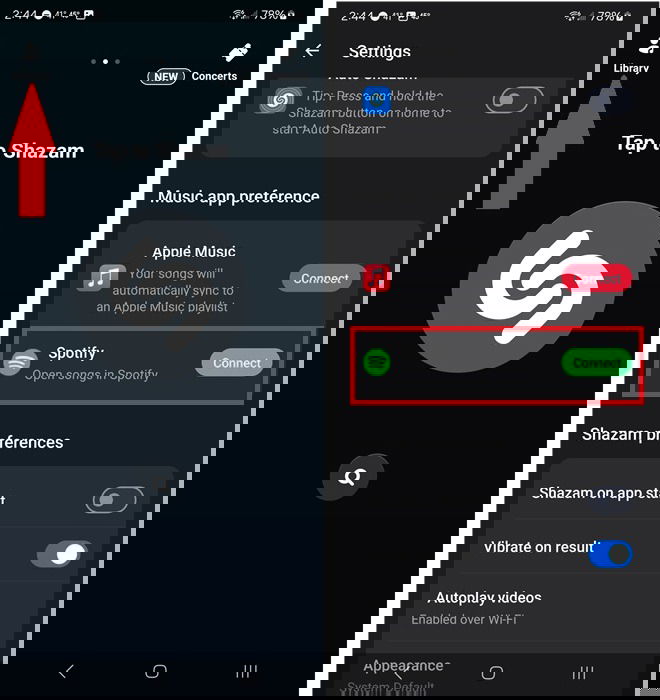
By connecting your Shazam account with Spotify, you save time when identifying a new song and adding it to your playlist. Launch Shazam and tap on Library in the top-left corner. Click on the cog wheel, scroll down, and tap Connect next to Spotify. Follow the prompts to connect the two accounts.
11. Create Collaborative Playlists
If you and your friend have very similar but not identical taste in music, a collaborative playlist is a good idea. Create one by going to Your Library -> Playlists. Select a playlist you’ve created (not a Spotify-generated list). Tap the three dots under the playlist name and select Invite collaborators. Choose who to invite. It’s the same process for desktop.
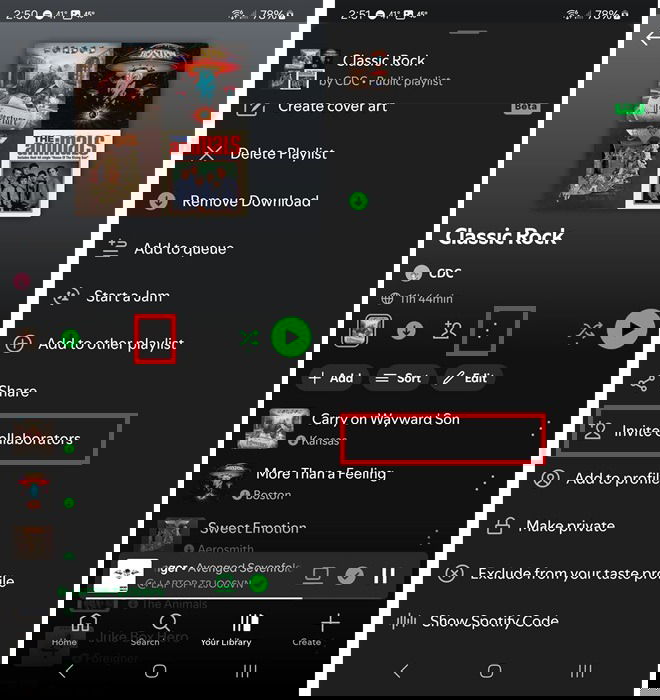
You can both add/remove songs. Repeat the process to remove collaborators.
Create a brand new collaborate playlist by going to Your Library and tapping the + icon. Choose Collaborative Playlist and invite other users.
Another option to collaborate is with a Blend. Spotify creates a blended playlist based on each invited users’ tastes. Go to Your Library, click the + icon to create a new playlist, and tap Blend. Invite other users.
12. Put Your Playlists into Folders
If you have so many playlists that you’ve lost count, then putting them into folders makes them easier to find. This option can only be done on the desktop or web version of Spotify.
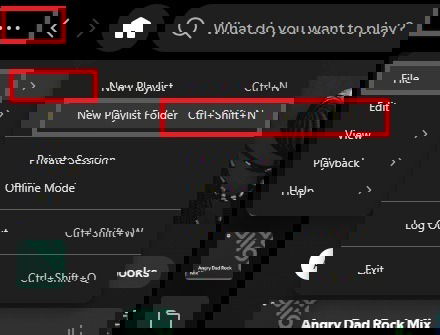
Click on the three dots on the top-left and select File -> New Playlist Folder. Name your folder and drag and drop other playlists into it. Or, right-click a playlist and choose Move to folder. The folder then shows up in the mobile app.
13. Listen to Music Offline (Premium Only)
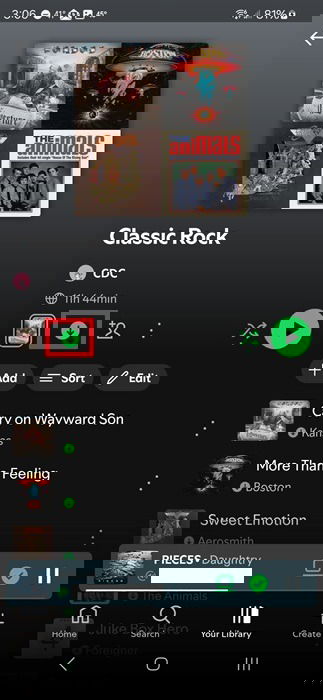
Other than no advertisements, offline listening is my favorite part of Spotify Premium. On the mobile and desktop apps, open a playlist/album you want to download. Click the download arrow under the playlist name. The arrow turns green once it’s downloaded. In Your Library, select the Downloaded filter to quickly access your offline playlists.
You can only download up to 10,000 songs, and you must connect to the Internet every 30 days for Spotify to verify your account and listening stats to compensate artists.
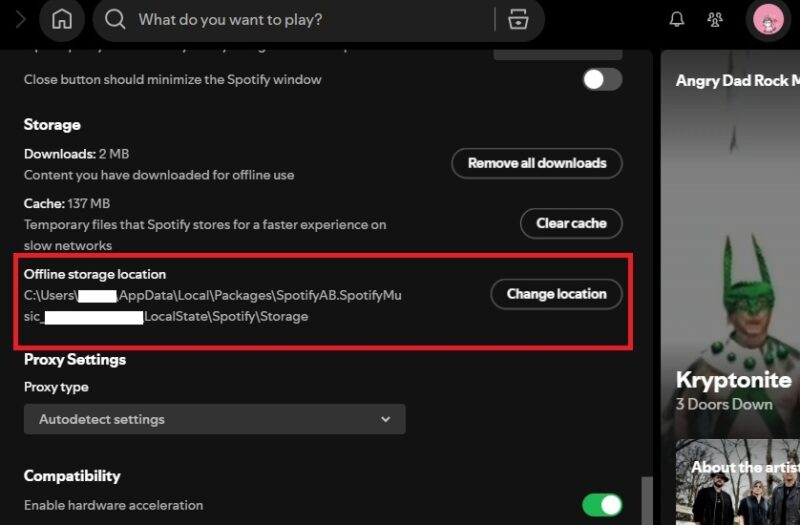
On the desktop app, you can also change where downloads are stored. Select your profile icon and click Settings. Scroll down to Storage and select Change location.
14. Enhance Created Playlists
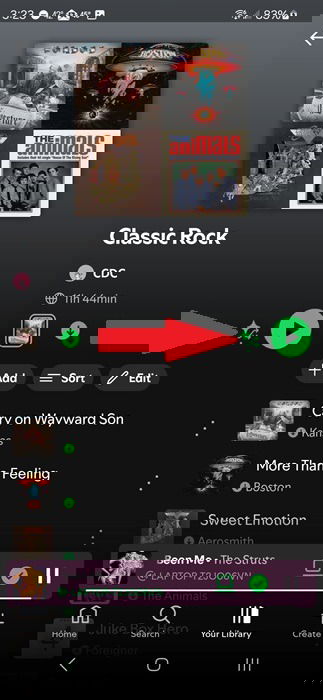
Want a little more variety in a playlist you’ve created? One of my favorite Spotify tips and tricks for spicing up playlists is Smart Shuffle. This only works on playlists you’ve created yourself. Spotify sprinkles in suggested songs throughout the playlist. Love ’em? Add them on the spot to further build up your playlists.
Open a playlist and click the Shuffle icon twice. It should look like Shuffle with a diamond. Tap it once more to turn off Smart Shuffle. This removes any suggested songs you haven’t saved.
If you want even more variety, try AI Spotify playlists. And, if you’re using Spotify before bed, use these tips for a better experience.