WhatsApp has added a document scanning feature to its iOS app, enabling users to scan and send documents with ease. This eliminates the hassle of switching between apps and saves time. If you’re ready to try this feature, this guide shows how to scan your first document using WhatsApp on an iPhone.
Good to know: learn how to create and manage your own WhatsApp Community.
How to Scan Documents with WhatsApp
Scanning documents on WhatsApp is only available via the mobile app on iPhones, at the time of writing. You will only be able to access the new function via a browser on an iPad. The feature is also not available for Android.
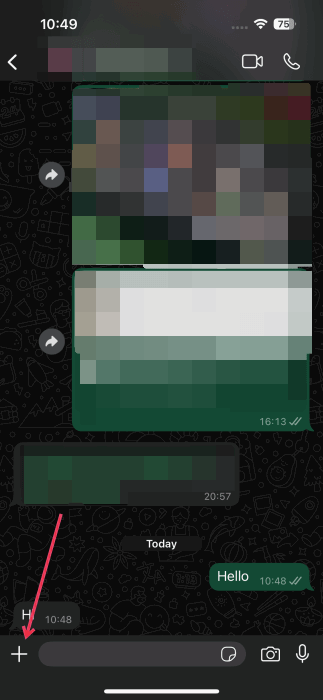
Before learning how to scan a document, make sure you’ve updated the WhatsApp app on your iPhone. Open the WhatsApp app, then open a chat. Tap on the + button in the lower-left corner.
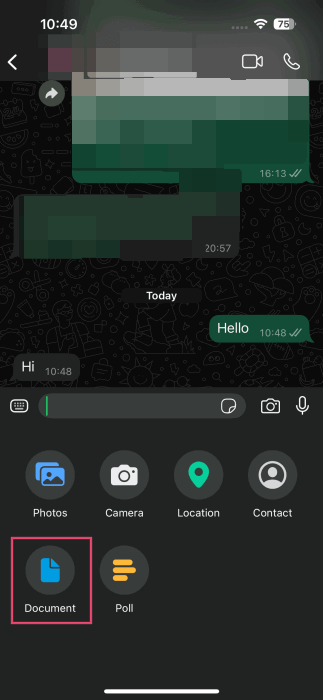
Select Document from the options in the pop-up menu.
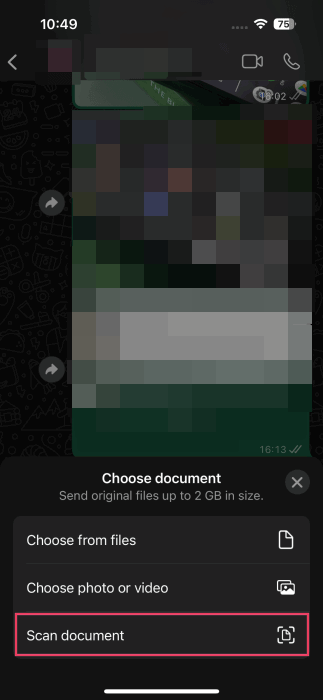
Tap the Scan document option. You can also select existing files or photos and videos from your phone.
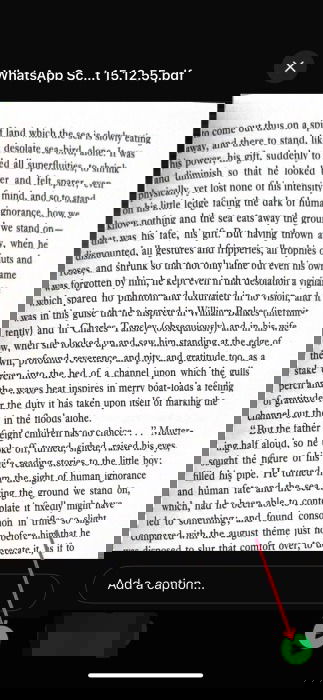
Position the phone over the page you wish to scan, and ensure you frame it right. The app will automatically scan your page. If you wish to do this manually, press the Auto button in the upper right to switch modes.
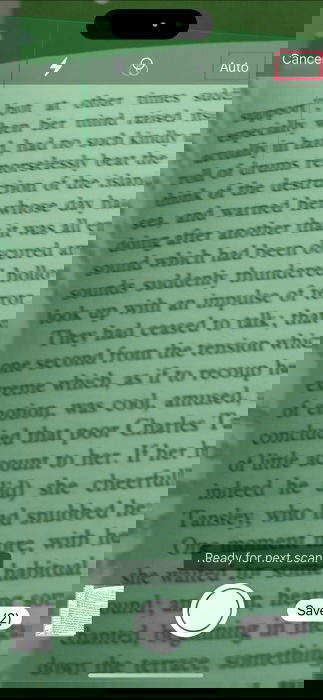
Note: you can scan multiple pages in one go: just continue to scan the next page with your phone after the app saves your first scan.
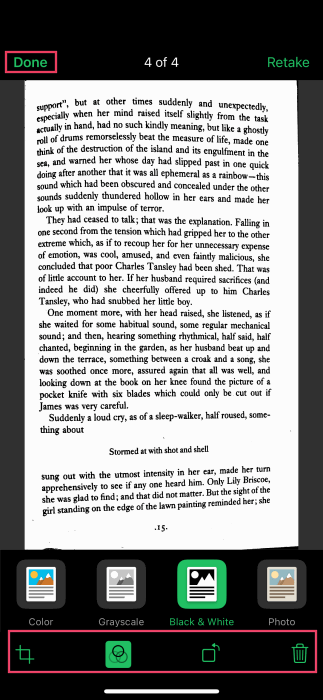
On the next screen, edit your scans. For instance, convert the scan to Greyscale or Black & White. You can also crop or rotate it. Once you’ve performed all modifications, press Done.
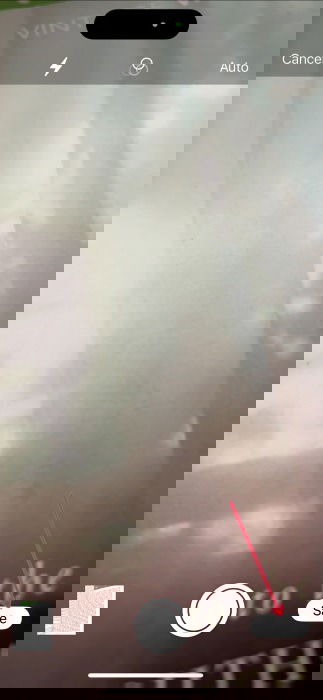
You’ll be taken back to the scanning screen. Press the Save button in the lower right.
WhatsApp will convert your scan into a PDF, containing all the pages you’ve scanned, ready to be sent. Just Press the Send button.
Tip: learn how to get WhatsApp on your iPad without jailbreaking it.
How to Attach Files to a WhatsApp Message
You can also attach scans to a WhatsApp message. First, write the message as you normally would, then press the + button to do the scans and add them. Then, follow the instructions from above.
Alternatively, add the text in the Add a caption field once you’re ready to send the scan.
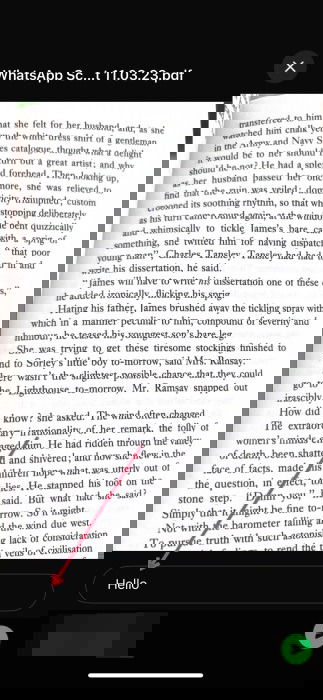
Of course, if you have other scanned documents (or any other files) stored on your phone in various formats, such as JPG, you can send them as well to your contacts on WhatsApp. Use the Choose from files option when deciding which file(s) to send.
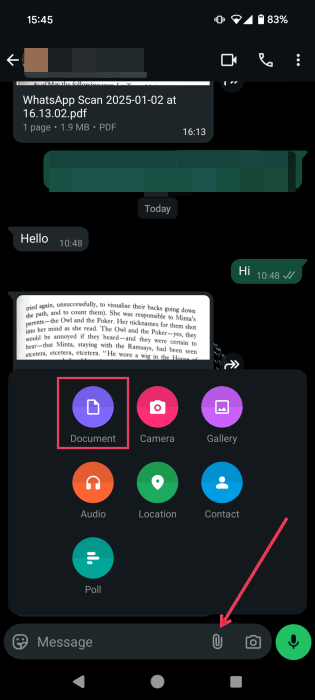
On Android, you need to press the paper clip icon -> Document to start sharing files, and you’ll be prompted to upload a document/file from your device.
Tip: find out how to create a WhatsApp group.
How to Open Documents Received in WhatsApp
While the ability to scan directly from the Android WhatsApp app is currently not available, you can view the scans that have been forwarded to if you are using an Android phone. The same is true for viewing from an iPhone.
To do so, press on the scan thumbnail in the chat thread. This will immediately showcase the scanned document if you’re on an iPhone.
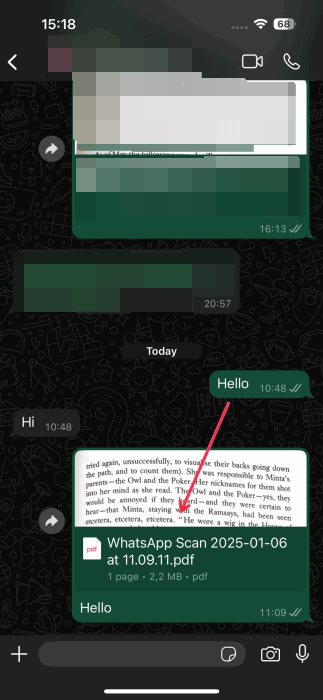
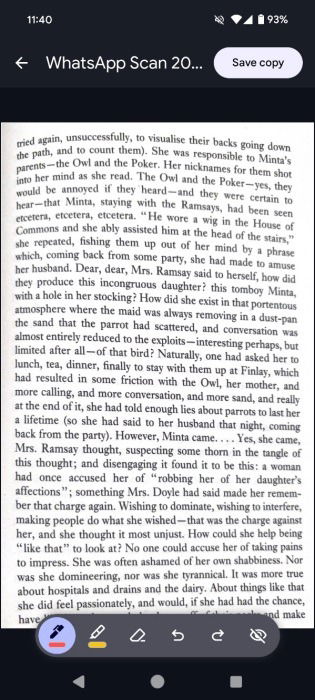
The advantage here is that you can easily annotate the document by pressing the Pencil button at the bottom, then proceed to save the edited document on your device.
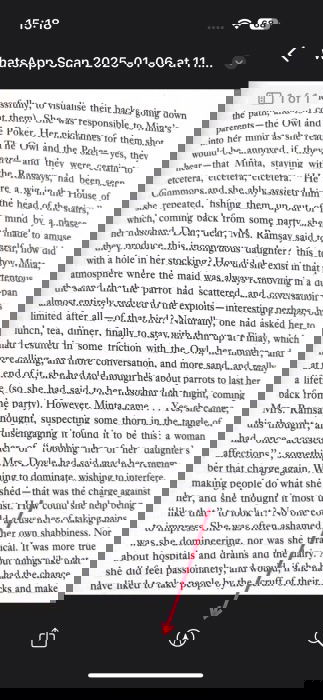
On Android, you’ll need a PDF viewer to check the document. Or, use Google Drive, which is preinstalled with most Android phones. The app also offers some annotation options.
Additional Specifications About Scanning Documents with WhatsApp
WhatsApp doesn’t specify how many documents you can scan at once, but we have to assume that the app’s 2 GB restriction applies here as well. In my testing, I scanned up to 20 pages in a row and had no issue sending them on their way.
All scanned pages are turned into PDFs, and there’s no option to select other formats at the time of writing.
Scanned documents benefit from the same end-to-end encryption, which ensures that only the sender and receiver can access the documents. For improved privacy, turn on Disappearing messages for your WhatsApp chat before sending scanned documents, and set an expiration date for these files.
If you wish to become more proficient while using Meta’s messaging app, continue reading to learn how to find your WhatsApp number and URL for easy connecting. Additionally, learn how to schedule a message on WhatsApp.
Image credit: DepositPhotos. All screenshots by Alexandra Arici.