Restarting Linux from the terminal might sound tricky, but don’t worry, it’s pretty straightforward once you know the right commands. Restarting Linux is necessary after updates, troubleshooting, or system maintenance. It ensures changes take effect and keeps the system stable. This is especially true if you are administering a remote Linux system where you can only restart Linux from the terminal. Whether you need an immediate reboot, a scheduled restart, or a forceful shutdown, there’s a method for every situation. In this article, we’ll discuss different ways to restart Linux using the terminal.
1. Using the reboot Command
The reboot command safely terminates all running processes. It ensures that ongoing tasks are properly closed before restarting the system. This helps prevent data loss and maintains system stability. To restart a Linux system immediately, run the reboot command:
sudo rebootProvide the appropriate password and hit the Enter key to restart Linux:

To force an immediate reboot, run the reboot command with -f option:
sudo reboot -fThis will reboot your system immediately, irrespective of any scheduled shutdowns or running processes.
2. Using the shutdown Command
You can use the shutdown command to reboot the system immediately or schedule it for a specific time. For example, running the shutdown command with the -r option reboots your Linux system immediately:
sudo shutdown -r nowWith the shutdown command, we can schedule a reboot after a specific time by specifying the minutes. For example, to restart your Linux system after two hours, run:
sudo shutdown -r +120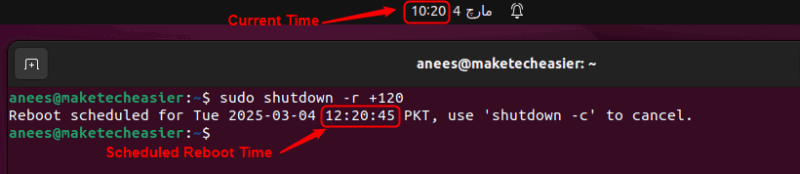
If you’ve scheduled a reboot but changed your mind, you can cancel it easily with the -c option:
sudo shutdown -c
3. Using the systemctl Command
In modern Linux distributions that use systemd, the recommended way to restart the system is by using the following command:
sudo systemctl rebootThis command terminates all running processes and safely reboots the system.
4. Using the init Command
In older Linux distributions that use SysVinit, the system can be restarted using the following command:
sudo init 6When you run init 6, the system switches to runlevel 6, which means it prepares for a reboot. It stops all running processes, unmounts file systems, and then restarts the system. While this command still works on some systems, we recommend using the systemctl reboot command for newer Linux versions using systemd.
5. Using the telinit Command
The telinit 6 command restarts Linux by instructing init (or systemd on modern systems) to switch to runlevel 6, which triggers a reboot:
sudo telinit 6This command ensures the system restarts in a controlled manner by following the proper shutdown process.
6. Using REISUB (Magic SysRq Key)
If your Linux system becomes unresponsive, you can safely restart it using the R, E, I, S, U, B key sequence (think the opposite of BUSIER), which helps avoid data corruption. This method sends specific commands to the kernel using the SysRq (System Request) key. To restart your Linux system using this method, hold the keyboard keys Alt + SysRq (Print Screen) and press the following keys one by one in order:
- R: Puts the keyboard into raw mode, taking control away from applications.
- E: Sends the terminate signal to all processes.
- I: Sends the kill signal to all processes.
- S: Forces a disk sync, ensuring all data is written to disk.
- U: Remounts all filesystems as read-only, preventing corruption.
- B: Immediately reboots the system.
This method is useful when the system becomes unresponsive but still accepts keyboard input.
7. Restarting Linux via SSH
If you’re managing a Linux server remotely and need to restart it, first, connect to your server using SSH:
ssh user@your-server-ip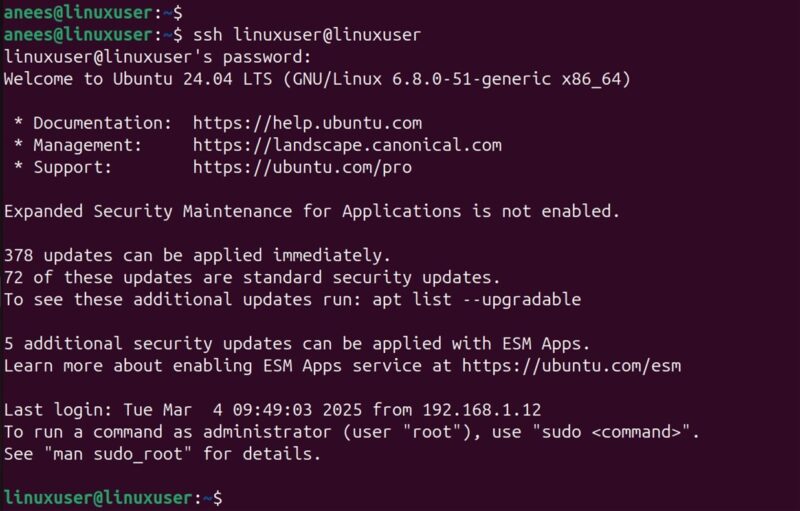
Once connected, you can restart the system immediately with:
sudo rebootSimilarly, if you need to schedule a reboot instead, you can use the command:
sudo shutdown -r +10 # Reboots after 10 minutes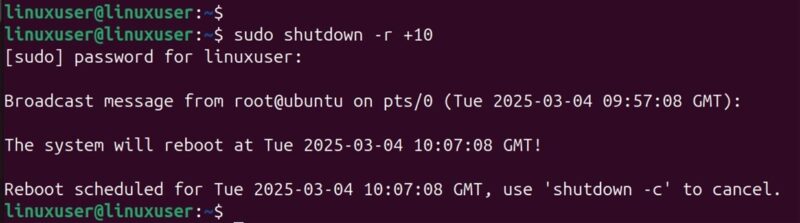
You can cancel a scheduled reboot anytime with:
sudo shutdown -c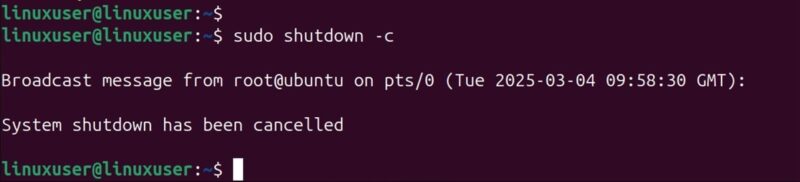
Just make sure you have the necessary permissions to run these commands, and you’re good to go!
Wrapping Up
Restarting Linux from the terminal is simple once you know the right commands. Whether you need an immediate reboot, a scheduled restart, or a way to handle a frozen system, Linux provides multiple options to fit different scenarios. While systemctl reboot is the standard for modern distributions, older systems still support init and telinit. For remote management, SSH makes restarting servers easy. With these methods, you can efficiently reboot your system right from your terminal whenever needed.