If you’re like me and spend a decent amount of time working in a terminal, then you’ve probably got a set of trusty commands you rely on. These commands get the job done and are reliable. But as a Linux enthusiast, I’m always on the lookout for new or alternative tools that can accomplish the same tasks more quickly, easily, and in a modern way. Fortunately, there are many Linux commands available that are better than the regular ones you might be using. Let’s explore a few of them.
1. Switch Ls With Eza
The ls command is probably the first command many of us learned when getting started with the terminal. It’s used to list files and directories. While it works, the plain-text output can sometimes be hard to read.
eza is a modern replacement for ls. It is written in Rust, and it offers a lot more functionality than ls. With eza, you get file icons, a tree view of directories, colorized output for quick visual scanning, and even Git status indicators directly in your file listings. By using eza, I can instantly distinguish file types and spot modifications at a glance.
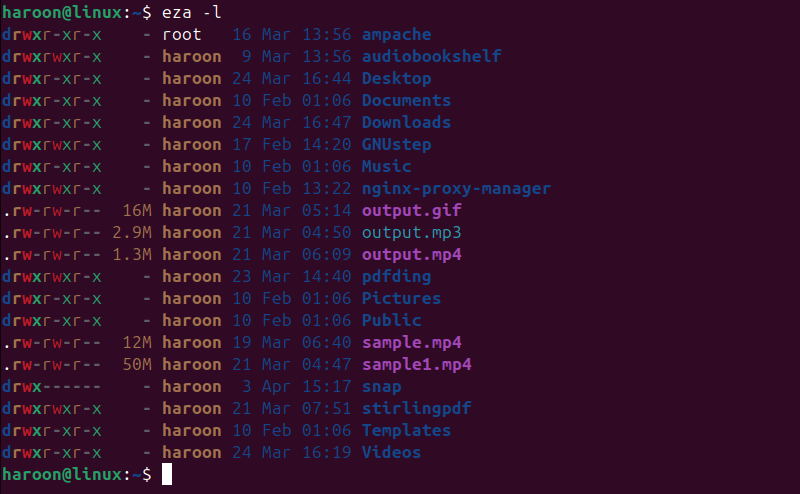
You can easily install it on your Linux system through your package manager or build it from source. For example, on Ubuntu, you can install it using APT:
sudo apt install ezaYou can also create an alias so that it runs automatically when you type ls.
2. Cat With Bat
We’ve all used the cat command to quickly display the contents of a file when debugging code or checking configurations. Bat is a cat clone with wings, designed to make file viewing more enjoyable. With built-in syntax highlighting, bat transforms plain code into something that practically sparkles on your screen.
For example, when you open any programming file with bat instead of cat, it displays syntax colors, line numbers, and even handles non-printable characters in a way that adds clarity and makes the code easier to read.
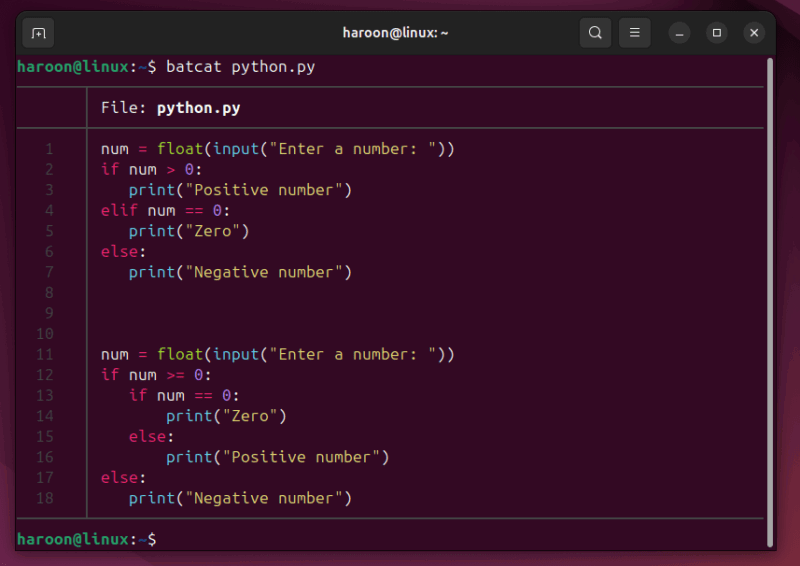
Installing bat is simple using your system’s default package manager. On Ubuntu, for instance, you can use:
sudo apt install batHowever, note that Debian/Ubuntu systems rename the bat command to batcat to avoid conflicts. So, you’ll need to use batcat instead of bat. For convenience, you can create an alias in your Bash configuration:
alias bat='batcat'Or override the default cat command with:
alias cat='batcat'3. Cp/scp With Rsync
Copying files between directories or machines seems simple – until you try to do it on a large scale. The cp and scp commands have been around forever and do their jobs well. But if you’re looking for a tool that goes beyond basic copying, especially if you need to resume transfers, synchronize directories, or back up data incrementally -then try rsync.
Let’s suppose you’re updating a large file (maybe a video file or a hefty database dump) over a network. With scp, if your connection drops mid-transfer, you’ll have to start over agin. Rsync, on the other hand, only transfers the changes (or “deltas”) between your source and destination files. This not only saves time, but also minimizes network usage and makes transferring massive files much less painful.
You can easily install rsync using your default package manager and use it with options like --archive, --partial, and --progress for a smooth, efficient transfer. The basic syntax is also similar to cp:
rsync -av source/ destination/The -a flag preserves file attributes and recursively copies directories, while -v gives you verbose output so you can see what’s happening.
4. Find With Fd
Next up is the classic find command. While find has been a Unix staple for decades, it can be complex and quirky for everyday use. Enter fd, a modern alternative written in Rust. fd is designed for simplicity. Its syntax is intuitive: just type fd followed by a search pattern, and it quickly returns a list of matching files or directories.
Install fd using your default package manager. On Ubuntu:
sudo apt install fd-findWant to find all JavaScript files in your project? Simply run fdfind .js. Or, need to locate all images in your system? Try using fdfind -e png -e jpg -e jpeg. It’s that straightforward.
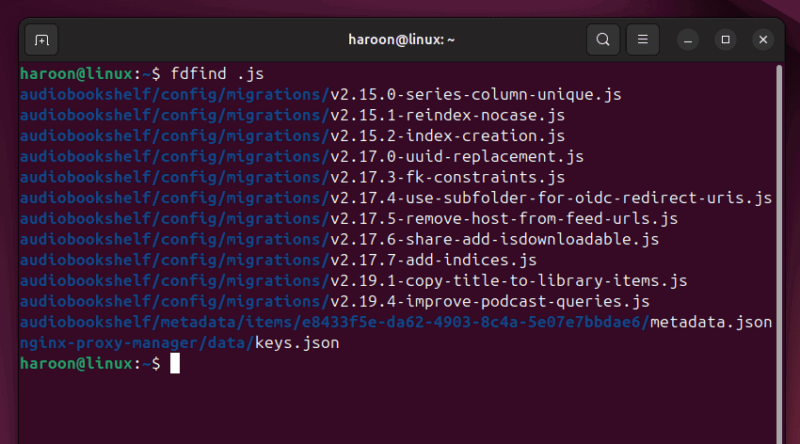
What I really love about fd is how it just works for most searches. By default, it ignores hidden files and directories (unless you specify otherwise), and it automatically switches to case-sensitive search only when necessary. Plus, it supports parallel searches, so even on large file systems, you get results incredibly fast.
5. Cd With Zoxide
Finally, let’s talk about changing directories. The cd command is essential but can be inefficient when navigating deep or frequently used directory paths. That’s where zoxide comes in – a smarter, more interactive alternative to cd.
zoxide learns from your habits and maintains a score for each directory based on how frequently and recently you access it. Over time, it becomes incredibly efficient, letting you jump to your most-used directories with just a few keystrokes.
Get zoxide with your default package manager, like on Ubuntu, use APT:
sudo apt install zoxideAfter installing zoxide, you need to open your ~/.bashrc file and add this line to the end:
eval "$(zoxide init bash)"Start using zoxide like the regular cd command. The first time you use it, zoxide will create a small database to remember the folders you visit.
For example, if you’re working on a project located in a deeply nested folder structure. Instead of typing out the full path or navigating step-by-step through countless directories, you can simply type z directory or even z direc if it’s unique enough.
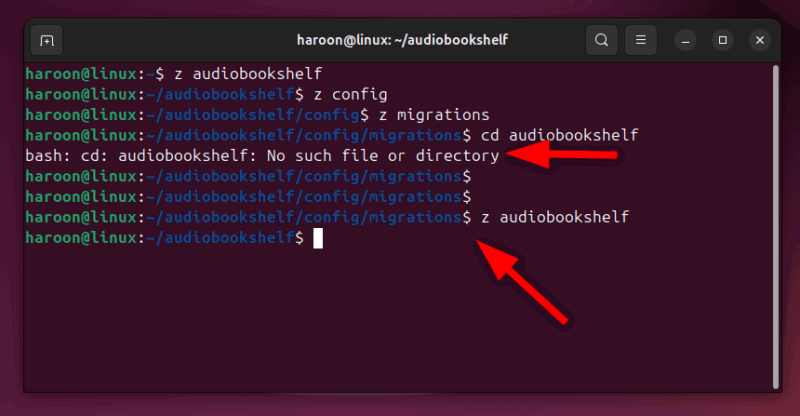
You can also install fzf, a command-line fuzzy finder, and use it alongside zoxide for interactive selection and auto-completion. fzf helps you quickly navigate documents, folders, and even your command history.
Final Thoughts
When it comes to these modern tools, it all comes down to efficiency and a better overall user experience. You might be used to doing things a certain way, but it’s always good to explore other choices sometimes. You could discover a better tool that improves your daily work.
Also, you are not limited to the mentioned commands, there are many other options and alternatives available for everyone. For example, you can explore various Linux fun commands, specific networking commands, or commands dedicated for new users.