As a Linux user who values efficiency, I’ve found it useful to control my computer from my phone. This allows me to transfer files, send messages, run commands, and check running tasks — all remotely and easily. Let’s explore some Linux tools that bridge the gap between your Linux machine and mobile phone.
1. KDE Connect
KDE Connect was originally designed for KDE desktops, but it works with other desktop environments as well. It offers deep integration with Linux systems, allowing seamless file transfers, notifications, and even multimedia control.
Getting started with KDE Connect is straightforward. First, install the KDE Connect application on your Linux system from your distribution’s repository using your default package manager. For instance, to install it on Ubuntu, run:
sudo apt install kdeconnectNext, install the KDE Connect app on your Android device from the Google Play Store. If you’re using iOS, download it from the Apple App Store.
Before setting it up, verify that both devices share the same Wi-Fi connection. Once both devices are on the same network, simply open the apps one by one and pair them according to the provided instructions.
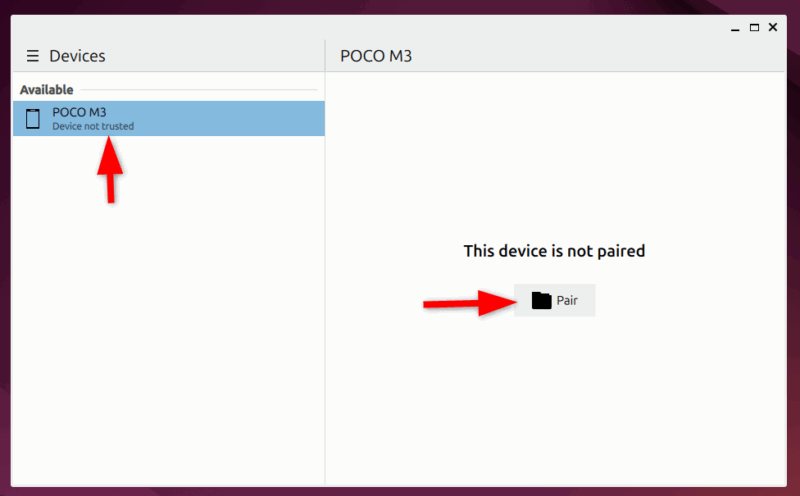
You’ll be asked to accept the pairing request – click Approve to establish the connection. You’re now ready to control your computer.
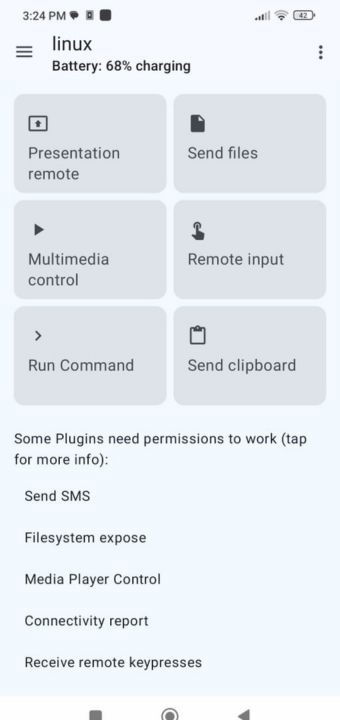
Beyond basic features like notifications and file sharing, KDE Connect also offers remote presentation input, media control, and send and receive messages. For example, to transfer files quickly, click the Send Files option and select the files you want to send to your computer. You can also use the shared clipboard feature to copy text on your phone. Then, paste it directly onto your PC.
Further, you can use your mobile phone’s touchscreen as a mouse or keyboard for remote input. Additionally, advanced users can execute custom commands on their Linux computer directly from their mobile device.
2. RustDesk
RustDesk is another excellent option that allows full control of your Linux computer from your phone while ensuring data security through end-to-end encryption. It also offers self-hosting, providing you full control over your contents and enhancing privacy.
To get started with RustDesk, install the application on both your Linux computer and your mobile device. You can get the Linux version from the official website as a DEB package.
For example, to install RustDesk on Ubuntu, first download the latest .deb package from the GitHub releases page.
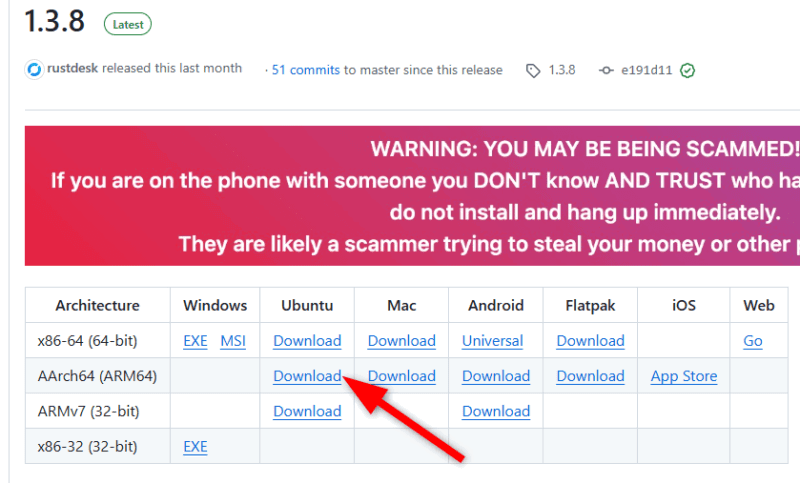
Then, double click the deb file to install it in Ubuntu.
Alternatively, you can install RustDesk using Flatpak, but ensure that Flatpak is enabled on your system:
flatpak run com.rustdesk.RustDeskAfter installation, your Linux machine will be assigned an ID, which you’ll use to connect from your Android or iOS device.
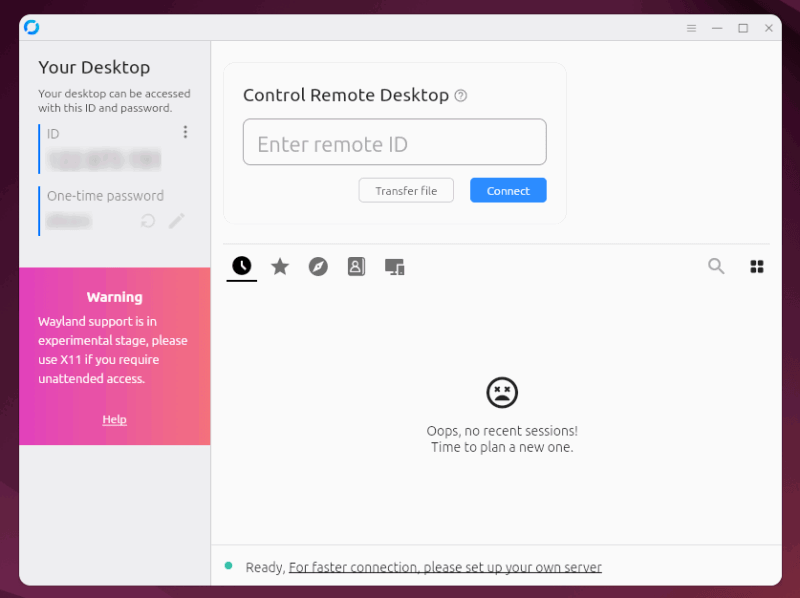
The mobile app for Android and iPhone is also available on the official website. After installation, open the app and enter your unique client ID.
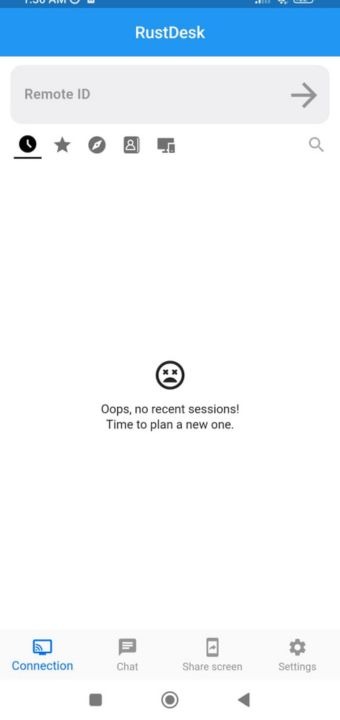
Your Linux client desktop will prompt you to accept the connection. Once connected, your screen will be share itself with the RustDesk mobile application.
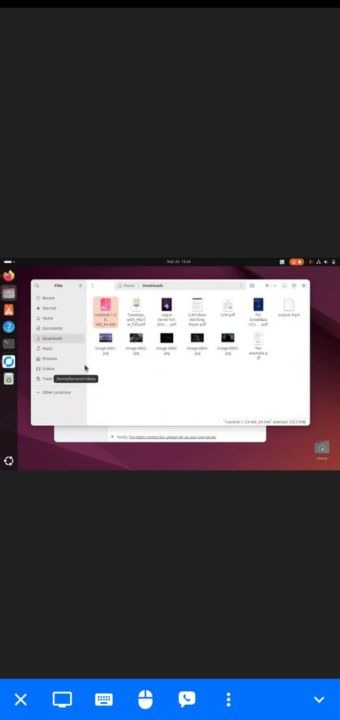
RustDesk comes with two different interaction modes such as touch mode and mouse mode. Mouse mode offers precise cursor control via a virtual touchpad, while Touch mode allows direct interaction as if you were touching the Linux screen.
Additionally, RustDesk includes robust file transfer capabilities. You can easily move files between your mobile device and Linux computer using the File Transfer feature, which provides an intuitive interface for navigating both local and remote file systems.
3. TeamViewer
TeamViewer is renowned for its simplicity and cross-platform compatibility. Whether you’re on Linux, Windows, or macOS, TeamViewer ensures a seamless connection. Its mobile app is equally impressive, providing a smooth experience for controlling your Linux desktop with just a few taps.
To use TeamViewer, download the Linux free version from the official website. The installation process is similar to RustDesk – just download the DEB package file and double click it to install.
After installing the desktop client, open it from the Applications menu.
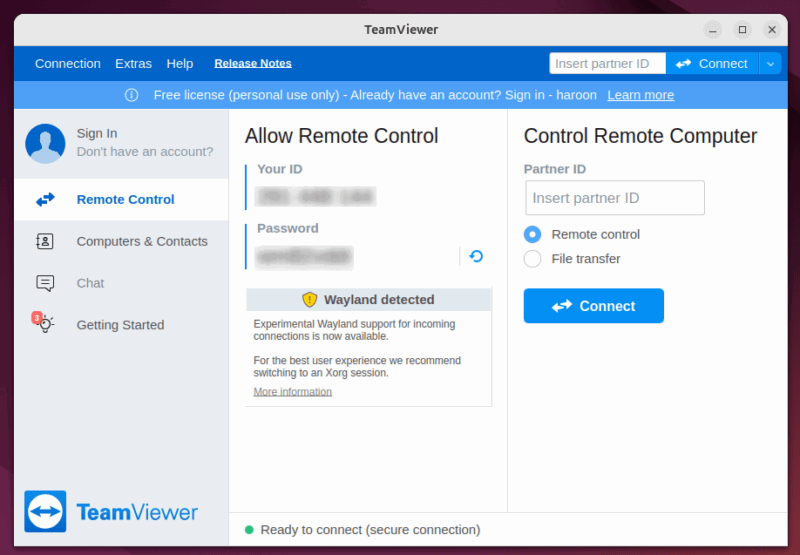
Next, get the TeamViewer Remote Control app from the App Store or Play Store. Once installed, launch the app and type the connection ID provided by your Linux machine.
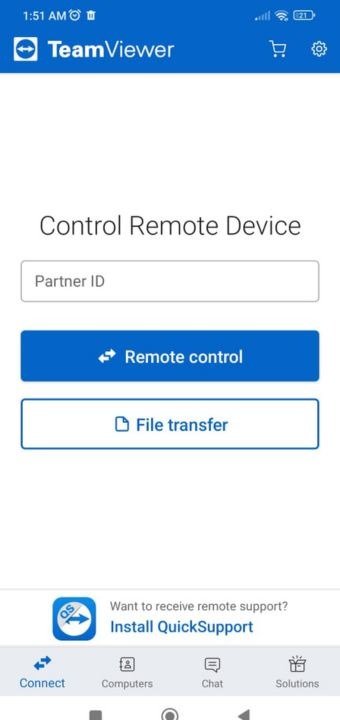
Note: To establish a connection using TeamViewer, you must sign up with an email ID.
With TeamViewer, you can share files, print remotely, stream remote audio, lock your system, and access keyboard shortcuts. You can also use touch input, a virtual touchpad, or specialized input modes for specific tasks.
4. AnyDesk
Another excellent remote control tool you may find useful is AnyDesk. This tool delivers speed and responsiveness, and it also offers a lightweight solution packed with useful features.
Start by downloading the AnyDesk DEB file for Linux from the official website and double-click the deb file to install it.
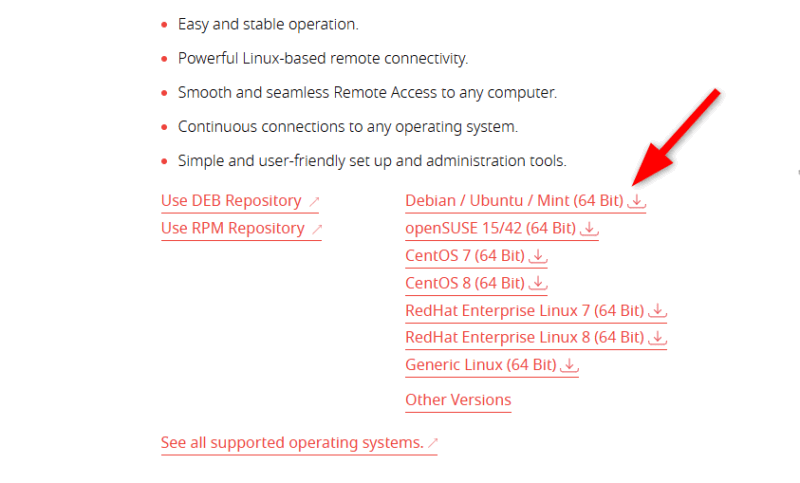
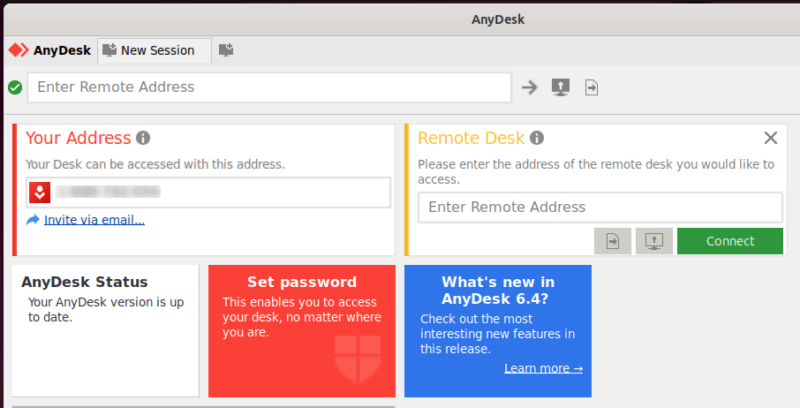
Once installed, open it and copy the remote address.
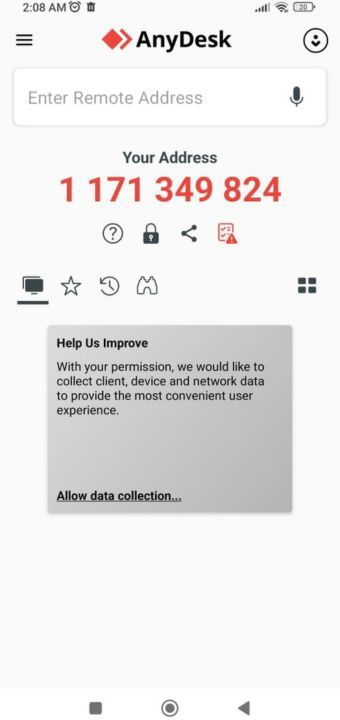
Next, install the mobile version on your mobile phones from the Play Store or App Store. After installation, open the app and type in the AnyDesk address displayed on your Linux screen to establish the connection.
One of AnyDesk’s standout features is its custom codec, which provides smooth remote control even on slower connections. This is especially useful when controlling your Linux system over mobile networks or in areas with limited bandwidth.
Another particularly helpful feature is AnyDesk’s ability to restart the remote computer and automatically reconnect after a reboot. This is invaluable when performing system updates or troubleshooting that requires restarts.
5. Chrome Remote Desktop
Chrome Remote Desktop is an excellent choice for those embedded in the Google ecosystem, as it integrates seamlessly with Chrome and Google accounts.
Unlike other solutions, you don’t need to install heavyweight software – just add the Chrome Remote Desktop extension to your Chrome browser. But before starting, make sure you have Google Chrome installed on your Linux system. It also works with other browsers, but for working with the extension, we recommend choosing Chrome.
Install the Chrome Remote Desktop extension from the Chrome Web Store on your Linux computer. Then, follow the steps on the screen to set it up for remote access.
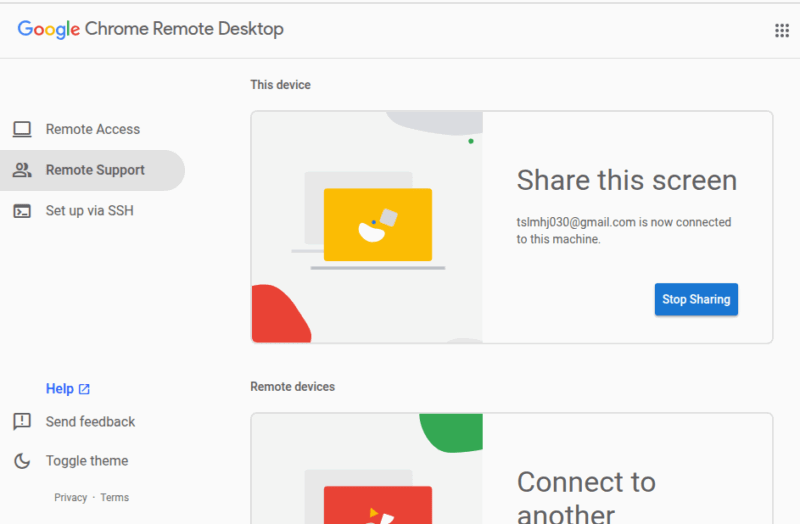
On your phone, download the Chrome Remote Desktop app from the Google Play Store (Android) or the Apple App Store (iPhone). Log in with your Google account, and you can control your Linux computer from anywhere with just a few taps.
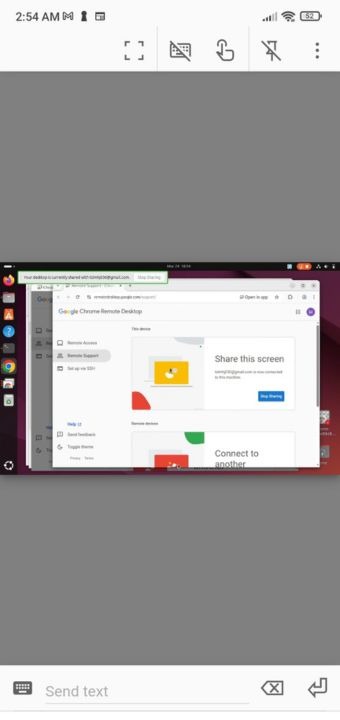
Chrome Remote Desktop works smoothly with Google accounts, so you don’t need to remember complicated details like IP addresses or special codes. Just log in, choose your computer, and connect!
Personally, I find KDE Connect ideal for daily tasks, while RustDesk is my go-to for advanced remote access. You can try these tools and find out which one suits your needs best. With these solutions, you can efficiently manage your Linux computer from anywhere, enhancing flexibility and productivity.
Image credit: Henry Ascroft via Unsplash. All alterations and screenshots by Haroon Javed.