While most Linux distributions come with built-in SSH support in the terminal, PuTTY provides a user-friendly graphical interface for those who prefer a visual approach. Here we show you how to install PuTTY on Linux.
What is PuTTY
PuTTY is a tool that allows you to connect to remote servers and devices using protocols like SSH and Telnet. It also lets you run graphical applications remotely over an SSH server.
Now, you might wonder why you would need PuTTY if Linux already has SSH built into its terminal. Let’s say you’re a system engineer or developer working at an IT company where you manage files on a Linux system, but your personal computer runs Windows. PuTTY is a solution that lets you connect to remote Linux servers from your Windows machine.
PuTTY is particularly helpful for Windows users because it offers an easy-to-use graphical interface to manage SSH connections. It simplifies saving and organizing your SSH sessions, which can be tricky to manage with Linux’s default terminal. For Sysadmins, PuTTY makes it easier to access other computers and communicate with their serial ports remotely. Moreover, it simplifies tasks like debugging or connecting to raw sockets and serial ports.
Installing PuTTY via the Distribution Package Manager
Most Linux distributions have PuTTY in their official package repositories and you can easily install it using your system’s package manager. For instance, we can install Putty on Debian-based systems using the following command:
sudo apt install putty -y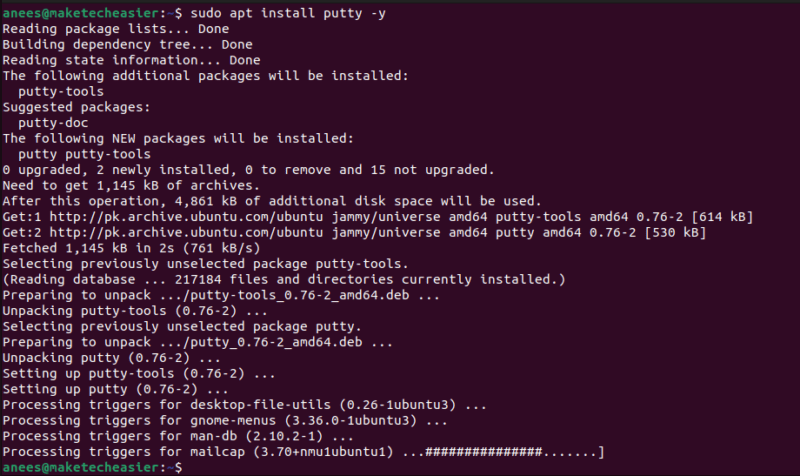
Users having Fedora, CentOS, RHEL, Rocky, or AlmaLinux can use dnf package manager or yum package manager to install PuTTY on their systems:
sudo dnf install putty #For Modern Systems
sudo yum install putty #For older Systems
Similarly, we can install it on Arch Linux using the Pacman:
sudo pacman -S puttyOnce the installation process is done, type putty in the terminal to access it. It will launch the PuTTY Configuration window:
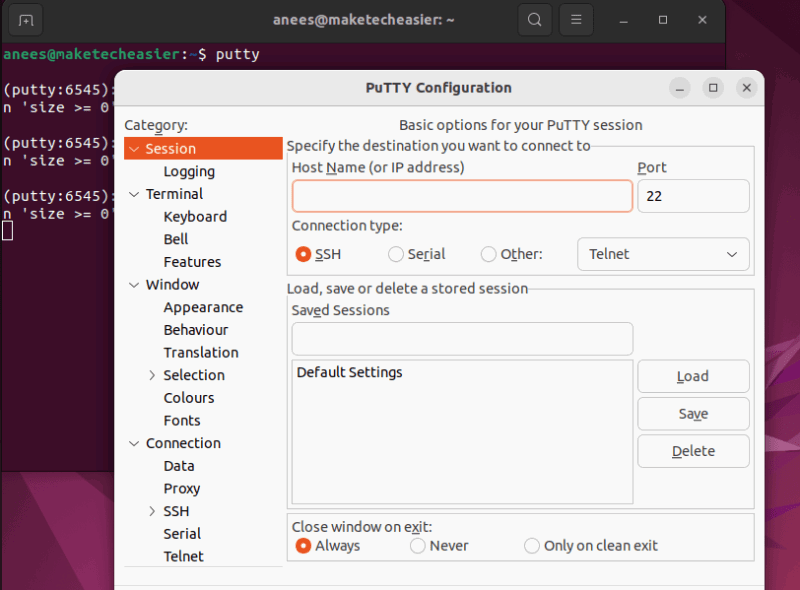
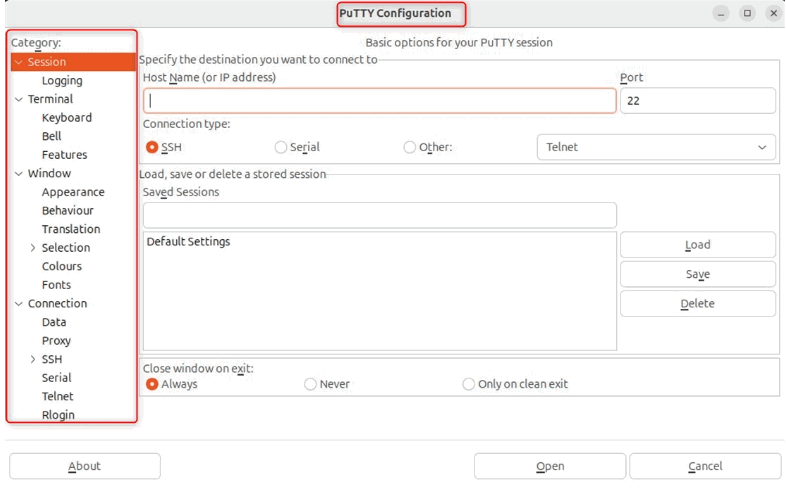
The output confirms that PuTTY is installed on your system and is running properly. It allows us to configure a new session by entering the Host Name (or IP address) and selecting the connection type (SSH, Serial, or Telnet). We can also save, load, or delete session configurations.
Moreover, we can use PuTTY to connect to a remote server. For example, in the following illustration, we connect to the server at 192.168.1.100 using PuTTY, attempting to log in as the root user:
sudo putty root@192.168.1.100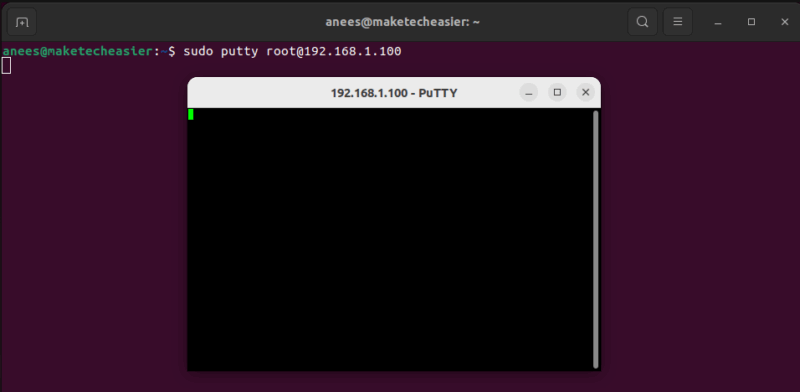
Installing PuTTY via GUI
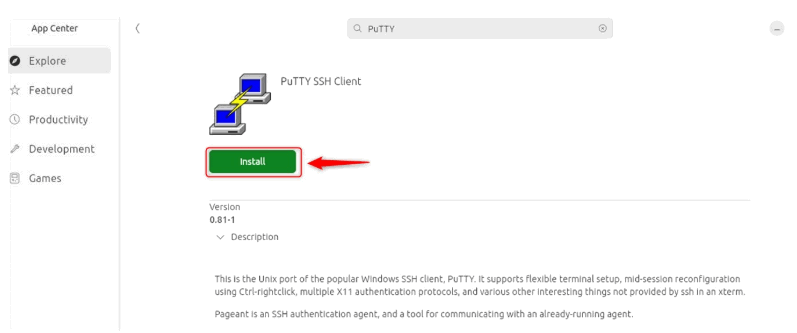
To install PuTTY on Linux using a GUI, you can open your software management tool, such as Ubuntu Software Center, GNOME Software, etc., depending on your Linux distribution. Then, search for PuTTY:
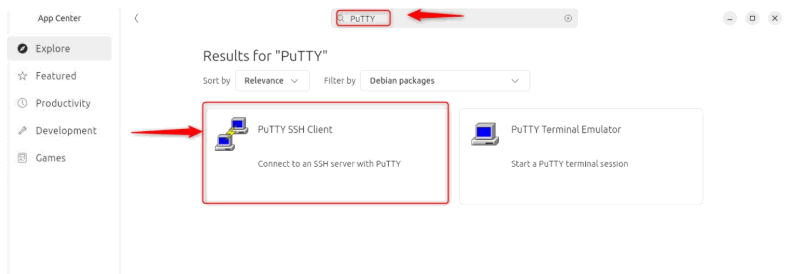
Click on the Install button to install the PuTTY SSH client on your system:
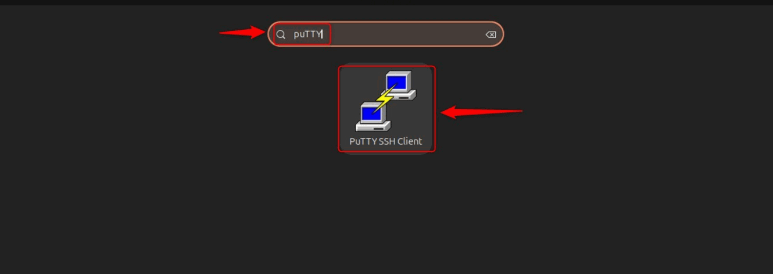
Once installed, you can launch it from the application launcher:
PuTTY lets you customize many settings. You can save and load your session details, change how the terminal looks and works, and turn on X11 forwarding to run remote apps with a graphical interface:
Removing PuTTY From Linux
If you no longer need PuTTY, it is easy to uninstall it too. For example, we can use apt to remove PuTTY from Debian-based systems:
sudo apt remove putty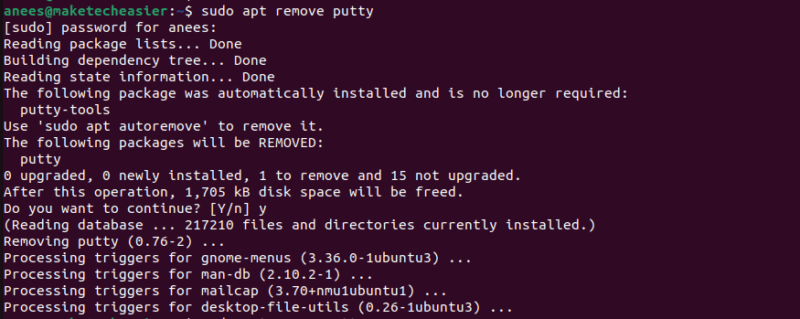
After this, run the following command to clean up unused dependencies:
sudo apt autoremove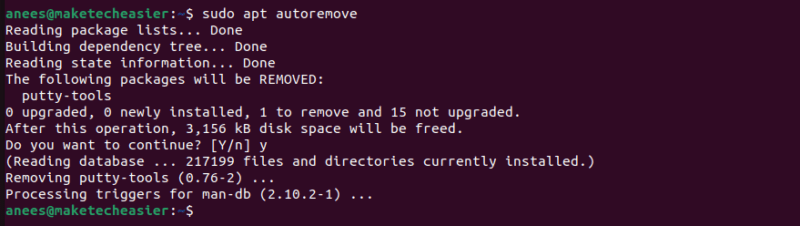
On RHEL-based systems, use dnf or yum to remove PuTTY:
sudo dnf remove putty # For Fedora, Rocky, AlmaLinux (modern systems)
sudo yum remove putty # For older CentOS or RHEL systems
Similarly, we can uninstall PuTTY from Arch Linux and its derivatives using the Pacman:
sudo pacman -R puttyThis is how PuTTY can be installed on various Linux distributions.
Final Thoughts
Linux offers both GUI and CLI methods to install PuTTY, each requiring just a few simple steps. In this article, we demonstrated both approaches to set up PuTTY on various distributions like Debian, Fedora, and Arch Linux. Once installed, you can use PuTTY’s flexible and user-friendly interface to manage SSH, Telnet, or Serial connections. If you ever decide to remove it, your distribution’s package manager allows you to uninstall it easily.