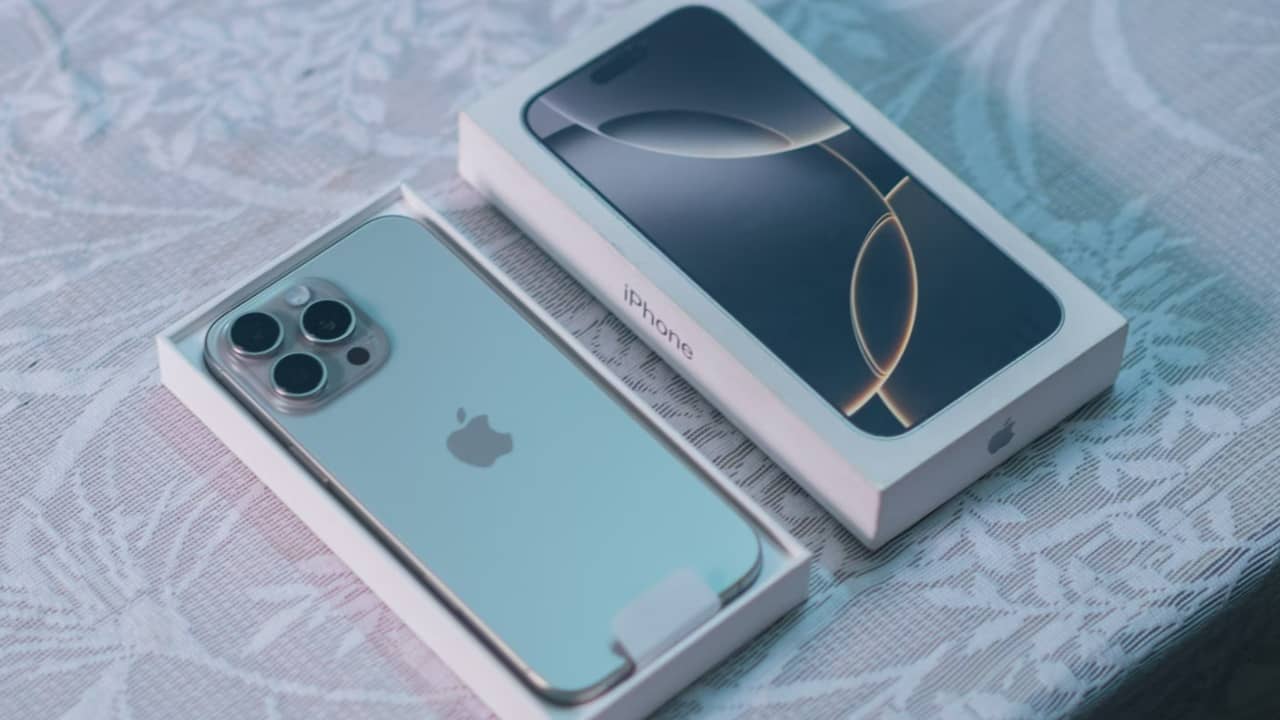
If there is one thing Mac and Windows computer owners can agree on, it’s that built-in webcams are almost universally bad. As work from home continues to rise in popularity, demand for webcams has jumped enormously, leading to skyrocketing prices. Fortunately, you already have the best webcam sitting next to you on your desk. Here we show you how to use your iPhone as a webcam for all of your video chatting.
Getting Started
Using your iPhone as a webcam in meetings for Skype, Zoom, Slack, or Whatsapp will require the installation of a third-party app both on your iPhone and Mac or Windows computer.
Incorporating a tripod, while not necessary, will make sure the iPhone stays stable throughout a video call. Going this route also means you are reliant on the iPhone microphone and speaker for picking up your voice and listening to others. For the best experience, a pair of headphones will come in handy.
Using Your iPhone as a Webcam using EpocCam
There are several different apps available that enable you to use your iPhone as a webcam, but few are as recommended as EpocCam.
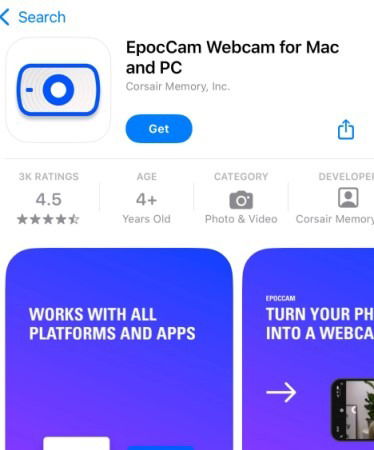
Head on over to the iOS app store and download EpocCam Webcam for Mac and PC.
Next, head to www.elgato.com and download the Camera Hub software for either macOS or Windows. Please note that the software requires Windows 10 64-bit or higher to run.
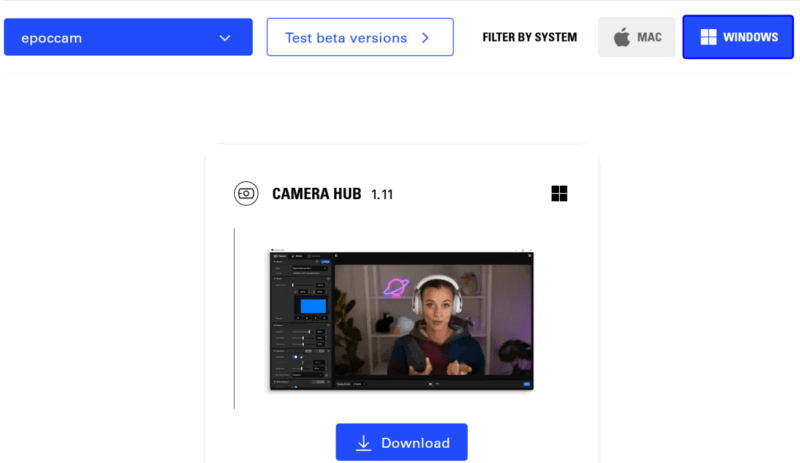
Once installed, run the application on both your phone and your PC. Initially, you will see the app waiting to connect to your computer. That is normal. It indicates your iPhone is searching for the computer.
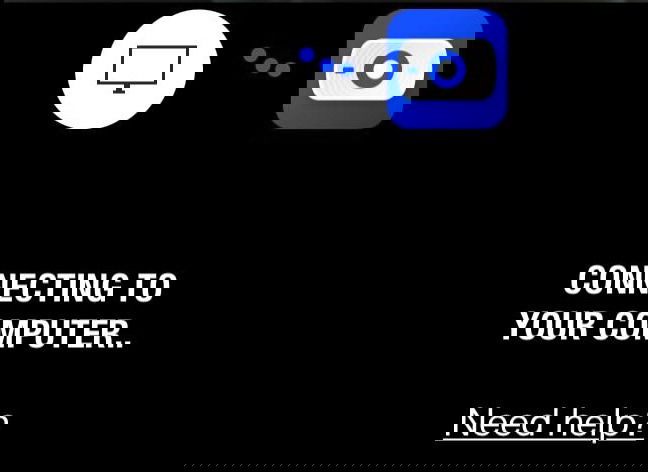
If you are concerned, remember that the app itself won’t “connect” to the computer until you launch an app like Skype, Teams or Zoom. Simply go ahead and launch an app that incorporates video and head to the camera settings. Select “EpocCam” instead of your built-in camera.
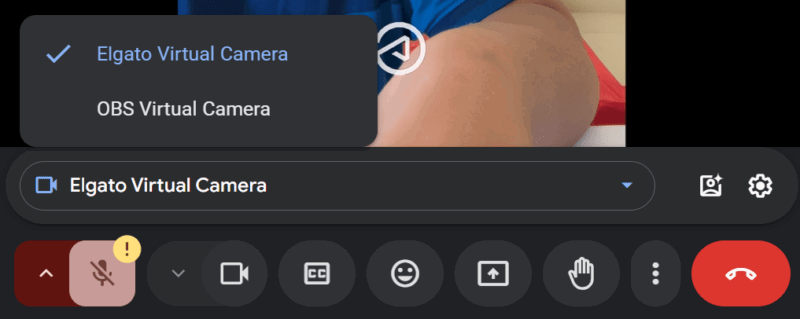
Once selected, a notification will appear on either your Mac or Windows computer confirming the switch. Keep in mind that with the free version of the app, there is a watermark on your camera feed. In the $8 full version, there won’t be any watermark, and you will get higher bitrates for your streaming. Furthermore, wide-angle camera support, HDR and flashlight control, and manual focus come in the full version.
Using Your iPhone as a FaceCam Without Any Apps
Whether it is for creation reaction content, or streaming games, no video feels complete without a facecam. You can easily use your iPhone as a webcam or facecam in OBS and Streamlabs. This method does not require downloading any software at all, except your preferred streaming software (OBS/Streamlabs).
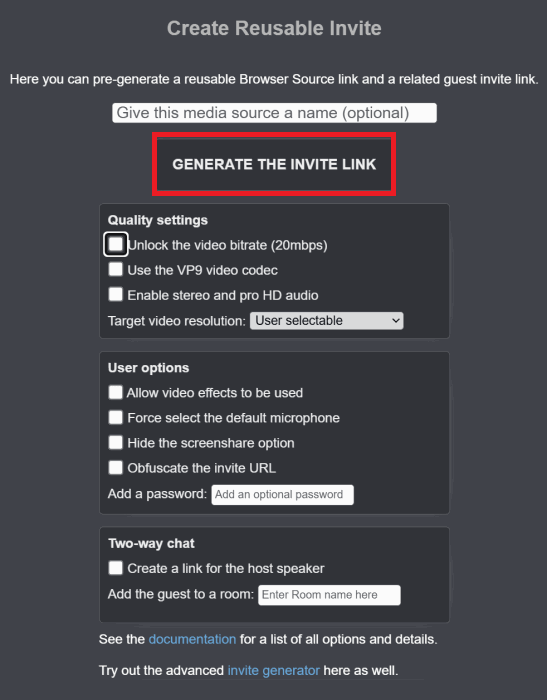
What you need to do is head on over to vdo.ninja on your computer, and select Create Reusable Invite. There are plenty of settings to fiddle around, but you can leave them be, and click on GENERATE THE INVITE LINK. The website will generate a QR code for you to scan with your iPhone. Scan the code on your iPhone, and follow the link it leads you to. Do not forget to copy the link at the bottom, highlighted in red. You will need it later to post into your streaming software.

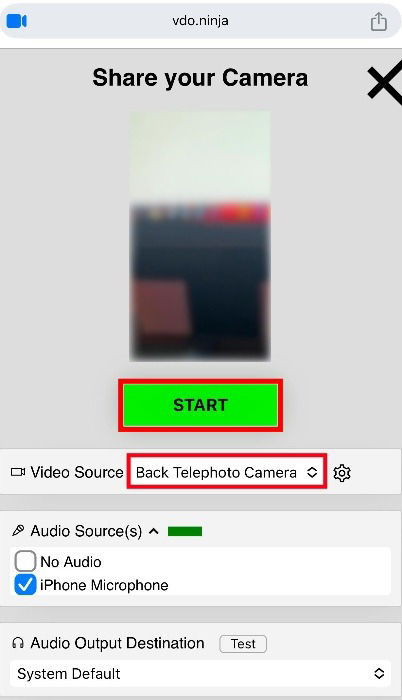
Select Share your Camera, and provide camera and microphone access to the website. Set up the camera’s video source, choosing either your front or back camera, and any of its lenses. You can also choose to use your iPhone as the audio source as well. Hit the green START button, and set up the phone in the angle you want.
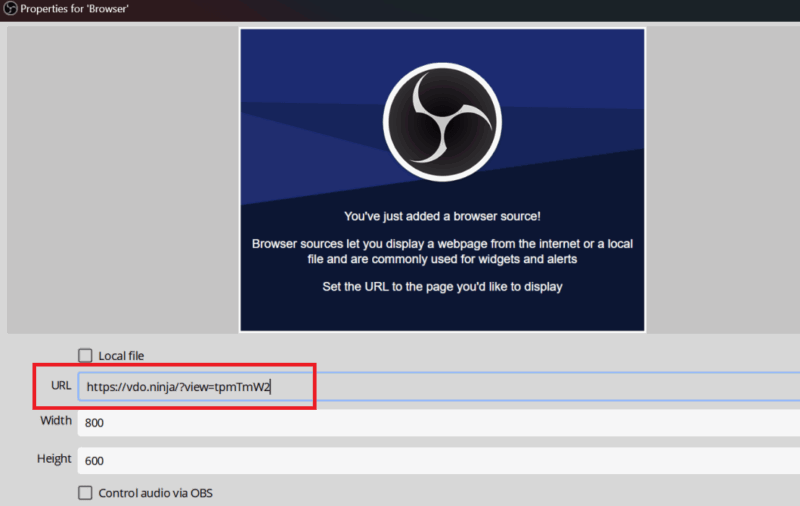
Now, add this stream to your streaming software. If you’re using OBS Studio, open the software, and add the application you wish to stream in the Sources column. Next, hit the + icon at the bottom, select Browser, and select Create new. Choose the name you want, click OK, and in the URL tab, paste the link you previously copied.
The process remains exactly the same if you use Streamlabs instead of OBS Studio. All that remains is to resize the camera feed whichever way you want to, and begin streaming or recording.
Using Your iPhone as a Webcam on a Mac
If you wish to use the above method on a Mac, there is no need to change a single thing. From creating a reusable invite to scanning the QR-code on your phone and streaming your camera, the process is completely similar on a Mac as well. However, when it’s an iPhone and a Mac, there is no need to install any app.
Thanks to the iPhone’s Continuity Camera feature, every time your iPhone and Mac are in proximity, you can simply use the iPhone’s camera as a webcam for streaming or meetings. All you have to ensure is that both the iPhone and Mac and logged into the same account. Also, make sure that your macOS is updated to Ventura or above.
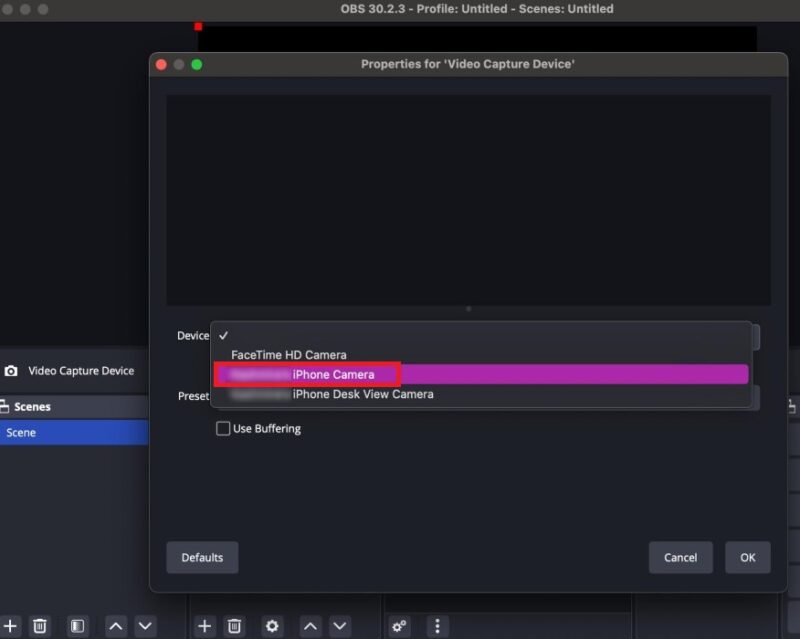
Whether you are using OBS Studio or Streamlabs, your iPhone would simply show up as a video capture source when you select sources in your streaming software.
There’s no camera readily-available at your disposal quite like your iPhone’s camera. That is why it is one of the best tools in your arsenal if you wish to set up a facecam on any streaming software.
Image credit: A Man in a Black Shirt Talking on a Headphone’s Mic While Looking at a Computer Monitor, all screenshots by Samarveer Singh