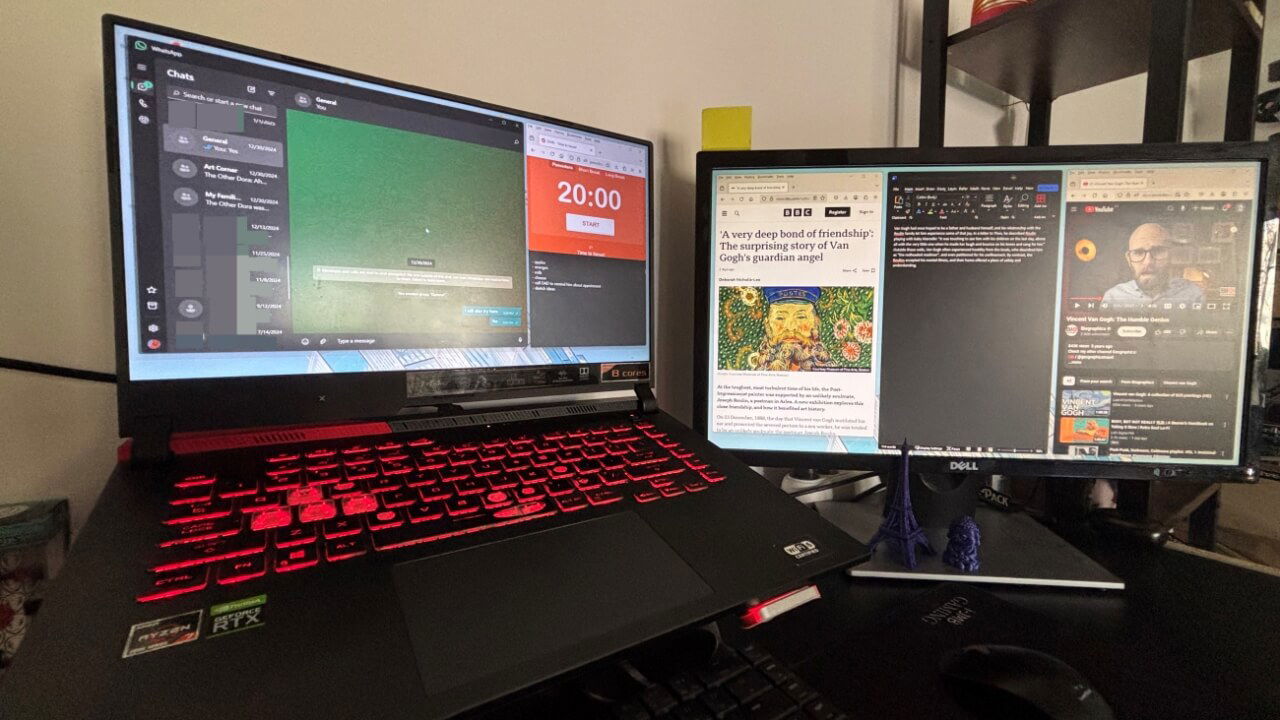
If you use a multi-monitor setup frequently, FancyZones can be a game-changer. This Windows PowerToys utility lets you fully customize your screen layouts. This guide explores various FancyZones configurations designed to improve your window management on dual monitors and boost your productivity.
Good to know: learn how to monitor your Internet usage in Windows with these tips.
Installing PowerToys
To access FancyZones, you’ll first need to download PowerToys. You can get the utility from the Microsoft Store or the official GitHub release page.
Install PowerToys on your Windows PC. After it launches automatically, select FancyZones from the menu on the left to view an overview of instructions.
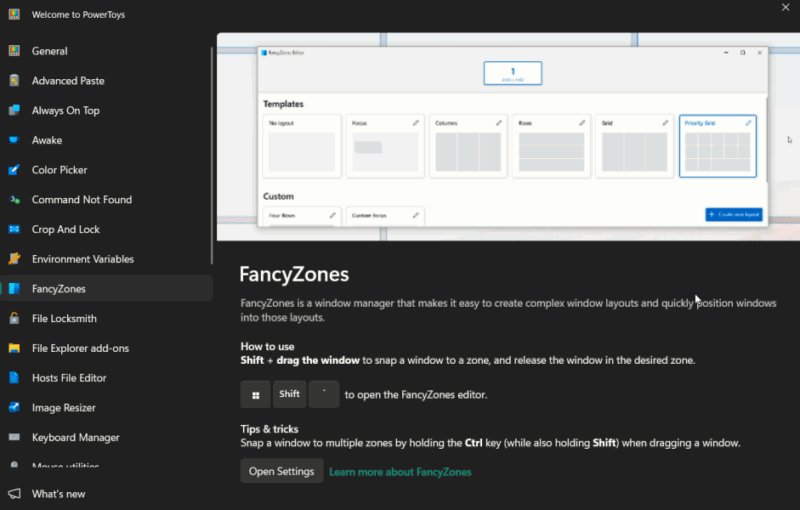
Keep in mind that you can activate FancyZones by pressing Win + Shift + `, which will take you directly into Editor mode.
Extend Your Display
To get the most out of FancyZones via a dual monitor setup, make sure you extend your displays first. The tool lets you configure separate layouts for each monitor.
On your PC, go to Settings -> Display. Click on the Duplicate these displays button, and select the Extend these displays option instead.
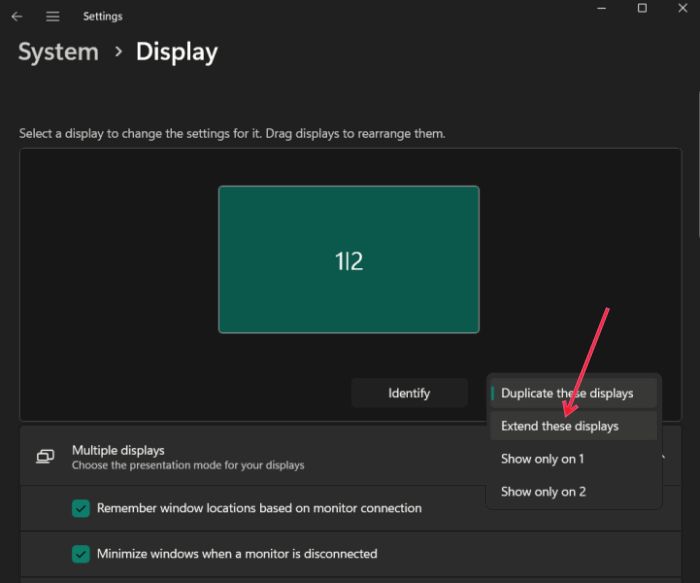
Confirm the modification in the pop-up by clicking Keep the Changes. Your new dual-monitor setup should take over, and each display will be ready to support its own layout.
Tip: not convinced that dual monitor setups can improve productivity? Read the research.
Select Your Preferred Layout for Each Monitor
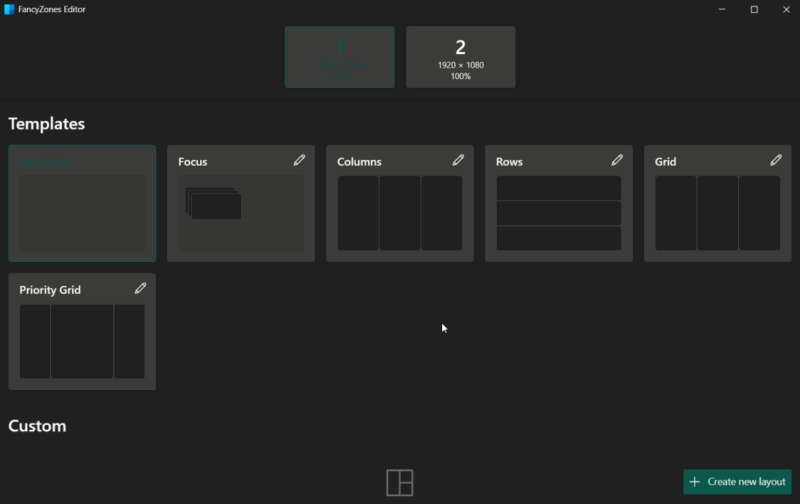
FancyZones works by resizing windows into preset grid layouts. To customize your setup, open the FancyZones editor, with all the connected displays listed at the top.
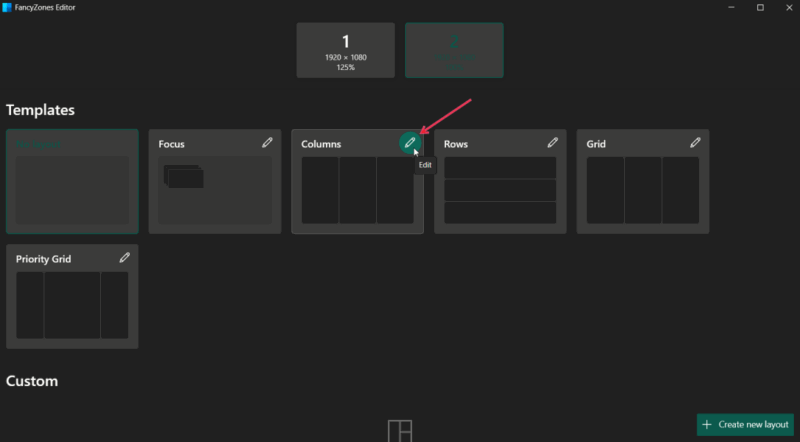
Select one of the displays at the top, and take a look at the Templates section with ready-made layouts. Start by selecting one that works for you.
Note: you will need to manually select a layout for each monitor.
If you feel like these layouts could use enhancement, you can easily edit them by pressing the pencil icon.
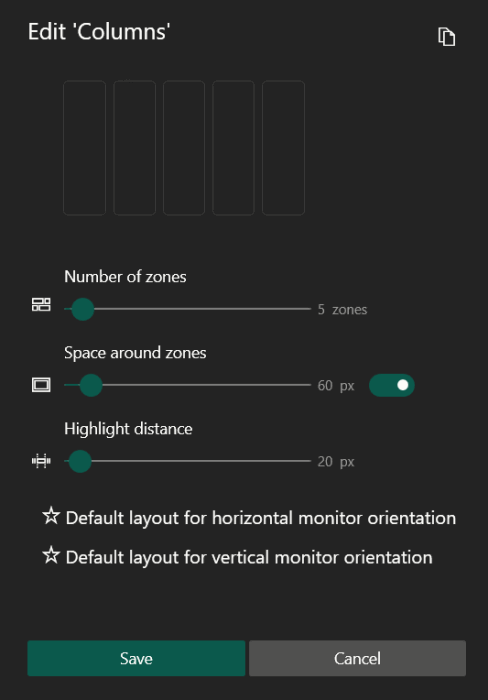
Increase the number of zones, and add spaces between them or increase highlight distance.
Setting Up My Dual Monitor Layout with FancyZones
For the purposes of this article, I’m configuring a dual-monitor setup optimized for daily writing activities. The second display (the larger one in my case) will handle my writing tasks, while the primary monitor should keep other handy utilities within reach.
Open all the apps and browser pages you need for your working session before bringing up the FancyZones Editor. Switch to the second monitor, and select the Columns template. For my purposes, three separate zones are enough, but if you need more, you can always add them.
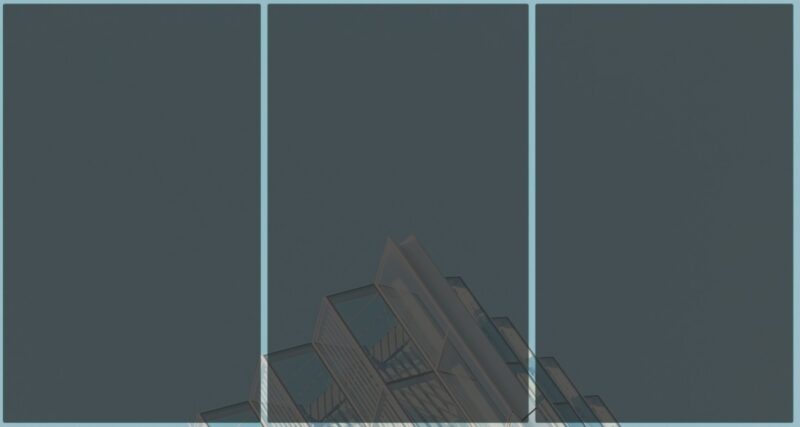
Now, to start snapping apps into the appropriate zones, click the app window or program to bring it forward, then press the Shift button. Drag the window by its title bar into the appropriate zone, and it should snap into place.
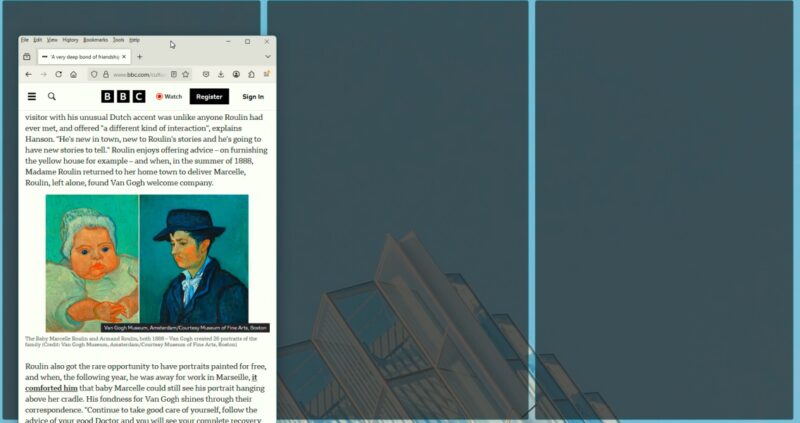
Repeat this for all zones.
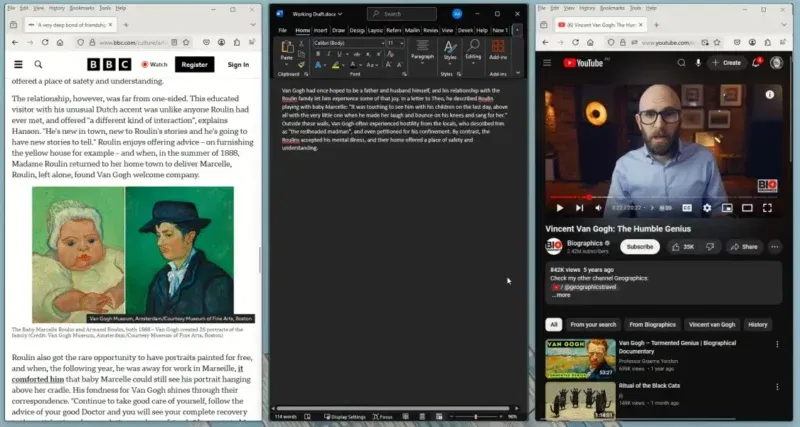
In this example, I’ve included:
- Zone 1: an in-browser article that is relevant to my research
- Zone 2: Word document where I am gathering the data needed for my paper
- Zone 3: YouTube video to extract additional information
FYI: learn whether investing in a 3D monitor would be worth it for you?
Creating a Custom Layout in FancyZones
Now that I have the layout for my larger monitor, I want to create a custom layout for the smaller display. In the FancyZones Editor, switch to the primary monitor. Click the Create new layout button.
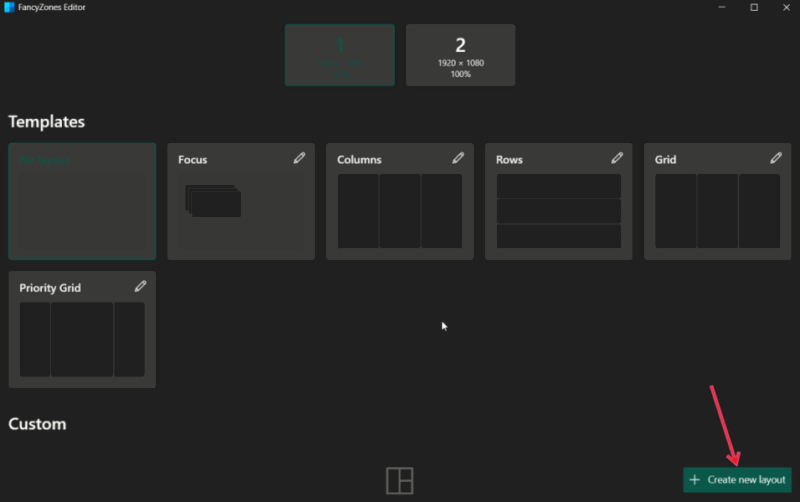
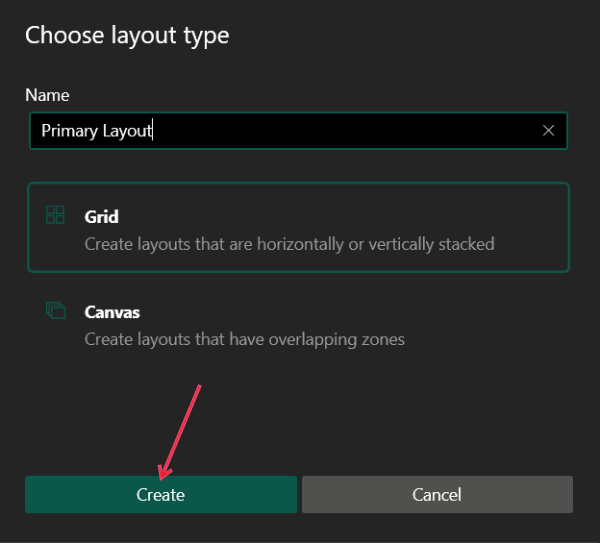
Name your new layout, and select whether you want to create a grid or a canvas (for overlapping zones), then press Create. I am choosing the first option.
Start defining your layout on the next screen. By default, it starts with three columns. You can begin modifying it from here. As you move your mouse over a zone, a blue bar appears. Click to split the zone in two. If you need a vertical split instead, just hold the Shift button.
I don’t need three zones that are evenly split. Instead, I want to have one big zone and two smaller zones on the right that are split horizontally. To do this, long-click on the first zone, then the second. Click the Merge Zones button to have the two zones become one.
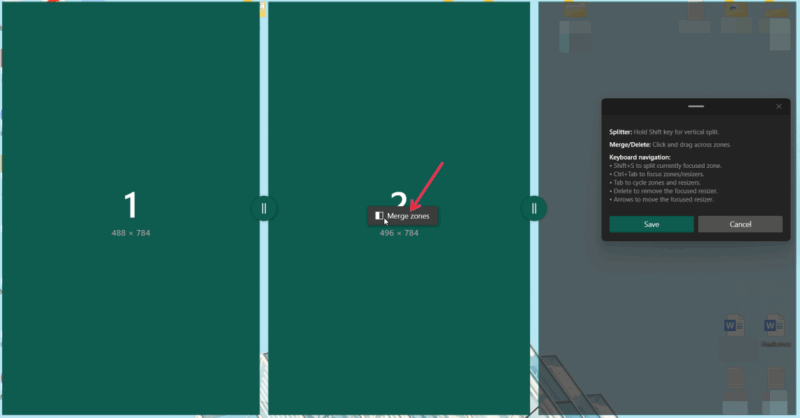
Other possible actions include:
- Dragging the corners to resize the zones
- Dragging the middle of the window to move it and place it somewhere else
- Using the + button to create a new window
When you’re done arranging your layout, press Save in the small window (which also contains some instructions) to save the custom arrangement.
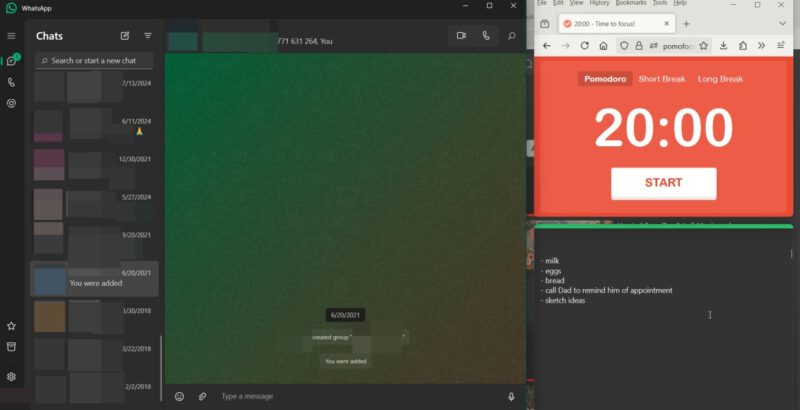
Once the custom layout was ready, I added the apps:
- Zone 1: WhatsApp to keep in touch with my project team members
- Zone 2: Pomodoro timer for timing my work sessions
- Zone 3: Sticky notes featuring today’s tasks
Some apps, such as Spotify and Calculator, will not snap into place into smaller zones on a smaller monitor. I wanted to have Spotify or the Calculator app in Zone 3, but I finally decided against it, since the apps didn’t resize well.
How to Switch Easily Between Layouts in FancyZones
Once you’ve created multiple custom layouts, it would be useful for you to switch from one layout to another easily as you move between tasks throughout your day.
In the FancyZones Editor, find a custom layout you use frequently, and click the pencil button.
Click the Layout shortcuts bar, and select a number. Press Save at the bottom. Apply this layout by pressing the Win + Ctrl + Alt + Number keyboard shortcut.
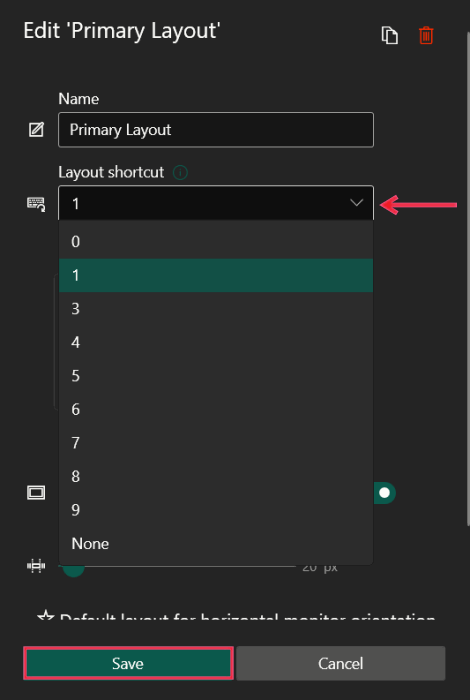
Note: make sure the Enable quick layout switch is enabled in FancyZones Settings via PowerToys.
Tip: employ these tricks with your window management to help you prevent eye strain from your dual monitors.
Adjusting FancyZones Settings
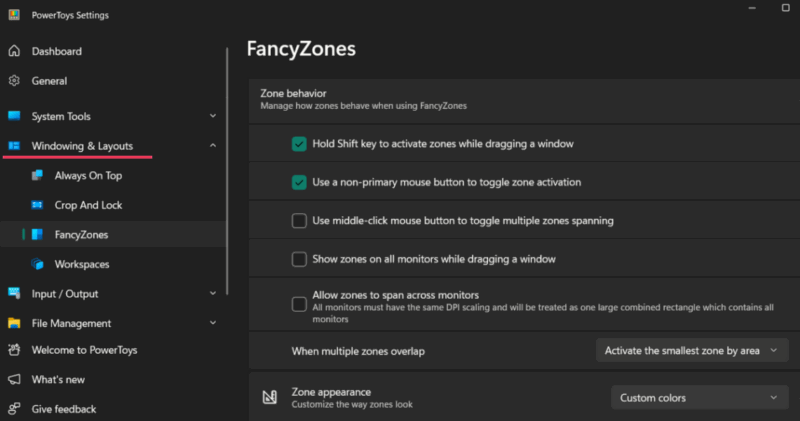
Open the PowerToys Settings from the system tray. Go to Windowing & Layout -> FancyZones to view the Settings area.
Check the Zone behavior section to manage how zones behave when using FancyZones. For instance, you can enable an option to Allow zones to span across monitors.
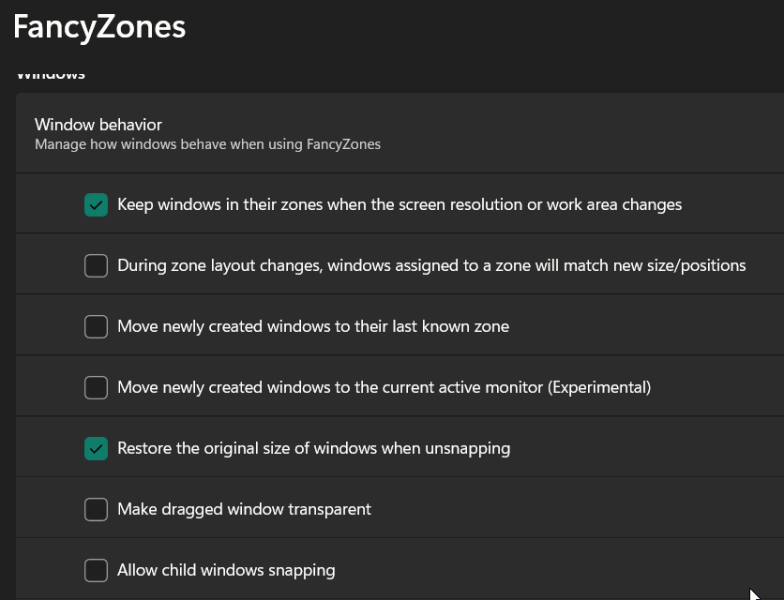
Manage your window management on your dual monitors in the Window behavior section. For instance, you can instruct FancyZones to restore the original size of windows when unsnapping. Go through all these options to see which ones could be helpful.
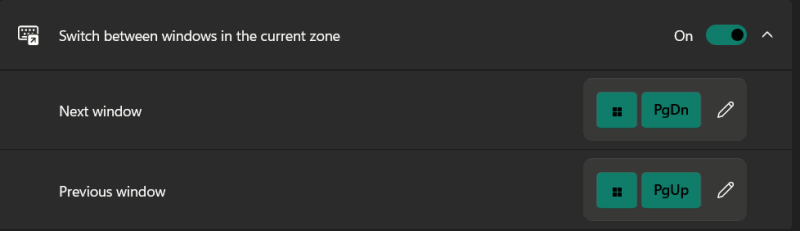
You can also set custom keyboard shortcuts for switching between windows in the current zone.
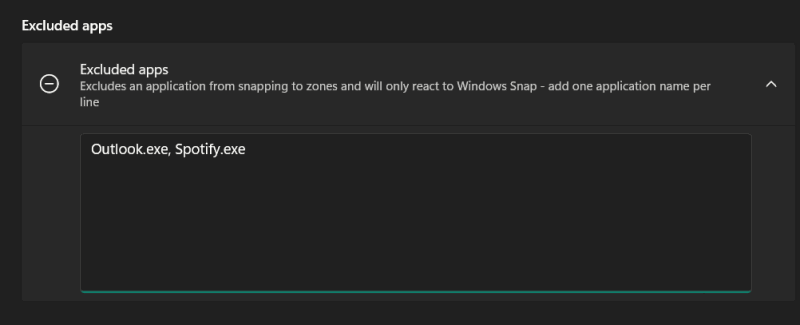
At the bottom, you can set up apps that you don’t want to include in FancyZones for whatever reason.
Additional Productivity Tips
Listed here are some suggestions that will help you create window management and boost your productivity via FancyZones on a dual-monitor setup:
- Use different layouts for different tasks, such as coding, writing, video editing, financial analysis, online meetings, general multitasking, etc.
- Use larger, central zones for most important tasks and smaller peripheral zones for secondary or background tasks.
- Learn how to use FancyZones keyboard shortcuts, as they speed up workflow considerably. (Check above for relevant shortcuts.)
- Make sure you separate your work zone from the utility zone to minimize context-switching as well as distractions.
- For multitasking activities, such as when writing an article and doing research on a topic, try the Columns layout for vertical staking of windows for quick switching between reference materials, charts, or media.
- Save multiple custom layouts that match your common workflows (work, gaming, media, etc.).
Ultimately, your ideal FancyZones window management on dual monitors is unique to you. Dive in, experiment, and discover what complements your workflow. Don’t hesitate to push the boundaries and create truly personalized zones.
If you’re currently in the market for a new monitor, learn which portable monitors are geared toward gaming. If you’re just starting out with dual-monitor setups, explore your options in this desktop monitors buying guide.
All images and screenshots by Alexandra Arici