What we like
- Large 17.3 display
- Plug-and-play
- USB-C and HDMI
- Pop-out kickstand
- Very thin
What we don’t like
- Settings hard to change on iPad
- Settings revert to default on restart
- Size difficult for portability
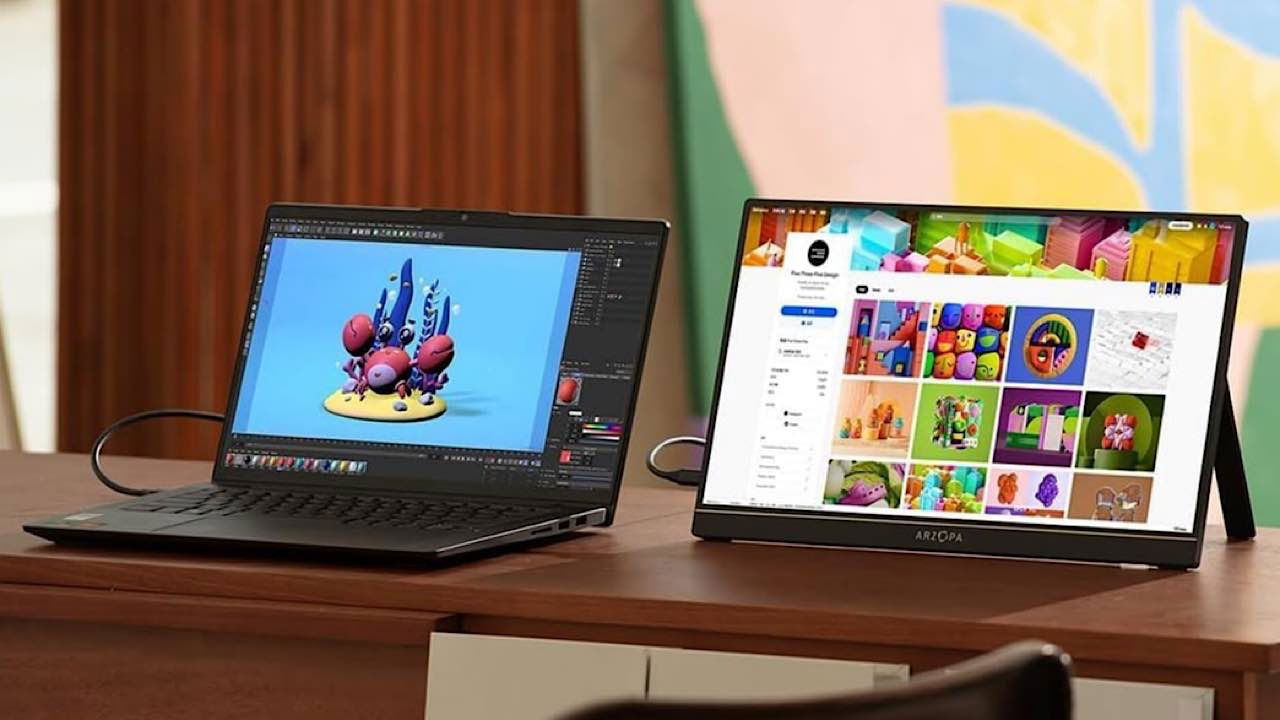
Productivity is a somewhat new concept. Of course, people have always strived to be productive, but now there’s a greater emphasis on it, now that we have the tools to support the idea. This includes having an additional monitor so that we can see twice as many things as we usually see on our computers, tablets, and phones. The Arzopa A1M Portable Laptop Monitor does its duty to be that additional monitor you need for your productivity.
Getting Familiar with the Arzopa A1M
I must admit: the Arzopa A1M Portable Laptop Monitor is as beautiful as it is functional. Its large 17.3” screen dwarfs my iPad Pro. While it’s a laptop monitor, I used it on my iPad Pro. It seems to have lost a little bit of the features of doing so, but I didn’t lose anything from its magnificent beauty.
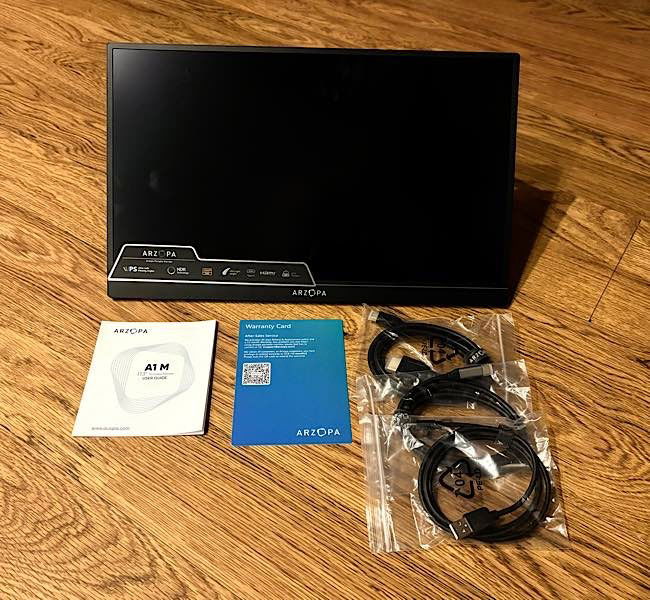
The portable monitor is packed with a USB-C to USB-C cable, USB-A to HDMI cable, user guide, and warranty card. That’s all that’s included, but you don’t need anything more, save for some type of a case or cover to protect it. Though, you can purchase one on the website for $27.
Those two cables are all you need. There are two USB-C 3.1 ports and one HDMI port. Between USB-A and USB-C, you can connect to various devices. This includes laptops, tablets, phones, and gaming devices – wherever you’d like a large extra screen.
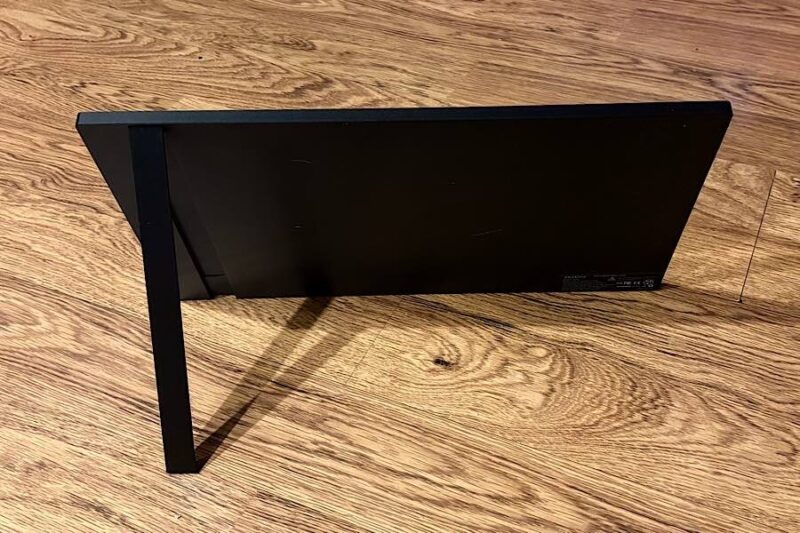
A feature that I particularly really enjoy is the built-in stand. It’s a kickstand that lays flat and stored away in the back of the monitor when not needed, and pops out to hold the display in portrait or landscape position. It’s so much better than the triangular stands that cover the monitor and bend backwards into a stand.
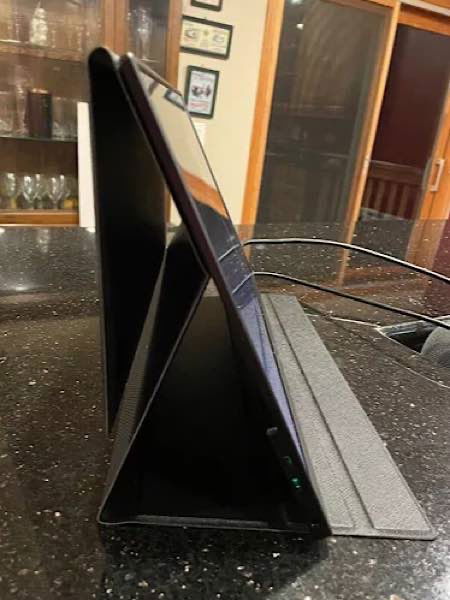
As a true disclosure, I work sitting on my couch, it’s hard to keep those triangular stands sturdy on the couch, even with a laptop desk. But the Arzopa A1M Portable Monitor stands up well on the laptop desk and never falls, no matter how much it’s jostled.
Being Productive with the Arzopa A1M
People who have used an additional screen with their desktop, laptop, or tablet know how productive it can make you. Everything is right there in front of you – with literally twice the space.
The experience with the Arzopa A1M Portable Laptop Monitor was no different. I have a 13” iPad Pro, and the A1M has a 17.3” display. It’s a great way to see your work or your streaming content up close and personal.
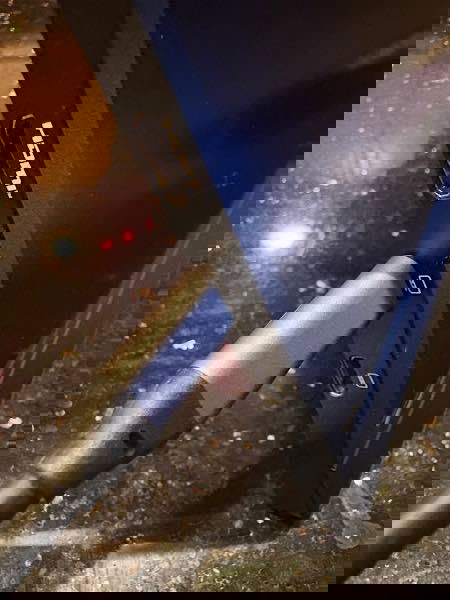
It was easy to set up: just plugging in the USB-C cable on both my iPad Pro and the monitor. It is truly plug and play. Because it’s so portable, I don’t have to use it all the time, but I can just work on my iPad Pro, or I can set up the portable monitor to be more productive. I even brought it on an overnight trip to stream movies!
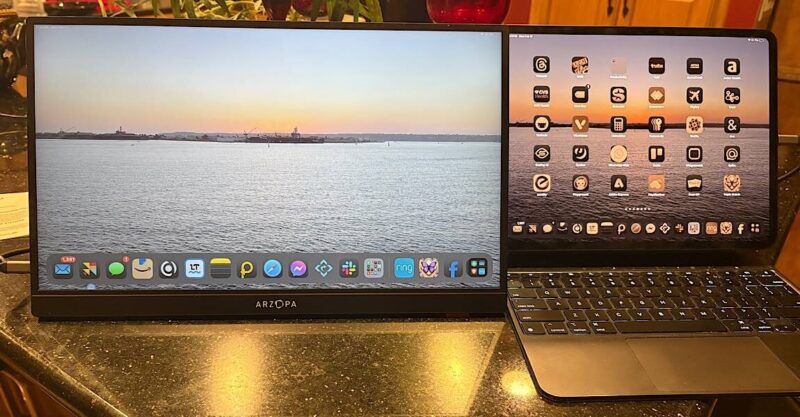
Because it relies on your device for power, it leads to less battery power for your device. But that’s the case with every portable monitor that receives power from the device.
The screen had great clarity, allowing me to see everything even better. Additionally, you can use it in landscape or portrait mode, however it works out best for your content.
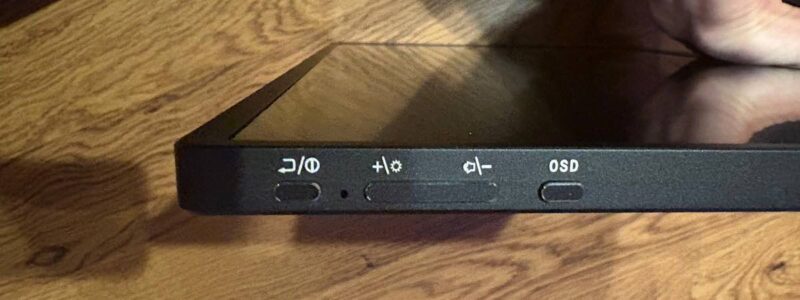
I did have one significant struggle with it. It is difficult to change the settings. It takes a combination of the buttons on the upper-left side of the monitor. There’s a power/return button, volume/brightness adjustment, and OSD menu button.
The defaults of the monitor made it hard for me to work with my apps, specifically the Safari browser. Since I am on my iPad throughout the day and night, I run everything in dark mode. But it was hard to get the monitor in a deep black and bright enough.
There was a significant learning curve to figure out how to use the adjustment menus. It took me much time to figure it out. This was despite watching and reading reviews of the monitor. Everything I could find about the Arzopa A1M oddly had a different button layout.
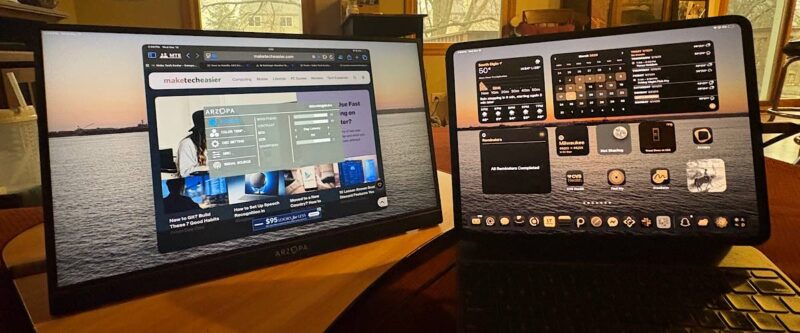
Most frustratingly, once I found the magic combination and finally got the monitor the way I wanted it, I learned that once I unplugged it, and it turned off, it lost those settings. When I would turn it back on, I had to go through the settings again.
The first few times, I would think I was adjusting the settings the way I had done it the time before, but I apparently wasn’t. I spent much time trying to figure this out. It was a reward that was worth it once I figured it out.
However, from what I was reading, if you’re hooking the monitor up to a computer and not an iPad, there would be options on the computer to set the screen brightness.
Arzopa A1M Portable Laptop Monitor Specs
| Size | 17.3 Inch |
| Panel Type | IPS |
| Aspect Ratio | 16:9 |
| Resolution | 1920*1080 |
| Display Color | 16.7M (8-bit) |
| Color Temperature | 6800K |
| Visual Angle | H: 178° V:178° |
| Contrast Ratio | 1000:1 |
| Brightness | 300cd/m2 |
| Color Gamut | 72% NTSC |
| Input Interface | Mini HD (Video Signal), Type-C Full Function (Video Data, Power Supply ISDN) |
| Output Interface | Built-in Speakers (1W*2) |
| Refresh Rate | 60Hz |
Availability
The Arzopa A1M Portable Laptop Monitor is a magnificent viewing opportunity, no matter the device you are using. It’s large, clear, and so easy to connect. Additionally, despite its large size, it’s portable for you to take it with you. Though the large size does limit the portability options. But that’s no fault of the monitor’s – any monitor of this size would have limited portability options.
Ultimately, it comes down to productivity. Having a large second screen opens up so many more options working with your windows so that you can view many at once and don’t need to jump back and forth on one device.
However, the productivity is hurt by the time spent figuring out the settings menu. The first couple of times I used it, the time I saved by having a second screen was canceled out by the time I spent figuring out the settings menu. If you could save the settings in some way, it would improve the experience greatly.
Subscribe to our newsletter!
Our latest tutorials delivered straight to your inbox