I’m always looking for fun and interesting Linux commands or tools that help me accomplish various tasks without leaving the terminal. For example, there are several command-line tools that allow your Linux terminal to talk to you. Let’s explore these tools and give your terminal a voice.
1. ESpeak
eSpeak is a lightweight, open-source speech synthesizer that has been a favorite for years. What makes eSpeak stand out is its speed and low resource usage. Plus, it includes multiple languages and accents, making it convenient for international users.
Getting eSpeak up and running is straightforward. On most Debian/Ubuntu-based systems, you can simply open your terminal and type:
sudo apt install espeak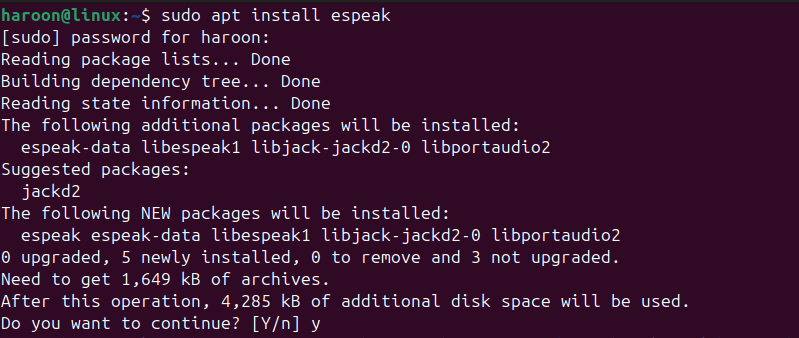
For other distributions, use your system’s package manager, such as DNF, YUM or Pacman.
Once installed, using eSpeak is incredibly simple. You can just type espeak, followed by the text you want it to say:
espeak "Hello from your Linux terminal!"That’s it! Your computer should now be greeting you (or whatever you typed) out loud. If you have a text file stored anywhere in your system and would like to read its content aloud, use the -f option along with the filename.
espeak -f filename.txtYou can also adjust parameters like pitch (-p) and speed (-s) for robotic yet customizable output.
espeak "Task completed successfully" -p=30 -s=150Not a fan of the default voice? eSpeak supports different voices. You can list available voices using the --voices option:
espeak --voices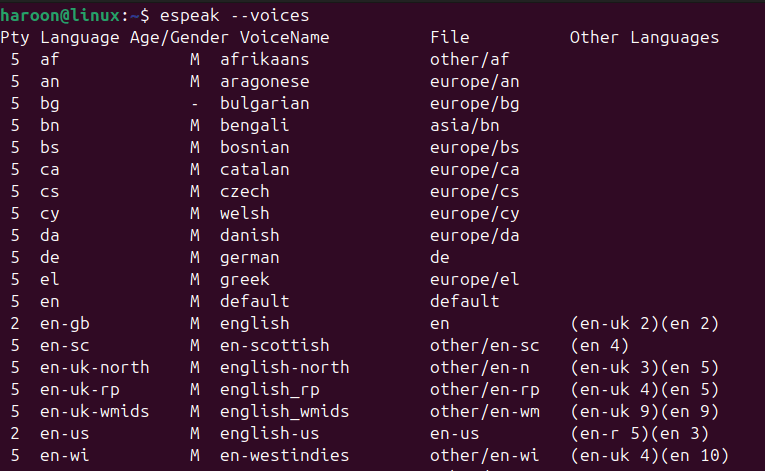
After selecting a specific voice, you can specify the voice name with the eSpeak command:
espeak -v en-us "Hello, this is eSpeak"Furthermore, you can pipe command outputs directly into speech, such as:
ls -l | espeak --stdinNote: There are many other options and customizations you can explore. In order to see all available options, I recommend you to check the manual page of the eSpeak tool with the espeak --help command.
2. Festival
Looking for a highly customizable tool? Festival might be just what you need. It provides a full text-to-speech system with a wide range of voices. It’s more advanced than the eSpeak, offering greater control over voices and speech synthesis.
You can install Festival with the default package manager on your Linux system, like Debian, or Ubuntu users can get it from the APT package manager.
sudo apt install festivalTo use Festival from the command line for basic text-to-speech, run this:
echo "Festival is a powerful text-to-speech system." | festival --ttsAdditionally, you can read any text file with the festival by running this:
festival --tts textfile.txtFestival command line tools allow for voice customization, pronunciation adjustments, and much more. Check out festival --help man page for various options details. It’s a perfect alternative if you want more control over speech synthesis.
3. Google Speech (gTTS)
Unlike traditional offline tools, this option leverages the cloud, tapping into Google’s robust speech synthesis capabilities. With clear pronunciation and natural-sounding voices, Google Speech is perfect for those who prioritize high-quality output and don’t mind an internet connection.
However, it’s not a direct command like eSpeak. Instead, we’ll use a Python library called gTTS (Google Text-to-Speech). First, ensure that Python and pipx (Python’s package installer) are installed. If they are, installing gTTS is as simple as:
pipx install gtts
You’ll also need an audio player like mpg123 or VLC. If you don’t have any player, then you can install it with this:
sudo apt install mpg123Once gTTS and mpg123 is installed, you can use a one-liner in your terminal to make Google’s voice speak:
gtts-cli "Hello and Welcome to Linux!" --output.txt temp.mp3 && mpg123 temp.mp3To list all available languages, use the --all option, and after that, you can specify a language with the --lang option. For example, to switch to French, use the --lang fr option before the --output option:
gtts-cli "Hello and Welcome to Linux!" --lang fr --output.txt temp.mp3 && mpg123 temp.mp3Google Speech requires a bit more setup than more straightforward tools, but if voice quality is a priority, gTTS is a fantastic option!
4. Say (Speech Dispatcher)
If you’ve used macOS, you might be familiar with the say command. While it’s not a standard Linux command, you can achieve similar functionality using Speech Dispatcher and its spd-say command.
To get spd-say working, you’ll likely need to install Speech Dispatcher itself and potentially a speech engine like eSpeak if you don’t already have one. To get it on Debian/Ubuntu, use the default APT package manager:
sudo apt install speech-dispatcherSpeech Dispatcher acts as a unified interface for different speech synthesizers, allowing you to use various TTS engines (including eSpeak and Festival) with a consistent command structure. This makes switching between TTS engines easier without modifying scripts significantly.
Once installed, use spd-say to make your Linux terminal talk:
spd-say "Hello and Welcome to Linux!"This command should use Speech Dispatcher to speak the text using the default speech engine configured in Speech Dispatcher.
You can also adjust speech rate, pitch, and volume using the -r, -p, and -v options along with the spd-say command. If you want to access the additional customization options, check out its man-page by running this spd-say --help.
Note: There is also a GNUstep tool named say that lets you transform the given text to audible speech and play it through the sound device. Unfortunately, this tool has limited options available and does not have any advanced customizations options.
5. Flite
Looking for something even lighter than the eSpeak? Meet Flite. It is designed to be a small, fast runtime engine for speech synthesis. It’s basically a smaller version of Festival, making it ideal for situations where resources are limited, like embedded systems or older computers.
For installation, you can use the default package manager like Apt, Dnf, Pacman. For example, on Debian/Ubuntu, type this:
sudo apt install flite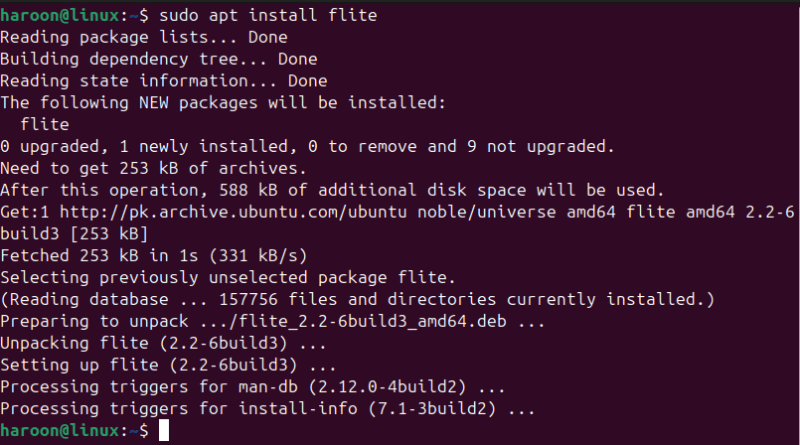
Using the Flite is very similar to eSpeak in its simplicity. Just type flite followed by the text you want to speak:
flite -t "Flite is a small and fast speech synthesis engine."Flite reads the text directly in your terminal. If you’re working on a Raspberry Pi or a low-resource system, Flite is worth considering.
So there you have it! Now you have multiple ways to make your Linux terminal talk! Whether you want to create an accessible system, automate announcements, or just have fun, these tools offer something for everyone.
I recommend starting with eSpeak or Flite for its simplicity. Then, explore other options based on your needs. Also, you can make your terminal more fun by using other tools or playing with various fun commands.
Image credit: Frederick Medina via Unsplash. All alterations and screenshots by Haroon Javed.