Installing software on Ubuntu Linux can be a bit different from what you’re used to on Windows or macOS. It may seem daunting at first, but fear not. Installing software on Ubuntu is actually quite straightforward once you understand the basic concepts. Let’s find out how.
1. Using the Default Package Manager
One of the best things about Linux is that each distribution (like Ubuntu, Fedora, or Debian) comes with its own package manager. For example, Ubuntu and its derivatives use APT (Advanced Package Tool). With the APT package manager, you can download software, check for dependencies, and install everything directly from your Ubuntu terminal.
Using the package manager is usually simple. For instance, if you want to install a media player like VLC, you don’t need to search the internet for installation files. Instead, open your terminal and type:
sudo apt install vlc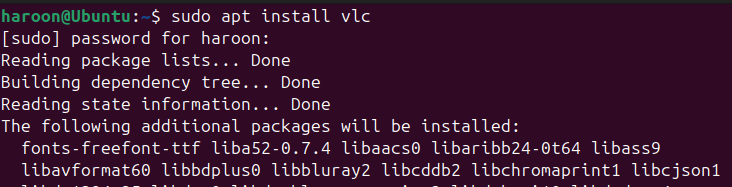
The package manager will fetch the necessary files, install them, and even configure them for you.
To make sure you’re getting the most recent available versions, it’s a good practice to update your package list ahead of installation:
sudo apt updateIf you ever need to uninstall something, just use:
sudo apt remove vlcWhat if you don’t know the actual package name? No problem! The APT package managers let you search by keywords.
For example, if you’re looking for a text editor, you can search for an editor and view a list of options. Use a simple apt search command:
sudo apt search <software-name>I’m not even a heavy user of the command line, but I still use APT to install and remove software. I realized how incredibly efficient it is – it’s much faster than manually downloading and installing each piece of software.
2. Installing Software Through the Graphical Interface
If you’re more of a visual person and feel intimidated by the command-line interface, don’t worry. Most modern Linux distributions come with a graphical software center. For example, Ubuntu provides the Ubuntu Software Center, where you can browse, install, and remove applications without ever touching the terminal. You can search for software by name or category, read descriptions and reviews, and install it with a simple click.
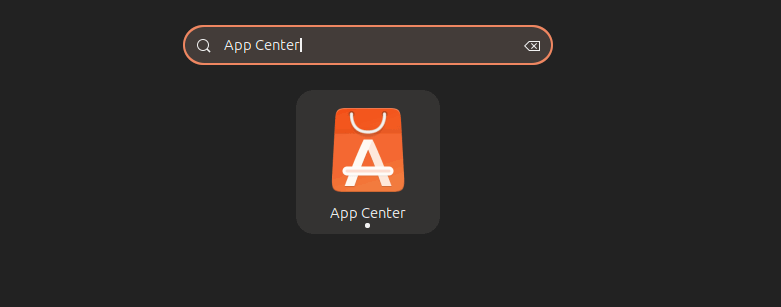
To use the software center, simply search for App Center in the Applications menu and open it.
Next, browse through the available software or utilize the search feature to find what you require. Click on the desired software, then hit the Install button.
After installation, you can open the software directly from the Software Center or locate it in your Applications menu.
While searching for tools in the Software Center, you might encounter two package formats: DEB and Snap.
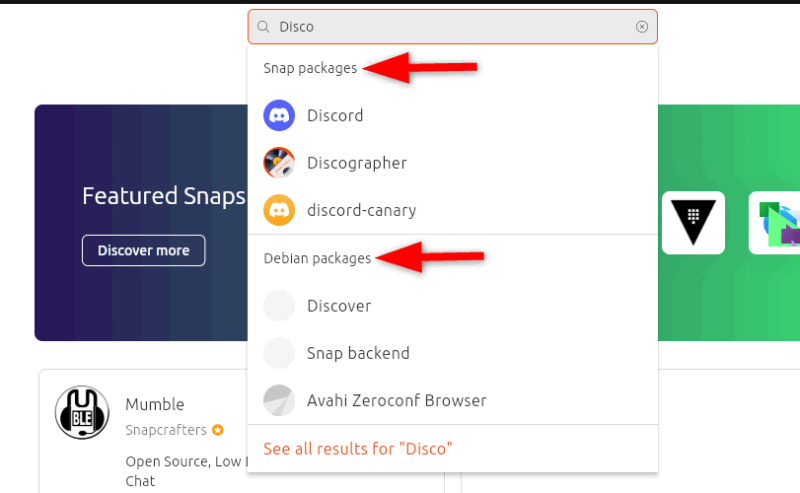
DEB is the traditional format for Ubuntu, offering fast and efficient installations. Snap packages, on the other hand, are a more secure and portable format that bundles all dependencies for easier management. However, Snap packages can be larger and slower compared to DEB.
3. Using Third-Party Repositories
Sometimes, the software you need may not be present in Ubuntu’s default repositories. That’s where third-party repositories or PPAs (Personal Package Archives) come in. Independent developers or communities maintain these additional sources of software and often provide access to newer versions of software or programs that the default repositories do not include.
Note: You should apply caution when adding PPA or third-party repositories. To stop installing potentially harmful tools, make sure they are trustworthy and reputable.
For example, if you want to install a newer version of a program not available in your default repository, you can add a third-party repository using this command:
sudo add-apt-repository ppa:name/hereAfter adding the PPA, modify your package list to recognize the new source:
sudo apt updateThen, install the software as usual. Once installed, the software will update automatically alongside other system software whenever the system’s updater runs.
4. Manual Package Installation
Occasionally, you might need to install software that’s not available in any repository. In such cases, you can download the package directly from the software’s dedicated website. For Debian-based systems, these packages usually have a .deb extension.
To begin, download the DEB file from a trusted source and save it in a known location, such as your Downloads folder. Once retrieved, open your terminal, navigate to the download location, and execute this dpkg command:
sudo dpkg -i package_name.debMake sure to substitute package_name.deb with the actual file name. If you experience dependency issues, you can correct them by running:
sudo apt install -fAlternatively, you can use:
sudo apt --fix-broken installThere are also cases where you might need to install software distributed as source code archives, such as .tar.gz or .zip files. To install these applications, you typically download the source code archive from the application’s official website and then extract it.
You can extract the archive through a file manager or by running the command:
tar -xzvf archive_name.tar.gzAfter extracting the archive, navigate to the extracted directory with the cd command:
cd extracted_directoryAlso, check for a README or INSTALL file in the directory, as these files usually contain important instructions about the installation process and any required dependencies.
Furthermore, if development tools are not previously installed, you can obtain them with this command:
sudo apt install build-essentialOnce the required tools are installed, compile and install the application by running these commands in sequence:
./configure
make
sudo make install
The ./configure command searches for essential dependencies and configures the build process. The make command compiles the source code, and the sudo make install installs the compiled application on your system.
5. Installing Through Universal Packages
In recent years, universal package formats like Snap and Flatpak have gained popularity because they allow you to install software across different Linux distributions without compatibility issues.
Snap packages are managed by Snapd. If Snapd is not already configured on your system, you can install it using:
sudo apt install snapdOnce Snapd is set up, you can install a Snap package by running:
sudo snap install package-name
Similarly, you can use Flatpak by setting it up first. After the setup, you can install an application by running this:
flatpak install package-nameFor example, to install a VLC media player using Flatpak, you can use this:
flatpak install flathub org.videolanAnother option is AppImages, which are single-file applications that do not require installation. To use an AppImage, download the file from the official website, and make it executable by running:
chmod +x application.AppImageThen, you can run the application directly with:
./application.AppImageAppImages are portable and can even be run from a USB stick.
Whether you prefer using the command line or graphical interfaces, Linux provides flexible options for installing software, so you can explore new applications and tailor your Linux experience to your preferences.
Image credit: Arnold Francisca via Unsplash. All alterations and screenshots by Haroon Javed.