Are you getting warning messages that your access to Microsoft Teams might be blocked soon? Microsoft is blocking Teams on desktop starting immediately if you don’t follow one simple rule.
Why is Microsoft Blocking Teams?
Microsoft wants you to use their apps, but they always want those apps to be the most current version. That’s why Windows 11 makes it notoriously more difficult to stop automatic updates than in previous versions.
Starting in April 2025, if your desktop or virtual desktop infrastructure version of Teams is over 90 days older than the last released update, you’ll lose access. Even if you’re a premium user, you still won’t have any desktop access if you’re using a version Microsoft considers outdated.
Consider this to be a more extreme method of forcing updates. Typically, Microsoft just stops providing security and bug fixes to older versions of apps and software. Now, you just get locked out until you update.
It does make sense to stay updated, though. Unlike Windows or desktop-only versions of Office apps, Microsoft Teams is cloud-based. If your desktop client isn’t up-to-date, it could leave not only you, but others interacting with you on Teams, to unpatched vulnerabilities.
Of course, if new features are released, it’d be awkward having everyone else in your group or organization using them, while you’re left behind.
By pushing updates using this more aggressive approach, Microsoft’s attempting to keep all users on the same version for the same experience.
Never Miss a Teams Update
Whether you’re using the free or premium version of Teams, all you have to do to avoid Microsoft blocking Teams is keep your desktop client updated. For mobile users, Microsoft isn’t blocking access if you don’t update, though the app may not work correctly if you don’t update it.
By default, Teams updates automatically if you’re logged in, but the app is idle. In my experience, the auto-updates don’t always come through. They download, but don’t install. Instead, I have to manually approve the installation. Typically, this is due to new features that may require different permissions.
I recommend checking for updates yourself at least once per month. You have two quick ways to do so.
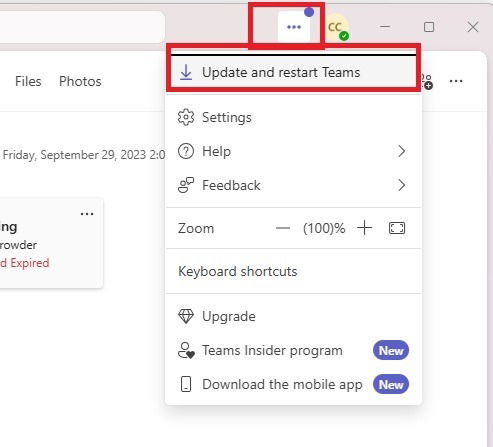
When you first open Teams, look at the three dot menu next to your profile icon near the top right. If any update is available, you’ll see Update and restart Teams.
Another option is to check for updates via Settings. Click the three dot menu near the top right and select Settings. Select About Teams near the bottom left. In the right pane, click Update Now. If you don’t see this option, you’re up-to-date.
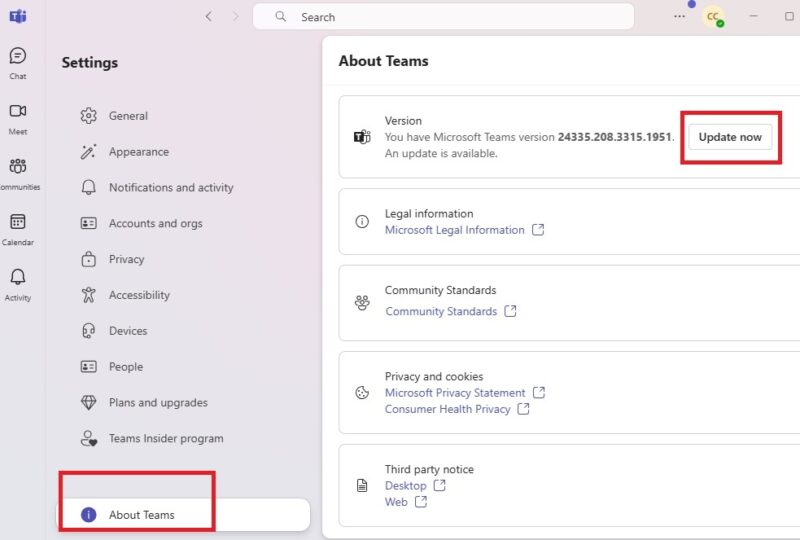
As soon as you go through either option, Teams updates and restarts. It may take several minutes, depending on the update.
How Often to Update
Microsoft releases new Teams updates twice per month. The only exception is if a major vulnerability is discovered. Then, Microsoft will likely release an extra update to address the issue immediately.
You don’t have to update Teams immediately. Based on Microsoft’s new update requirements, you have up to 90 days to update before you lose access. This applies to both Windows and Mac users. You should see a reminder banner starting 60 days before you get blocked.
However, Teams for individuals updates automatically and you can’t stop it unless an update requires a manual push to finish installing. Another option to prevent auto-updating is to log out of Teams and close the app whenever it’s inactive. Teams only updates when you’re logged in and inactive.
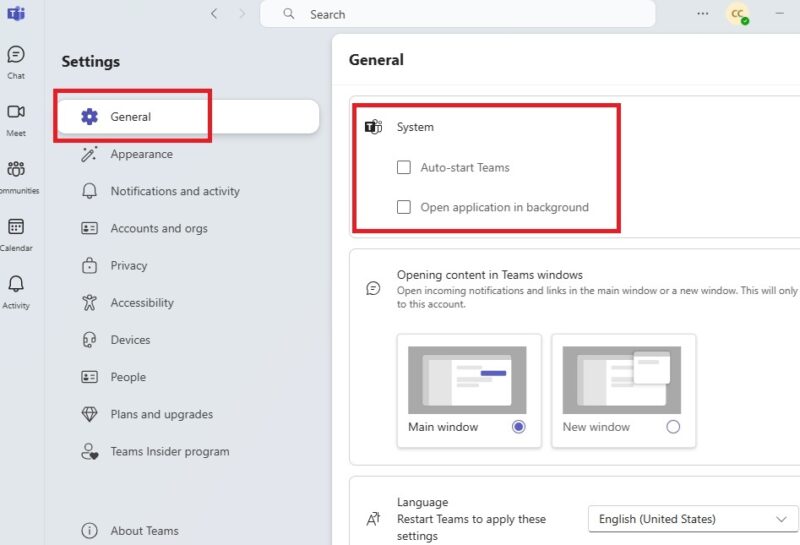
Also, stop Teams from launching in the background automatically. Open Teams, click the three dot menu, and select Settings. Under General, uncheck Auto-start Teams and Open application in background. You can also block it from the startup process.
For businesses, administrators can pause updates via the Teams Admin Center. Visit Teams -> Teams Update to create a custom policy. But, you’ll still be forced to update all users in your organization after the 90-day period.
Alternative to Updating Teams
If you’re getting warning banners about Microsoft blocking Teams and you don’t want to update or can’t update for any reason, there is an alternative. No matter what version of the desktop client you’re using, you can still access Microsoft Teams through the web interface.
The web version always has the latest updates and features. If you’re uncertain about updating and want to try out the new version, keep the Teams desktop client closed and logged out until you’ve had a chance to use the web interface.
Classic Teams Users No Longer Supported
All of this only applies to the new Teams desktop client and not the classic Teams client originally installed with Windows 10. If you’re still using the classic version, you can’t receive any new updates as the product has already reached its end of life cycle.
To avoid being blocked, upgrade immediately to the new version. This won’t replace the classic version. Uninstall it after installing the new version. Then, keep the new version updated to maintain access to Teams. Once you’ve updated, learn all the handy keyboard shortcuts.