Running into the “wget command not found” error in Linux can be frustrating, especially when downloading files from the web. But don’t worry! It’s usually an easy fix. This error typically means your system doesn’t have wget installed or it isn’t in the system’s PATH. In this tutorial, we’ll demonstrate simple steps to get wget up and running so you can start downloading files without any hassle.
Why Does the “wget command not found” Error Occur?
The wget: command not found error in Linux occurs when wget is not installed by default, missing from the system’s PATH, or is corrupted. Some minimal Linux distributions don’t include wget to keep the system lightweight. In this case, we need to install it manually.
If the system doesn’t recognize wget after installation, it might be outside the PATH. You can fix this by adding its directory to PATH. Additionally, a corrupted or removed wget package can cause this issue, and reinstalling wget resolves it.
Fix 1: Install wget on Your Linux System
On most Linux distributions, wget comes pre-installed. However, if for some reason your system doesn’t have wget installed, you may see the ‘command not found’ error. To avoid this error, it’s always a good practice to verify the wget installation on your system before using it. To do this, you can run the following command:
sudo wgetIf your system has wget properly set up, this command retrieves the “wget: missing URL usage message:

However, if your Linux system doesn’t have wget installed, you’ll see the “wget: command not found” error:

To fix this, install wget using your distribution’s package manager. For example, on Debian/Ubuntu, you can use the apt package manager:
sudo apt-get install wget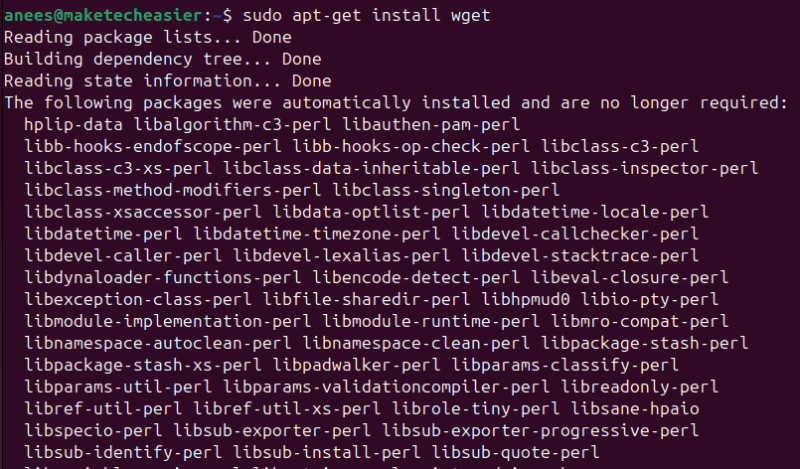
You can confirm the installation by checking the wget version:
wget --version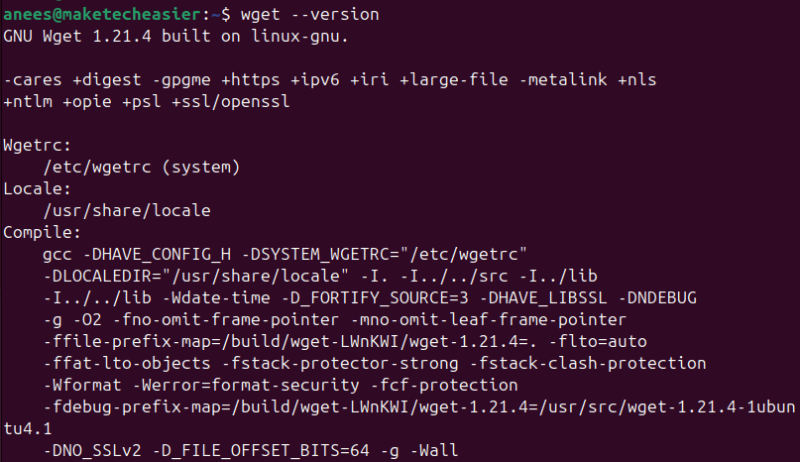
To install wget on RHEL-based Linux distributions, you can use dnf package manager:
sudo dnf install wgetSimilarly, you can use your distribution’s package manager to install wget on other Linux variants.
Fix 2: Configure Wget PATH
Sometimes, the issue isn’t with wget not being installed. In fact, wget may be present on your system, yet you still encounter the ‘wget: command not found’ error. In such cases, you must verify whether the system’s PATH includes wget. For this purpose, use the which command:
which wgetIf this command returns a path like /usr/bin/wget, it means wget is installed and available in the system’s PATH:

However, if the command returns nothing, your system either doesn’t have wget installed or has it in a directory not listed in the PATH environment variable.
If wget is installed but not in PATH, you can temporarily add it using the export command:
export PATH=$PATH:/path/to/wget_directoryReplace /path/to/wget_directory with the actual path like /usr/bin:

You can make this change permanent by adding the same line to ~/.bashrc or ~/.bash_profile.
If you frequently download files with wget, make sure your system has it installed and set up correctly. Otherwise, you may encounter an error like wget: command not found. This error usually occurs when wget is missing, misconfigured, or corrupted. However, the solutions are simple. You can install wget, verify its presence in the system’s PATH, and make necessary adjustments. If wget still doesn’t work, you can use an alternative like the curl command to download files from the web.
Image credit: All alterations and screenshots by Anees Asghar.