I’ve always found those little toast notifications on my Android phone mildly irritating. In this article, I’ll show you how to banish them for good, so you can enjoy a cleaner, less interrupted experience on your device.
What Are Toast Notifications on Android?
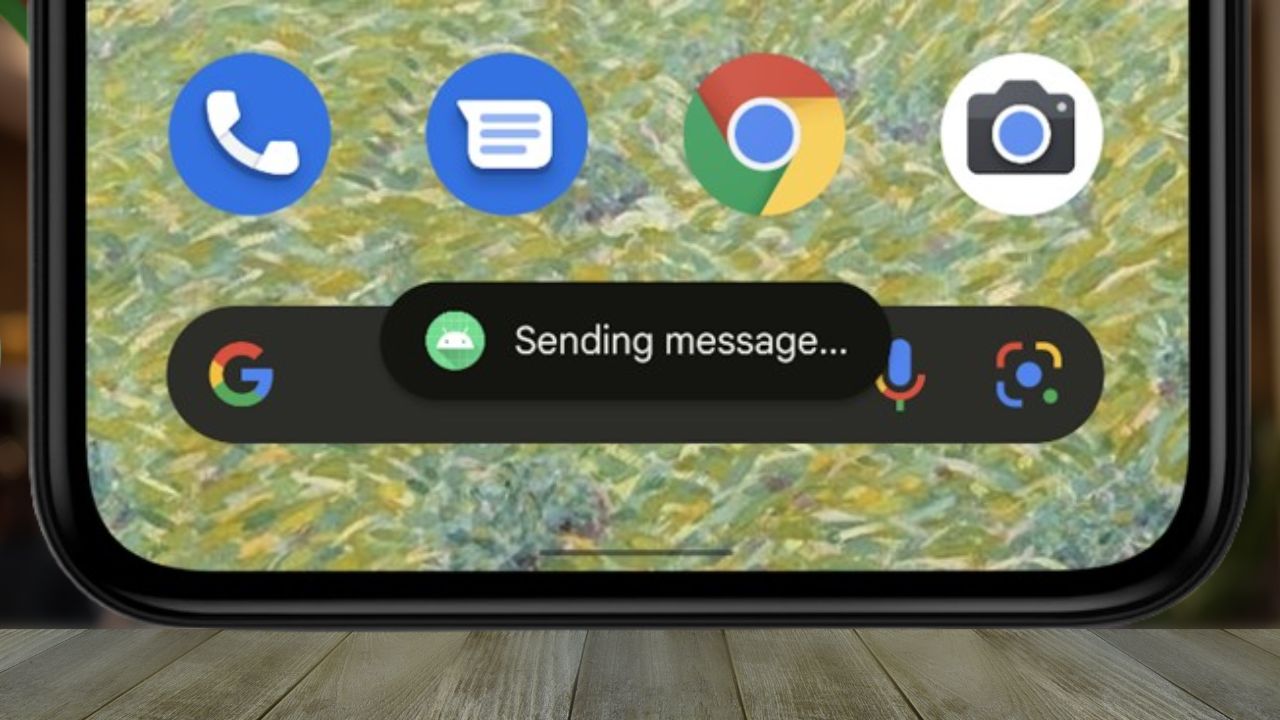
Toast notifications are small, temporary pop-up messages that appear at the bottom of your Android screen with brief information like “Message sent” or “Download complete.” They’re called “toast” notifications because they pop up from the bottom similar to how toast pops up from a toaster.
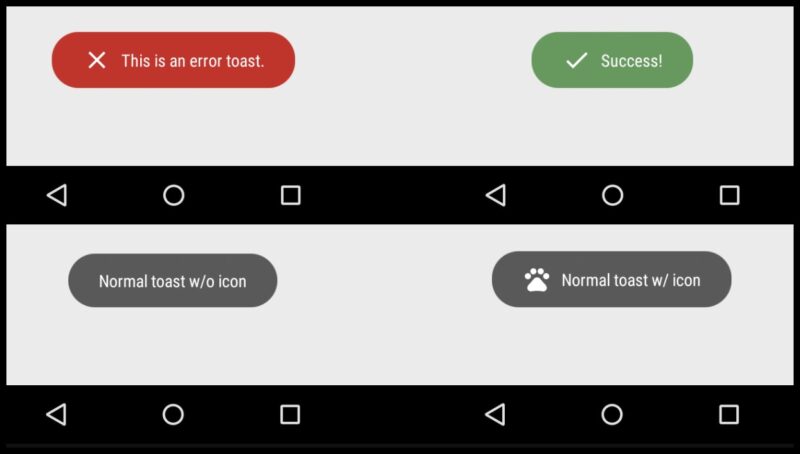
Unlike push notifications that appear in your notification shade and require manual dismissal, toast notifications are designed to be non-intrusive and automatically disappear after a few seconds (they don’t stack up in your notification center and can’t be swiped away manually).
While Android developers intended toast notifications to be helpful by providing instant feedback about system operations, many users find them distracting, especially when they appear repeatedly for routine actions. If you’re tired of seeing messages like “Clipboard copied” every time you copy text or “Screenshot saved” whenever you capture your screen, there are fortunately ways to silence these chatty pop-ups for good.
Disable Toast Notifications Using ADB
If you’ve been digging through your Android settings looking for a way to turn off toast notifications, save yourself the trouble. Unfortunately, there’s no native setting to disable them. And while the Google Play Store has plenty of apps that affect notifications in one way or another, you won’t find a single one that can disable toast notifications, and some might even infect your device with Android malware.
The only reliable solution is to use Android Debug Bridge (ADB), a command-line tool that allows you to communicate with your Android device from a computer and tweak things Android doesn’t usually let you tweak.
Follow this guide to set up ADB on your computer.
Once you’ve got ADB ready to roll, connect your Android device to your computer and open a terminal or command prompt. Confirm your device is connected correctly by running:
adb devicesYou should see your device’s ID listed. If not, double-check the connection or your phone’s USB debugging settings.
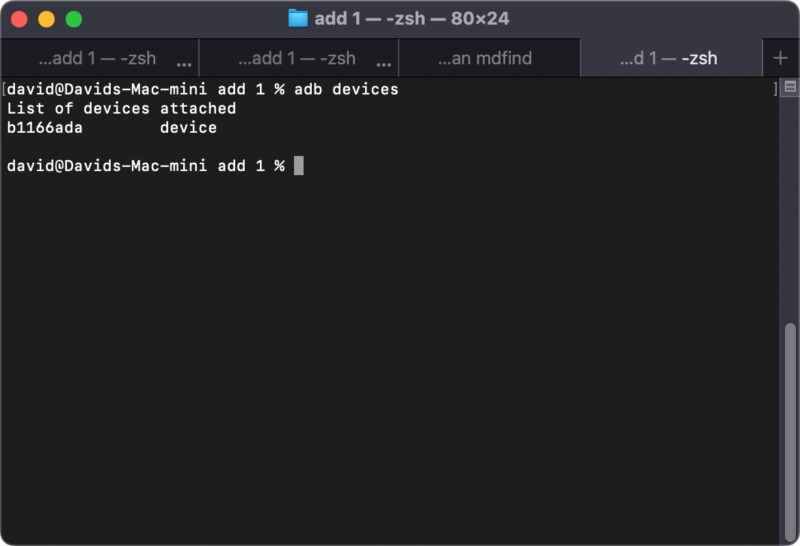
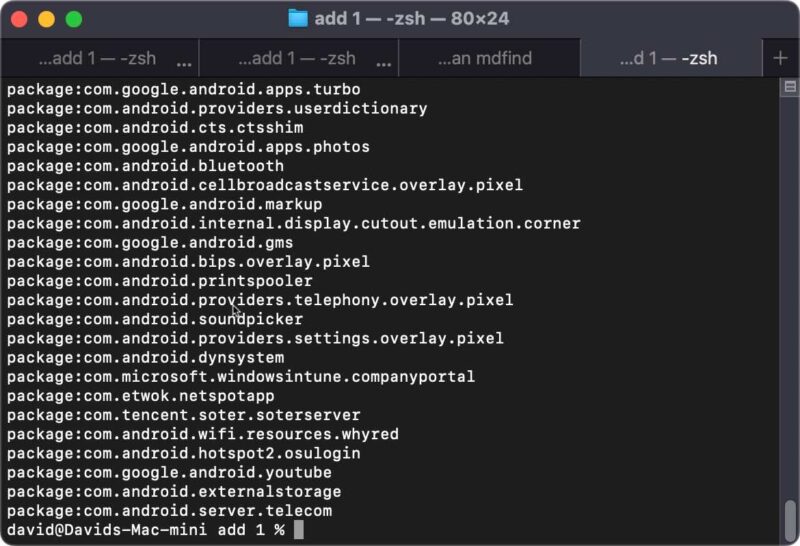
To disable toast notifications from a specific app, you need to find the package name of the app whose notifications you want to disable. You can either run this command to list all installed packages:
adb shell pm list packagesHere are all the apps I have installed on my device:
Alternatively, you can search for a specific app using grep (replace “keyword” with a name of the app):
adb shell pm list packages | grep keywordThen you can disable toast notifications for the app:
adb shell appops set app_package_name TOAST_WINDOW denyAnd that’s it – toast notifications from that app will be silenced instantly.
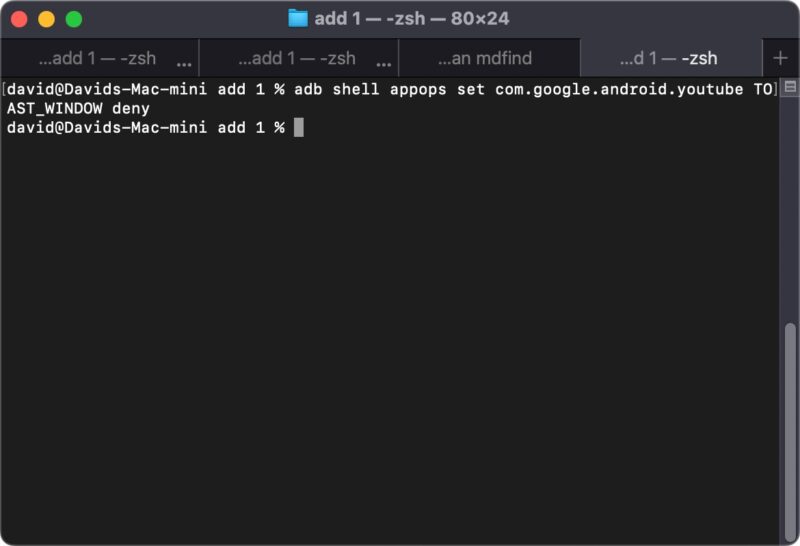
You can then execute the command again for other apps whose toast notifications annoy you (no, there’s no way to disable toast notifications in one go for all apps).
If you ever want to reverse this and re-enable toast notifications for the app, run this simple revert command:
adb shell appops set app_package_name TOAST_WINDOW allowADB is truly a powerful tool that extends far beyond just managing toast notifications. There are dozens of useful commands that can help you customize your Android experience in ways that aren’t possible through the regular settings menu. I encourage you to explore more ADB commands once you’re comfortable with the basics – you’ll be surprised at just how much control you can have over your device without needing to root it.
All images and screenshots by David Morelo.