If you’re a Linux user, especially one who enjoys working in the terminal, one tool that can completely change how you manage text on your Linux terminal is xclip. Instead of highlighting text with your mouse, right-clicking, and then pasting it somewhere else, you can pipe text directly into xclip, and it will instantly update your clipboard. From there, you can paste it into a document, an email, or even another terminal window using a quick Ctrl + V.
xclip is versatile enough to handle numerous types of data, not just plain text. Whether you’re copying code, commands, or configuration files, xclip treats all this content consistently.
Note: xclip only works with X11 and won’t run on Wayland. If you’re on Wayland, use wl-clipboard (wl-copy and wl-paste) instead.
Getting Started with Xclip
To get started with xclip, you’ll need to install it using your system’s default package manager. For example, if you’re running Ubuntu like I am, use:
sudo apt install xclipFor Arch-based distros, you’d use:
sudo pacman -S xclipFedora or CentOS/RHEL, run this:
sudo dnf install xclipOnce it’s installed, you’re ready to roll!
Copy & Paste Without a Mouse
When you use xclip, you’re interacting directly with your system’s clipboard buffer. Whether you’re copying output from a command or the contents of a file, xclip reads from standard input (stdin) and writes to the X selection (clipboard). In simple terms: whatever you pipe into xclip will add to your clipboard.
For example, if you have a file called “notes.txt” and want to copy all its contents, you can run:
cat notes.txt | xclip -selection clipboard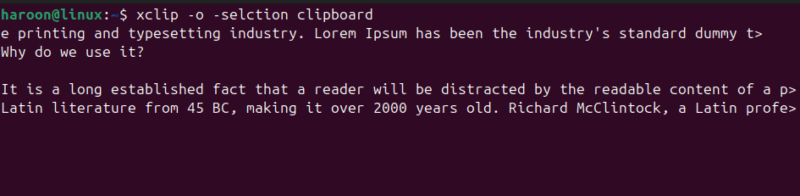
This one simple line sends everything from “notes.txt” directly to your clipboard, just as if you’d selected it manually and pressed Ctrl + C.
To paste the contents into any document or terminal, just use the regular Ctrl + V.
Want to paste the clipboard contents back into the terminal or use it in another command? Use the -o (output) option:
xclip -o -selection clipboardThis command prints out whatever is currently in your clipboard. You can even redirect that output into a file like this:
xclip -o -selection clipboard > my_copied_list.txtBut what if you only want to copy a specific portion of text from your files? In that case, you can use other Linux tools like sed, grep, head, tail, or awk to filter the content before piping it to xclip.
For example, to copy only lines 5 through 10 from “notes.txt,” use:
sed -n '5,10p' notes.txt | xclip -selection clipboardHere, the -n flag limits the initial output, and -p tells sed to print only the specified lines. The result is sent to your clipboard, ready to paste. Also, if you’re working with screenshots or other image files, xclip can handle them too.
Make the Selection Process Even Simple
One thing that really annoyed me was having to type those long selection commands over and over again. To fix this, I created aliases in my “~/.bashrc” file to make the selection process simpler and faster. Just open your “~/.bashrc” file with any text editor:
nano ~/.bashrcNext, add these two lines:
alias setclip="xclip -selection clipboard"
alias getclip="xclip -selection clipboard -o"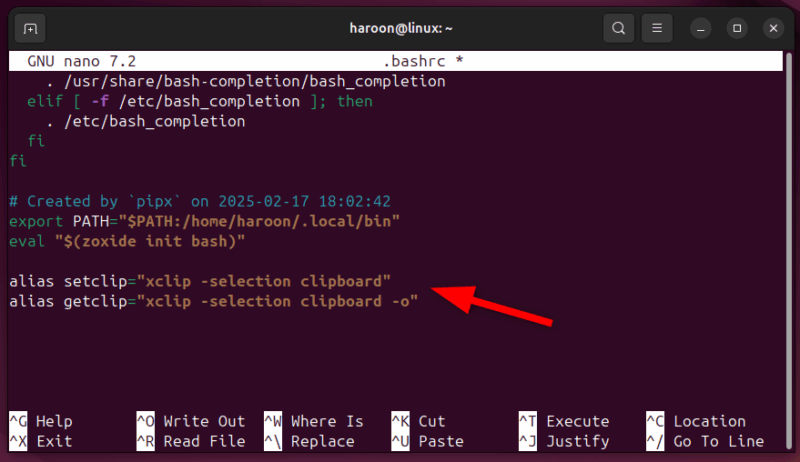
Reload it with:
source ~/.bashrcNow, you can simply use setclip to copy and getclip to paste. For instance, to copy all the file contents, run:
cat notes.txt | setclipTo paste it into the terminal, run:
getclip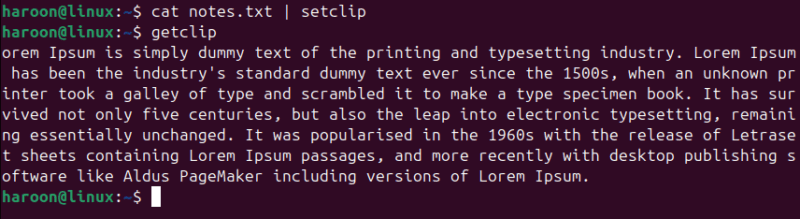
That’s it! No more typing out those long commands every time.
Is It Useful to Use Xclip?
The simple answer is yes. It’s far more useful than you think. If you write scripts, work in the terminal all day, or manage remote systems, this tool can save you significant time and effort.
Personally, I love it because it increases my efficiency while working in the terminal. I no longer have to stop, grab the mouse, scroll through text, or risk missing something when copying. It’s also extremely helpful for developers and sysadmins who frequently copy logs, error messages, or configuration blocks.
However, if you want extra features like keeping a history, running scripts, or handling images, try a clipboard manager such as CopyQ, cliphist, Autocutsel and the Clipboard Project.
Final Thoughts
The xclip command isn’t some overengineered or complicated tool. It’s simple—but once you start using it, you’ll wonder how you ever worked without it. Just by learning commands like these, you can speed up your workflow and stay focused in the terminal.
If you haven’t tried it yet, give it a go. Install it, run a few tests, and see how much smoother your copying and pasting becomes. And remember, xclip isn’t the only tool out there. There are plenty of other Linux commands that can boost your productivity. You can even consider replacing your regular command-line tools with newer, more efficient alternatives.