Did you open Facebook only to find it in a completely different language? No need to panic! This guide shows how to change your language settings back to normal.
Good to know: was your Facebook account was unexpectedly disabled? Learn how to get it back.
Table of Contents
- Why Facebook Displays a Different Language
- 1. Modify Facebook’s Language Settings
- 2. Clear Browser or App Cache
- 3. Disable Browser Extensions
- 4. Disable Translations
- 5. Check the URL
- 6. Check Your VPN
- 7. Try Using a Different Browser
- 8. Log Out from Facebook and Back In
- 9. Scan for Viruses
- 10. Check Whether You’ve Been Hacked
Why Facebook Displays a Different Language
Facebook randomly displaying a different language is a well-known bug that users have been complaining about for some time. A user’s entire Facebook page can show a different language, yet sometimes, only select parts will show in this language. The usual causes are:
- You or someone else accidentally changed Facebook’s language options
- A temporary bug
- A possible virus or malware infection on your device
- Browser extensions
- Recent use of a VPN
If you’re dealing with this issue, there are a few options that can restore your Facebook language back to normal.
1. Modify Facebook’s Language Settings
The first course of action should be to change your Facebook language settings back to your preferred language. If you can read the language enough to get by, follow the steps below to modify the language in Facebook. Follow our instructions carefully to get to the language-changing option.
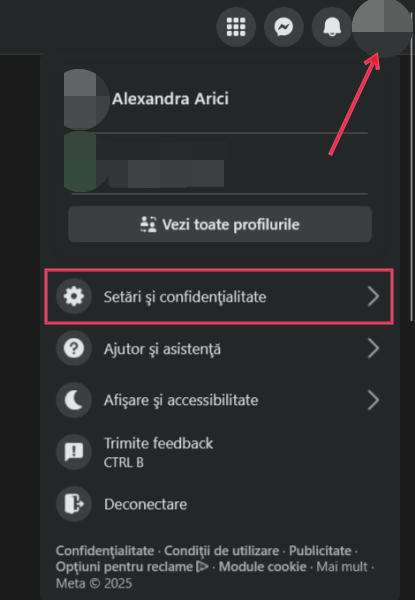
Log in to your Facebook account, and click on your profile picture in the upper-right corner. Select the first option, the one with a gear icon next to it, indicative of the Settings & privacy option.
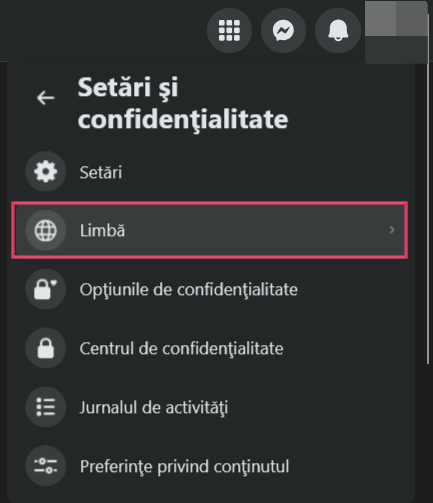
Select the second option in the drop-down menu with a globe icon. This is the Language option.
Press the first option. It should show you the language Facebook is currently using.
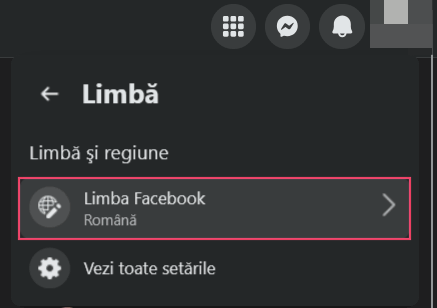
Select your preferred language.
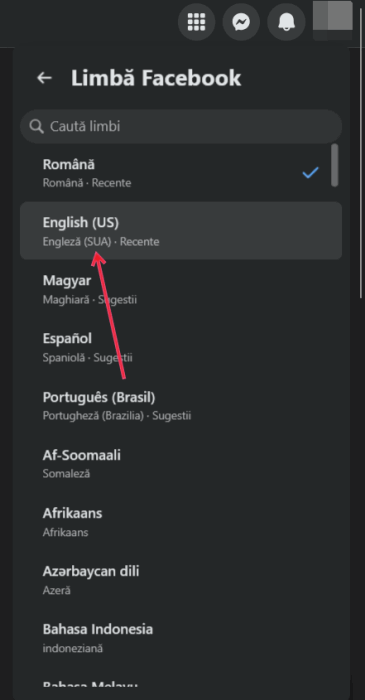
Note: changing Facebook’s language settings won’t affect your PC’s language settings. Also keep in mind that if your device language is set to something other than English, Facebook will be displayed in that language.
Exit and refresh the page to see whether Facebook will display the correct language.
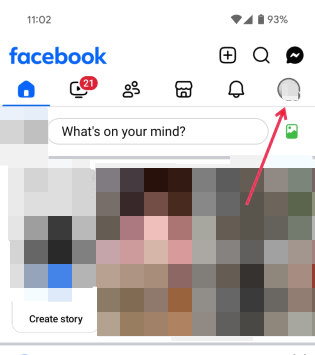
On the Facebook mobile app, tap your profile picture in the upper-right corner.
At the bottom, under the various option tiles, find the option with the gear icon next to it. Tap on it to expand it, then press the one right below with the person icon. (This is the Settings area.)
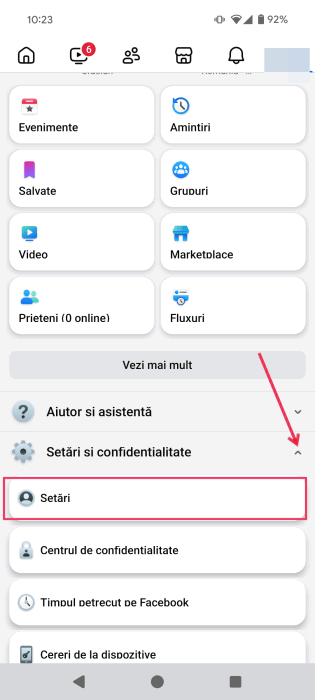
On the next page, go to the second section (not counting the Meta one at the top), and select the sixth option (the one with a globe).
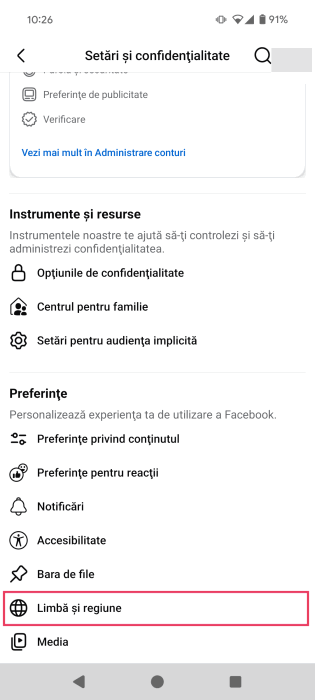
Select the first option.
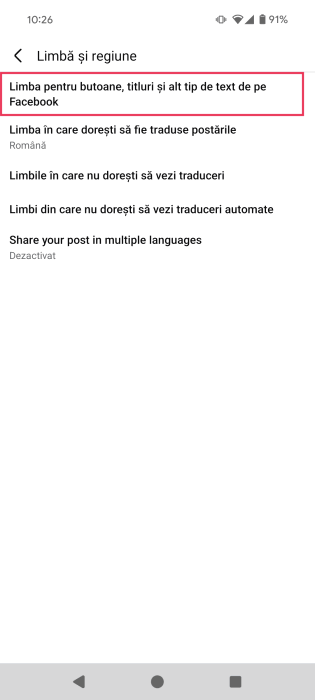
Switch back to English or any other language you want to switch to.
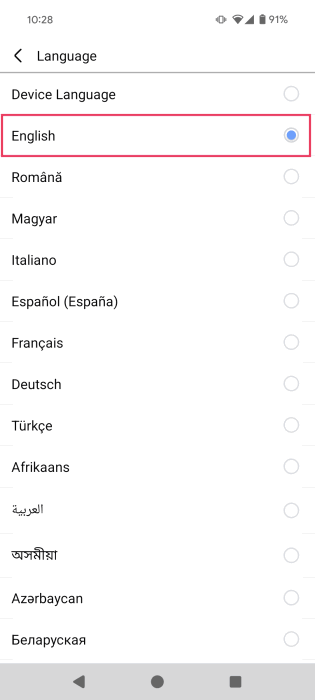
Return to the app to see if it’s in your preferred language.
Tip: learn why you should never sign in using your Facebook or Google accounts.
2. Clear Browser or App Cache
If you keep seeing Facebook in the wrong language, even after modifying the app’s language settings, try clearing your browser’s cache or the app cache. If you’re accessing Facebook on a PC, clear the cache for your browser.
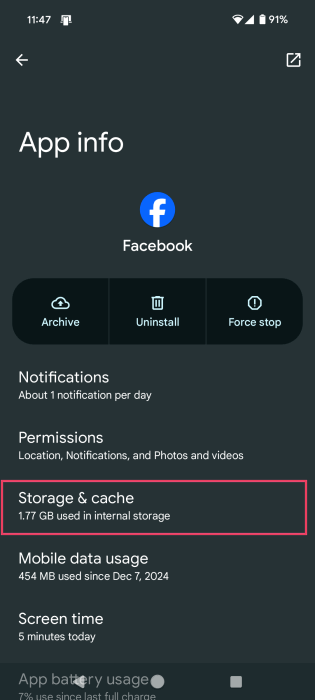
If you’re using an Android, you’ll need to delete the cache for your Facebook app. Access Settings -> Apps.
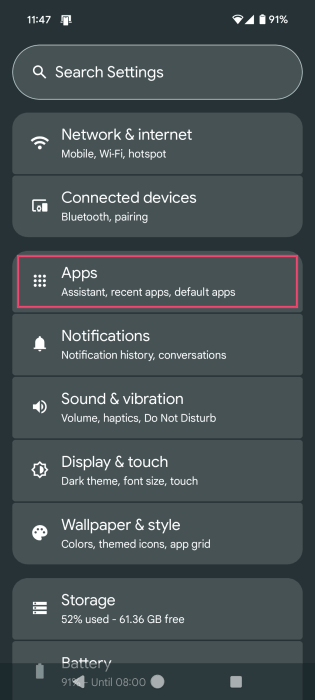
Select Facebook. On the App Info screen, press Storage & cache.
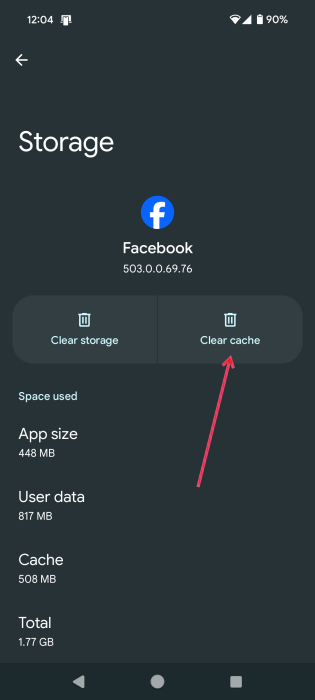
Tap Clear cache at the top.
If using an iPhone, uninstall and reinstall the Facebook app to clear its cache.
Whether on iPhone or Android, it’s also a good idea to delete your browsing data directly via the Facebook app. Go to the Settings area as we showed you above. Go to the second section (the Meta one at the top excluded) and find the option that has a browser window next to it. It should say Browser or something similar (depending on the language).
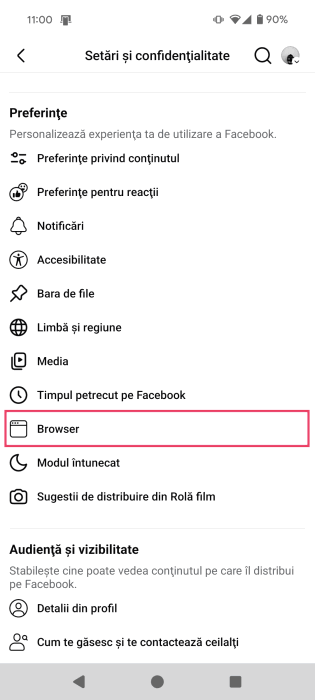
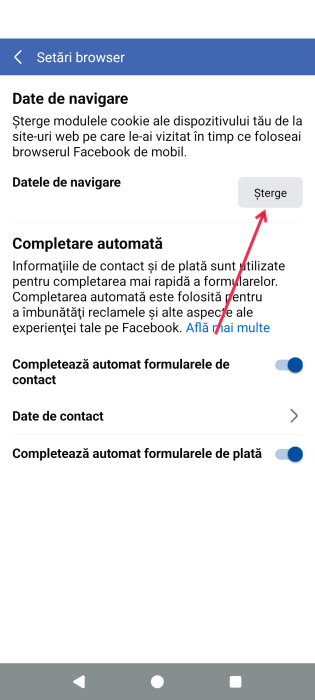
Tap the button in the first section. This will clear your device’s cookies and cache from websites you’ve visited while using Facebook’s in-app browser.
Tap the Clear button next to Your browsing data to clear your device’s cookies and cache from websites you’ve visited while using Facebook’s in-app browser.
Exit the app, close it down properly and relaunch it again.
3. Disable Browser Extensions
If you have any language-related extensions for your browser, they could be affecting how Facebook is displaying. Go through all your extensions and disable the ones that could be impacting Facebook.
For instance, in Chrome, click on the extension icon next to the address bar. Select Manage extensions.
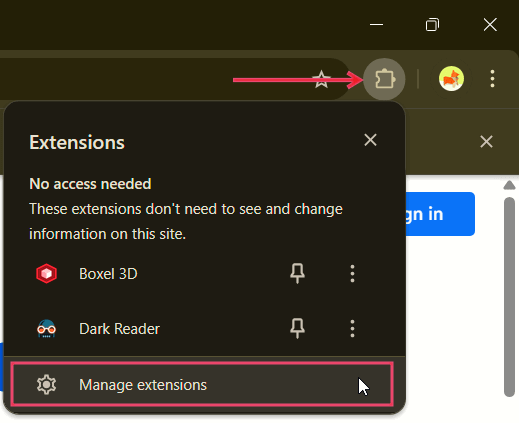
You’ll be taken to the All Extensions screen in your browser. Toggle the switch off for the extension you want to disable. Return to your browser, and refresh Facebook.
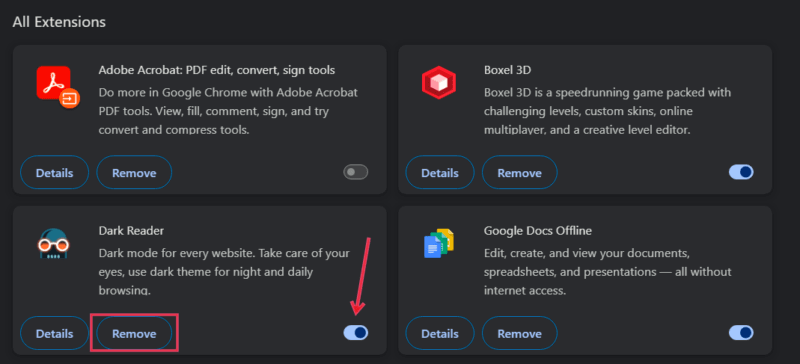
Since the extension can still run in the background, even if disabled, you may want to remove it completely until Facebook shows your preferred language again.
FYI: learn how to tag someone on Facebook.
4. Disable Translations
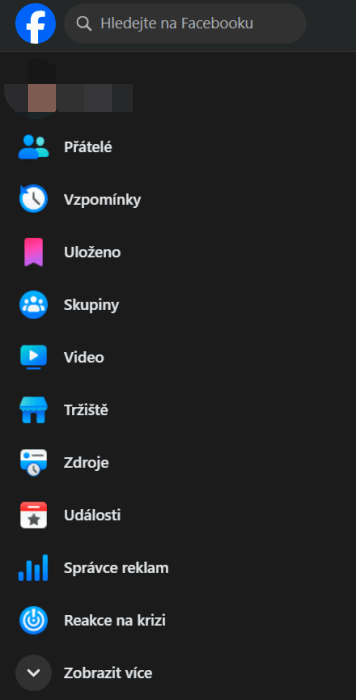
If you’re using a browser like Chrome, you may have accidentally triggered the translation mode.
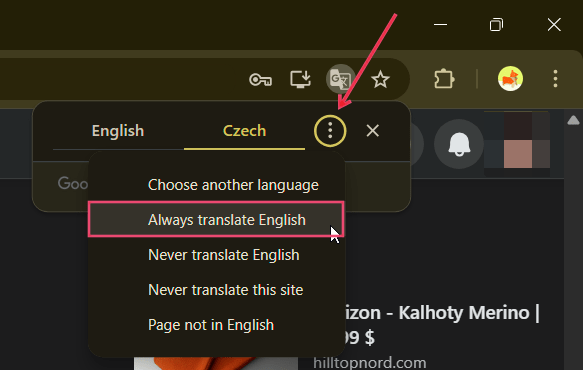
Click the Google Translate icon in your address bar, if you have it.
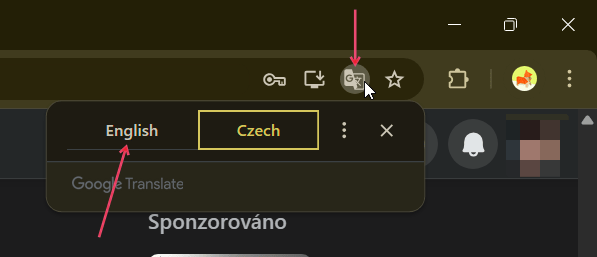
If there’s a different language enabled, switch back to your preferred language.
Alternatively, press the three dots on the translation card, and select Always translate English.
5. Check the URL
Checking the Facebook URL in your browser can also help. Typically, it will be a clean facebook.com, but if you notice something like ?locale=es_ES after it, delete it.
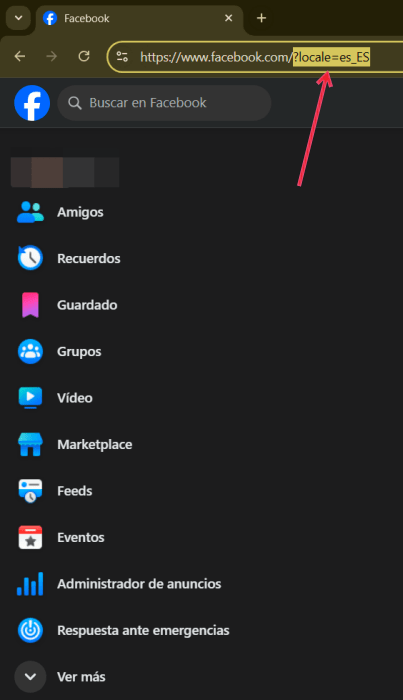
Press Enter for the page to load using the default settings. Your issue should now be resolved.
6. Check Your VPN
Another possible reason for seeing Facebook in the wrong language is that your VPN is turned on. It happens to me all the time: my NordVPN quietly runs in the background and it continues to run even after a shutdown, so it can easily slip my mind to turn it off.
If you’re using a VPN regularly, it doesn’t hurt to check whether it’s been disabled.
7. Try Using a Different Browser
If you still can’t get Facebook to show up in your preferred language on your PC, try using a different browser. For instance, if you’re always using Firefox, try switching to Opera or Vivaldi.
On mobile, if you’re usually using the app, switch to Facebook in your browser to check whether Facebook is showing normally.
If the issue is still present, try opening a private browser window and logging in to your Facebook account.
8. Log Out from Facebook and Back In
Another method to try is logging out from Facebook on all your devices, then logging back in.
In your browser or mobile app, go to Facebook Settings, and click on the blue option in the first Meta section. (It should be at the top on the left.)
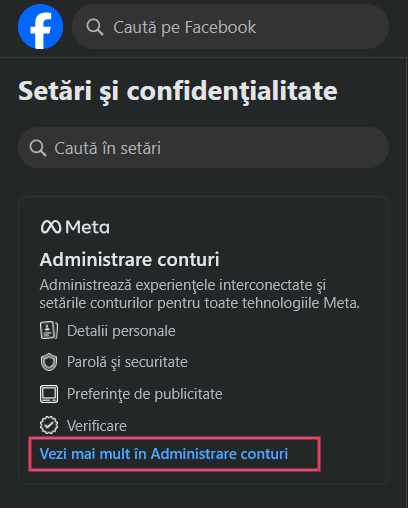
On the right, in the second section, select the first option: the one featuring a shield icon. On the new page, select the first option in the second section on the right.
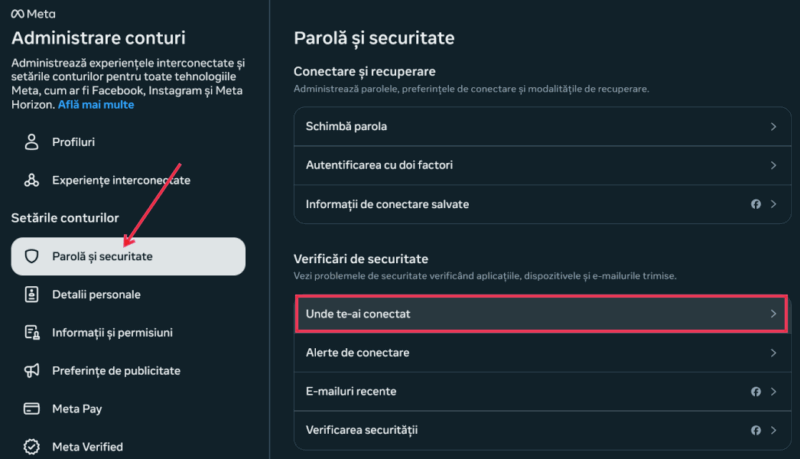
Tap on your name in the pop-up.
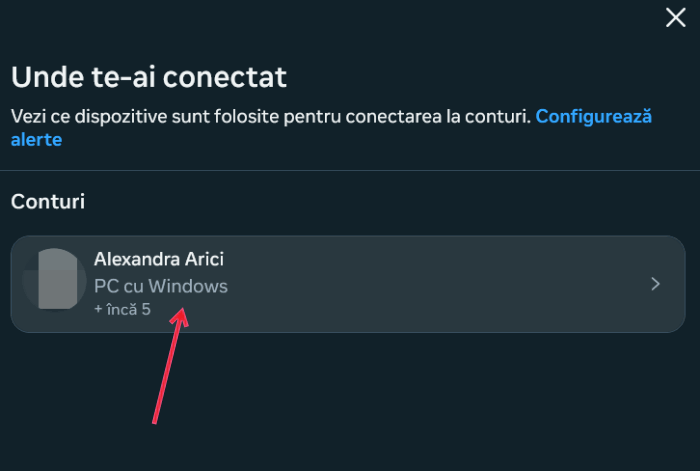
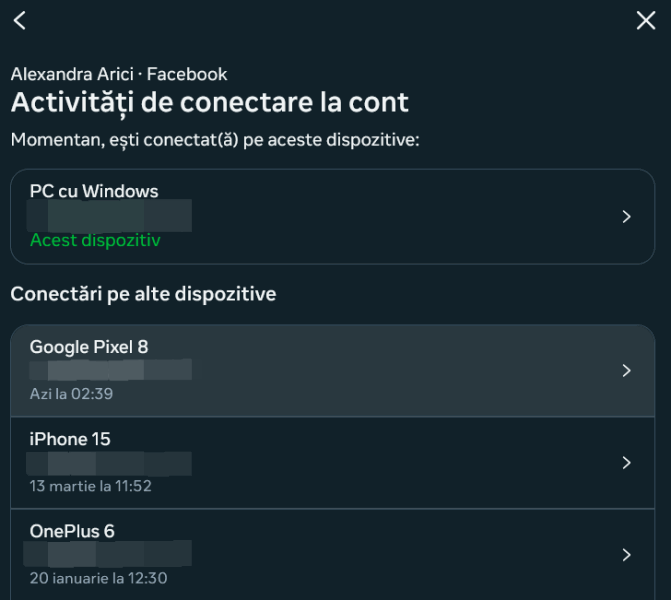
Select a device.
Press the Log out button.
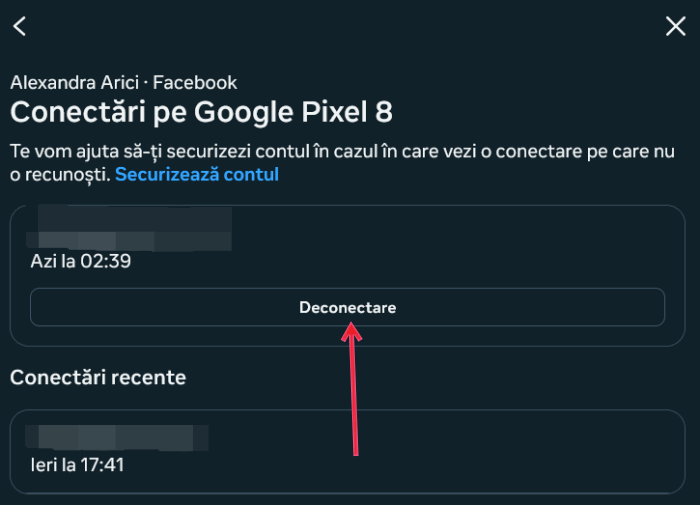
Do this for all the devices on the list, then log back in to your Facebook account one device at a time.
9. Scan for Viruses
If you’re seeing Facebook in a different language, you need to take into account that it could be the result of a virus infestation. I recommend scanning for viruses with a program like Malware Bytes PC.
On Android, use one of these antivirus apps to do a quick scan.
10. Check Whether You’ve Been Hacked
If nothing has helped so far, it’s time to consider that your Facebook may have been hacked.
If you suspect you’ve been hacked, let Facebook know about your suspicions. While you wait for a resolution, follow our tips on how to secure your Facebook account.
Hopefully, your Facebook is once again in your preferred language. However, if you’ve had enough of Facebook’s issues and difficulties, you may want to delete your Facebook account.
Image credit: DepositPhotos. All screenshots by Alexandra Arici.