It’s common knowledge that tech giants, like Meta and Google, are constantly collecting users’ information. Instagram, as part of Meta’s services, also gathers user data using in-app interactions, cookies, and its Meta Pixel JavaScript and utilizes it to display personalized ads. Fortunately, Instagram lets you learn more about the businesses and organizations that share your activities with Meta and disconnect them from your account.
Finding Out Sites that Share Activities About You
Since Meta has seamlessly integrated its services, you can use either the Instagram or Facebook app or website to access Meta’s Accounts Centre. The steps for doing so are the same. Before beginning, note that any changes made here will be applied to other Meta-owned social media platforms.
Open the Instagram app and log in to your account. Tap your Profile in the bottom right corner, and open Settings. From the Settings and activity, tap on the Accounts Centre option under the Your Account section.
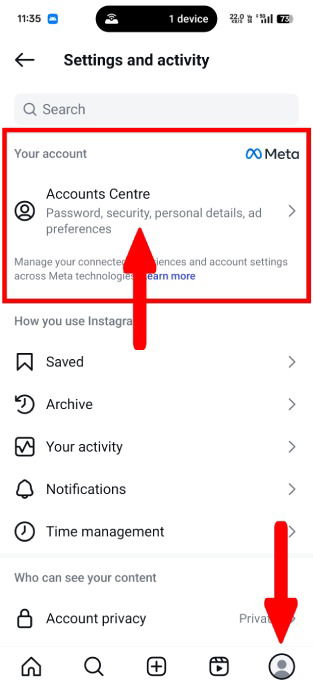
Navigate to the Account Settings tab, select Your Information and Permissions.
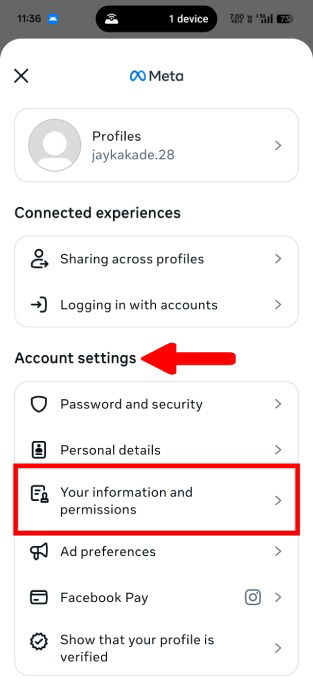
A new pop-up menu will appear, allowing you to interact with your account’s information. Select Your activity off Meta technologies.
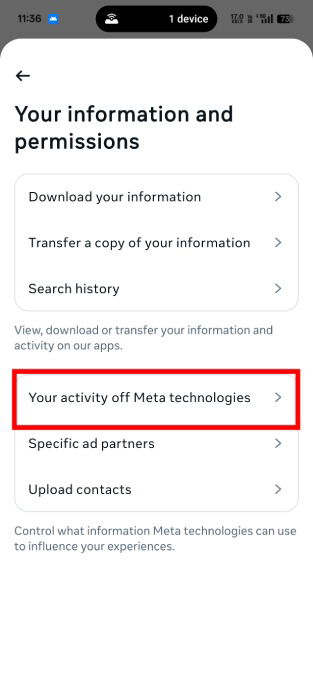
This screen allows you to have better control over your shared information. Under the What you can do section, go to the Recent Activity setting to view the list entries of the shared activities. Meta may ask you to confirm your identity by asking Instagram password.
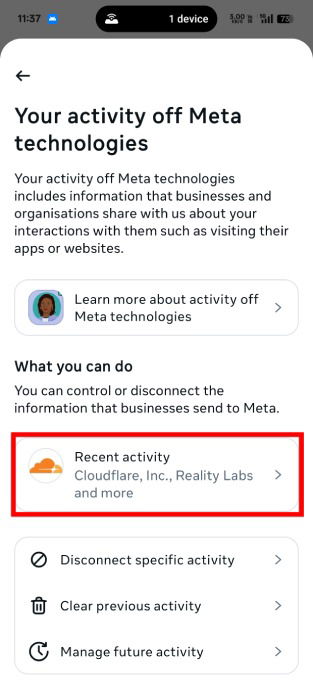
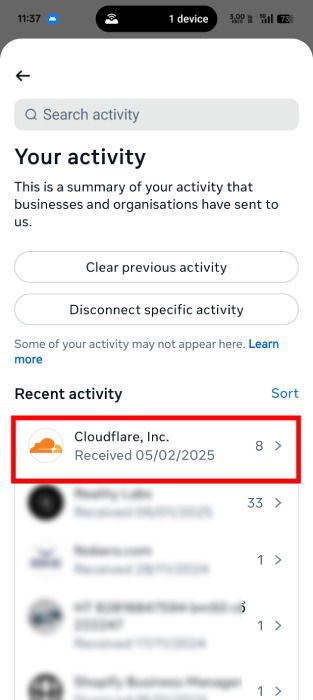
Here, you will see the list of every business and organization sharing your activities and data with Instagram.
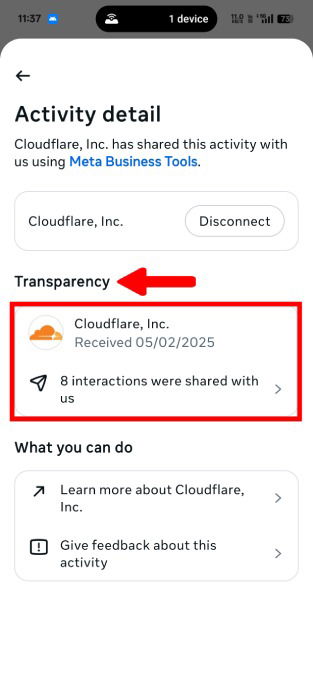
To get more information about the shared data, click on an entry list.
Under the Transparency section, tap on the number of interactions shared.
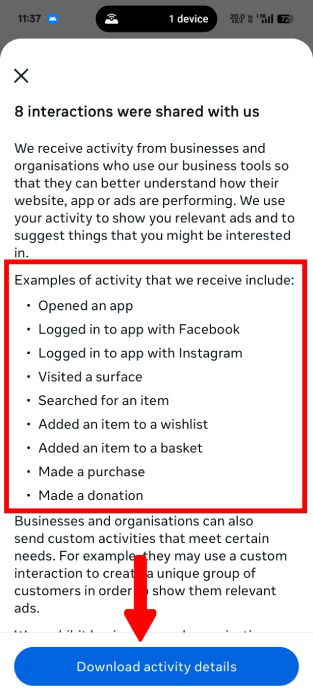
One misleading thing is that the number of interactions does not provide the breakdown of the exact data points, but only show preset examples of activities. This could be frustrating regarding maintaining data privacy and transparency, but Meta won’t share the level of detail you’re looking for.
Even if you click the Download activity details button to download your activity file, it doesn’t show the shared data too.
Disconnecting Activities Off Your Meta Account
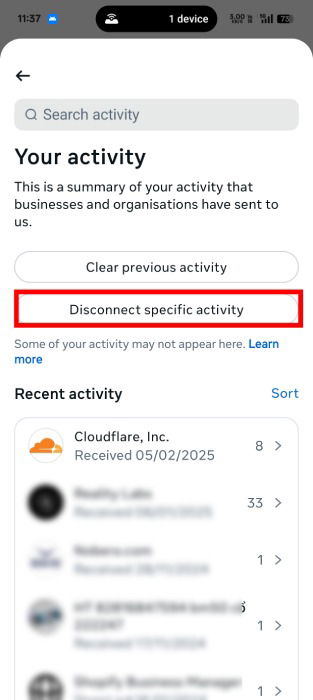
Given that you don’t have full control over these activities, you can still disconnect the saved data from your account. To disconnect the data flow, go back to Your Activity and hit the Disconnect specific activity button.
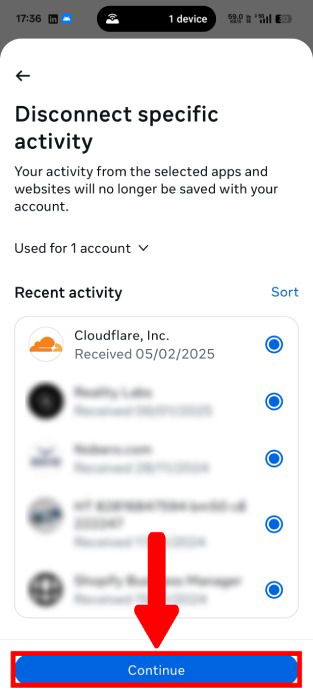
Select the activities you would like to disjoin from your Meta account and hit Continue.
A confirmation pop-up menu will appear, displaying more information about you and third-party data. Before you tap Confirm, note that you will be logged out from any website or app where you used Facebook for login. Also, Meta will prevent you from logging in using Facebook in the future.
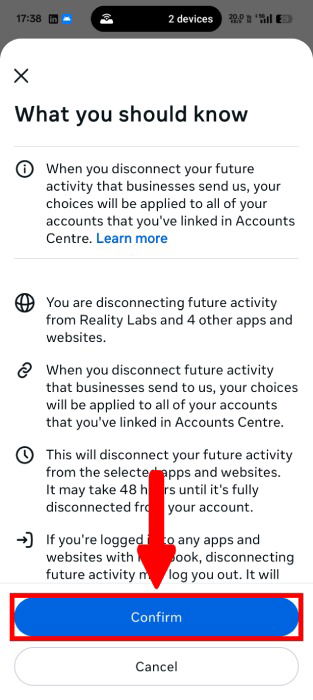
The system may take up to 48 hours to detach specific activities from your account.
Even though the Meta Account Centre offers a glimpse into third-party websites and data sharing, the lack of showcasing exact data fields is indeed disappointing. In case you prefer not to disconnect your activities, you may want to limit what Meta does with your personal data.