We all know how easy it is to lose track of time on TikTok, and that effect can be a lot more powerful on kids and teens. To help manage screen time, the app has recently introduced a new Time Away parental control feature that nudges young users to take a break and unwind if they’re scrolling past 10 PM.
Setting Up Family Sharing on TikTok
Despite TikTok’s efforts to promote learning through its #LearnOnTikTok campaign, most kids and teens still use the app for entertainment, sometimes at the expense of sleep. In response, TikTok is strengthening its parental control options with a new tool that will help calm young minds and prepare them for bedtime.
The new feature, Time Away, is available for teen accounts on TikTok that are managed through Family Pairing.
To set up Family Pairing on your teen’s phone, check this guide, which walks you through all the steps to connect a child and parent account on TikTok.
Turning TikTok’s Time Away Feature On for a Teen Account
Once the two accounts are connected, open the parent TikTok account and press on the person icon in the lower right corner.
Tap the hamburger menu in the upper right corner and select Settings and privacy at the bottom.
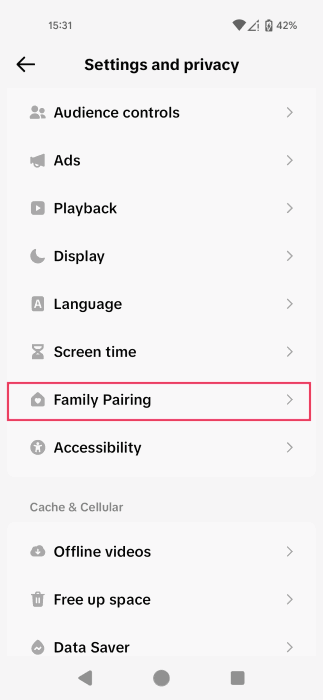
Find the Family Pairing option under the Content & Display section. Select your child’s account from there.
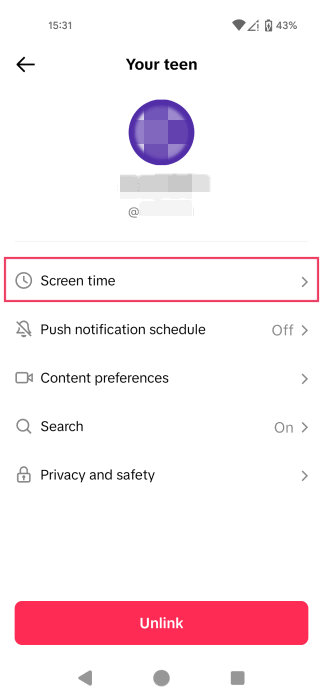
Go to Screen Time.
Tap on Schedule time away.
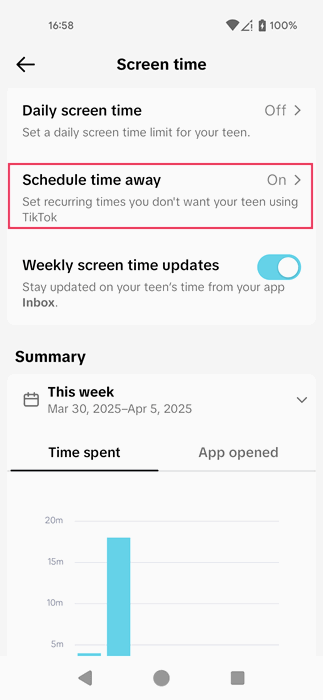
Toggle on the option to Schedule time away at the top.
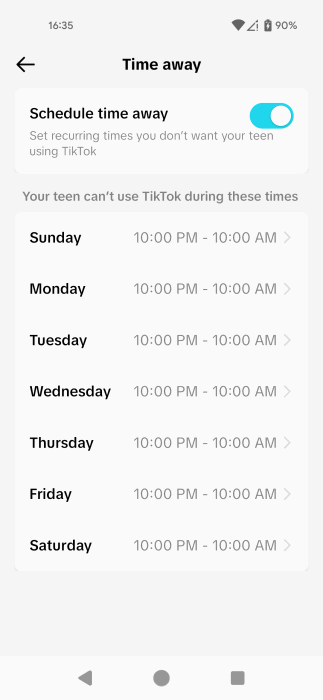
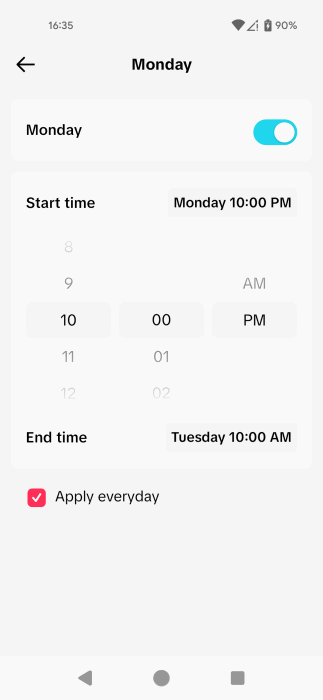
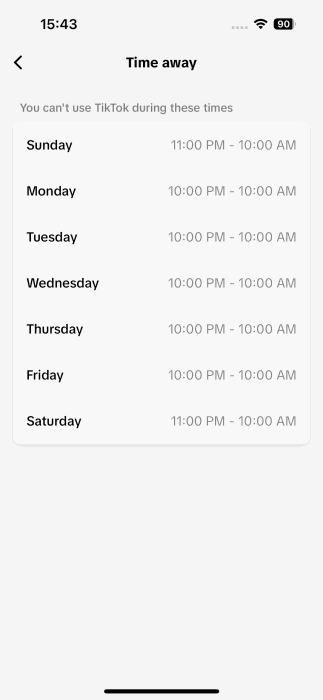
As you can see, by default, the Time Away mode is set to start at 10 PM, but you can customize it according to your own needs. Tap on a day of the week, turn on the toggle specific to that day, and set the desired schedule for your teen. Consider relaxing the rules during the weekend so you can allow your teen to spend a little more time on TikTok. However, if you wish to set the same schedule for all week, check the option to Apply everyday at the bottom.
Once the parent sets this schedule, it automatically replicates on the child’s account.
Teens can view the schedule by going to Settings and Privacy -> Time away.
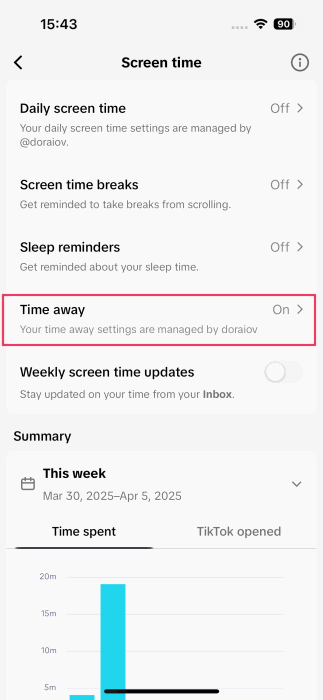
Here, younger users can check the limitations imposed by their parents on their accounts.
What Happens When Time Away Takes Over?
Time Away functions as an integrated meditation feature. Upon activation, it overrides TikTok’s For You feed, playing calming music and displaying prompts aimed at encouraging relaxation and preparing teens for sleep.
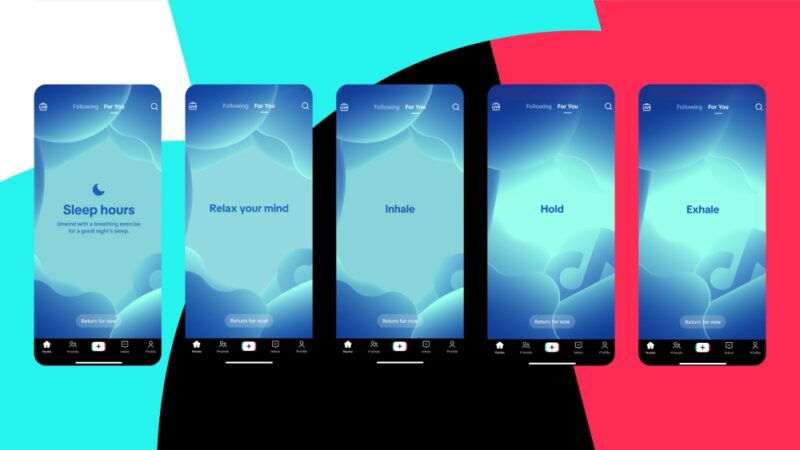
Should teens choose to bypass the initial reminder, Time Away will issue a second prompt, significantly restricting access to the app.
On top of Time Away, TikTok has also added a feature that allows them to see who their teen is following on TikTok and who follows them via the main Family Pairing dashboard. On top of that, they will also be able to see the accounts the teen has blocked.
Can Parents Use This Feature Too?
While this feature could certainly be beneficial to adults, it is not currently available to them. However, if you are looking to reduce your social media usage, you can explore alternative features within the Screen Time menu in Settings and privacy in your TikTok app.
- Daily screen time – set a daily screen time limit for TikTok or customize your schedule and control how much time you spend on the app
- Screen time breaks – configure screen time breaks and get notified when it’s time to take a breather after a period of continuous scrolling
- Sleep reminders – prevent excessive nighttime scrolling by enabling Sleep Reminders. TikTok will notify you when it’s time to sleep and mute push notifications for 7 hours to support uninterrupted rest.
If you’re aiming to cut down on overall screen time, not just on TikTok, but on your Android phone as a whole, this post will guide you in reclaiming more of your time. For iPhone users, we also have some tips on how to customize the Screen Time app.
Image credit: Two cheerful Asian women are enjoying talking while watching a content on the TikTok application on an iPhone by DepositPhotos. All screenshots by Alexandra Arici