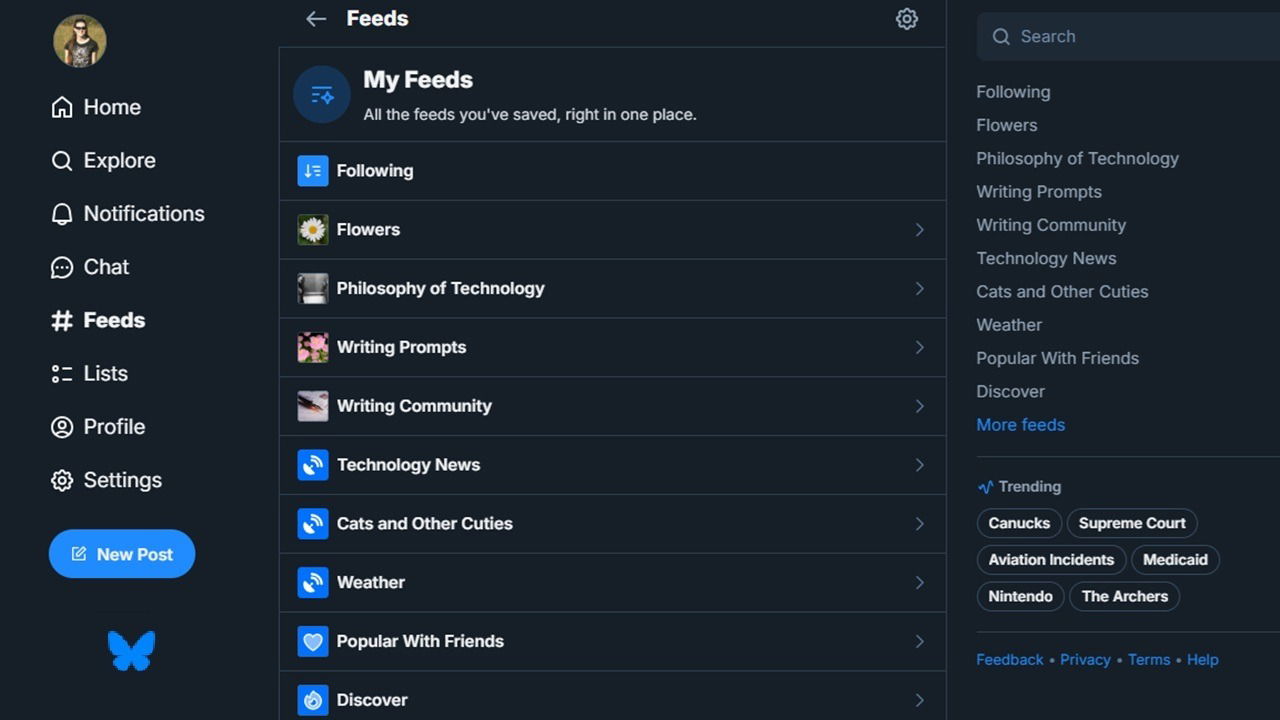
Social media algorithms often make it difficult to see what you want on your feeds. Thanks to multiple methods for customizing your Bluesky feeds, you’re able to see the posts and users that matter most to you.
Adjust the Discover Feed
Bluesky’s Discover feed is similar to X’s For You feed, though much less chaotic. However, they share a common feature – letting the platform know whether you’re interested in the content.
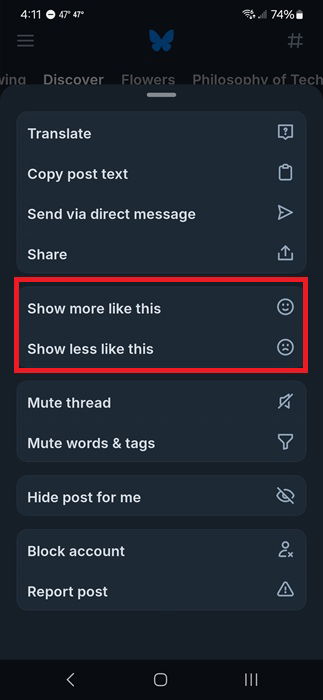
Bluesky goes a step further and lets you mark any post in your Discover feed with either Show more like this or Show less like this. Tap the three dots under any post and mark your level of interest. Over time, this customizes the Discover feed with far more relevant content.
Search Becomes Explore
One of the best tips for customizing your Bluesky feeds is to follow more users. But, what’s the best way to find them? Originally, Bluesky only had a basic search option. Now, the platform has switched out Search for Explore and I couldn’t be happier.
Just tap the magnifying glass or go to Explore in the menu sidebar. You can still search as normal using the search box. Or, explore various suggestions, including the newly added:
- Interests
- Trending topics
- Suggested accounts by category
- Starter packs
- Suggested accounts by post
Outside of the Trending Topics section, most suggestions have some tie back to what you’re already following and interacting with. Admittedly, some of those ties are a bit of a stretch.
Customize more of what you see by editing your interests. Tap the Edit interests button under Your interests in the Explore area. Select any interests to help Bluesky better understand what’s important to you.
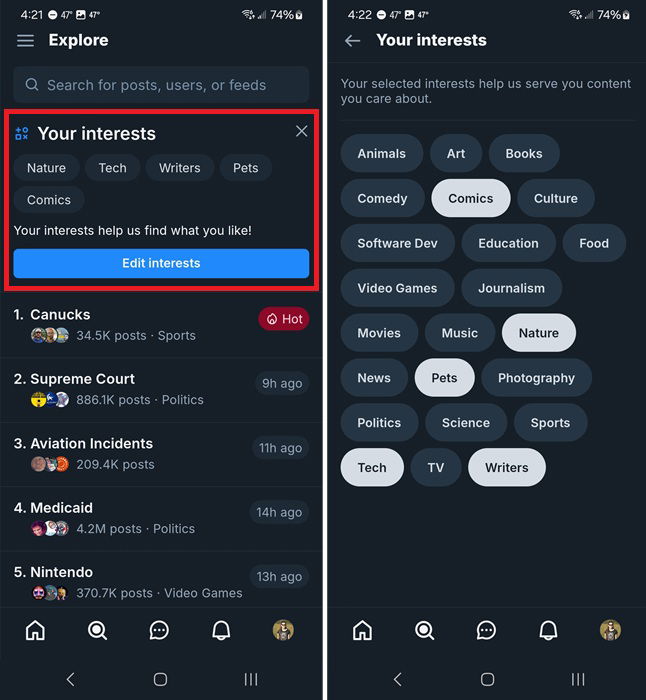
Once you have this setup, feel free to tap the X beside the Your interests header to remove this from Explore. This doesn’t delete your interests. It just clears up space to show more suggestions in the other sections.
Trending topics change multiple times per day. If there’s something you’re interested in, check it out and interact with some posts to signal your interest. You’ll see more posts from this topic appear in your Discover feed.
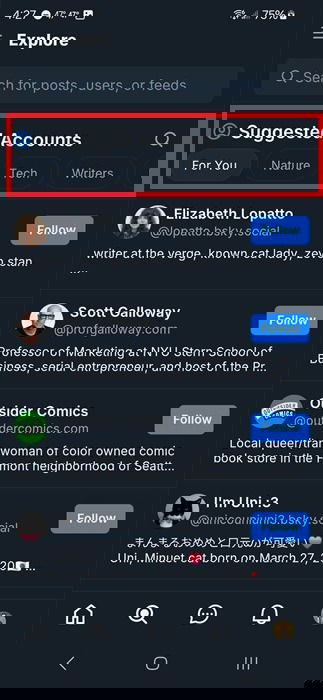
I plan to check out the Suggested Accounts section at least once a week. I love that it’s not just a random list of accounts. Instead, they’re categorized by interest. Tap any interest just under Suggested Accounts to view great accounts to follow in that interest.
Just below this, you’ll find Starter Packs. These are collections of accounts. Tap any suggested one to view all the accounts in the list. For example, one of my suggested Starter Packs is Women in Tech, which features 52 accounts at the time of writing. I can follow everyone by tapping Follow all at the top, follow individual accounts by scrolling through the list, or even just look through posts from the users by tapping Posts.

The more people you follow, the more you customize your Following feed.
Add Accounts to Feeds
Just like X, you can add accounts you follow to lists. Every list you create becomes its own feed that you can pin next to your Following and Discover feeds.
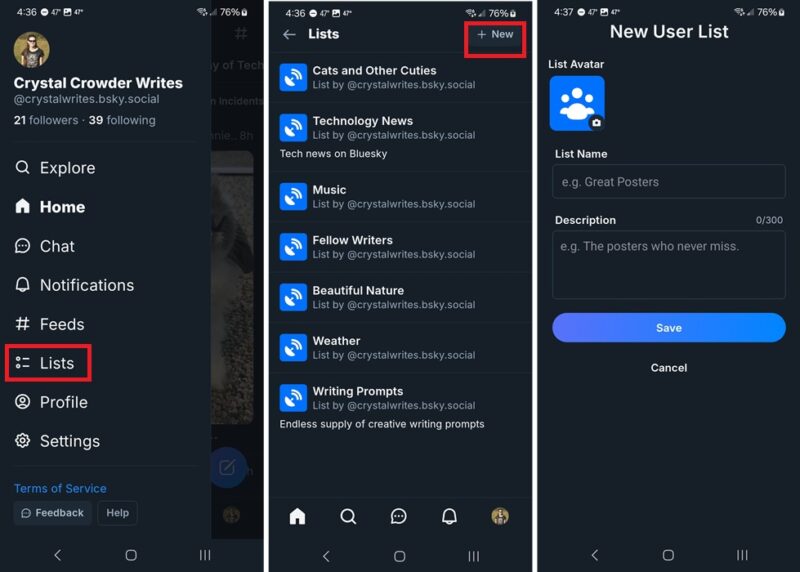
Tap the hamburger menu at the top left of the app and select Lists (this is in the sidebar on the web version). Tap + New at the top right. Customize your list with an image, name, and description, though none of those are required.
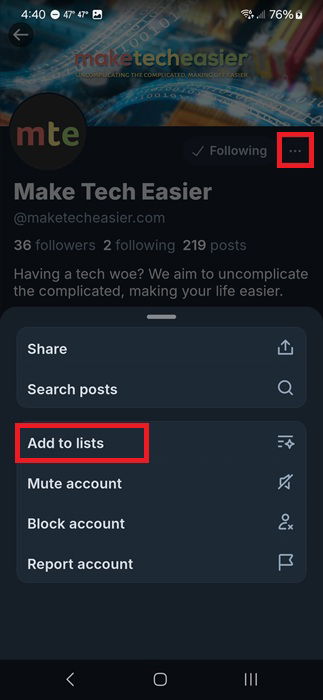
Once you have a list, open any user’s profile, tap the three dots just under their profile image and select Add to lists. Select your list and you’re done.
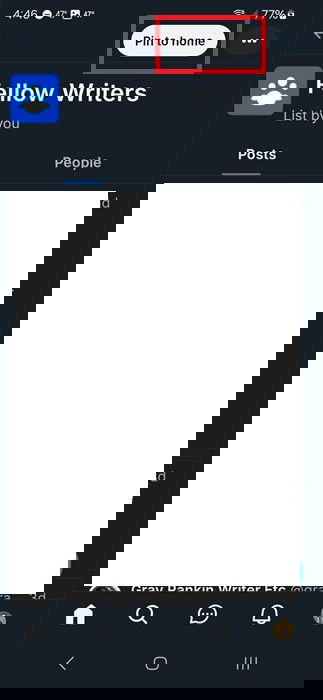
Now, it’s time to pin your favorite lists alongside the main feeds. Open Lists again from the menu or sidebar, tap any list you want to pin, and tap Pin to home at the top right.
Finally, select the order your new feeds appear in your Bluesky home screen bar. Go to Settings from the hamburger menu at the top left (or sidebar on the web version). Select Content and media and tap Manage saved feeds. Use the arrows to move feeds up or down. Tap the Pin icon to quickly unpin any feeds you no longer want on your home screen bar. Tap Save to save your changes.

One thing I’m surprised by is you can unpin the Discover feed. This means you’ll only have feeds that include accounts you’re following. It’s a great way to eliminate clutter from users/accounts you’re not interested in.
Get Rid of Trending Topics
Tired of being bombarded with trending topics? Bluesky lets you get rid of them. This removes them from your Discover feed and Explore area. Obviously, you can add them back at any time, if you want.
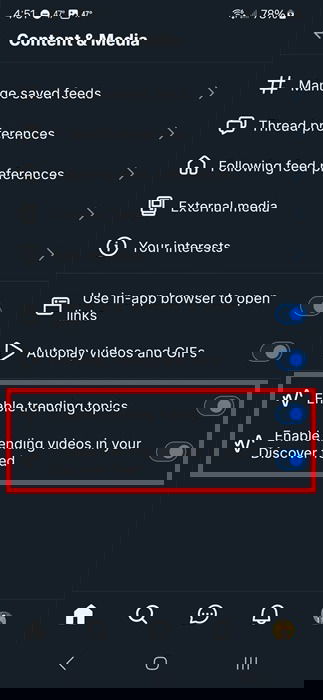
Go to Settings -> Content and media and toggle Enable trending topics and Enable trending videos in your Discover feed to off.
Bluesky’s worked hard to become a valid X alternative. Thanks to many of the new changes for customizing your Bluesky feeds, it offers even more of the features X users enjoy, including video style feeds. I’ve found it’s easier to customize and control my feeds here, making me enjoy it as much as the old version of Twitter.