Having a customized LinkedIn URL makes it easier for recruiters, clients, and professional connections to find you. It also enhances your online presence. A clean, personalized URL looks more professional and improves searchability. It simplifies sharing on résumés and social media while boosting credibility. This guide shows the step-by-step process of customizing your LinkedIn profile URL.
Customize Your LinkedIn Profile URL
LinkedIn lets us customize the URLs for both personal and company profiles. However, before customizing your LinkedIn URL, make sure you have a profile or company page set up. If you haven’t created one yet, learn how to create a LinkedIn profile for yourself or your company.
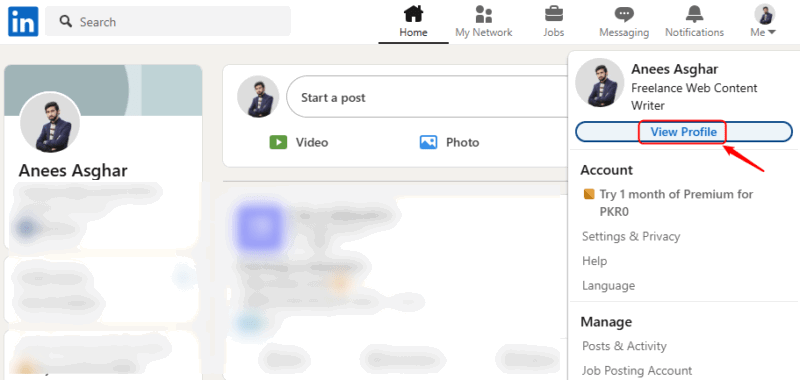
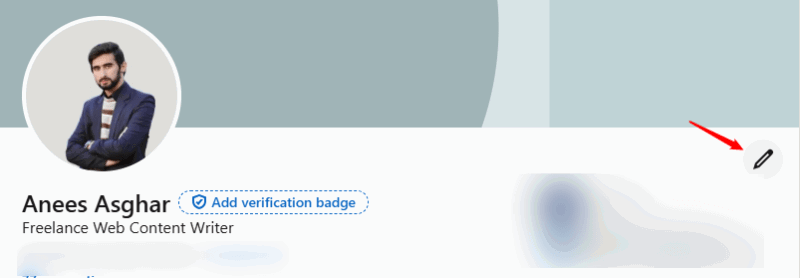
To customize a personal profile, log in to LinkedIn and navigate to the View Profile section.
On the profile page, click the Edit icon to update your profile.
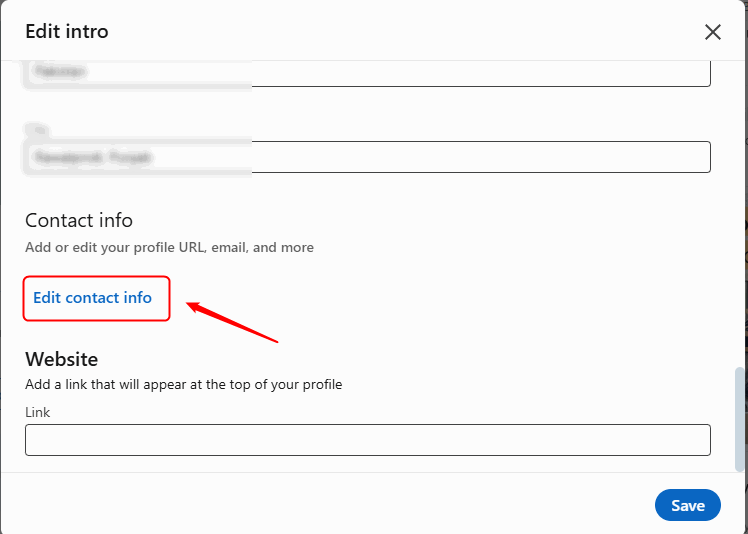
In the Edit Intro section, scroll down to Contact Info and click Edit Contact Info.
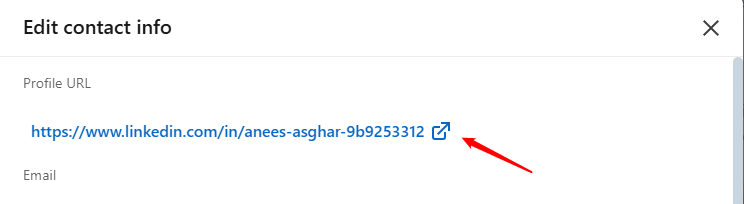
Click on your profile URL to customize it.
In the Edit Your Custom URL section, update your profile URL. It’s recommended that you choose a meaningful URL. For example, I changed mine from “anees-asghar-9b9253312” to “anees-asghar-content-writer.”
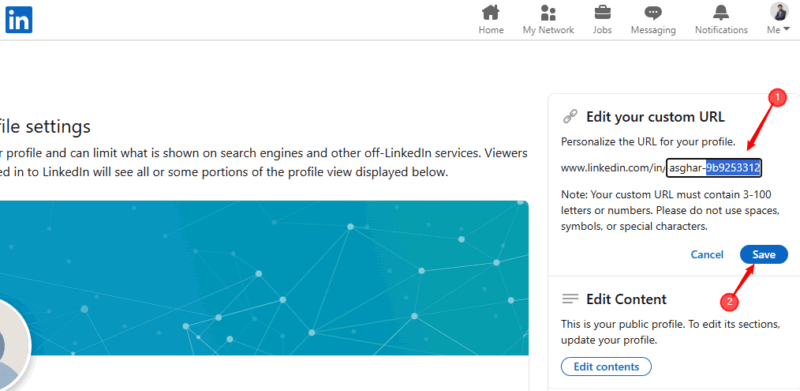
Finally, click on the Save button to apply the changes. If everything goes smoothly, LinkedIn will confirm that your settings have been updated.

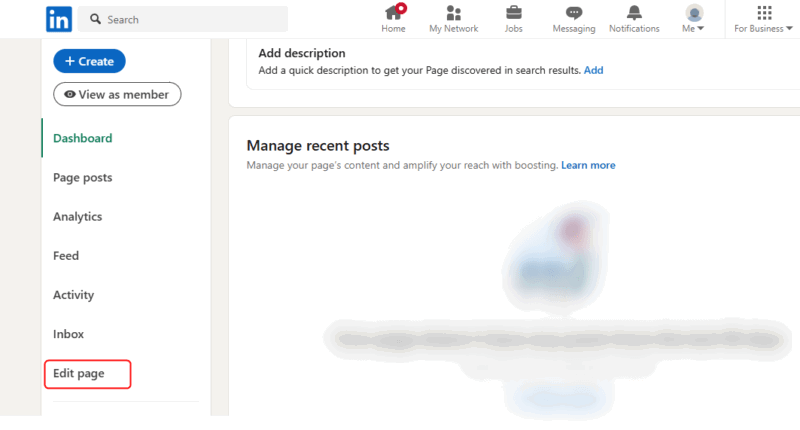
To customize a LinkedIn URL for a company page, log in to LinkedIn, navigate to your company’s page, and click on Edit Page in the admin panel.
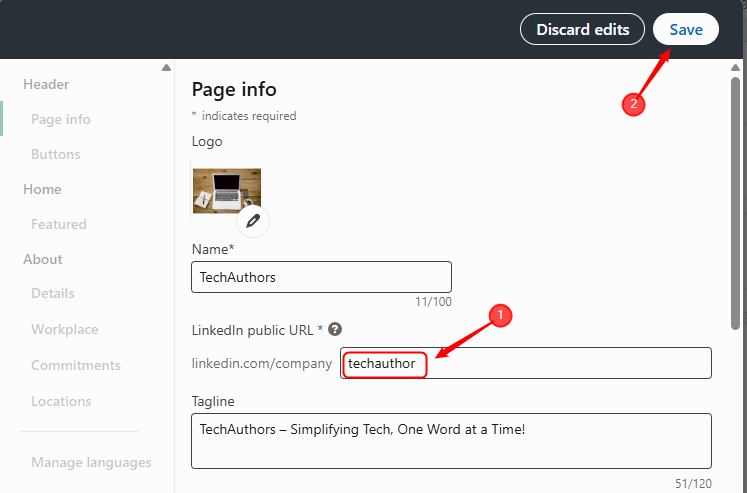
Type the new URL in the LinkedIn Public URL box, then click on the Save button to apply the changes.
Quick Tips for Creating a LinkedIn URL
- Choose a simple and professional URL by using your name or brand without extra characters (e.g., linkedin.com/in/AneesAsghar). Stick to letters and numbers and avoid symbols, spaces, and underscores.
- Use your full name or business name to build credibility, and match it with your other social media handles for consistency. Keep the URL short for easy sharing, and update it if your branding changes. If your preferred URL is taken, try slight variations like adding a middle initial or keyword.
- It’s recommended to avoid auto-generated URLs with random numbers or characters, as they look unprofessional (e.g., linkedin.com/in/anees-asghar-1234xyz). Skip special characters like symbols, spaces, and underscores to keep it readable. Use only relevant words and avoid nicknames, slang, and extra words.
- For company pages, maintain consistent branding across platforms. Double-check spelling to prevent confusion and maintain credibility. Avoid changing your URL frequently, as it can break links and confuse visitors.
Now that you’ve learned how to create a clean and professional LinkedIn URL, take the next step by optimizing your profile for more visibility.
Final Thoughts
A clean and professional URL makes it easier for recruiters and clients to find you while boosting credibility. If you’re looking to strengthen your online presence, consider customizing your LinkedIn profile URL with your full name or business name to make it more professional, memorable, and easier to share. If you’re active on LinkedIn, staying aware of potential risks is just as important as optimizing your profile. And if you decide to step away from the platform at any point, learn how to delete your LinkedIn account forever.