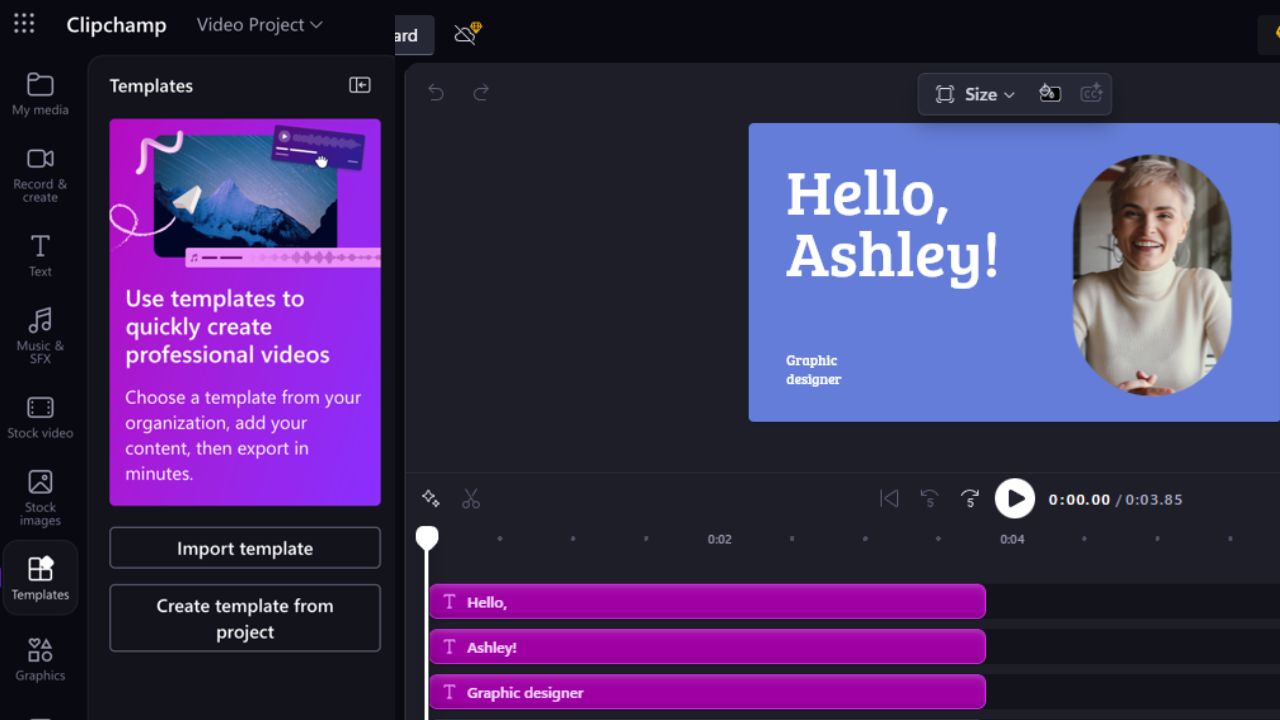
Microsoft Clipchamp for work video templates is the new killer feature that was recently added to the app. This video editor is part of Microsoft 365, and with these new templates, you can create pro videos for your businesses fast without the usual editing stress. If you’ve got a Microsoft 365 work account, here’s why you’ll want to jump on this and learn how to use them.
Why Templates Are a Game-Changer for Your Team
Making professional videos can be frustrating, which is what Clipchamp for work video templates try to fix. Here’s why they’re a must-have:
- Speed up everything: Super quick and prevents starting from scratch when creating pro videos.
- Brand consistency: Add your logo, colors, and fonts so every video matches your brand style, whether it’s a social media clip or an onboarding video.
- No design skills needed: These video templates are ready to go, so even beginner designers on your team can create pro videos.
- Easy team sharing: Since Clipchamp is part of the Microsoft 365 ecosystem, you can easily save the templates to OneDrive or SharePoint for easy sharing with coworkers.
Microsoft made this because businesses asked for it and it’s definitely a great addition. Imagine your team needs a quick onboarding video, grab a template, swap in your content, and it’s ready in minutes.
Notes: You can also use AI to create professional videos.
Use Clipchamp for Work Video Templates
Using these Clipchamp for work video templates is easy. Here’s a breakdown:
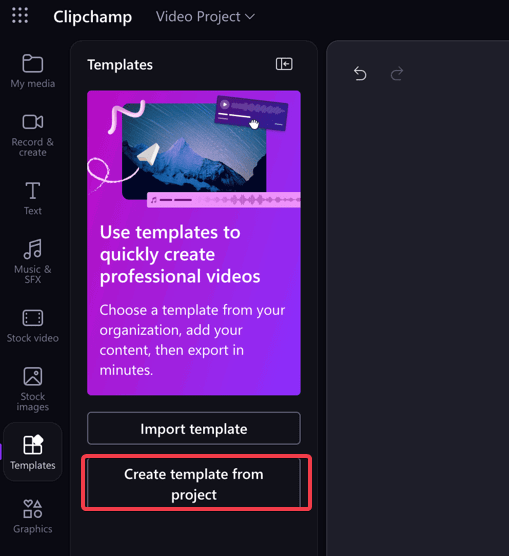
Open Microsoft Clipchamp and create a new project or open an existing one. Navigate to the Templates tab on the sidebar once the video is ready, and click Create template from project.
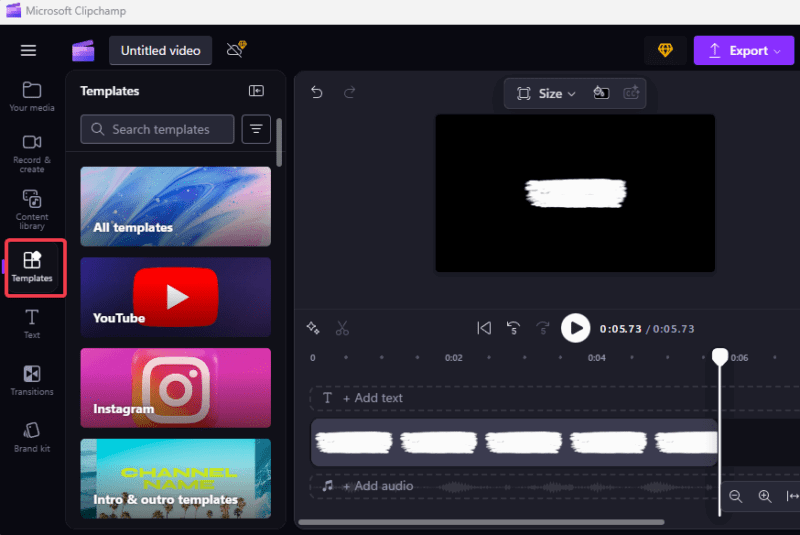
Give it a name and click Create to save the project and add it to the templates list.
To edit a template, pick one and click the more options (…) button, then click Edit template. On the other hand, you can select the Open location to delete the template folder by finding its location in OneDrive or SharePoint and tossing it.
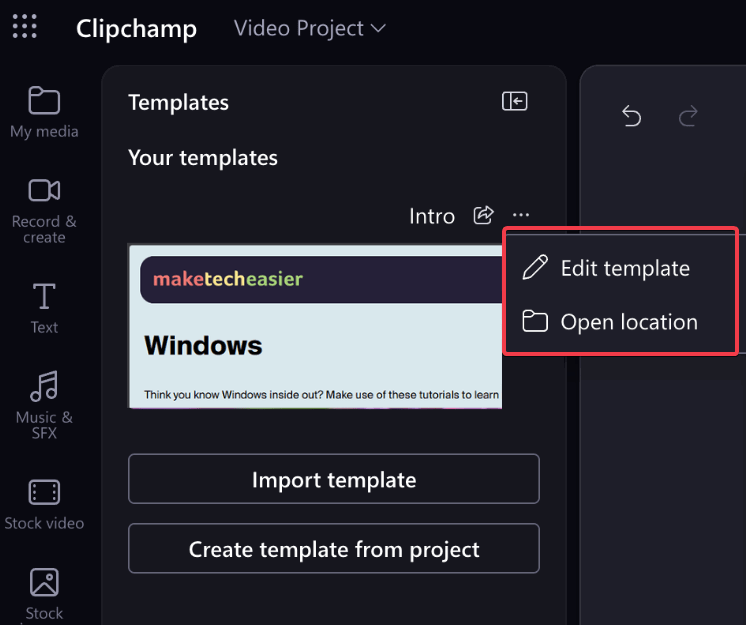
You can share the template with coworkers by clicking the Share icon next to the template name. Input the teammate’s name or email and click Send. Alternatively, you can copy the link and share it.
To use a shared template, navigate to Templates -> Import template, paste the URL link, click Import, and click the + icon to add it.
Whether it’s a quick ad or a training video, these templates make it easy. Want to try other editors? Check out these free video editors for Windows.
Who Can Access This Feature?
Clipchamp for work video templates are for Microsoft 365 business or school accounts like E3, E5, or Business Standard. Personal accounts don’t cut it. Hence, you may need to ask your IT team about your license if you encounter any issues.
So there you have it! Clipchamp for work video templates are a godsend for teams who need videos fast. They save time, make your brand look consistent, and let anyone create polished videos. Got a Microsoft 365 work account? Open Clipchamp and give the templates a spin on your next project. If you need more editing ideas, see the best online video editing tools.