If you already use Notion to organize your life, track goals, increase productivity, or anything else, you know how useful it is. Now, Notion Mail could completely makeover your Gmail inbox.
What is Notion Mail
Notion Mail works independently from Notion, though you can easily integrate it with other Notion tools like the calendar. It’s designed to help tame that Gmail inbox you gave up on a long time ago.
This email client currently only works with Gmail, though I’d love to see more options in the future, much like Notion’s many integrations. For now, though, the AI powering Notion Mail helps auto-sort messages, saving you valuable time and keeping your inbox far less cluttered.
Of course, anything that does the heavy lifting of organizing my messages automatically gets my attention. But, it’s the privacy aspect I love most. Yes, AI is used to sort messages, but that’s it. Your data isn’t scraped to train AI models. It’s your data, not Notion’s. It’s also SOC2 certified and HIPAA-compliant.
The best part of all is it’s free to use. So, there’s no reason not to try it and maybe get a handle on that unkempt Gmail inbox. If Notion is already your go-to for organizing your life, why not let it organize your inbox too?
Connecting Notion Mail and Gmail
The first step is connecting your Gmail account. While Notion Mail supports multiple Gmail accounts, there isn’t a unified inbox at the moment. Since this is new as of April 2025, you can only set up the email client on the web or macOS app. Mobile apps are in the works for later this year.
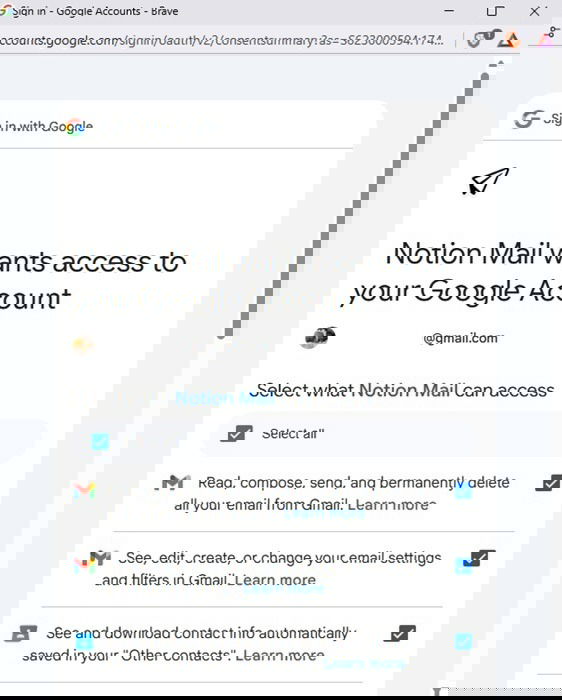
Follow the prompts to grant access for Notion to read your messages, contacts, etc. This is all common with email clients so you can manage your account through their platform.
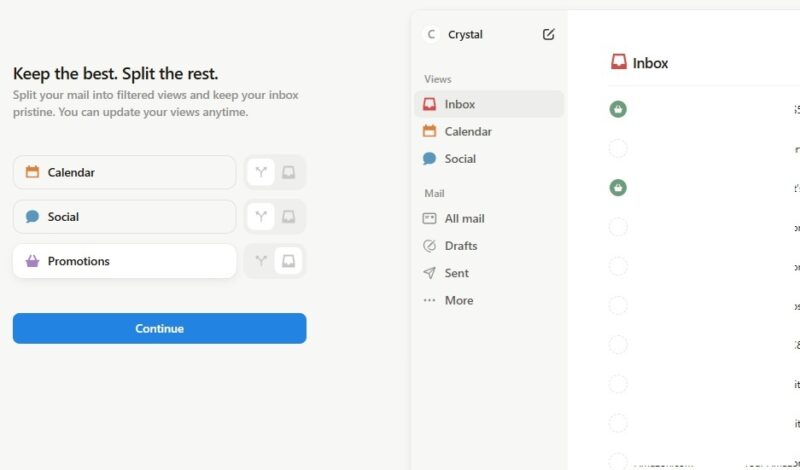
The first thing Notion Mail asked me was how to split my inbox with filtered views. All you have to do is select between Split from Inbox and Keep in Inbox. Don’t worry, you can change this later if you’re not sure right now.
Once connected, you instantly get a much cleaner interface than Gmail. It was a refreshing look at my inbox without all the clutter I usually get from logging into Gmail on the web.
Setting Up AI Labels
This is where Notion Mail quickly becomes the assistant your inbox has been begging you for. For reference, I’m performing all tasks on the web version.
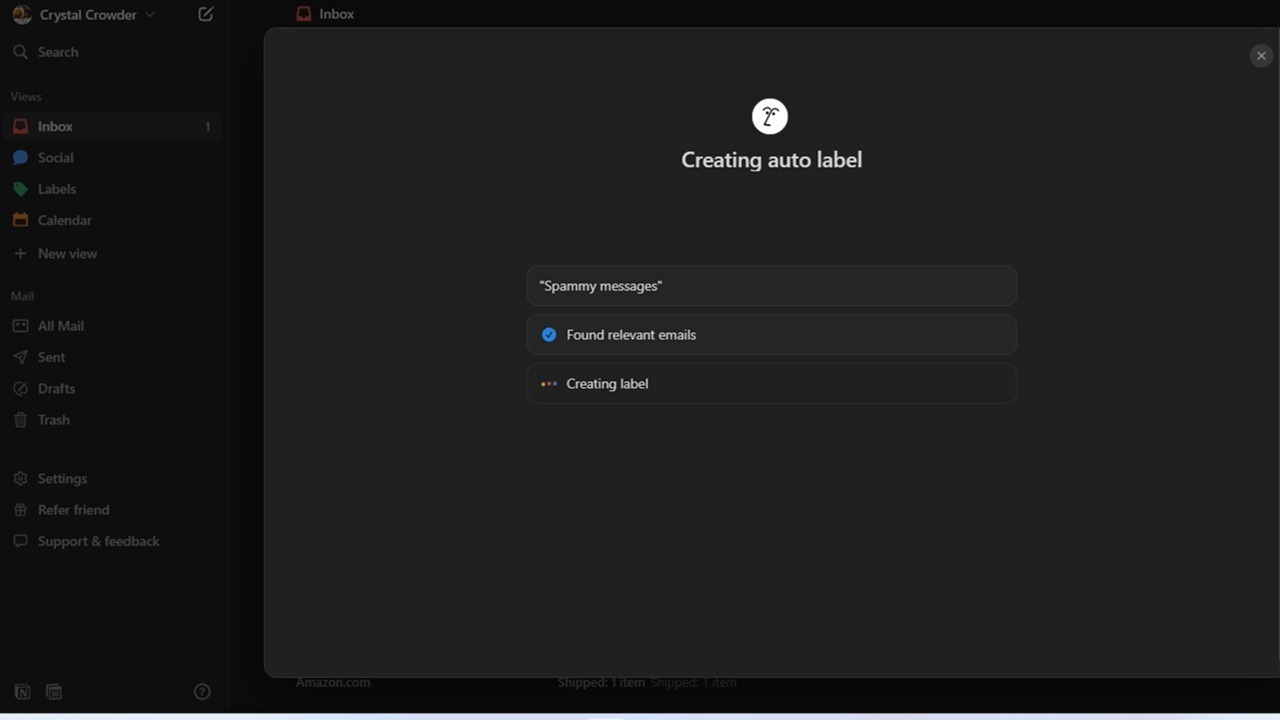
Click the Auto label button at the top right to set up AI labeling. Any labels you create in Notion sync with Gmail and vice versa.
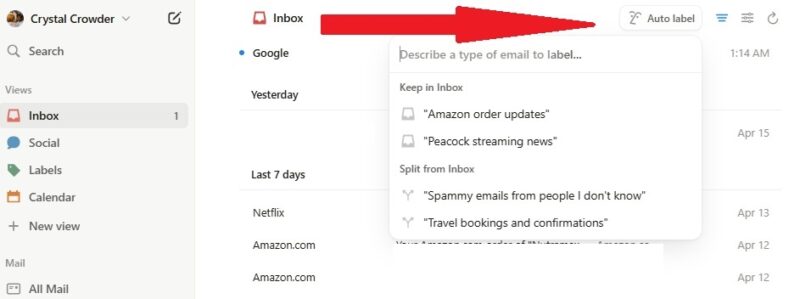
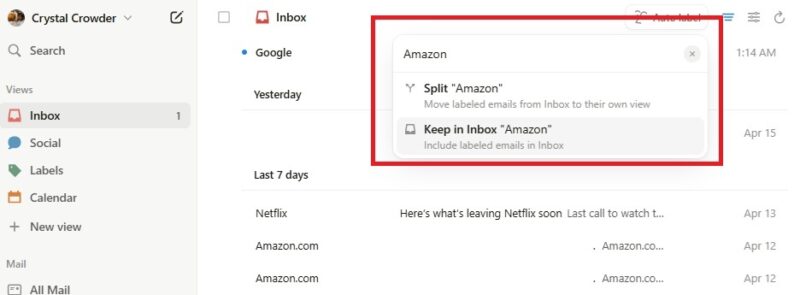
Enter a keyword, sender name, or type of message to help Notion understand the message(s) you want to filter. Once you enter a description, choose between keeping messages in your inbox or filtering them into their own view. For example, I entered Amazon to filter any Amazon order updates into a separate filtered view.
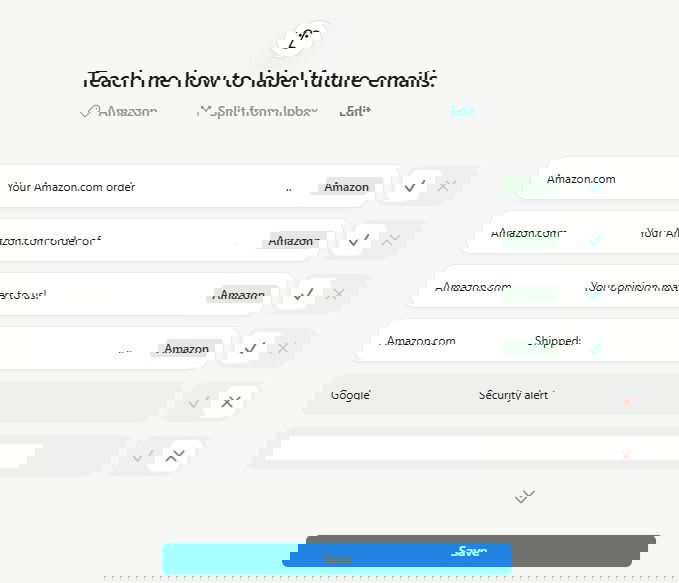
Now for the important part – training. Notion’s AI doesn’t just do everything automatically without your input. Instead, it relies on you to help train it to better manage your inbox. Depending on how many messages you have, it may take a few minutes for Notion Mail to analyze and display the training window.
Review the messages and choose which type(s) apply to your auto label. You can also rename your label. Click Save when you’re finished.
At first, you might notice some wrong messages filtering in with your new auto label. If that happens, just click the label next to the message and change it.
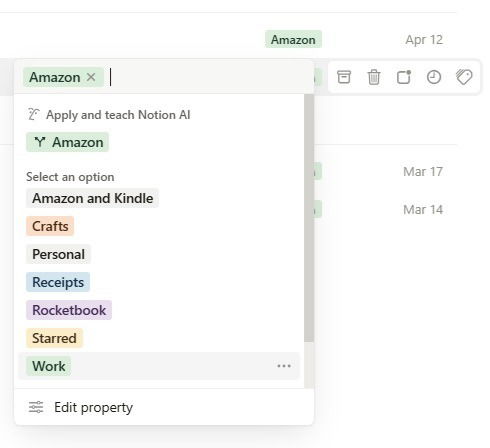
You can also do this beside any message in your inbox to train Notion AI how to filter different types of messages.
Be patient as it may take a few weeks for the AI to learn your preferences. But, in just a day, I’ve went from dozens of messages hitting my inbox to only a few with the rest neatly sorted in their proper labels. Then, I can just go through each label in my own time based on what’s important.
Reply Faster With Notion AI
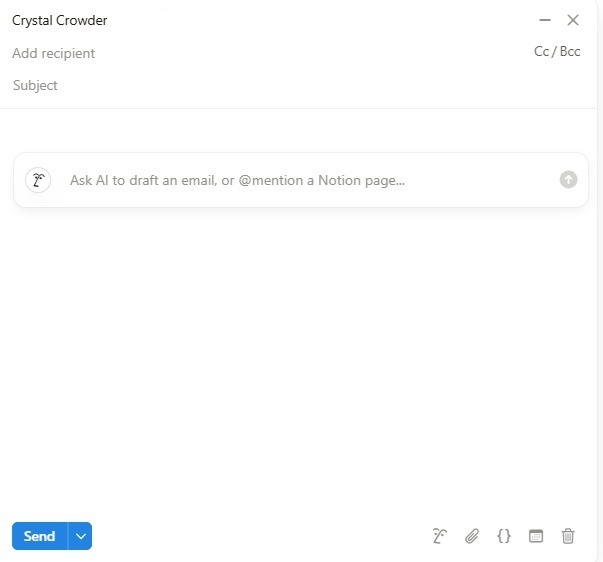
Notion Mail also incorporates Notion AI into the email editor. Need a professional reply to your boss? Just ask Notion to craft a reply to your boss’s message and edit it to personalize it.
Not only are your emails sorted automatically so you get a cleaner and more focused inbox, it also speeds up how you reply to messages.
While there’s an Ask AI button at the bottom of the compose window, pressing your spacebar brings up the Ask AI prompt box. You have to press your spacebar on a new line for this to work. If you’re just typing as usual, pressing space won’t interrupt your flow with the prompt box.
Overall, it’s just a cleaner, more efficient experience. No, it’s not perfect, but it’s fun training it to be my inbox’s manager so I can focus more on the messages that matter most. Honestly, this is the best my Gmail inbox has looked in years and I don’t feel so overwhelmed logging in.
If this your first foray into using one of Notion’s products, take a moment to check out Notion itself. Then, try these lesser-known Notion tips to boost productivity.