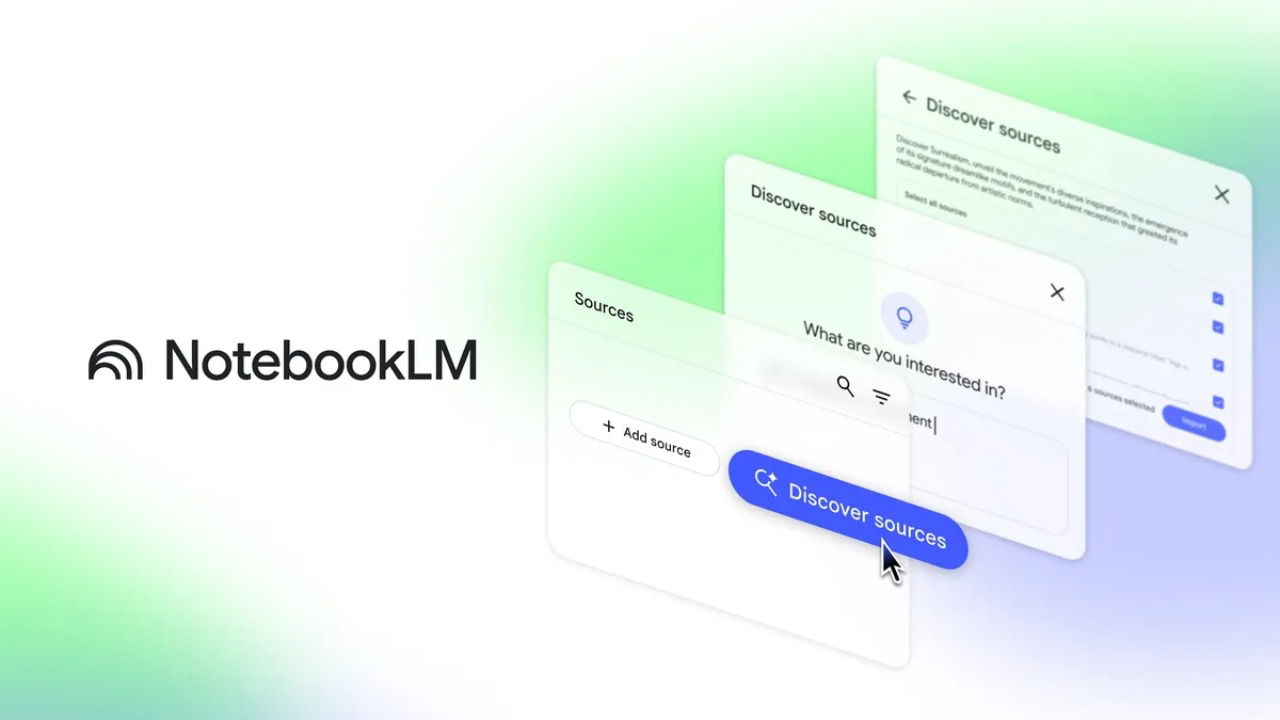
Powered by a model from the Google Gemini family, NotebookLM assists users in fetching quick summaries from lengthy documents. This swift ability to synthesize and generate information comes quite handy, especially when gathering information or doing research. However, NotebookLM had one constraint – users had to upload documents manually to get insights. But that’s no longer necessary with NotebookLM’s Discover Sources feature, which can now find research sources around the web on its own.
How to Use The Discover Sources Button
To begin discovering sources for your research, open the NotebookLM website in your browser.
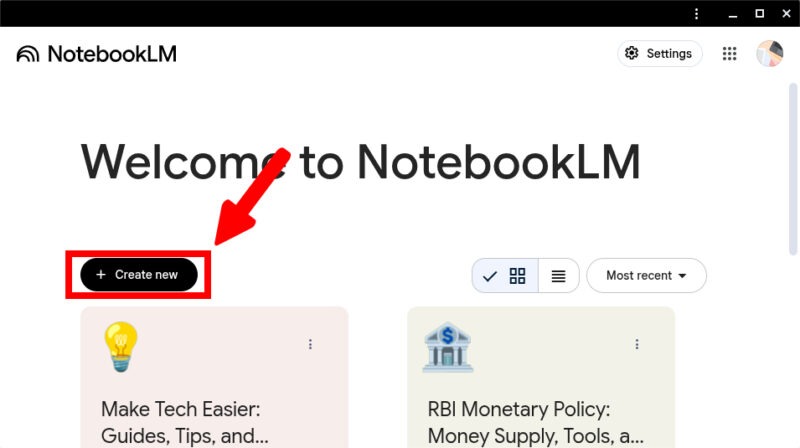
If you are visiting the NotebookLM website for the first time, Google will prompt you to log in via Google account. Once signed in, click on the Create New button.
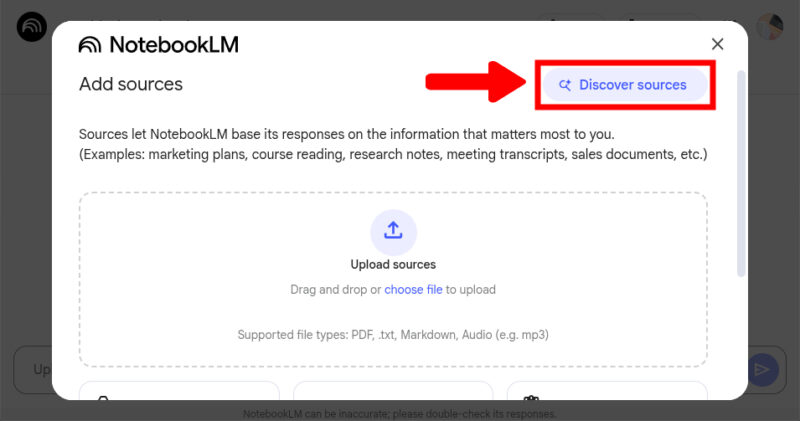
From the pop-up media picker menu, click the Discover Sources button located at the top right corner.
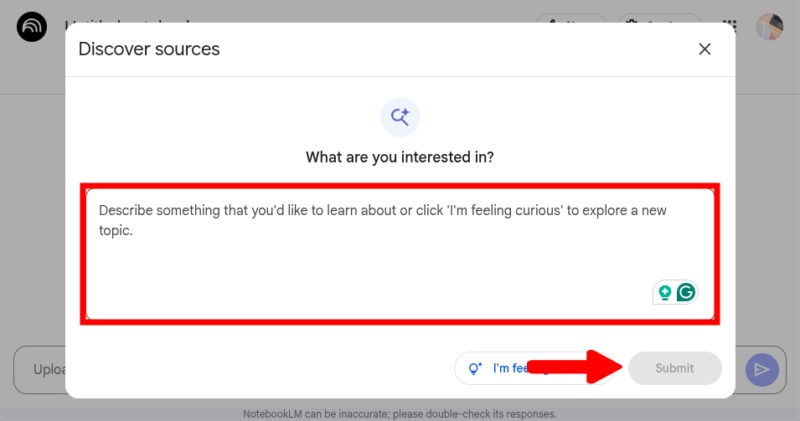
You will see a description box asking you to describe your topic. Type your research query or prompt and hit the Submit button.
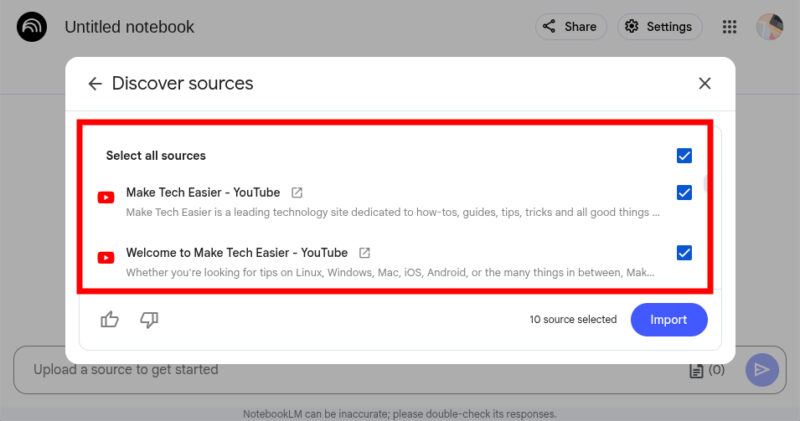
NotebookLM will start searching relevant sources for your query, which includes YouTube, Pinterest, and other social media platforms. This may take a while based on the description. Once the search is complete, you can manually select which of the sources to import for your research. Since the Discover Sources feature is still one of the latest inclusions, it may misunderstand your intent. Therefore, make sure you look into each source and deselect unnecessary ones.
After selecting the appropriate sources, click on the Import button.
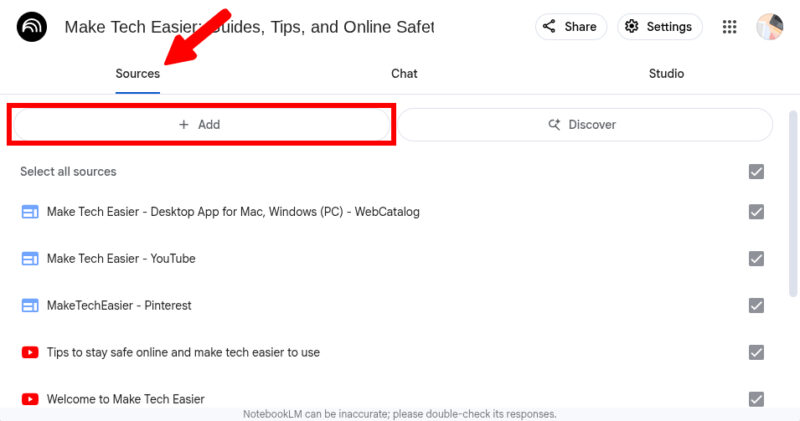
In case you prefer adding your own material like a PDF, text, or mp3 file, go to the Sources section, and tap on the Add button. Choose the intended file using the media picker.
Using the Imported Sources
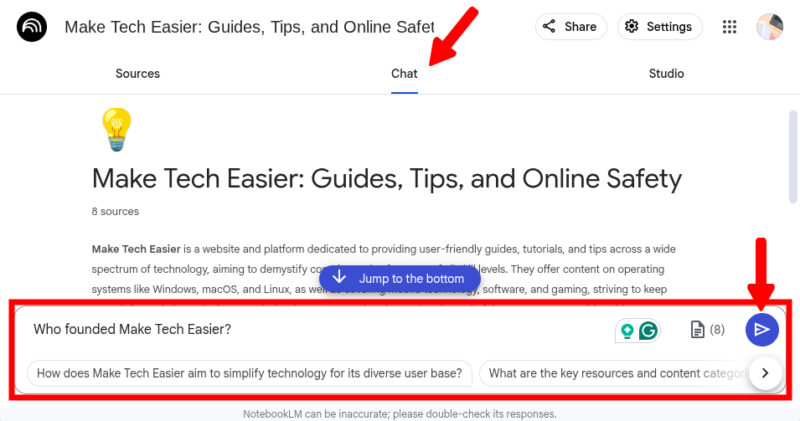
Once you have organized all sources, click on the Chat section, type your query, and hit the Send button to get the response.
In addition to quick answers, NotebookLM offers some advanced features to help you further explore your sources. For instance, you can convert your sources into mind maps or podcast-style audio overviews. To access these, just scroll down to the initial response from NotebookLM, until you see the given options.
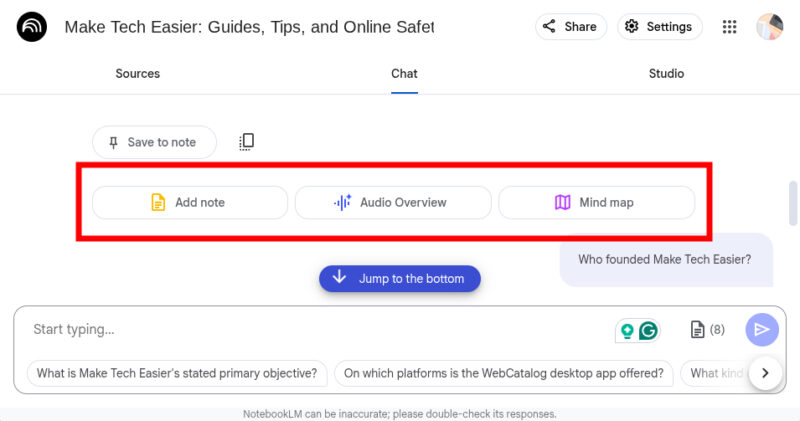
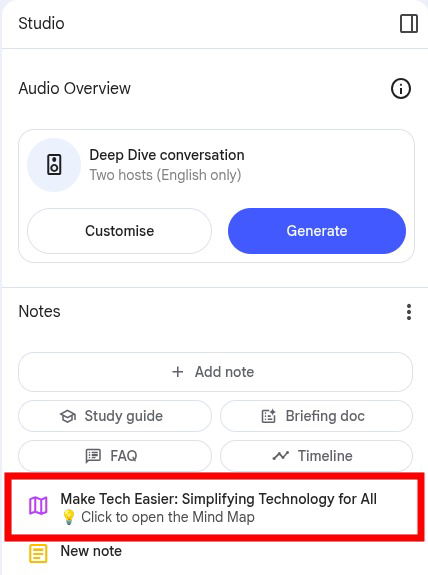
To generate a mind map from your information, just click on Mind map. NotebookLM will start generating a mind map. To view the mind map, select the Studio section and click on View Mind Map.
As for Audio Overview, we already have a guide on generating the Audio Overviews.
Despite being a powerful AI tool, Google’s NotebookLM has not garnered the same level of attention as other assistants like ChatGPT or Gemini. That’s because NotebookLM has a different niche focus, and it is primarily designed for research and writing assistance. Even though NotebookLM has quite intriguing features itself, you can further enhance productivity by using other AI tools as well.
Image via Google Blog. All Screenshots by Jay Kakade