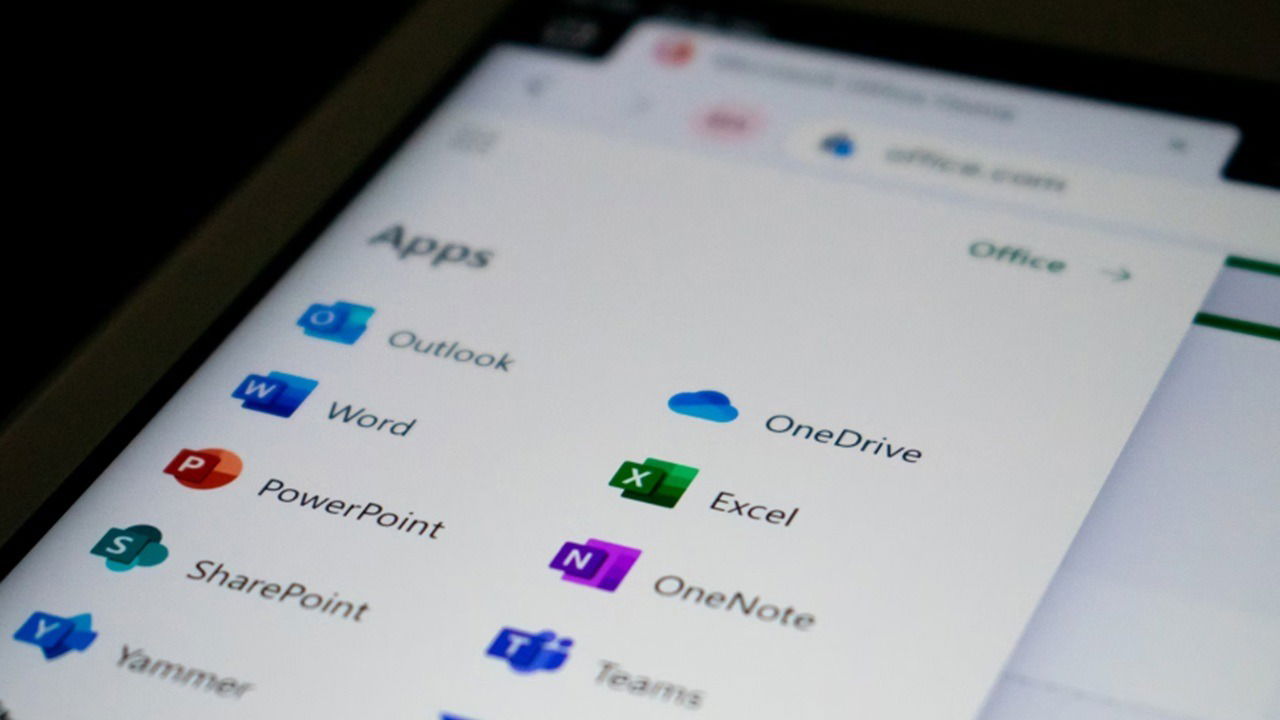
The convenience Microsoft 365, formerly Office 365, offers is undeniable, but it also comes with some major disadvantages. Whether you just don’t like the new pricing or you’re considering upgrading from a standard version of Office to Microsoft 365, you may want to keep your regular desktop version.
One-Time Fee and You’re Done
The most attractive feature of sticking with a desktop-only version is you pay once and you’re done. There are no monthly fees. You never have to worry about price increases.
For example, Office Home 2024 includes Word, Excel, PowerPoint, and OneNote for a one-time fee of $149.99. Microsoft 365 Personal starts at $99.99/year. The benefit of the online version is you do get more apps, online access, cloud-storage, and tech support.
If you’re planning to use the same version of Office for several years, you’ll save money by sticking with just the desktop version and paying once.
You Just Need the Basics
On the surface, Microsoft 365 looks more attractive because it offers more, such as 1 TB of cloud storage, multi-platform compatibility, online access, Outlook, Defender (premium version), Editor, Clipchamp, Teams, and Forms in addition to the core apps of Excel, Word, PowerPoint, and OneNote.
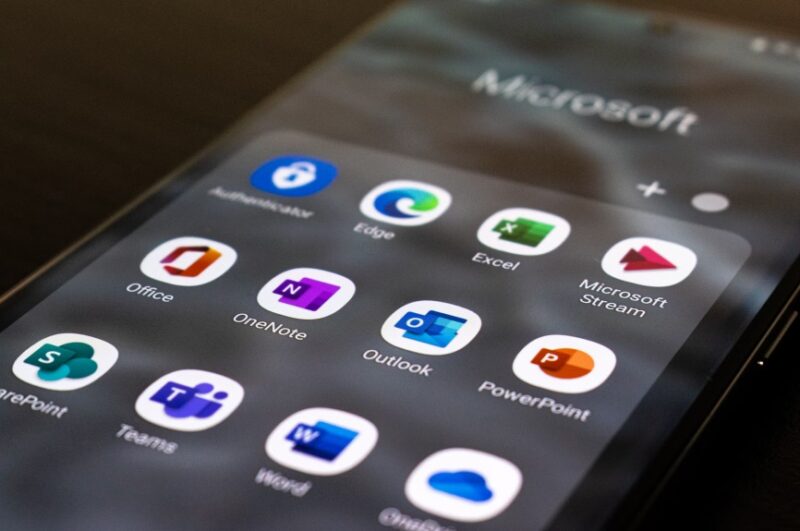
But, what if you don’t need all of these? Microsoft 365 doesn’t offer a way to customize a plan that includes just the apps you need. Only use Word and Excel? You’re still paying for all the other apps.
Stick with the desktop version of Office if you only need the few core apps. If you need the other apps, it’s well worth upgrading to Microsoft 365.
Microsoft Offers Web Versions and Storage for Free
Unless you’re using numerous graphics or have thousands of Word and Excel files, you may never even come close to using a tiny fraction of the storage space you’re paying for in Microsoft 365.
Did you know you can use Word, Excel, and PowerPoint for free and take advantage of 5 GB of free storage too? The free version of Microsoft 365 offers all the basics without you ever needing to pay a dime.
I’ve only run into a few issues when using more complex Excel formulas and filters with the free web version. For the average user, you may never notice a difference.
Go Microsoft 365 for the Web, sign in with your Microsoft account, and start enjoying the freebies. If you have the mobile apps, the free versions work on mobile as well as long as you’re using a screen smaller than 10 inches. I don’t know why that’s the cut-off point, but most tablets are out. You can still just use your browser on a tablet, though.
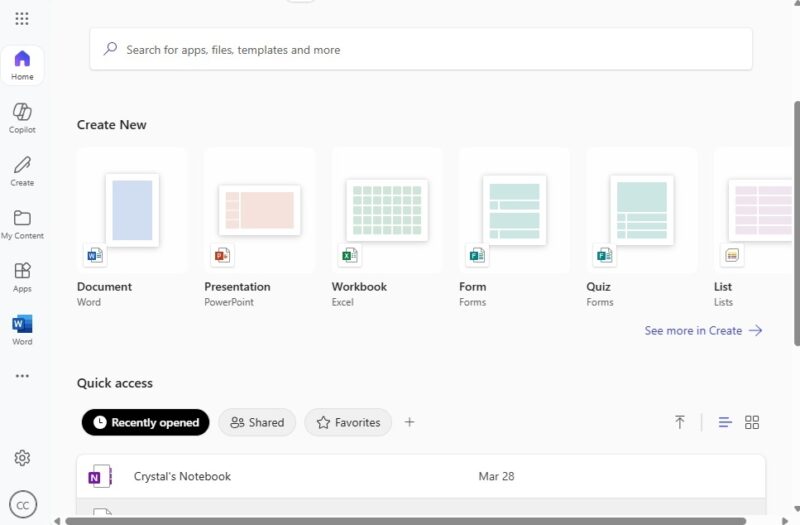
Just add a bookmark on your tablet to quickly access the Microsoft web apps.
You Don’t Want to Pay Extra for AI
Microsoft increased Microsoft 365 pricing by $3/month to add Copilot integration. The downside is usage is limited. You’ll still need to fork over $20/month for full access to Copilot.
You don’t need Microsoft 365 to use Copilot. Pay once for the Office Home 2024 and then use the free version of Copilot that’s integrated with Windows 11. Or, visit Copilot online. Ask the chatbot to draft content for Word or help you create an Excel template. Then, copy it over to Word or Excel and you’re done. Use the same process with PowerPoint.
I asked Copilot in my browser to create an Excel template for freelance billing. It started the process and prompted me to answer a few questions to customize it. No extra fees necessary.
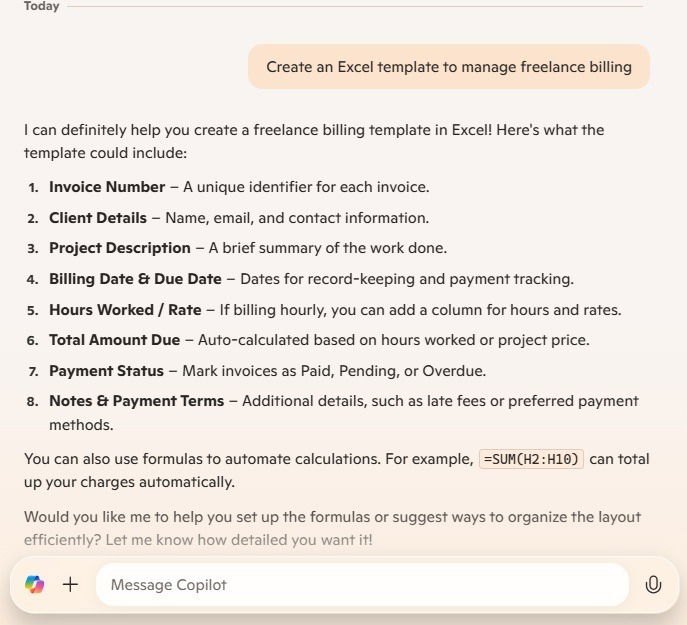
Yes, it’s an extra step to copy and paste, but think of how much money you’re saving.
Keep Microsoft 365 and Save Money
If you still need the premium versions of Office apps and already have a Microsoft 365 subscription, you can revert to the original pricing. This takes away the Copilot integration, but lets you keep everything else the same.
Login to your Microsoft account and select Subscriptions. If you don’t see this option, click your profile icon at the bottom left and select My Microsoft account.
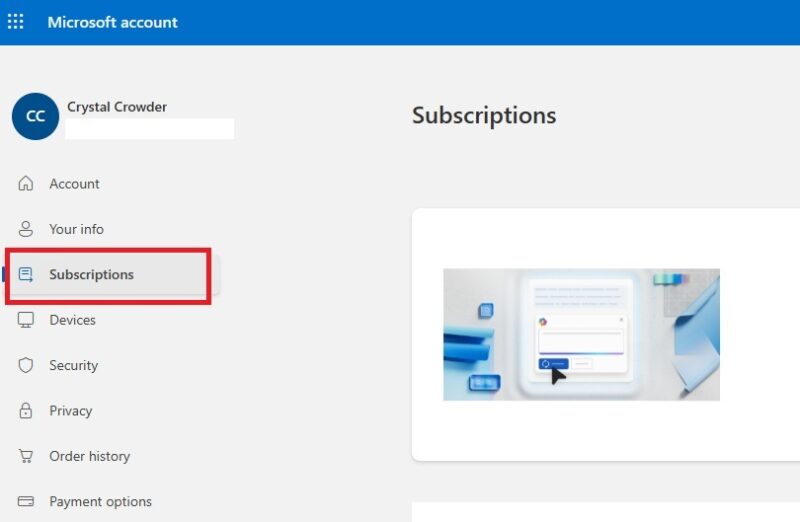
Select your current subscription and select Manage -> Cancel subscription. You’ll be prompted to select another plan, including downgrading to a Classic version. Select the classic version that works best for you. You’ll then switch to the cheaper version at the end of your renewal period.
Please note, you won’t have any of the above options if you’re not currently subscribed.
Of course, one of the best ways to save money is to switch a free Microsoft Office alternative. These typically offer the same features for free. Some even offer online access.