Microsoft has rolled out the Microsoft 365 Copilot app as an integral part of Windows laptops and PCs. Think of it as a combination of deep search, generative AI, and a hub for Office and Teams collaboration. Here’s how to use Microsoft 365 Copilot in the most productive ways.
Office App Replaced With an AI Twist
From March 2025 onward, Microsoft 365 Copilot formally replaces the older Office app in Windows operating systems. Whether you have a perpetual license for Office, or are subscribed through Microsoft 365, this will be the only Office hub for you. It is very different from the free Copilot app in Windows 11.
The older Office app could pull up your Word, Excel, or PowerPoint documents, but only if you remembered the file name. Microsoft 365 Copilot app takes it further with deep search and AI insights. It brings together your apps, files, and templates and lets you install new apps directly from within. Everything is organized neatly, so pin the app to your taskbar if you’re a frequent Office user.
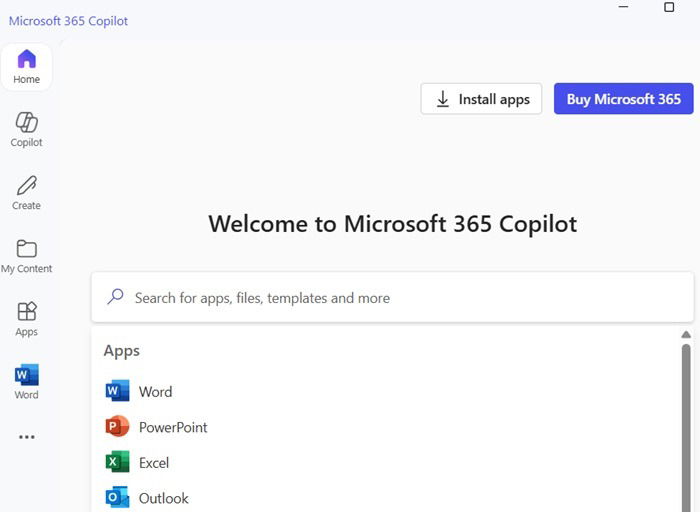
You can search for all your documents directly from the Microsoft 365 Copilot app’s home screen. For a more detailed view, head to the My Content directory. This section provides a centralized view of all your Word, Excel, and PowerPoint files, along with attachments from Outlook emails. By default, documents are organized by date, making it easy to browse through recent files.
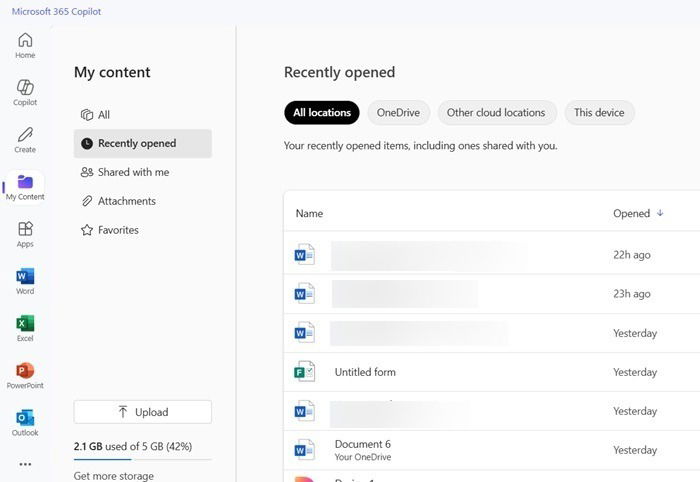
To pinpoint specific files, use the Search my files option and apply filters based on document types. It also supports PDF along with DOCX, XLSX, PPTX, and other office file extensions. Basically, any document stored anywhere on your PC can now be quickly located within this Office app replacement.
Related: there are at least 7 different ways to use Microsoft Office for free.
Collaborating with Teams, OneNote, and OneDrive
Microsoft 365 Copilot is not only an Office hub. It also serves as an all-pervasive collaboration tool, connecting you to OneDrive, OneNote, and Teams. Whether you want to set up a meeting online, access your team’s online storage, or create Sticky apps in Windows, all of it can now be done from a unified app.
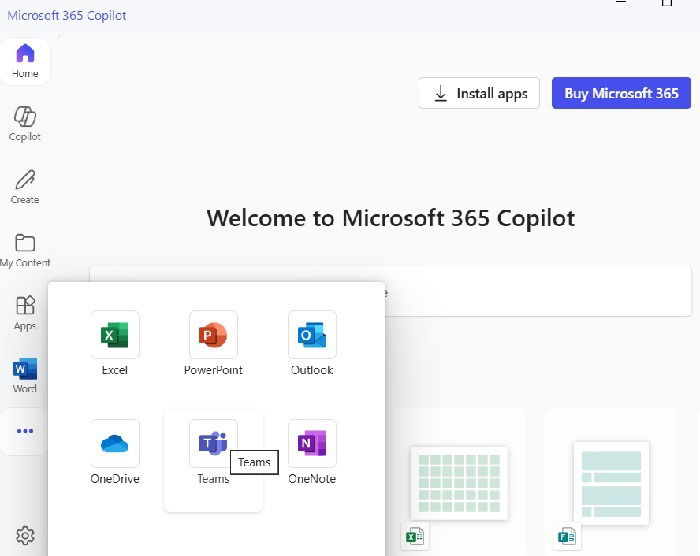
The best part? These collaboration features are available for free: no Microsoft 365 subscription needed. But if you choose not to subscribe, Microsoft has ensured you’ll be missing out in a big way, as the final benefit down below summarizes.
Combine Multiple Office Files to Create New Documents
Microsoft 365 Copilot app is the first AI tool to achieve complete document integration which you have never experienced before. It allows you to combine multiple documents using AI-powered intelligence to create something entirely new, saving you significant time and effort.
Additionally, it helps you to summarize lengthy documents, rewrite your drafts, and transcribe audios. You can achieve these results by chatting with Copilot within the Microsoft 365 Copilot app.
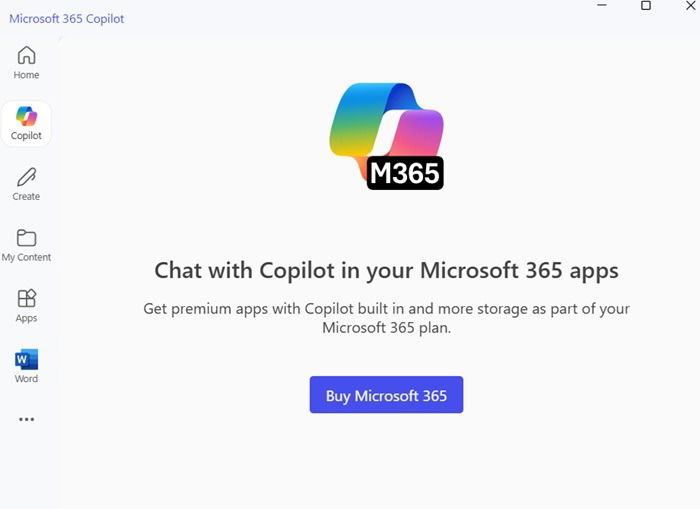
Picture those boring annual reports, PowerPoint presentations, and Excel spreadsheets that need to be analyzed collectively. Copilot does the heavy lifting for you by generating a first document draft. (Of course, you’ll still need to refine and edit the document afterward.) Every Word, excel and PowerPoint file now has a Reference a file option that allows you to merge other Office files.
There is one catch: For combining documents together with Copilot, you need to have a Microsoft 365 subscription. Many users don’t want a Microsoft 365 subscription because so many Office alternatives are available. Moreover, the increasing cost of the subscription which has dropped VPN, is a valid concern.
However, there are many arguments in favor of a Microsoft 365 subscription. I’m personally looking forward to the addition of Copilot intelligence within Word or Excel. Learning how to use the AI-powered Microsoft 365 Copilot can be a game-changer for Office users. Plus, Microsoft will introduce many more Copilot-centric features this year, making the app more compelling.