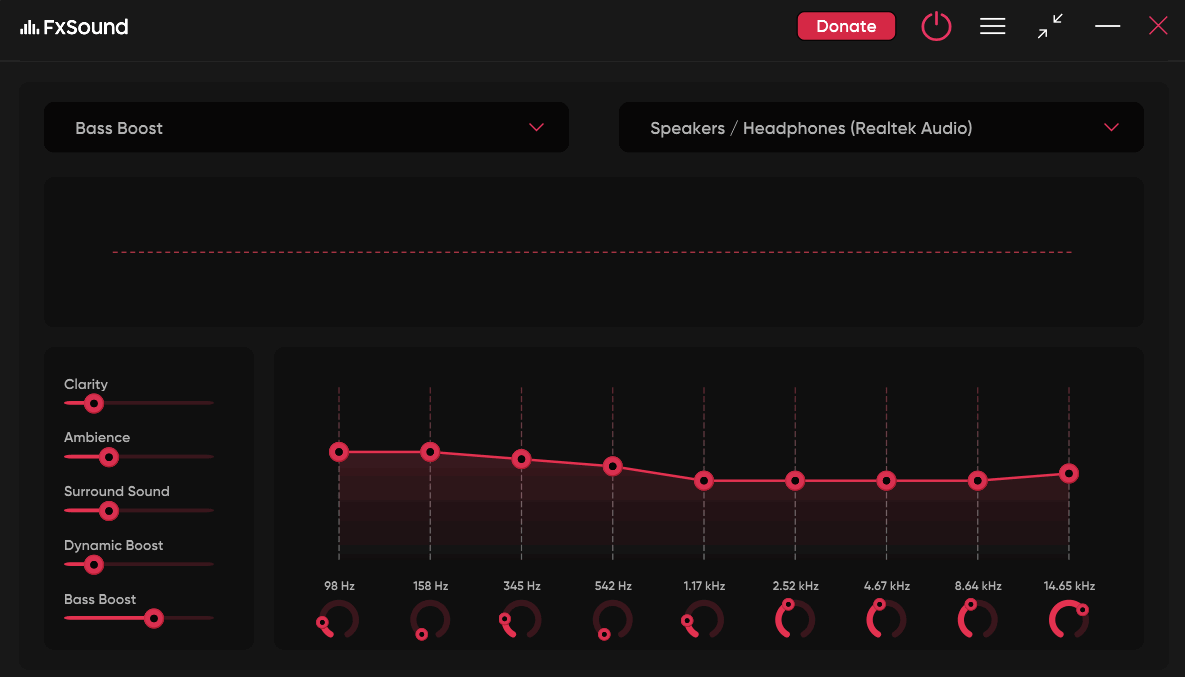
I’ve never been much of an audiophile — I only knew that cranking up the bass made my brain go “ooga booga” (in a good way). But when I downloaded FxSound to make the audio clearer for competitive gaming, it totally reshaped my audio experience. If you’re new to enhancing audio, read on to learn how FxSound can change the way you experience audio.
Enter the FxSound
FxSound is an open-source audio enhancement tool for Windows that uses equalization and effects to enhance audio. You can use sliders to adjust EQ balance and add effects like bass or surround sound. It has a bunch of built-in presets for different purposes, but you can create your own as well to save and even share with others.
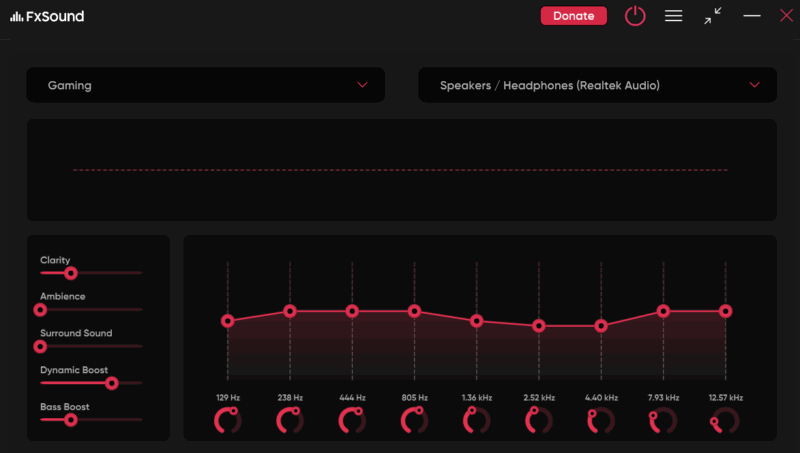
While its interface looks quite premium, the tool is completely free with an option for donations (no nagging).
Using FxSound to Enhance Audio
FxSound enhances audio in real-time and affects all audio playing from the speakers or headphones, regardless of the source. You just need to play the specific audio you want to enhance and the enhancements will apply in real time.
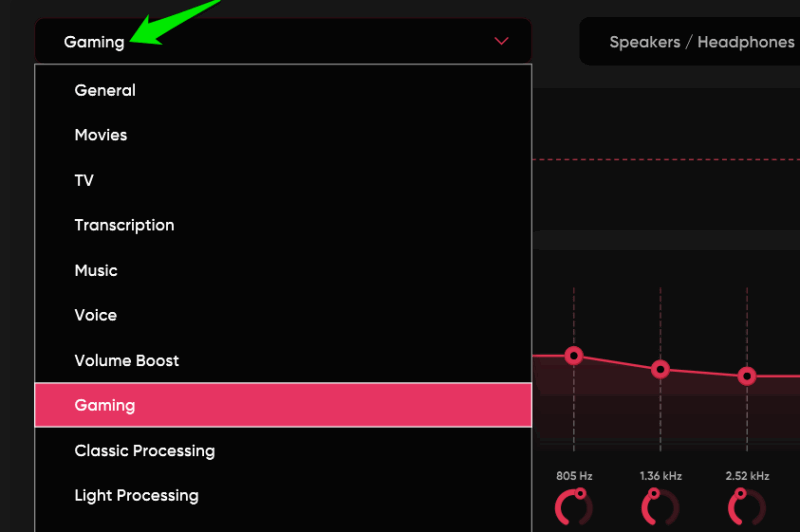
The easiest way to get started is by using the built-in presets, which are tuned for different types of content like gaming, movies, TV, voice, etc. There is even a Volume Boost preset to boost volume above the maximum. You can also download additional presets from the FxSound website.
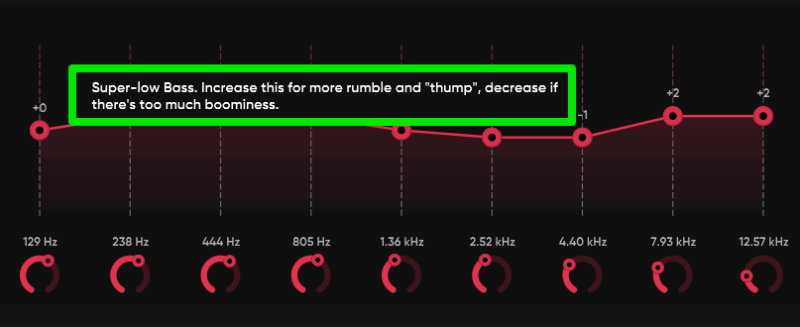
The real fun begins when you manually need to enhance audio. All the sliders in the effects and the equalizer have dedicated descriptions to tell you exactly what it does. Interestingly, the descriptions are also very easy to understand as they tell exactly what changes the user may notice if they adjust it without any technical language.
For example, its low-bass band description says “Increase this for more rumble and “thump”, decrease if there’s too much boominess“. It’s all written in a way that anyone can understand, even if they have never touched an EQ before.
While FxSound does a great job explaining what each slider does, below I am explaining what each enhancement section does so you know what you need to tweak for desired results:
Effects
On the left side, you’ll see five effects that you can add on top of your equalizer settings to enhance audio. They are additional effects separate from the original audio, so you can even disable them if you want. However, they are nice to play around with – especially the Surround Sound as it tries to simulate a surround sound experience without needing dedicated hardware.
EQ bands
The vertical sliders in the center let you adjust the strength of different frequency ranges, like bass, mids, or treble. If you want more punch in your bass or want to reduce harsh high frequencies, this is where you tweak it.
Frequency knobs
Below each EQ band is a round knob that shifts the center point of that frequency band. This gives you more precise control over which part of the frequency range the slider is affecting, whether you’re boosting deep bass or mid-bass.
If you ever get stuck, you can visit the FxSound learning center where detailed explanations of effects, equalizer, and presets are available to learn exactly how to utilize them.
Overall, FxSound is one of those tools you simply can’t go wrong with. It’s light, works quietly in the back, and will almost always provide a better audio experience than Windows built-in sound settings.