What we like
- Highly portable and easy to use
- Phase detection focus system
- Up to 4K video quality
- Multiple customization options in the companion app
- Ships with accessories
What we don’t like
- 4K video can slow down your computer
- Audio could be better
- AF is a bit slow
The Obsbot Meet 2 4K AI is a tiny, yet mighty webcam, designed for those who need mobility without compromising on quality. With its 4K resolution and compact design, it’s ideal for remote work and streaming, wherever life takes you. I had the opportunity to try it out to let you know everything you need to.
Unboxing and Setup
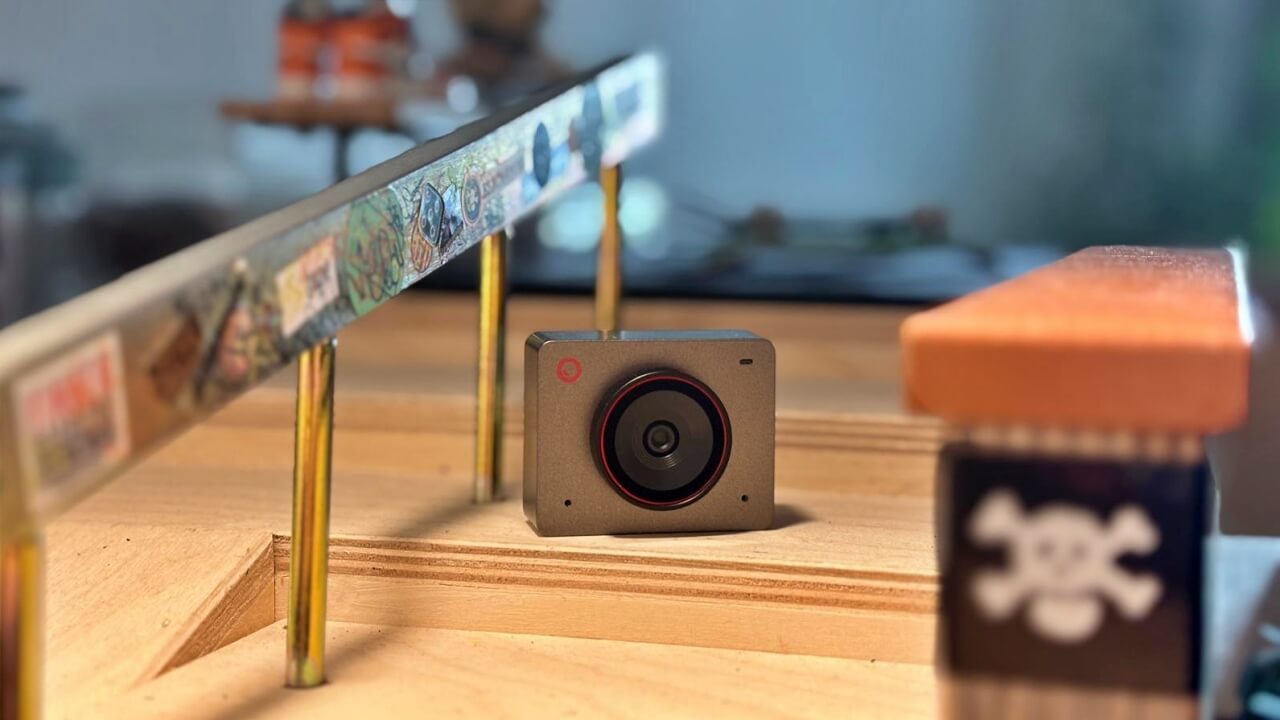
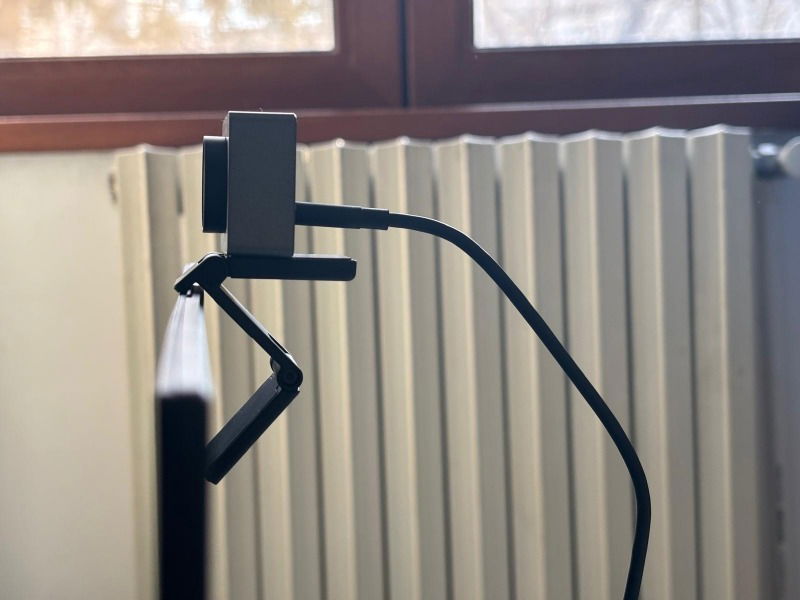
The Obsbot Meet 2 4K AI Webcam arrives in a small box with everything you need to get started, including a USB-C cable and magnetic mount. The webcam measures only 45 x 36 x 22.2 mm (1.77 x 1.4 x 0.87 inches) and can easily fit into my small palm. It’s also super-light and can easily go in a pocket or bag.
If you’re looking for a portable webcam, try the Obsbot Meet 2 because of the quality it offers.
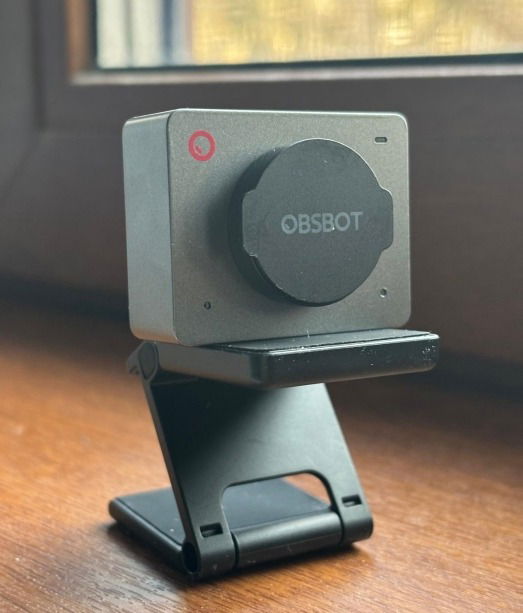
The camera features a minimalist design, with the camera lens taking up most of the front side. Obsbot offers the accessory in three color options: Space Gray (the model I received), Cloud White, and Aurora Green.
It features magnets on its sides for easy mounting on the provided monitor stand, so there’s no need to screw anything in place. The product ships with a privacy cover that magnetically snaps on top of the lens.
To begin using the Obsbot Meet 2 Webcam, use the USB-C cable to connect it to your computer. The software takes a few minutes to install. Of course, wireless connectivity would have added more flexibility, but this camera is designed to work on a wired-only setup.
For more advanced controls, install the Obsbot Center app on your PC. The software is available in Lite Mode or Advanced. It’s compatible with Windows 10 (64-bit) or later and macOS 11.0 or later. I tested it on my Windows 11 laptop.
Obsbot Meet 2 Specs
The first thing that stood out to me when I first hooked up the webcam to my laptop was the superior image quality. The Obsbot Meet 2 boasts a respectable 1/2” CMOS sensor with an f/1.8 aperture lens. This combo allows the camera to deliver a small amount of natural bokeh effect. It should also enable it to gather more light and perform better in darker environments, although in my experience, it didn’t deliver particularly stellar results in such instances.

The camera can also record up to 4K at 30fps or 1080p at 60fps, with or without HDR. It offers a 79-degree field of view, which in the scenarios I tested proved to be wide enough.
The Many Options of a Tiny Webcam
With the desktop Obsbot Center app, you can personalize video settings and take control of your video streaming experience.
AI-powered framing
The Obsbot Meet 2 stands out from the crowd, as it uses AI algorithms to facilitate framing. You can choose from several auto-framing modes to suit your needs.
For instance, Close-up ensures that the camera keeps you centered, even as you move, while Upper Body focuses on your standing position. Group Mode intelligently tracks multiple people, adjusting the frame if someone steps out or comes in unexpectedly. In my experience
with these modes, the webcam takes its sweet time tracking your movements, so adjusting the frame won’t happen instantly. Sometimes using Close-up proved hit-and-miss, which prompted me to close and reopen the camera in my video conferencing app.
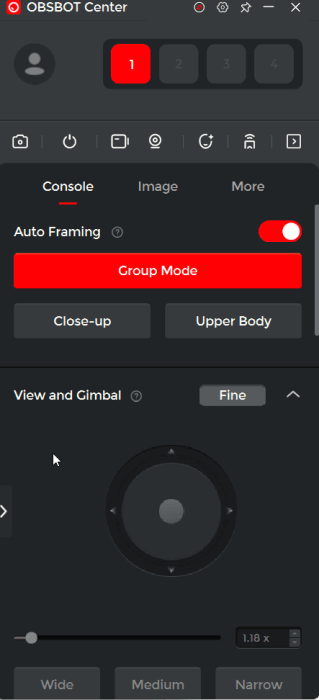
Speaking of framing, the Obsbot Meet 2 algorithms work whether you’re shooting in Landscape or Portrait. The latter option is handy if you want to create short clips for social media. This is another perk of using this tiny webcam. You can also create content for TikTok or Instagram while using the same device to chat with your colleagues at work.

The cool part, which I particularly appreciate, is that when you switch to Portrait, you can ensure that you don’t get a video with black bars at the top and bottom. Flip the web camera in portrait as well. In Preview, rotate the image so that it fills up the whole screen.
Gesture controls for the win
The Obsbot Meet 2 Webcam supports a handful of gesture controls. You’ll need to upgrade to the latest firmware to enable this, so make sure you look for any firmware updates, then toggle on the two options under the Gesture Control section.
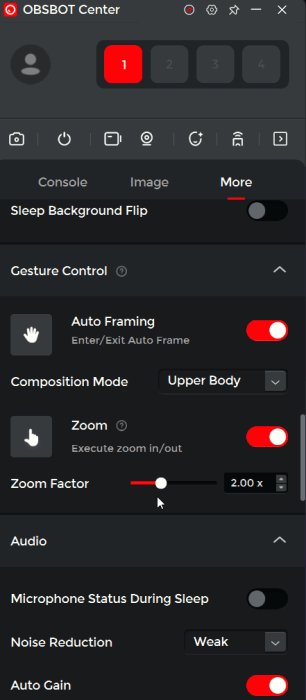
Gestures performed reliably in my testing, allowing me to zoom in/out or activate autoframing – all thanks to the AI technology. This is a nice touch and one I wasn’t expecting to see included.
Focus is great, in most conditions
Autofocus is automatically activated on the Obsbot Meet 2 Webcam, making it ideal for highlighting objects during a meeting. The Meet 2 employs phase detection technology, much like what you’d find in some mirrorless cameras, which is impressive. You can set it to focus on faces or apply it to other objects in the scene.
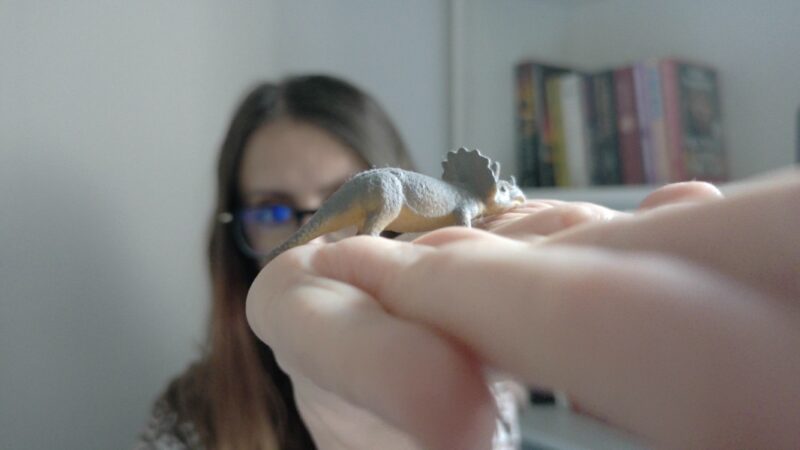
During my time with the camera, I found that lighting conditions play a significant role in focusing accuracy. In natural light, the webcam provides great results with lots of details, as you can see in the image above.
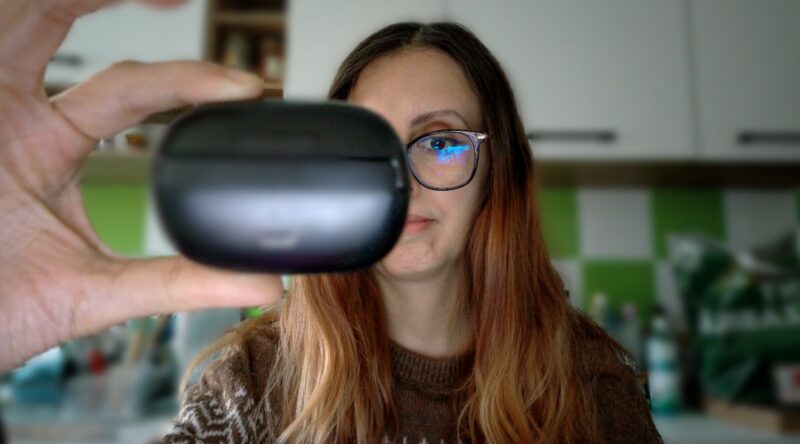
On the other hand, it proved a bit more complicated to focus on a gloomy, rainy day. Turning on the lights helped somehow. Small movements can also disrupt the camera’s ability to focus, so I tried to stay as still as possible.
Filters and other image enhancements
Through the Obsbot Center app, you can apply various filters to your video feed. I struggled to make this feature work at first. It turns out that my Windows 11 was blocking the app’s request to allow public networks to access my network. I had to enable this particular app to go through the firewall first.
To apply filters, you must enable the Virtual Camera in the app. If you’re using a virtual conferencing app, you have to select the Virtual Camera option. Most video conferencing apps today come with the option to add filters and backgrounds, so you can just as easily rely on those options.

The app allows you to play with various other image parameters. You can adjust various image settings, such as contrast and saturation. You can also add a blur effect, which is surprisingly good.

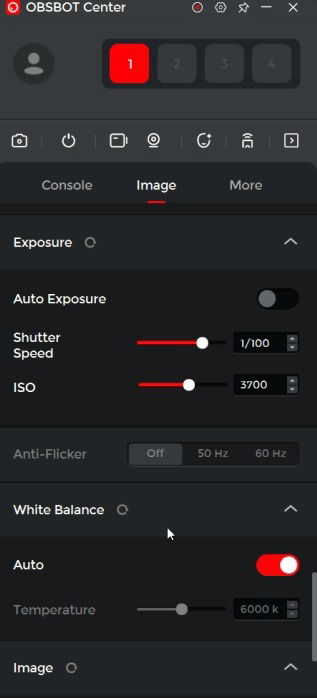
The webcam has autoexposure enabled by default, but if you’re familiar with camera settings, you can turn it off and set shutter speed and ISO settings manually. This can be helpful in lower-light scenarios, where the image can be slightly improved.

White Balance is also set to auto, but you can experiment with changing the temperature. There’s an HDR feature you can enable, but honestly, I didn’t see much difference in natural or lower light.
Good-enough audio
The Obsbot Meet 2 Webcam bundles a couple of omnidirectional mics that deliver decent performance. In a closed room with some gentle background music, the camera captured my voice clearly during calls. However, in noisier environments, the audio was slightly muffled but still comprehensible on the other end. I tried different noise reduction presets in the app, with hardly any noticeable changes. Using wired or wireless headphones with their own mic could be a helpful alternative in such situations.
Image Quality
As mentioned above, the image quality that the Obsbot Meet 2 delivers in natural light is pretty amazing for such a small and affordable gadget. In 4K, the image is super crisp, and all kinds of details are visible. Using and recording in this format, however, can put a strain on your system’s resources, which may result in your PC running slowly or stuttering.
In lower-light scenarios, such as late afternoon, when the sun is no longer shining, the image quality manages to remain pretty sharp. With an artificial light on, you can still view many details and play with ISO settings to minimize noise.
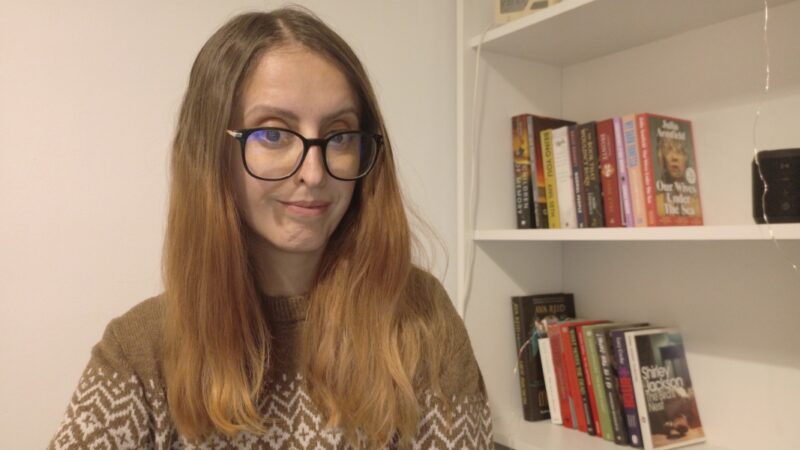
In a dark environment, with only my laptop to provide the light, the camera produced pretty dark images with much graininess, which is to be expected.

Of course, I tried to adjust it a little bit using the app, but to be honest, I didn’t see much of a difference. Turning on a small night light improved things only somewhat.
Verdict
The Obsbot Meet 2 4K Ai Webcam left me thoroughly impressed during my time with it. Compact and fun to use, it excels at delivering stunning imagery, particularly in natural light. At just $129, it leverages AI for robust auto-framing and includes features like image adjustment, solid focus, and gesture controls, for seamless operation.
The camera works seamlessly with gimbals and can be operated using the Obsbot Center app, offering extra convenience. The included privacy cover is extra handy, eliminating the need to unplug the camera from the PC after you’re done using it. At this price, I believe this camera can be a valuable addition to your gadget collection that can easily elevate your streaming and video-calling experience.
Subscribe to our newsletter!
Our latest tutorials delivered straight to your inbox