I’ve tried numerous project management tools, but I keep going back to Excel for project management. While it might not be perfect for everyone, it’s a simple, yet effective solution you already know how to use.
Free to Get Started
It’s hard to argue with free. I discovered many project management tools I wanted to use kept some of the best features behind a paywall. With Excel, almost everything is free upfront. I’ve only run into a couple of formatting options that required an Office 365 subscription, though there are benefits to a subscription.
It’s free to use Excel online. You even get 5 GB of free storage for Office documents.
If you need a free desktop option, there are multiple free Excel alternatives.
I Already Know How to Use It
Using Excel for project management became a no-brainer when I realized I didn’t need to spend hours or weeks trying to learn how to use it. I’ve used it for years. If you already know how to create formulas, spruce up the look with formatting, and organize your tabs, you have everything you need to manage almost any project.
The time I saved on learning to use something new, I spent on designing a few templates to use for new projects.
Ample Free and Cheap Templates
I realize many people aren’t that into designing spreadsheets, but simple rows and columns blur together and aren’t that effective for managing projects.
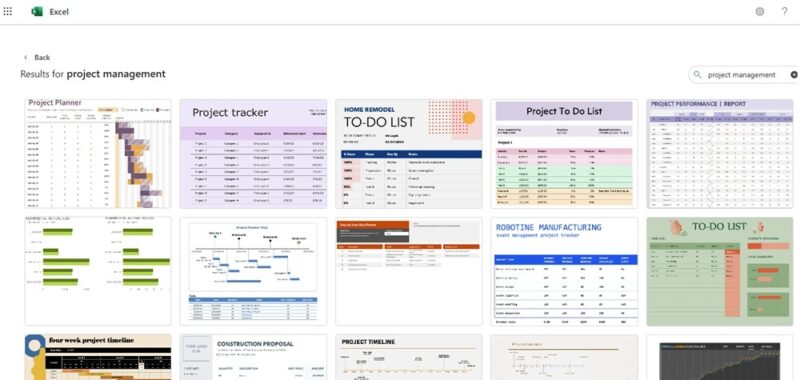
Just start with a free or cheap project management template. You’ll find numerous options within Excel itself. These let you track tasks, timelines, budgets, and more. All you have to do is input your own data and enjoy.
Customize It Completely to My Needs
Most project management tools provide minimal customization options. Sure, I can change the colors and maybe even add/remove some fields, but I’m stuck with their layout, which isn’t always efficient for me.
When using Excel for project management, I have full control over how everything looks and feels. It doesn’t even need to look like a spreadsheet.
Admittedly, it takes a while to fully customize a spreadsheet. However, you can use it while you make tweaks. For instance, I have a spreadsheet I created over a decade ago to track due dates that I still tweak from time to time.
Easy to Expand or Copy
You don’t always need to create a new Excel spreadsheet from scratch for every project. Did your requirements change? Just adjust your spreadsheet. Added new team members? Expand your sheet with tabs for each new member.
I like to have a separate spreadsheet for each client. You may prefer a different spreadsheet for each individual project or even just a new one each year to better track results. Once I have one created, I can just copy it and make a few adjustments to start with a new client or project.
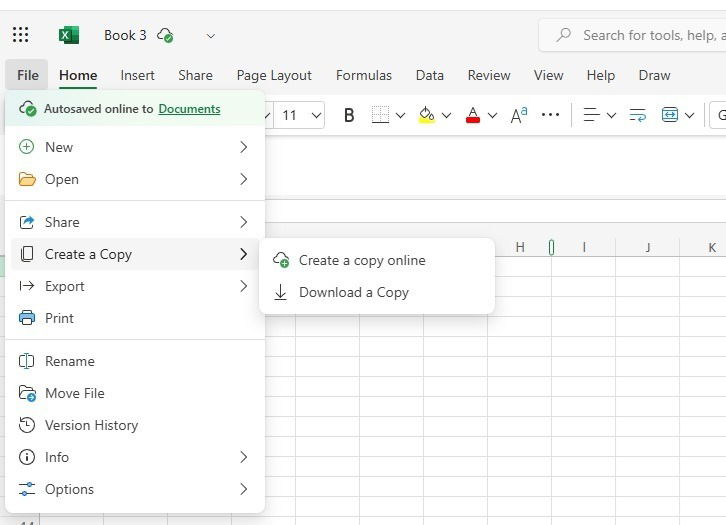
Just go to File -> Create a copy.
I Can Share It With Others
If I’m working with someone else or a small team, it’s easy to share my spreadsheet with others. Even if a person doesn’t have Excel, they can still access it for free online or download it and use it with a free Excel alternative.
Since Excel’s file formats are so popular, most free alternatives can be read and saved into those formats. If I want to share without anyone editing, I can just share it as a PDF.
What I love is that I can share my spreadsheets and know that others more than likely already know how to use everything. We can update details as needed without having to ask too many questions about the actual project management tool.
Conditional Formatting Keeps Me On Track
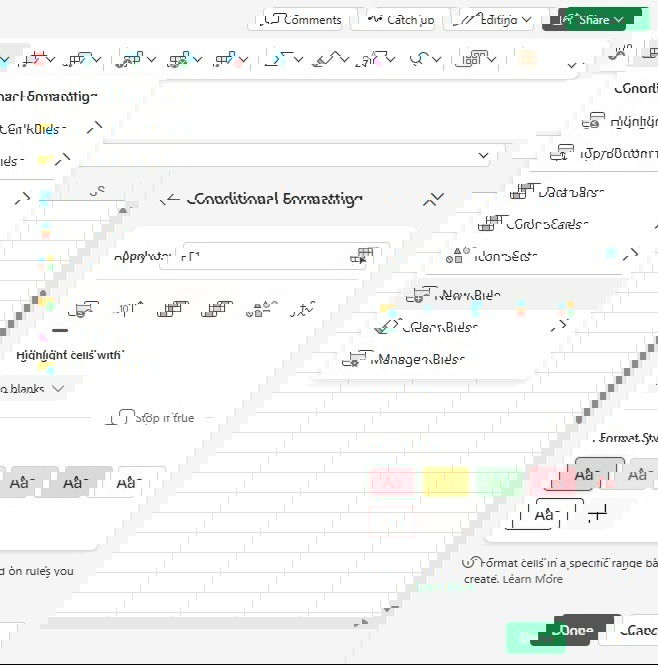
It’s a simple thing, but conditional formatting is one of my favorite features when using Excel for project management. I open my sheet and instantly see a color-coded overview showing upcoming deadlines and whether I’m behind.
I can also see whether payment has been received for a project or I need to send reminder emails, etc. I just have to set up conditional formatting for specific cells, and I’m all set. I can highlight cells, add color scales, and insert formulas.
Go to Home -> Conditional Formatting. Depending on how your toolbar is set up, you may need to go to Home -> Styles first.
Create Different Tabs for Various Aspects
Just as with any project management tool, you’ll need more than just a list of tasks. You’ll need a timeline, list of tasks, who’s responsible, notes, contact details, budget, and much more. Creating a search box to quickly find details in your spreadsheet is good idea for more complex designs.
When using Excel for project management, simply create a different tab or sheet for each aspect. Have one for your budget, another for contacts, another for tasks and notes, and yet another for your timeline.
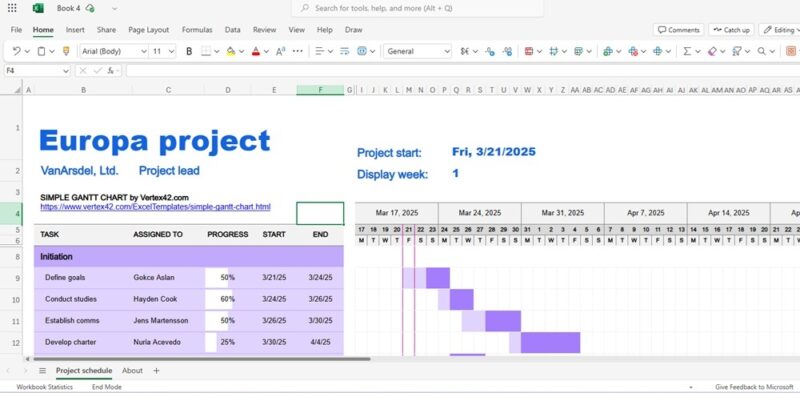
Every sheet can look completely different. For instance, track your project timeline by creating a Gantt chart. While you can do this from scratch, I’d suggest using a free template like this one, which you can also find by searching within Excel.
For larger teams, Excel may not always be the best option. But, if you’re a little creative and want to save money, Excel is ideal for managing nearly any project as an individual or small team.
Image credit: Pexels. All screenshots by Crystal Crowder.