Microsoft’s added a supposedly helpful feature called Site Suggestions to Microsoft Edge that feels more like a virus than something useful. When you open Edge, select pages from your browser history load automatically. The good news is you can stop this from happening.
Microsoft Testing Edge Site Suggestions
Starting with Microsoft Edge Canary 137, you might get an unwelcome surprise when you start Edge. Random pages from your browser history fill your screen. For users who had no idea about this new feature, it feels more like malware trying to take over your PC.
Except that this isn’t a virus. This is Microsoft’s attempt to make your browser more user-friendly. The Site Suggestions feature collects information about your recent browsing history to determine the most useful sites you may want to see when Edge boots.
Each time you close and re-open Edge, you’ll get another selection of sites. For some users, this could be helpful. For someone like me who’s always researching something different, it’s just a mess and means I have to close several tabs when opening Edge.
Edge and Your Privacy
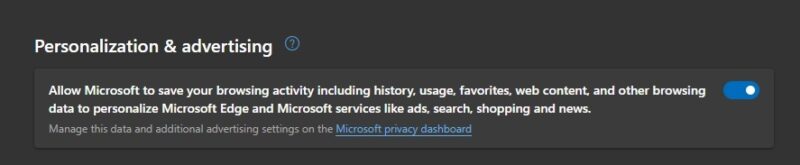
It’s not anything new that Microsoft collects data from you. By default, Edge gathers information from your browsing history, web content you view, favorites, and general usage to personalize your experience in search, ads, news, and more. This is explained in Edge’s privacy settings.
Click the Microsoft privacy dashboard link to view more about what Microsoft collects, view collected data, and clear it. You’ll need to login with your Microsoft account to view the data. Microsoft still collects data until you turn settings off in individual apps, such as Edge.
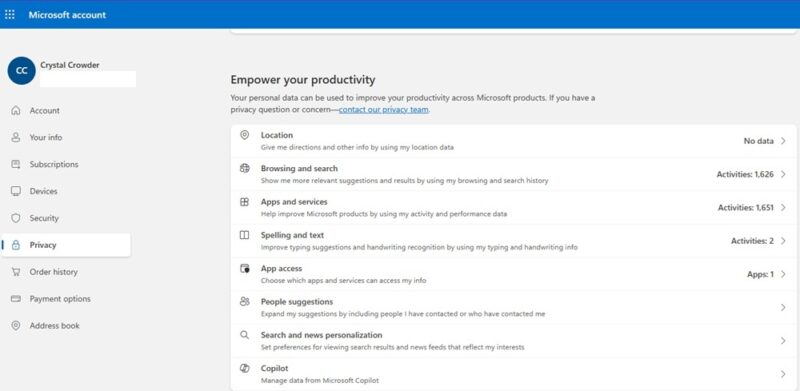
To better protect your privacy while using Edge, you’ll need to switch off a few settings.
Turn Off Personalization and Advertising
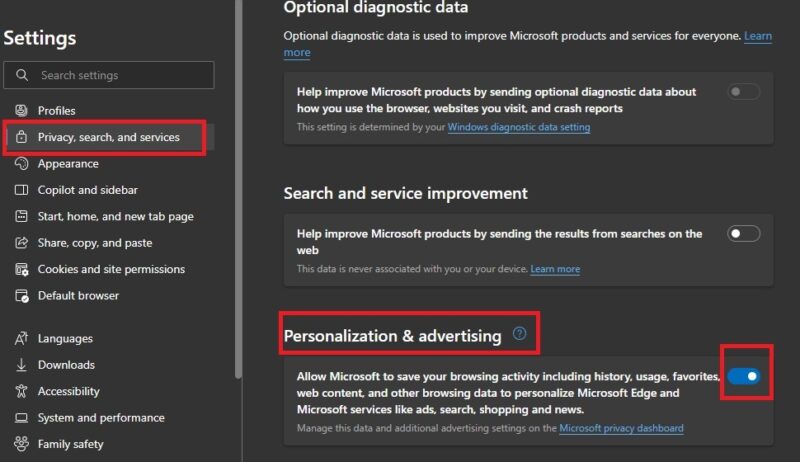
Microsoft Edge site suggestions relies on Edge’s data collection to load suggested sites when Edge loads. Turn off the data collection to take away the data Edge relies on.
Open Edge and click the three dot menu at the top right. Select Settings -> Privacy, search, and services -> Privacy. Scroll down to Personalization & advertising. Turn off this setting.
Turn Off Edge Site Suggestions
Once you’ve turned off personalization, it’s time to stop Edge from loading sites automatically at launch.
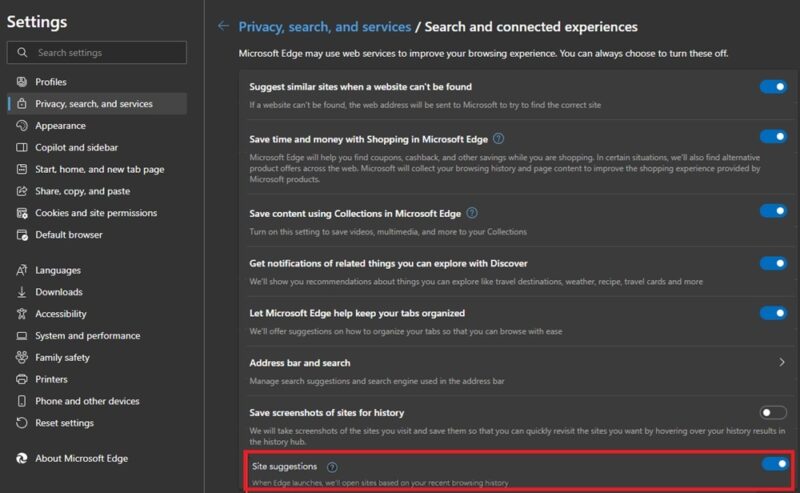
Open Settings in Edge and select Privacy, search, and services -> Search and connected experiences. Scroll down to Site Suggestions and toggle the setting off.
Clear Browsing History
Even after turning off both settings, you might still have sites load upon launch. This is because Edge is still accessing your stored browser history. I had this happen and had to clear my browsing history and relaunch Edge to eliminate the startup pages.
Unless you absolutely need to keep your browsing history, I recommend automatically clearing your history every time you close Edge.
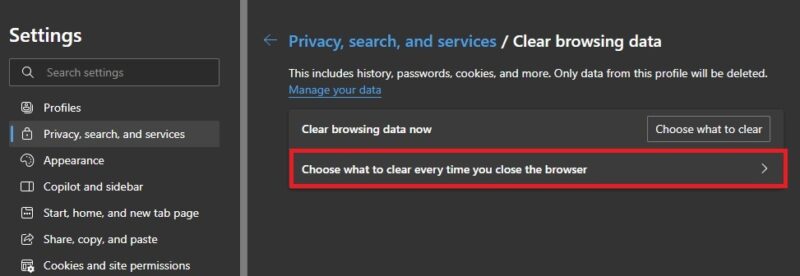
Open Settings in Edge and go to Privacy, search, and services -> Clear browsing data -> Choose what to clear every time you close your browser.
Select everything you want Edge to delete each time you close the browser. I chose every option, but you may want to leave some options, such as passwords and autofill data if you use those settings.
Now, when you exit Edge, your browsing history disappears. It’s also a good idea to delete your Windows PC activity history as well.
Site Suggestions Vs. Suggested Sites
Most browsers, including Edge, give you suggested sites as you type in the address bar. This is usually based on your browser history and previous searches. This isn’t the same as the new Edge Site Suggestions.
At the time of writing, not all users have Site Suggestions. It’s being tested with some users and may roll out to all users in a later Edge update.
You can turn off these suggestions as well. Open Edge’s Settings and go to Privacy, search, and services -> Address bar and search -> Search suggestions and filters.
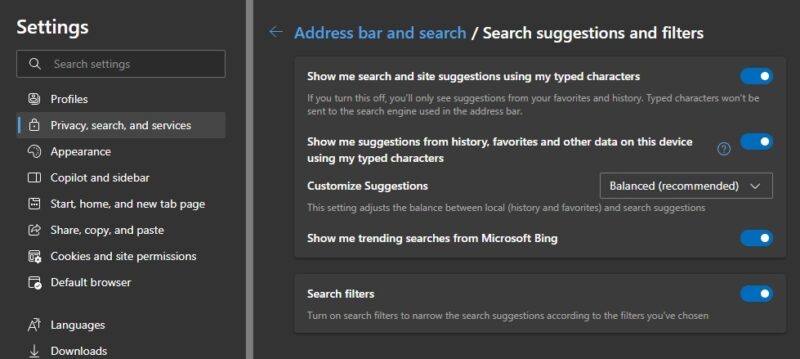
Turn off all settings to prevent Edge from showing you any personalized suggestions as you type in the address bar. Once again, you may need to clear your browsing history before you completely eliminate any suggestions.
Skip Edge Suggestions With Another Browser
If you’re not thrilled with Edge using your history to suggest and load sites by default, you’re not alone. Edge may remove this feature in future updates, but that’s not guaranteed. Instead of worrying about what other updates might be in store, use a different browser.
Try a browser more focused on privacy, such as Epic or Brave. Or, switch to a specialty browser, many of which put privacy first. And, if you’re a gamer and love Edge’s gaming features, try these other gaming browsers instead.