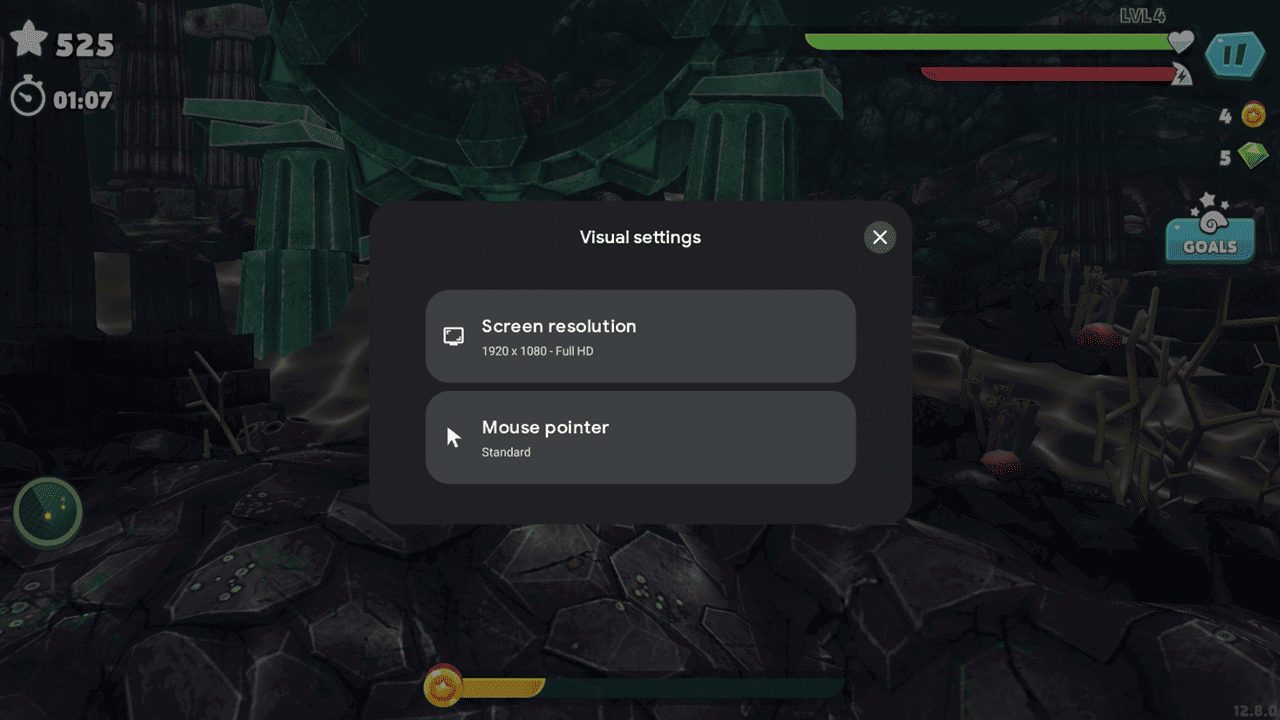
Many of us enjoy playing games on our Android devices, but sometimes it’s just more fun on a bigger screen. Luckily, Google’s Play Games program lets you play your favorite mobile titles right on your Windows PC or laptop. With the latest update adding a convenient sidebar for quick controls, there’s never been a better time to try it. Here’s how to get started.
Good to know: alternatively, check the best emulators that allow you to play Windows games on Android.
Google Play Games for PC Is Available in Beta
While playing Android games on Windows PCs has been previously available thanks to emulators such as BlueStacks, there’s now a native way to port your favorite titles to your computer.
Google launched Play Games for PC in beta back in 2022. While it hasn’t left beta just yet (it’s expected to so by the end of this year), Google has consistently worked to enhance the platform, gradually expanding its availability and adding new features.
Play Android Games on Your Windows PC
Google Play Games for PC comes with several requirements, so please check them before downloading the software onto your device. Here are the minimal requirements for your computer:
- Windows 10 (v2004) or above
- Processor with 4 CPU physical cores
- 8GB of RAM
- Intel UHD Graphics 630 GPU or comparable
- SSD with 10GB of available storage space
- Windows admin account
- Hardware virtualization must be turned on (you will need to access your BIOS/UEFI then go to Advanced and enable either Intel VT-x or AMD-V – or something similar according to your PC model.)
If you have a compatible device, go ahead and download the software from the official page. If you can’t see any options to download, it probably means that Google Play Games for PC is not available in your region just yet.
Proceed to install the software on your PC. It needs 2GB of space, so make sure you have that on your drive before starting the process.
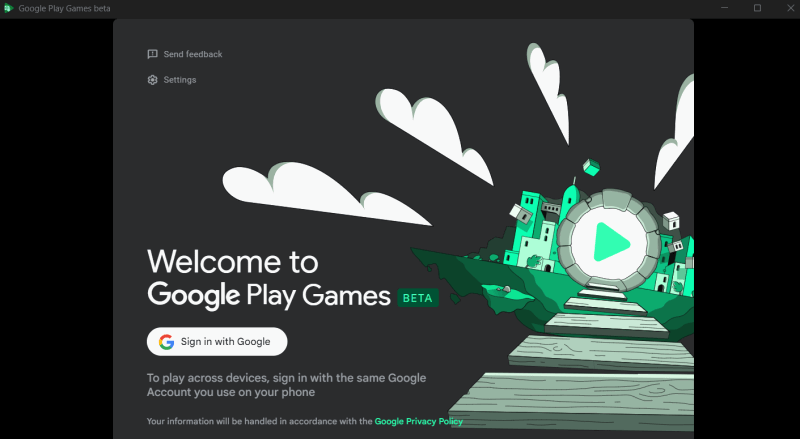
Next, sign in with your Google account. You should use the same account you’re using on your current Android device to access Google Play. This way, you’ll be able to sync your game progress with your Google account.
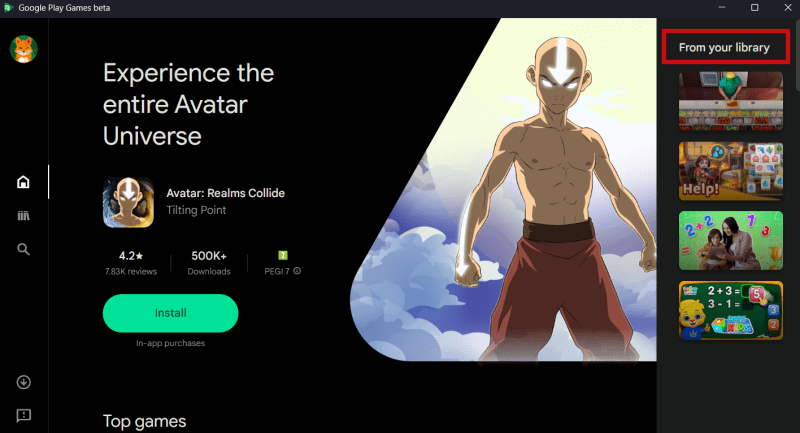
After logging in, you’ll notice the From Your Library section on the right, showing games already associated with your Android account. However, you’ll need to reinstall these titles on your PC, and progress will not carry over – you’ll have to start from scratch.
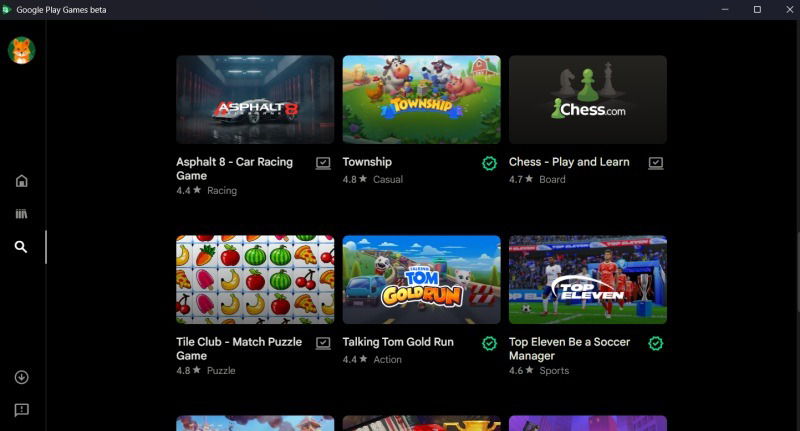
Anyway, if you want to search for other games, you can either browse the Google Play Games interface or use the search function to look for a specific title.
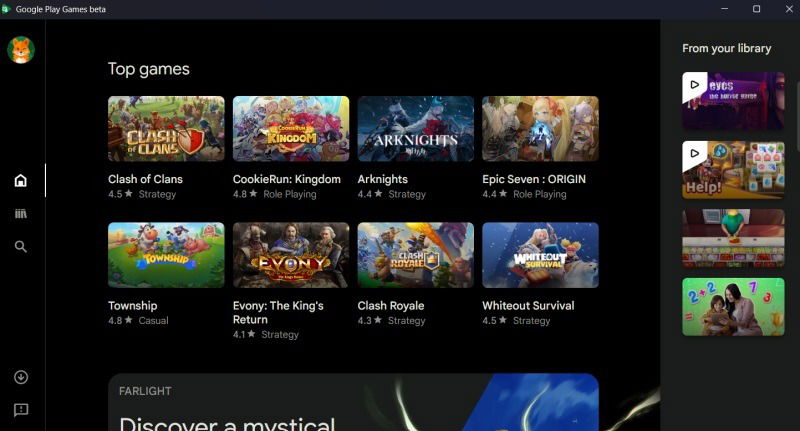
Once you’ve found what you’re looking for, click the Install button, and wait until the game installs on your computer. You can opt to add a shortcut for the game on your desktop.
Tip: learn how to spot and avoid shovelware games without downloading.
The Google Play Games Experience on PC
In our testing, playing Android games using Google Play Games proved quite smooth. Games are responsive and load up pretty quickly.
Titles in Google Play Games are grouped in two categories – Optimized and Playable. Games in the first category will give you the smoothest experience, but Playable titles can still be worth exploring.
Once an Android game loads on your PC, you can immediately play using your mouse. Instead of tapping, you’ll be clicking instead.
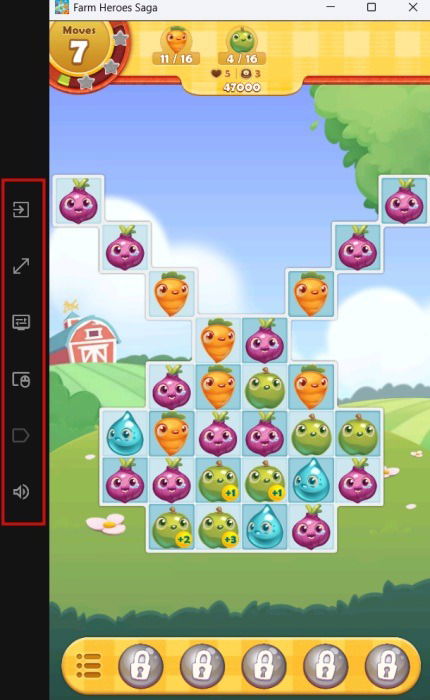
Recently, during the GDC 2025, Google revealed that it’s rolling out new custom controls for games. You’ll find them in the handy in-game access bar on the left.
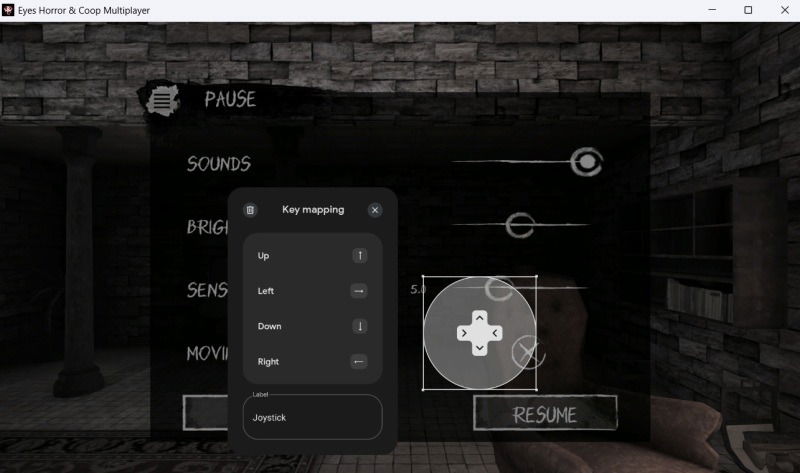
Players can remap game controls by assigning virtual buttons or virtual joystick controls to specific keys, allowing you to play games using your keyboard instead of the mouse (or with both).
To try this, click on the fourth icon in the left bar to bring up the Game Controls window or press the Shift + Tab keyboard shortcut. Press Edit from there to start customizing your controls.
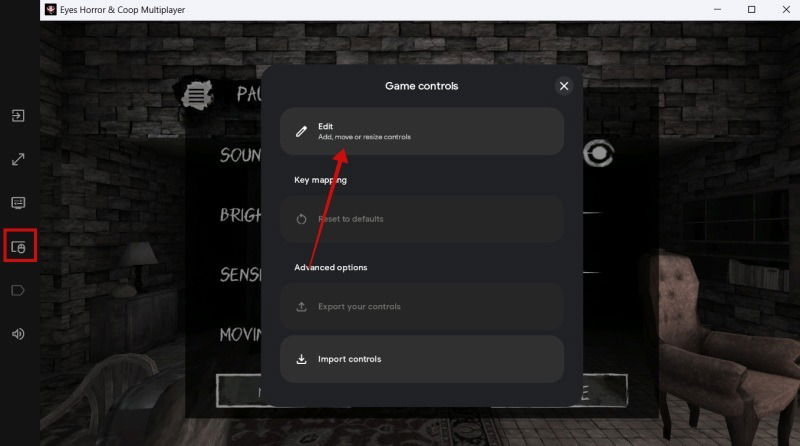
Google notes the feature is limited to select titles, but doesn’t mention exactly which ones – so it’s up to the user to discover the compatible games.
For instance, Hungry Shark Evolution supports keyboard controls by default, although they can’t be remapped. In contrast, Farm Heroes Saga doesn’t support keyboard input at all. The horror game Eyes, one the other hand, does support remapping, as well as gameplay with both mouse and keyboard.
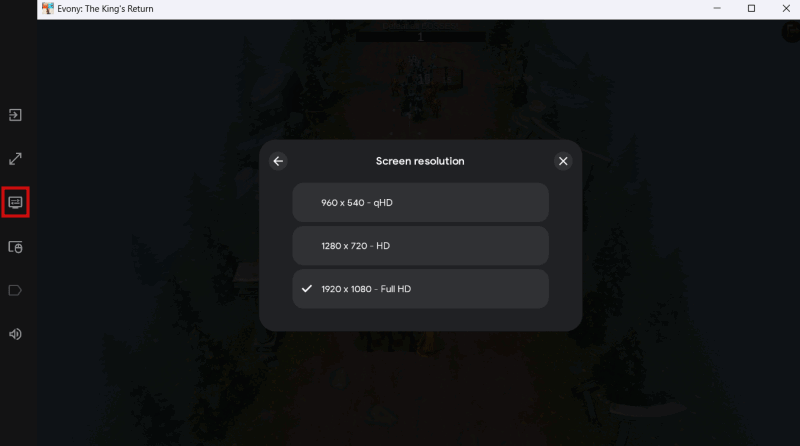
Google Play Games also comes with support for full screen mode and the option to switch to lower resolution settings via Visual Settings (third icon on the left), in case your PC is experiencing slow down. The most recent update also added the ability to change refresh rate (FPS), but we’re not currently seeing this option.
FYI: here are the best Google Play alternatives you might want to try, if you’re craving something a little different.
Delete a Game from Google Play Games on PC
You won’t be able to delete installed Google Play Games from Windows’ usual Installed apps menu. Instead, you’ll need to go Google Play Games and press on the second icon on the left to go to your library.
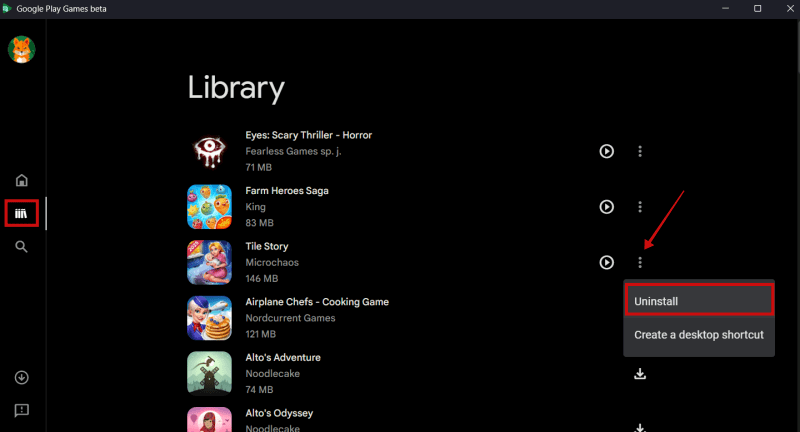
Find the game you wish to delete and click on the three dots next to it and select Uninstall.
Google Play Games represents the official way to play Android games on your Windows PC, but if for some reason you find the experience lacking, you can always turn to emulators for games and apps. On the other hand, if you prefer to play games on Android with a controller, check the best games to try.