As a Gmail user, you may have always wanted an easy, seamless way to mirror your email signatures across all devices, desktop or mobile. Syncing the default signatures used to take a lot of extra effort, but that has changed. Here is how to sync your Gmail web signatures with iOS and Android phones and tablets.
Unified Gmail Signatures Across All Devices
Since April 2025, having one signature to rule them all has become standard in Gmail. The feature is rolling out slowly and should reach all Gmail accounts in the coming few weeks.
Any signature you save on Gmail using a web browser, with its rich text options such as bold, italics, underline, and even photos, will now appear on the Android and iOS Gmail apps. When you click the Compose button on a Gmail mobile app, you can easily view the synced signature.
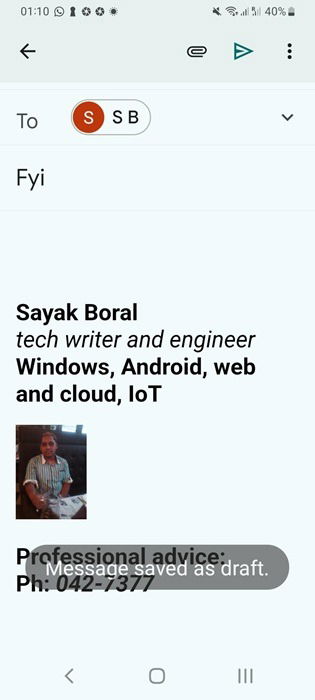
However, the unified signature feature does not work the other way around yet. This means that if you set up a unique signature in your Gmail app on iOS or Android smartphones or tablets, it will not carry over to your Gmail desktop browsers.
Syncing Gmail Web Signatures on Smartphones and Tablets
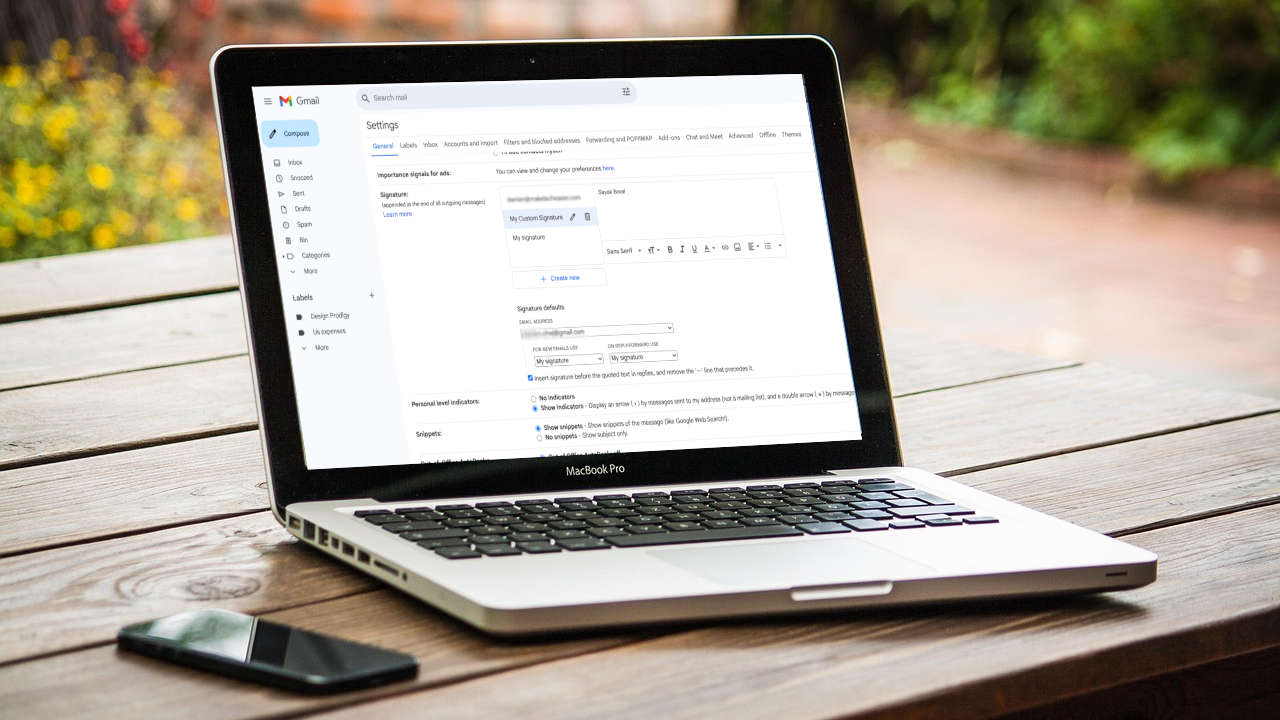
You only need to set one or more Gmail signatures on a desktop browser one time, as shown here. First, on a desktop browser like Google Chrome, sign in to Gmail, click the gearbox Settings icon followed by See all settings. From here, head to General -> Signature. If you don’t have a signature yet, click Create new, and then type a name. After that, tap Create.
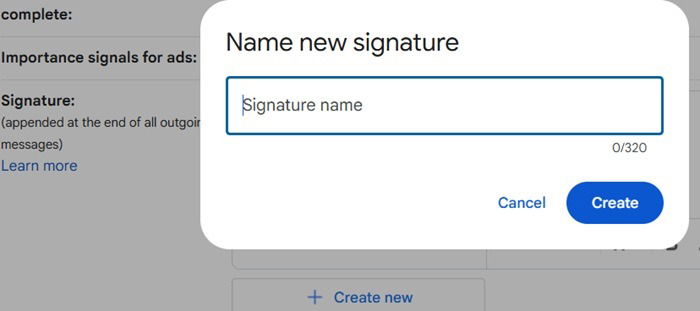
Enter your signature details in the box. On this same page, you must save this signature for new emails and replies. Don’t forget to click Save changes at the bottom of the signature page.
The changes you do will be visible in Gmail compose window, and sync across multiple devices. Give it some time for it to be visible on all your devices.
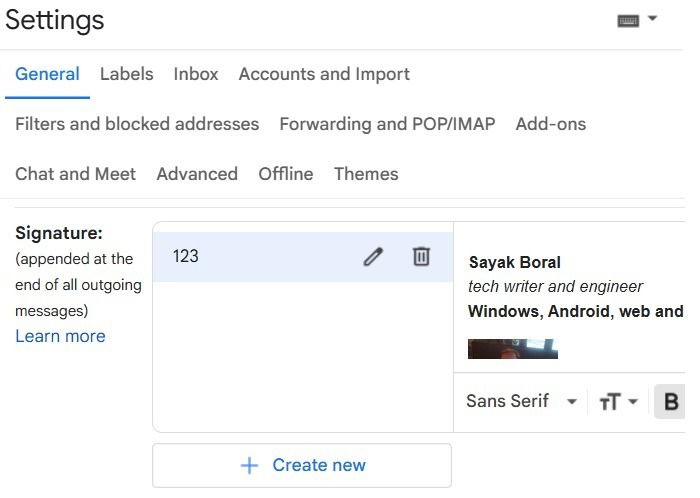
Your saved Gmail web signatures, including rich text font styles like Sans serif, a different text color, hyperlinks, effects such as strikethrough, or even pictures, will seamlessly carry over to the Gmail app on mobile devices.
To receive the unified signatures, keep the Gmail apps on iPhones and Android updated. If for some reason, it’s not reflecting on your mobile Gmail apps, consider removing your Gmail account temporarily, and adding it back again.
Disable Gmail Web Signature on Phone
If you don’t want your Gmail desktop signature used on mobile devices, you’ll need to set up a different signature on each device. Otherwise, your Gmail web account signature will automatically become the default signature on each mobile device.
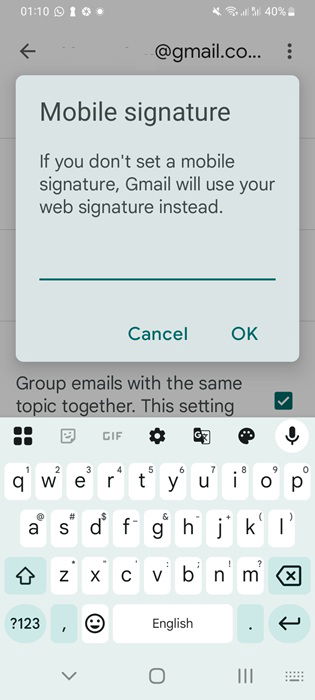
For Android users, open the updated Gmail app, tap the “hamburger” menu (three lines) at the top left, and pick the Settings gear icon. Then choose your Gmail account. Scroll all the way down to find the Mobile signature option, tap it once, and click OK to save. Now type whatever you need for a signature.
If you’re an iOS user, the saved desktop Gmail signature won’t show up in the default Mail app, only in the Gmail app. Here, tap the Menu icon (three horizontal lines, like on Android) in the top left. Scroll all the way down to pick Settings -> Signature settings. Add a Mobile Signature here, and click Done.
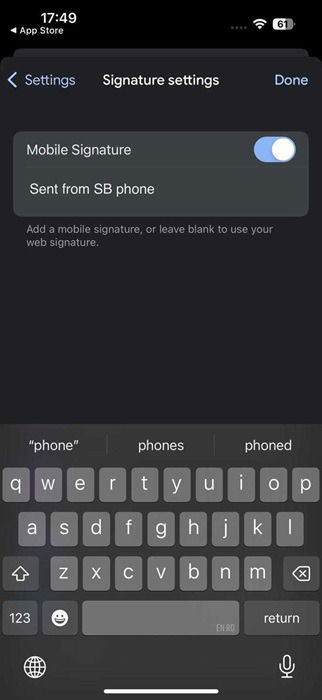
If you leave the mobile signature fields blank in the above steps, the current web signature will take over as the default on your Android and iOS devices.
A unified signature across Gmail is pretty useful for anyone who frequently switches devices to send, receive, or forward Gmail emails. You may pair the signature with Gmail templates for repetitive messages. Power Gmail users also benefit from managing multiple Gmail accounts on one device.