Still using the OneNote that came with Windows 10 or just haven’t upgraded your desktop version in a while? Now’s the time to upgrade OneNote to make the most of the popular note-taking app.
Microsoft Ending Support for OneNote
While OneNote isn’t going away, Microsoft is ending support OneNote for some users. Support official ends for the Windows 10 version of OneNote in October 2025. This means no more updates, bug fixes, security patches, etc. You may even lose some functionality. This only applies to the desktop version of OneNote that was included with Windows 10.
If you’ve downloaded OneNote from Microsoft’s site or the Microsoft Store, you’ve probably got the newer version, so you don’t have to worry about losing support for now.
If you’re not sure which version you have, open OneNote and look for the File menu. If it’s not there, you have the Windows 10 version and need to upgrade.
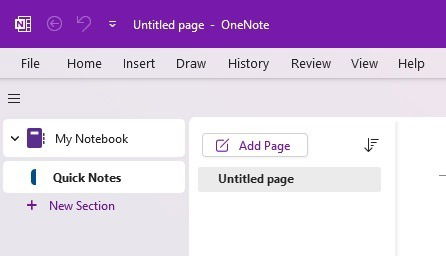
Free and Easy to Upgrade OneNote
I know you’re probably thinking you’ll need an Office 365 subscription just to upgrade, but you don’t. Yes, there is a premium version included with the subscription. However, OneNote is a free standalone app. For me, I have everything I need in the free version.
Upgrading is simple. Make sure you have all your notes and notebooks saved. Anything that’s not saved won’t transfer. Also, sync your notebooks. Right-click them and select Sync now.
Then, download OneNote from Microsoft or through the Microsoft Store. This won’t uninstall or replace OneNote for Windows 10. This is a separate app. I love Microsoft’s doing it this way so you can verify everything transfers before uninstalling the older version. Also, you don’t have to install any other Office apps to upgrade your version of OneNote.
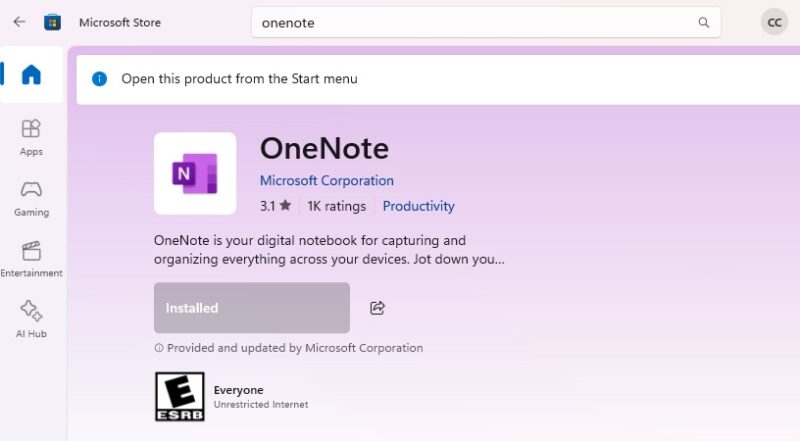
Once you sign into the new version, it syncs your notes. Verify everything transfers successfully.
Find Things Easier With The Ribbon Bar
At first, I wasn’t a huge fan of the ribbon bar Microsoft introduced with Office apps. Now, I can’t imagine not using it. When you upgrade OneNote on your desktop, you get the full ribbon bar. The best part is you can switch between the classic and simplified versions, depending on your needs.
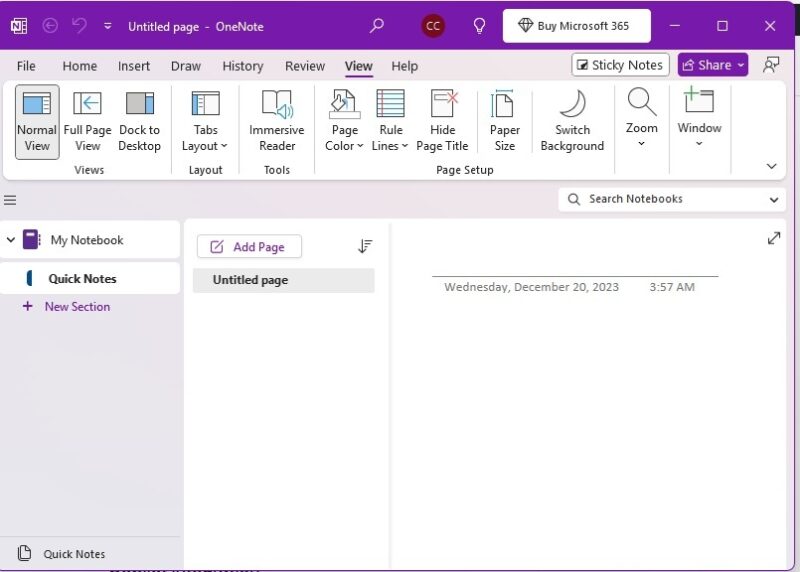
I’d suggest trying the simplified version. This makes it feel like a nice compromise between the old and new versions.
Embed Interactive Elements and Files
Thanks to better integration with Microsoft Office, the upgraded version of OneNote lets you embed elements directly into your notes. Have a spreadsheet you need to reference? Just embed it. The same with Word docs.
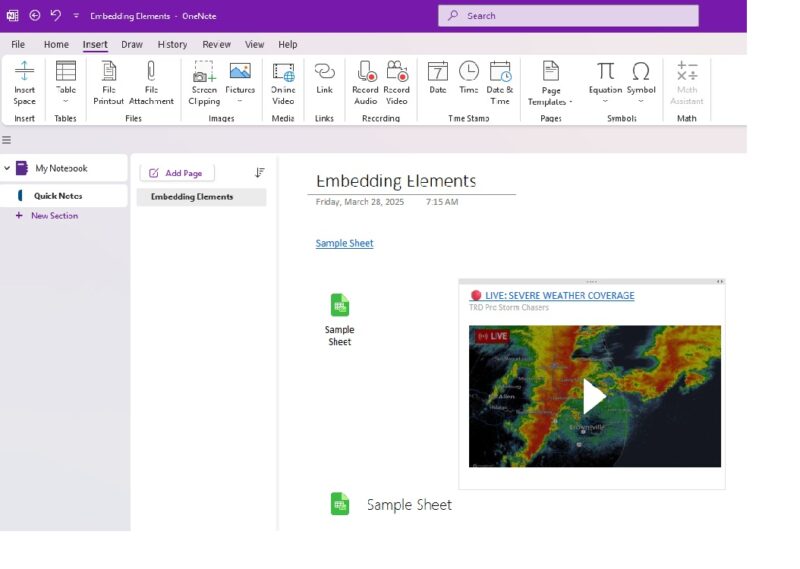
Why embed? Whenever you make changes to the embedded files, they sync automatically. No more jumping back and forth. You can even embed audio, video, and more.
Write and Draw With a Pen
If your device supports it, OneNote now allows you to use digital ink using your favorite supported pen. For anyone who uses OneNote for sketches, hand drawn mind maps, and even bullet journaling, this can change how you use the app.
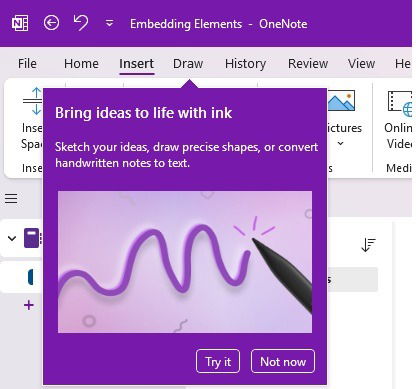
Of course, this feature is limited to specific devices.
Create Notes With Voice Transcription
Don’t feel like typing? Just use your voice. When you upgrade OneNote, you get access to the new voice transcription feature. This is perfect for recording notes during meetings or just saying whatever’s on your mind.
While it can make errors like any other voice transcription app, I’ve found it to be pretty accurate most of the time. And, I can’t tell you how much time it saves me to just speak versus typing. My fingers also appreciate it.
Copilot Built In
You will have to get a premium subscription for this feature. But, if you want to use Copilot directly in OneNote, it’s worth it. Even with an Office 365 subscription, you can’t use Copilot in OneNote in the Windows 10 version.
Once you upgrade, use Copilot to help summarize content for notes, help you brainstorm ideas, and more. If you don’t want to pay for a subscription, just use Copilot from your desktop or the web for free.
Try the Upgrade Before Uninstalling
What I love about Microsoft’s method to upgrade OneNote is its completely risk free. You can keep continue using the old version alongside the new one if you want. But, get ready for annoying pop-ups prompting you to upgrade, slower syncing speeds (not exactly fair, I know), and potential functionality issues.
If you do plan to keep it, I’d suggest downloading OneNote for Windows 10 so you have a copy of the installer. After Microsoft discontinues it, you might not be able to find the official download link again.
I suggest keeping both versions at first to fully verify all your data is transferred. Plus, it gives you a chance to compare to see which you prefer. Or, if you’re done with OneNote, consider switching to Notion, Evernote, or even CherryTree.
If you’re using the desktop version, check out these plugins to get even more out of OneNote. Or, use of these tips to master the note-taking app.
Image credit: Pexels