Thanks to cookies, virtually everything in social media that you click, read, and view is tracked, resulting in targeted ads that you can’t escape. With Mark Zuckerberg recently announcing that they’re doing away with fact checking on Meta platforms, it will open the floodgates to all sorts of unscrupulous companies that will potentially have access to your data. If you’re not ready to delete all your accounts on Facebook, Instagram, WhatsApp, etc., there are ways to limit what Meta does with your personal data. Thankfully, all it takes is a couple of clicks.
Note: Meta owns a number of social media platforms, including Facebook, Instagram, WhatsApp and Threads. If your Facebook and Instagram accounts are linked, then any of the changes made below will apply to both accounts. Check out our privacy guides for Threads and WhatsApp.
Getting Started
Most of the settings you want to change are found in Facebook’s Accounts Center. Log in to your Facebook account, and click on your profile picture in the top-right corner. Click on Settings & Privacy -> Settings in the drop-down menu.
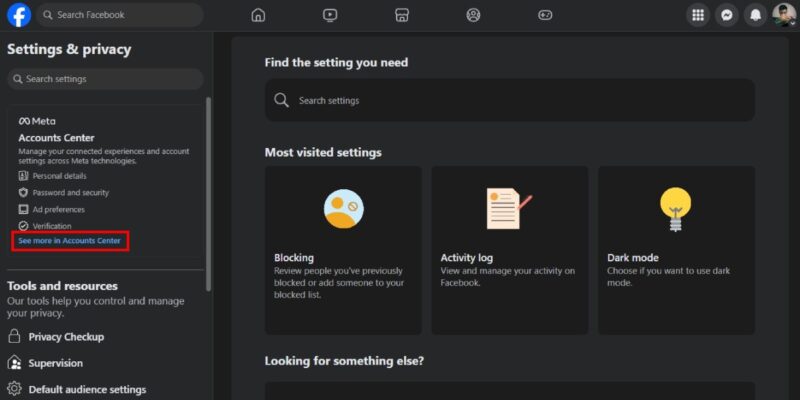
Click See more in Accounts Center on the left side of the screen.
Stop Getting Targeted Meta Ads Based on Data
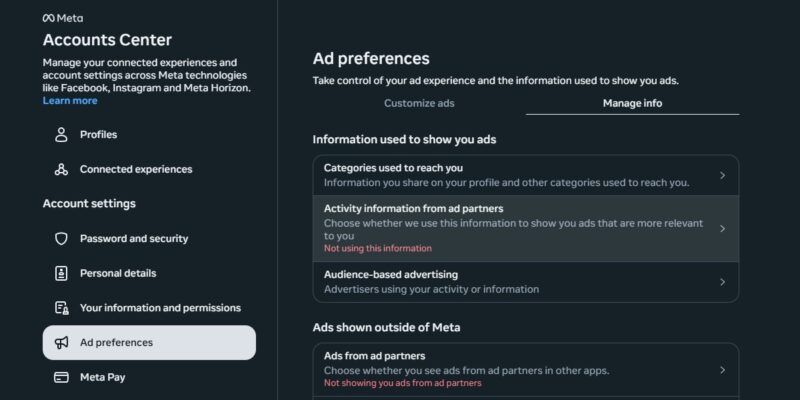
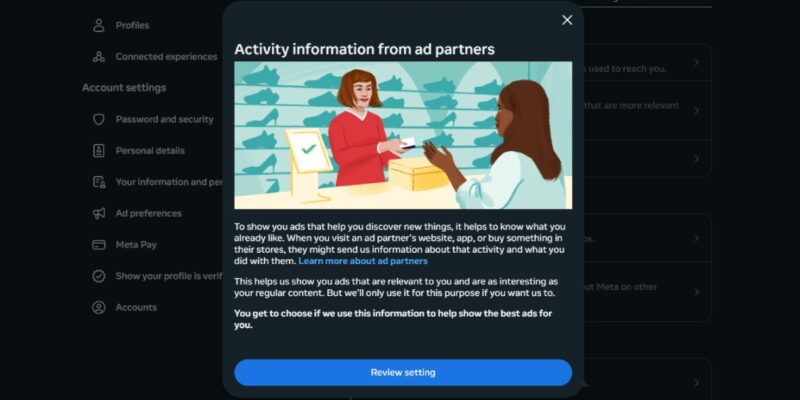
Click on Ad preferences -> Manage info. Under Information used to show you ads, click Activity information from ad partners.
In the pop-up, click the blue Review setting button.
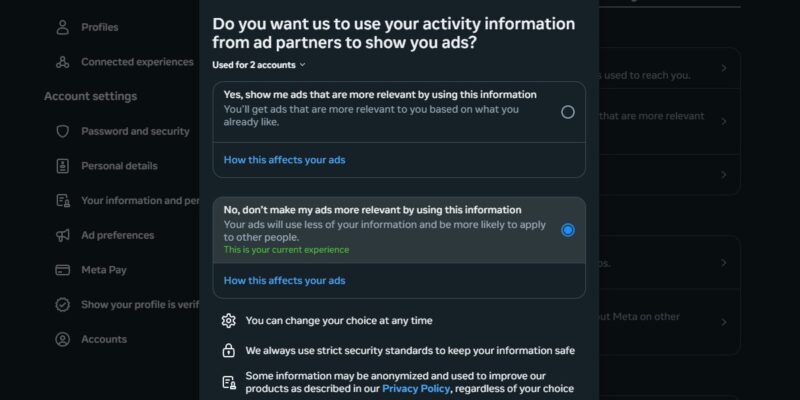
Ensure that the option labeled No, don’t make my ads more relevant by using this information is selected.
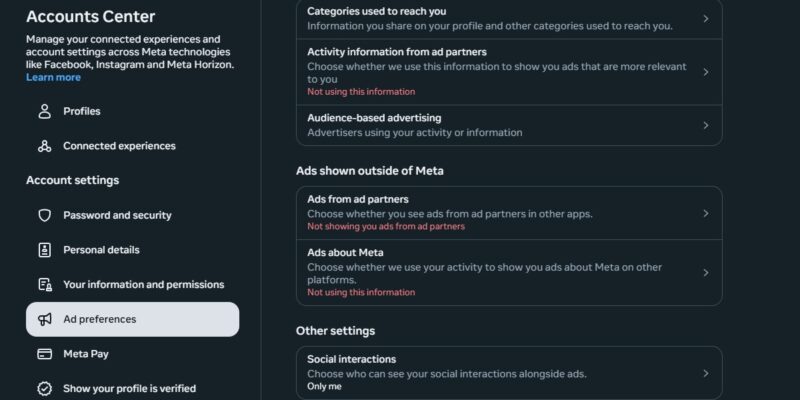
When you navigate back to the Ad preferences page, under Activity information from ad partners, it should read Not using this information in red text, as shown in the screenshot above.
Reject Meta Using Data to Help Advertisers on Other Apps
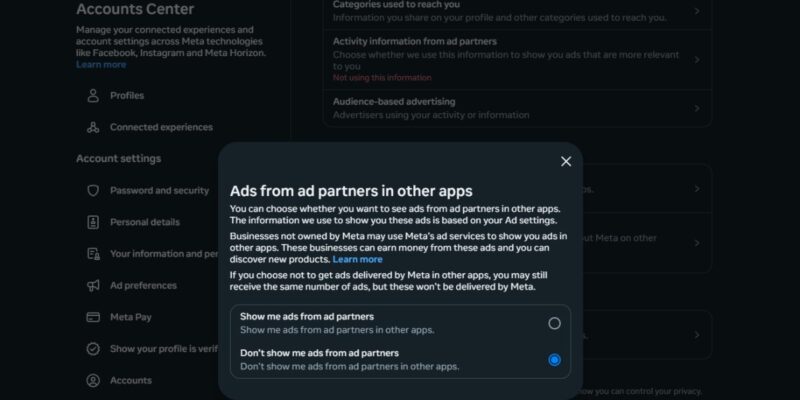
Back on the Accounts Center, click Ad preferences, and then click on Ads from ad partners under Ads shown outside of Meta.
Ensure that Don’t show me ads from ad partners is selected in the pop-up.
When you back out to the Ad preferences page, under Ads from ad partners, it should read Not using this information in red.
Disable “Off Meta Technologies” Data Collection
Navigate back to the Accounts Center page. On the left side, click on Your information and preferences -> Your activity off Meta technologies.
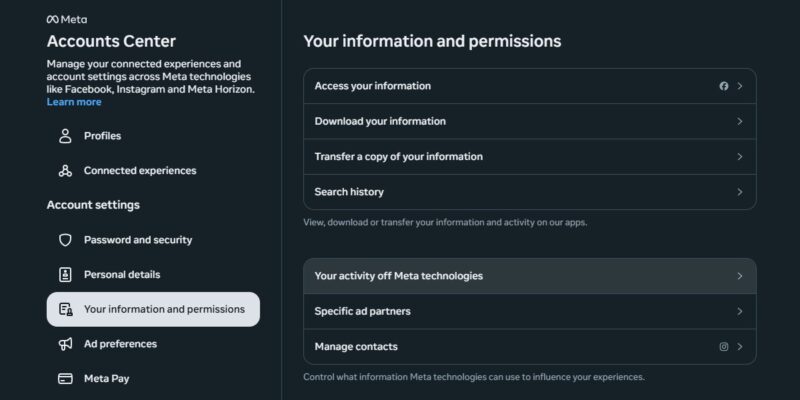
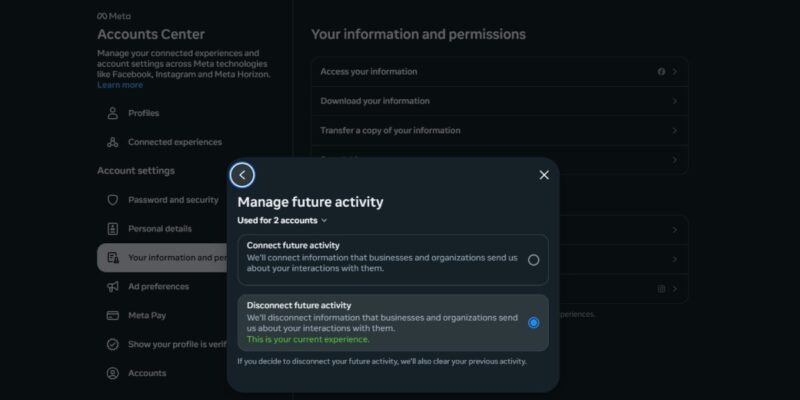
In the pop-up, click on Manage future activity. Click on Disconnect from future activity. Note that selecting this option will also clear your previous activity.
Turn Off Location Settings for Meta Apps
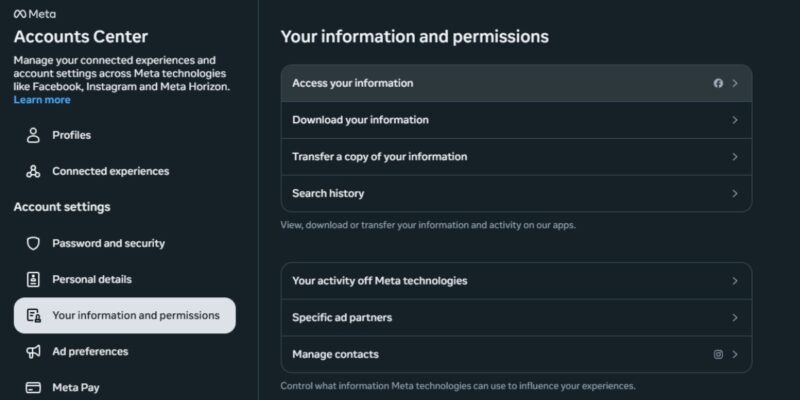
In the Accounts Center hub, click Your information and permissions on the left, then click Access your information.
Click Learn more in Privacy Center under Primary location.
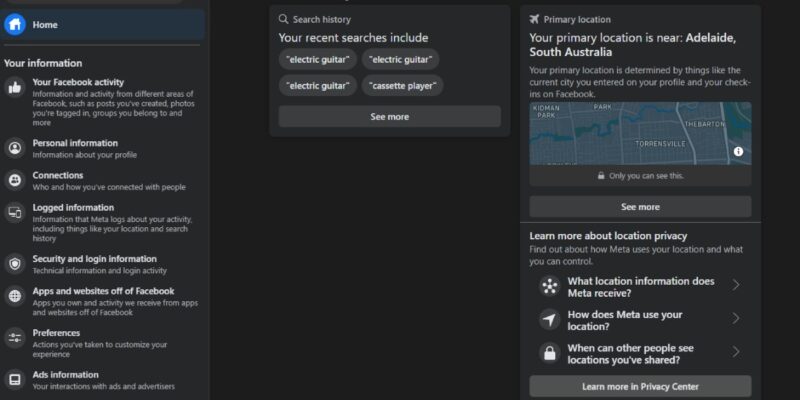
The Privacy Center will open in a new tab. Under Learn how to manage your location, click the blue Review location settings button. You can see what Meta is doing with your location info and make changes. Meta learns your location from things like your IP address and GPS. Unless you’re using a VPN, Meta will learn where you’re logging in through your PC’s static IP address.
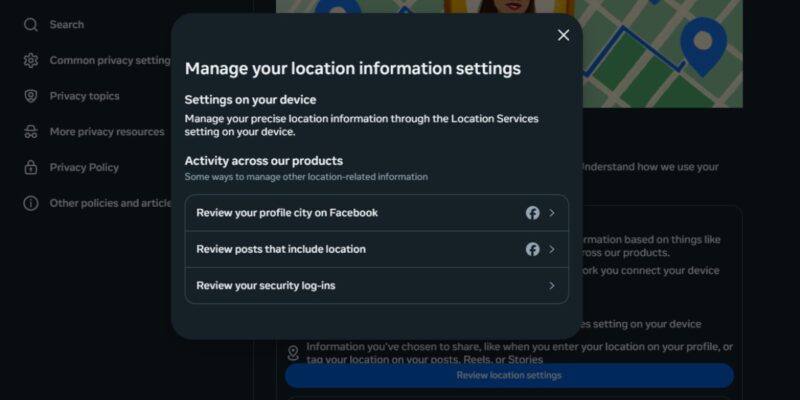
You can revoke access to your precise location information through the Location Services setting on your mobile device. On your Android, open Settings, and head to your Apps -> Facebook. Under Permissions, tap Location and select Don’t Allow. Repeat for Instagram and the others. On an iPhone, go to your Settings and tap Privacy & Security -> Location Services. Scroll down to Facebook, Instagram, etc., and select Never.
Prevent Logins to Third-Party Apps With Your Facebook Credentials
Navigate from the Accounts Center page to the main Settings and Privacy page. In the column on the left, scroll down to Your activity, and click on Apps and websites.
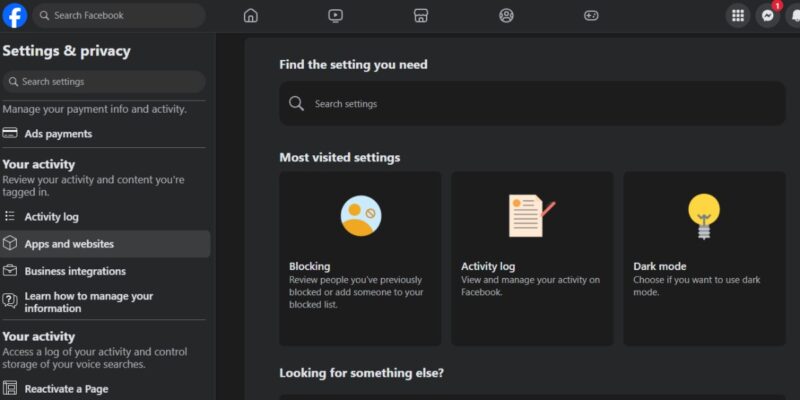
Review the third-party apps and websites you have accessed using your Meta login. Remove apps and websites if you would like.
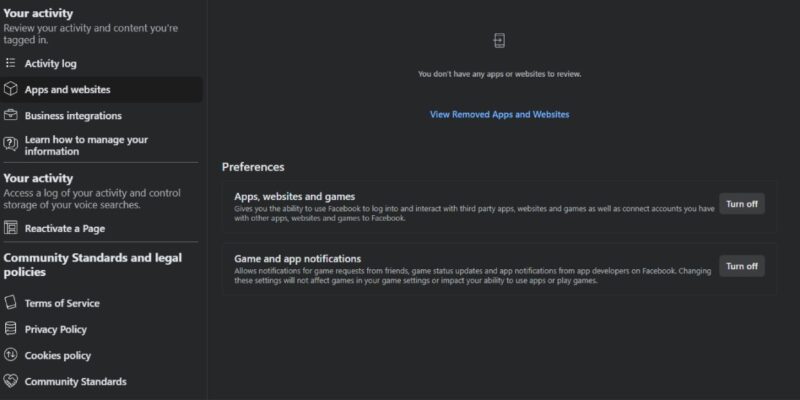
Scroll down to Preferences. Next to Apps, websites and games, click the Turn off button. Note that you can also opt to turn off notifications. In the pop-up, click the blue Turn off button to prevent your Meta login info from being used to access third-party apps.
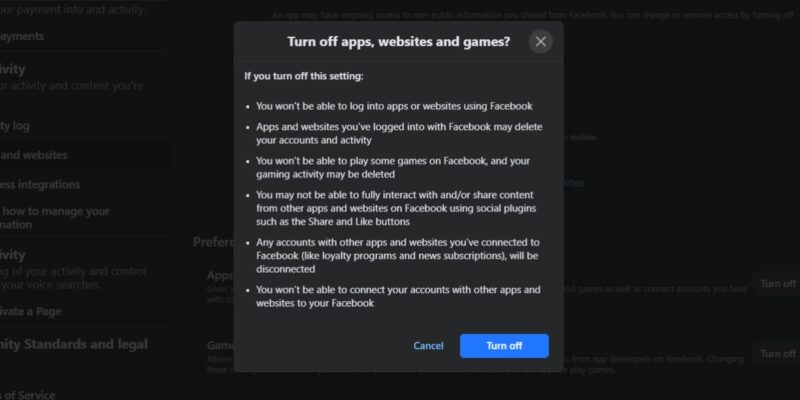
Unfortunately, this isn’t going to stop Meta from collecting your data. After the Cambridge Analytica scandal, we know that your data is going to be used for shady purposes, and Meta doesn’t seem to be okay with that. However, making the changes outlined above will limit the extent to which Meta will be able to use your data to line their pockets. And it’s a way to wrestle back a little bit of your pride from a company that seems intent on exploiting its users for monetary gain.
Image credit: Unsplash. All screenshots by Ryan Lynch.