Windows 10 and Windows 11 have had their share of problems. According to the Microsoft Security Response Center (MSRC), the operating system experienced 1394 security vulnerabilities in 2024. Microsoft quickly moves in to fix many of these security holes in the system, so it’s essential to stay up to date. Yet, Windows updates can bring their own problems. This guide shows what to do when an update does more harm than good.
Table of Contents
- [Not Fixed] March 27, 2025, Windows 11 Version 24H2, KB5053656 Cumulative Update
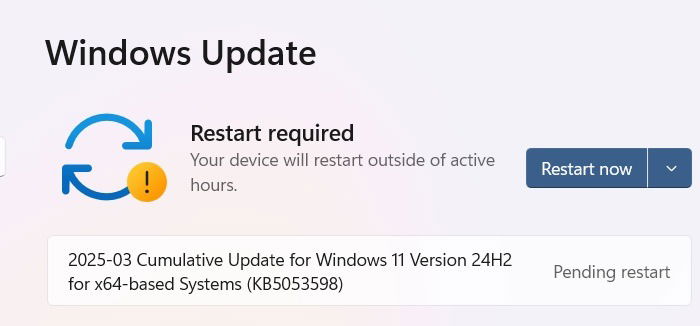
- [Partially Fixed] March 11, 2025, Windows 11 Version 24H2, KB5053598 Security Update
- [Fixed] February 25, 2025, Windows 11 Version 24H2, KB5052093 Cumulative Update
- [Not Fixed] March 25, 2025, Windows 10 Version 22H2, KB5053643 Non-Security Update
- [Not Fixed] March 11, 2025, Windows 10 Version 22H2, KB5053606 Security Update
- [Fixed] February 25, 2025, Windows 10 Version 22H2, KB5052077 Non-Security Update
- [Fixed] February 11, 2025, Windows 10 Version 22H2, KB5051974 Security Update
- Fix and Avoid Broken Windows Updates
- Install Optional Updates
- Uninstall Windows Updates
- How to Roll Back Windows Builds
- Check Your Windows Build
- Pause Windows Updates
- Completely Block Windows Updates
Note: if a problem here is marked as “FIXED,” it means Microsoft has rolled out an update that fixes the problem, and the solution is simply to make sure your system is fully updated. If a problem is not yet “FIXED,” then either read that entry for workarounds to that specific problem or scroll down the page for advice on how to roll back updates.
[Not Fixed] March 27, 2025, Windows 11 Version 24H2, KB5053656 Cumulative Update
Problems: Update not installing | Remote Desktop Protocol (RDP) issues | Bluescreen problems
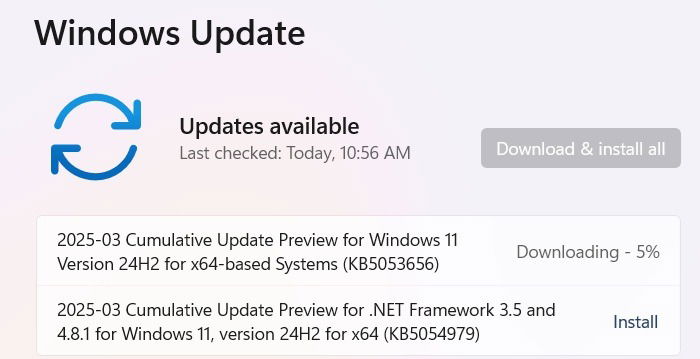
The cumulative update for March 2025, KB5053656 was released with dozens of new features and fixes. Windows search has gotten better, especially with Copilot+ PCs, due to advanced semantic and lexical matching. There was a problem with the previous update where the PC would not start. The issue has been resolved. In case you still face this problem, refer to the solution in the next section below.
Bluescreen issues (BSoD) have become the bane of every other major Windows update. In case you’ve run into that, you can resolve it using one of our tried-and-tested fixes.
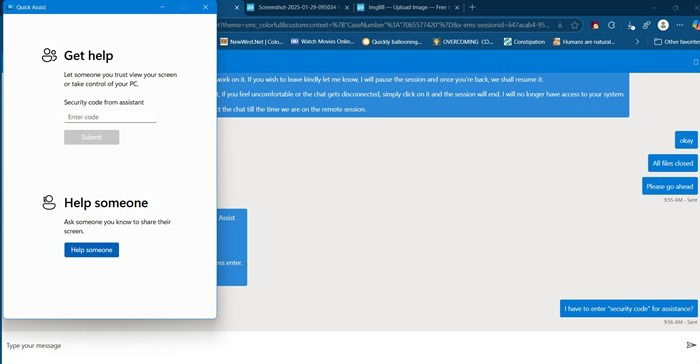
There were Remote Desktop Protocol (RDP) issues. In case you’re struggling with that, it’s best to quit the obsolete feature altogether. There are many advantages of switching to Quick Assist. Even Microsoft Support is regularly using this app to create a restore point, and fix the bugs to restart your update process. It’s an amazing way to troubleshoot any Windows update problems, as you just have to sit back and let an official Microsoft support agent solve your problem.
Finally, as it has been the norm in every monthly update, there are many users who complain that the Windows 11 update is not installing with 0x800 errors. Or the update download may get stuck at 0% or 2%. Despite frequent restarts, the update issues may persist. There are many ways to fix a frozen update in Windows, and you should always check for corrupt files.
There are many kinds of 0x800 errors, and we have detailed troubleshooting advice for each one of them. For 0x80070570, you can do Startup Repair and empty the SoftwareDistribution folder. 0x0 0x0, 0xc000000f, and error code 43 are other common generic error messages.
To deal with update failures, you may want to pause the update for a few weeks until next month when the issues are no longer a concern. Opting for a cloud-based device reset (while keeping your files) is the best way to deal with any installation errors, but it consumes a lot of time.
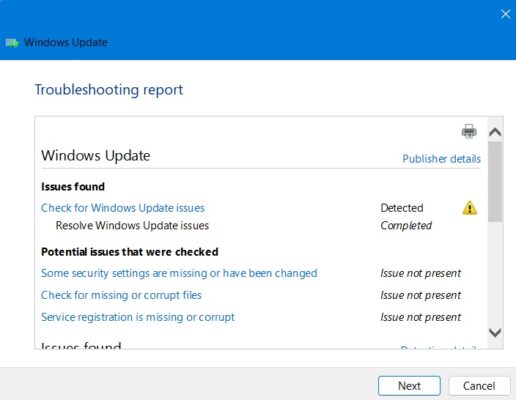
Apart from Quick Assist, it’s also a good idea to run the Windows 11 Update Troubleshooter first. Find it by navigating to System -> Troubleshoot -> Other troubleshooters.
The troubleshooter will fix any issues that were preventing installation, but mostly security settings, missing or corrupt files, or problems with Service Registration. Other issues could be connected to Windows Network Diagnostics, IsPostback_RC_PendingUpdates, WaaSMedicService, and BITS service.
If you can’t install an update on your PC on your normal schedule, it’s always easier to do it from the Microsoft Update Catalog. Remember to choose the correct download version (x64 or ARM) in the pop-up menu. The download files are usually more than a gigabyte. To run them, you just have to double-click once.
Note: if you’ve missed many updates, we recommend reinstalling Windows 11 from the cloud via Windows installation assistant, ISO, media creation, or another tool. Gong for a cloud download reset does the same job, but in much less time.
While Windows 11 is supporting 23H2 updates simultaneously, it may eventually force install 24H2 on the users in the previous version. 22H2 updates are no longer supported. You will need to have the Get the latest updates as soon as they’re available option active to transition from 23H2 to 24H2. If you’re having problems migrating from 22H2/23H2 to 24H2, the best solution is to reinstall Windows 11 online using the Installation Assistant.
[Partially Fixed] March 11, 2025, Windows 11 Version 24H2, KB5053598 Security Update
Problems: Update installer error 0x800f0838 | PC just won’t start |
The Patch Tuesday update for March 2025 fixes a range of security issues including update not showing on time, camera breaking down, and startup problems. For most users, this update should get on smoothly. Last month updates were being delayed by more than a week’s time, but the issue has been resolved.
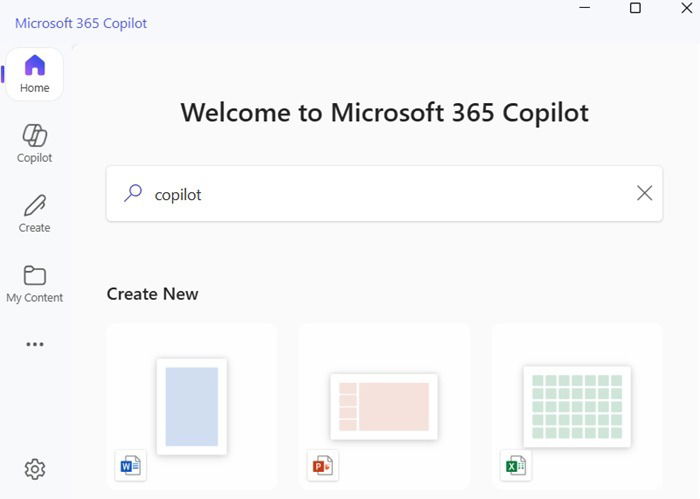
The highly publicized Microsoft 365 Copilot app is finally available with all its features. Now you can manage your entire Windows 11 device using Copilot functionality. (it is also available for Windows 10 users but not all features would work properly.) Remember this app is different from the normal Copilot app, and you may need a Microsoft 365 subscription to run many features.
The main problem with the update is the partial installation with an error code 0x800f0838. If your error is mainly due to the update getting stuck at a certain percentage value, you can restart the Windows Update from Service. It’s better to pause the update for around one-two weeks, as shown at the bottom of this page.
In the worst case, some users have reported that they were just not able to boot into their system. If the PC starts and subsequently, shuts down without explanation, it can cause many of us to panic. However, there is an easy solution for such times. First, make sure your device is plugged in, and there are no external components such as USB drive, external hard disk, or Bluetooth devices.
After this, try to start your “Windows Recovery Environment” using the laptop Power button. As soon as the manufacturer symbol appears, shut it down by pressing the button for 10 seconds. Repeat this 4-5 times after which the system should automatically reboot into the Recovery Environment. From there, you can fix the issues using Startup Repair.
Another solution is to reinstall Windows 11 using a bootable USB. For this, it’s always a good practice to carry a Windows 11 bootable USB drive with you. Insert the USB drive on your device, and after it starts, select Repair this Computer. If you want, you can reinstall Windows 11.
[Fixed] February 25, 2025, Windows 11 Version 24H2, KB5052093 Cumulative Update
Problems: Update not showing on time | Update fails to install | Roblox game issues for ARM devices
With the February-end KB5052093 update, Microsoft is testing several new features, bug fixes, and necessary improvements in version 24H2. As a result, this optional non-mandatory update may not be available to all users immediately due to a gradual rollout process.
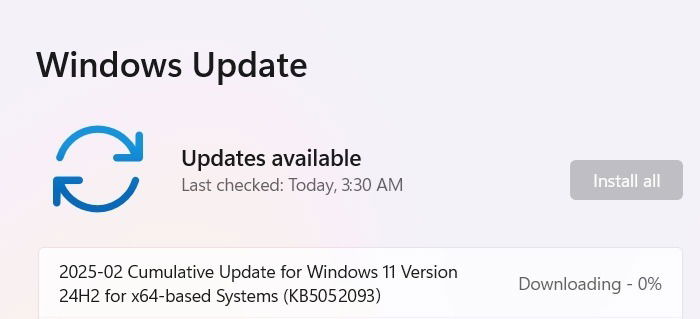
The biggest challenge was the update not showing on the screen despite my enabling Get the latest updates as soon as they’re available. Its solutions have been discussed at top. Outlook users faced issues for which the mail client’s drag-and-drop feature could not work. We have a lot of handy fixes for Outlook not working or any compatibility issues.
Tip: Also, follow our detailed guide to identify and resolve the most common Windows errors. Other ways to deal with frozen updates are the Memory Diagnostic tool. The problem is also connected to your RAM performance. In many cases, dual-channel RAM boosts a PC’s performance,
Additionally, you can try resetting Windows update components using commands like net stop wuauserv. If the update keeps reinstalling, apply the same fixes as you would for a Windows infinite reboot loop problem.
Extra tips: if you’re facing unexpected shutdowns, try removing schedules for the shutdowns. Learn how to reset all audio settings for any audio-related issues.
Note: Microsoft has recently announced that it will officially stop sending free software updates to all Windows 10 devices. Your PC will still work but a lack of updates means you will not be able to try new Windows features.
[Not Fixed] March 25, 2025, Windows 10 Version 22H2, KB5053643 Non-Security Update
Problems: Update failing to install
As Windows 10 is being phased out, despite its widespread use, Microsoft has stopped bringing important features to its updates. KB5053643 is a minor non-security update. It doesn’t really bring much to the table except providing Noto-cjk fonts for the Chinese, Japanese, and Korean languages. The main issue is that the update may fail to install. As discussed in Windows 11 section, performing a startup repair in the Windows Recovery environment will clear the problem.
[Not Fixed] March 11, 2025, Windows 10 Version 22H2, KB5053606 Security Update
Problems: Update not installing with error code 0x800f0805 | Copilot uninstalling issue | “Shaky” taskbar
The security update, KB5053606, was released for Windows 10 to fix various security bugs concerning fonts, USB printers, and Windows 10 crashes. The main issue is the update failing to install along with an error code: 0x800f0805. To deal with this, you should open Services from the Start menu, go to Windows Update service, and pause and restart it. If that doesn’t clear it, running Disk cleanup followed by a clean reboot would remove any dependencies causing the error.
Microsoft acknowledged another issue of the Windows 10 Copilot uninstalling and unpinning from the taskbar on a select few devices. Their recommendation is to reinstall the app from Microsoft Store.
Finally, there have been problems with a shaky taskbar which doesn’t respond properly. Taskbar issues are pretty frequent with many Windows updates. You may have an issues that automatically hides the taskbar. For this, there are many fixes to try. It’s also a good idea to customize the taskbar.
[Fixed] February 25, 2025, Windows 10 Version 22H2, KB5052077 Non-Security Update
Problems: Failed updates | Frozen screens
KB5052077 is a non-security update that brings minor feature additions in Daylight Saving Time and Narrator. It also brings a few patches and improvements in Open Secure Shell (OpenSSH) and Desktop Windows Manager (dwm.exe.)
The main problem with this update is that it may fail to install or you may encounter frozen screens.
[Fixed] February 11, 2025, Windows 10 Version 22H2, KB5051974 Security Update
Problems: Event Viewer errors | Wi-Fi connectivity issues | Bluescreen problems
KB5051974 is a minor security update that addresses the bugs in previous updates such as force installing a new Outlook email client, and USB and BSoD crashes. It comes with its own challenges such as the System Guard Runtime Monitor Broker service breaking in the Windows Event Viewer. It is connected to the DistributedCOM error. For any problems related to USB devices, refer the Windows 11 section.
Additionally, there are interruptions in Wi-Fi connectivity, and Bluescreen crashes. You don’t have to panic when you run into those issues as Windows Recovery Environment can fix those.
More fixes: are you facing the path specified error? Solve it using one of these methods. To prevent an automatic restart, use one of these methods.
There are many ways to get rid of stubborn programs, and the PowerShell method is most effective.
Fix and Avoid Broken Windows Updates
If the problem you’ve encountered with a new Windows update is that the install stops at a certain percentage, or more generally, that it’s failing to install altogether, try installing the update from PowerShell.
Open PowerShell as administrator by typing it into the Start menu search. In PowerShell, use this command:
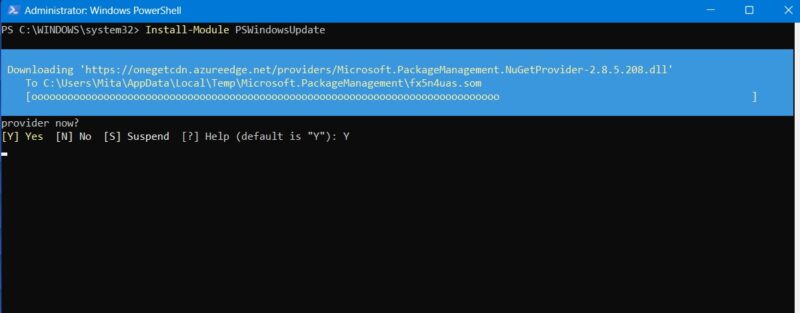
Install-Module PSWindowsUpdateIt may ask you to install and import the NuGet provider. Press Y for Yes, and let it install the package.
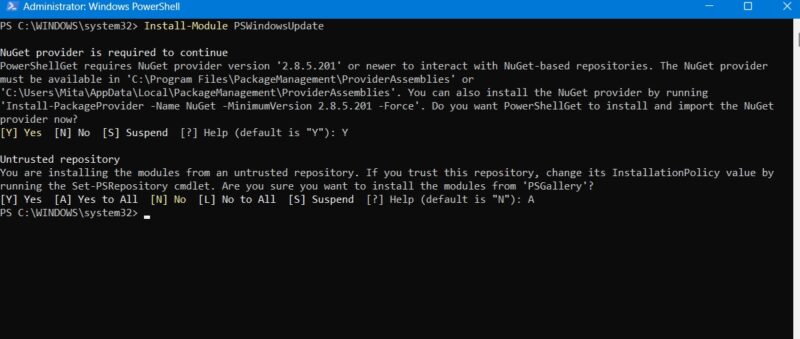
You may get a warning that you are installing the modules from an untrusted repository. Type A to allow all the changes.
Check for the latest Windows updates by typing the following into PowerShell:
Get-WindowsUpdate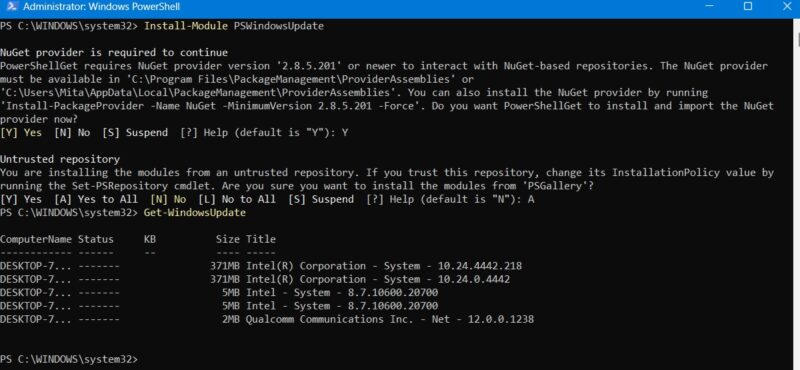
Once you’ve confirmed that there are updates to install, type the following command. You may further be asked if you want to perform this action, to which you must type A to finalize.
Install-WindowsUpdate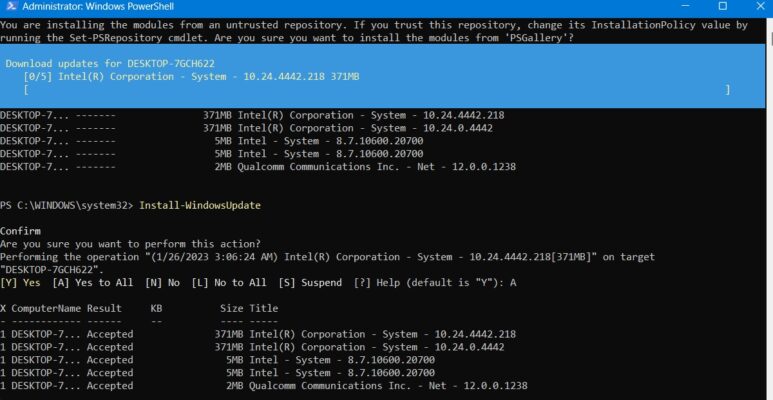
Wait for the broken Windows updates to heal themselves. They will automatically execute in the PowerShell window.
Tip: how does PowerShell differ from Command Prompt? Read on to find out.
Install Optional Updates
If you access the Windows update screen by going to Settings -> Windows Update -> Advanced Options -> Additional Options, you will find the Optional Updates menu.
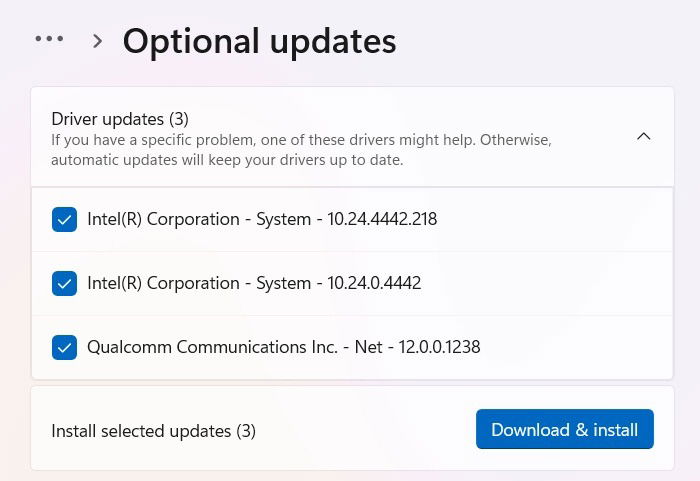
These updates are designed specifically to address features, quality, and driver issues for recent Windows updates. They become “proper” updates a few weeks later, once they’ve been thoroughly tested.
These updates are still pretty stable, though, and may be worth a shot if a recent update has broken something in Windows.
Uninstall Windows Updates
You can uninstall smaller Windows updates (to roll back builds, see the next section) if needed.
In Windows 10, go to Control Panel -> Programs -> Programs and Features -> Installed updates.
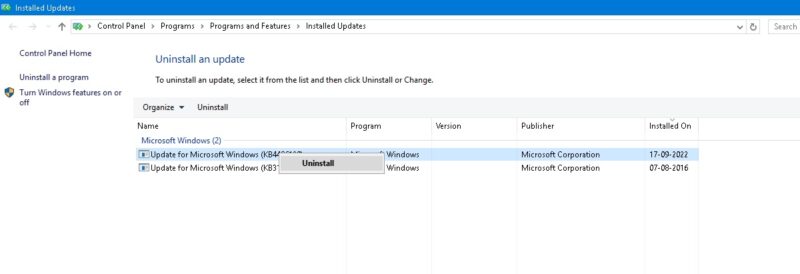
Scroll down in the main pane to the Microsoft Windows heading, and you’ll see all of the KB and security updates for Windows 10, along with the install dates. Right-click the one you want to uninstall, and reboot your PC.
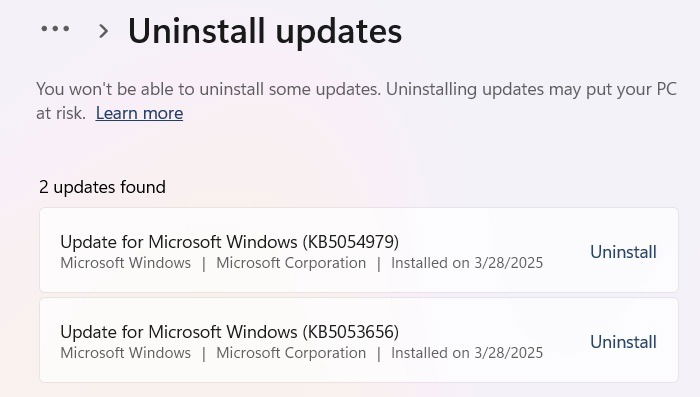
Windows 11 also has the option to uninstall recent updates. Visit Settings -> Windows Update -> Update History -> Uninstall updates, and click the Uninstall button next to the update you want to eliminate. In this example, we are uninstalling an update for the month of May 2024.
How to Roll Back Windows Builds
After every major update, Windows gives you a 10-day window to roll back to a previous version. It’s a useful feature and should give you enough time to judge whether you have a problematic update on your hands. Of course, this won’t recover your files if Windows deletes them, but at least you’ll be on a more stable version of the OS.
Go to Settings -> Update & security -> Recovery in Windows 10 or Settings -> System -> Recovery in Windows 11.
Below Reset this PC is the option to Go back to the previous version of Windows.
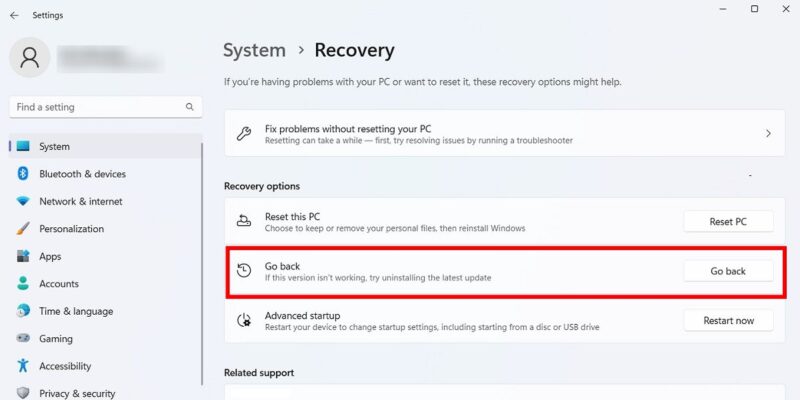
Click Get started, then follow the steps to roll back Windows. Again, this option is only available for 10 days after a Windows build update.
Check Your Windows Build
Before looking into rolling back and fixing broken Windows updates, check the build of Windows you’re currently using to confirm which issues are affecting you.
Go to Settings -> Windows Update -> Update history (in Windows 11) or Settings -> Update & Security -> Windows Update -> View Update history (in Windows 10).
In the new window, click the arrow next to Feature Updates to see the version of Windows you’re currently using, and click Quality Updates to see all of the smaller KB updates you have installed.
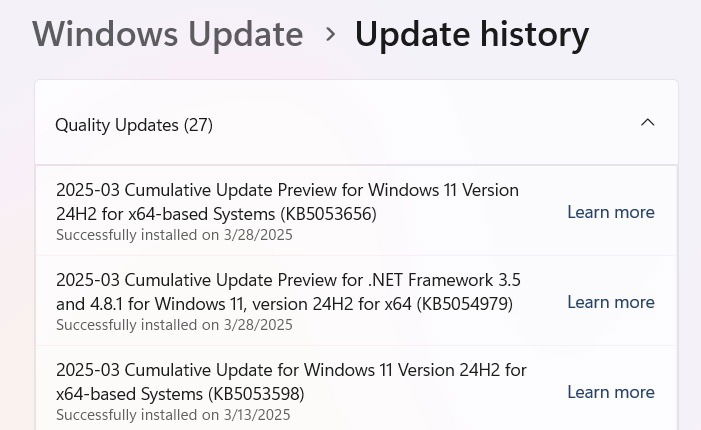
You will also find Definition Updates, which are security intelligence updates related to Microsoft Defender.
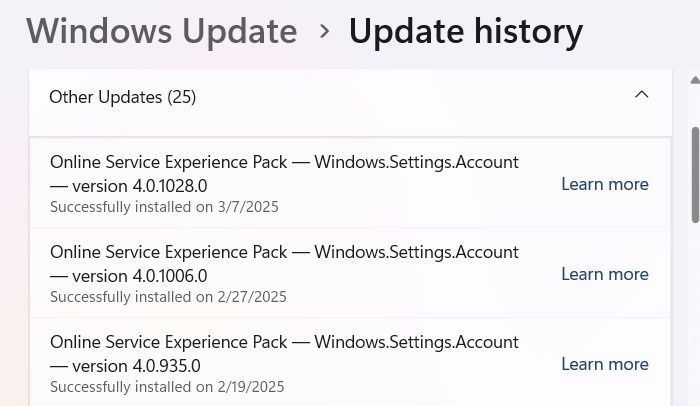
At the bottom of the list, you may find Other Updates concerning programs such as the Windows Malicious Software Removal tool, Intelligence updates, and security patches.
Pause Windows Updates
To avoid getting the above update problems and more, take over control when Windows updates. This way, you can hold off getting updates the moment Microsoft rolls them out, monitor the news for a bit to see if any significant errors crop up, then manually do the update yourself.
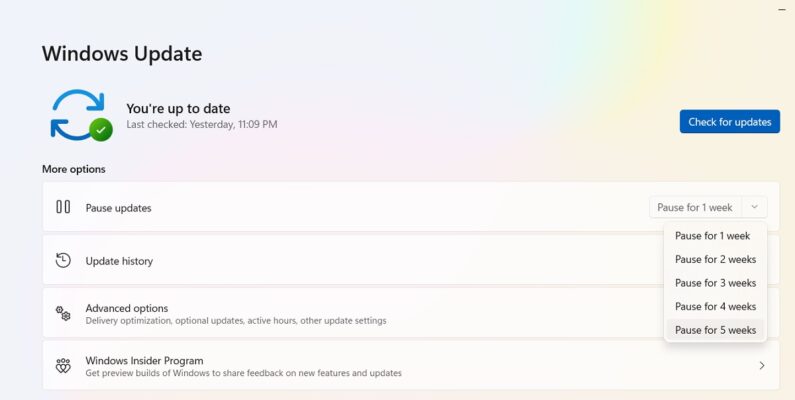
If you’re running Windows 11, go to Settings -> Windows Update -> More options -> Pause updates, and choose the number of weeks you wish to defer updates in the future (from the default of one week to up to five weeks).
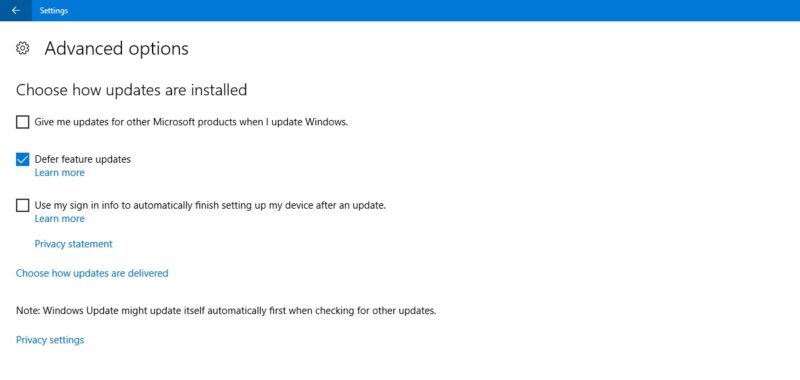
In Windows 10 Home, Pro, Enterprise, Education, or S, postpone updates by checking the same option under Settings -> Update & Security -> Windows Update. On some Windows 10 versions, it may be referred to as Defer instead of Pause and under a different heading.
Tip: did you know that Windows comes with a Super Administrator account? Learn how to activate it.
Completely Block Windows Updates
If you want to completely block Windows updates indefinitely, disable the main Windows Update service through the Registry Editor.
Click Start, type regedit, open the Registry Editor, and navigate to the following path:
Computer\HKEY_LOCAL_MACHINE\SYSTEM\CurrentControlSet\Services\WaaSMedicSvc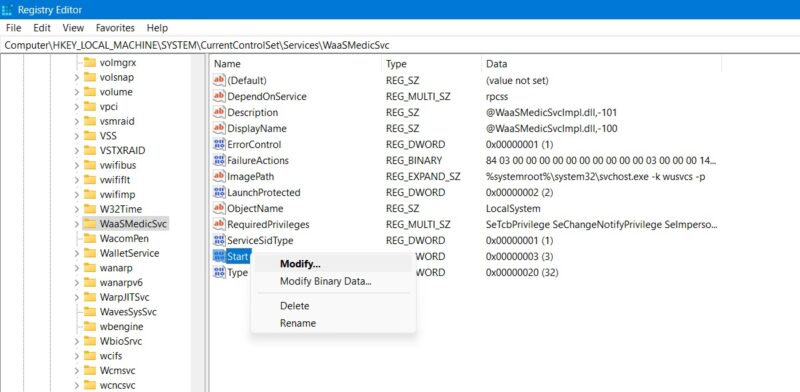
Right-click on Start to modify it, then change its Value data to 4.
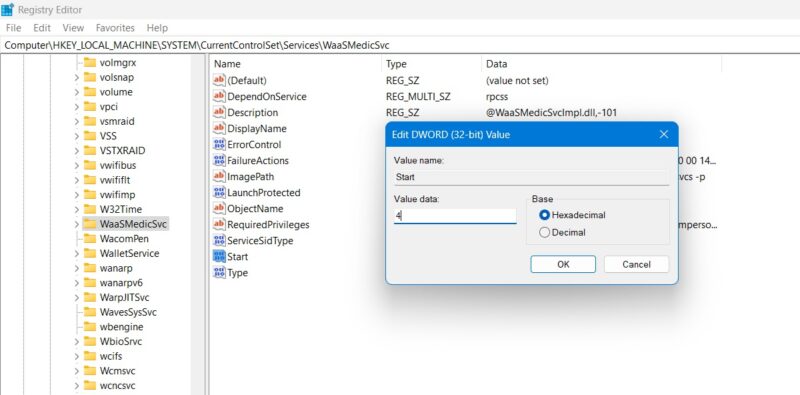
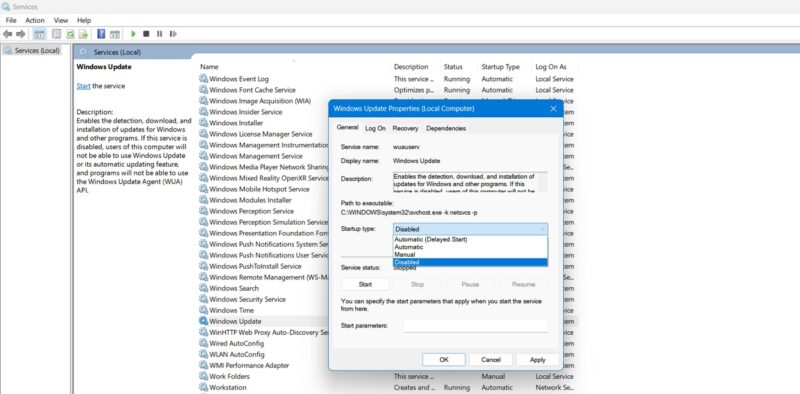
Reboot your PC, then go to the Services window by using the Search function in Windows. Disable the Windows Update service in the same window by setting its startup type as Disabled.
Few things on PC are more frustrating than an update – ostensibly to improve performance – borking your system. Unfortunately, Microsoft still has work to do in this respect. Other issues with Windows include the Microsoft Store not working and a malfunctioning microphone. We can help with these, too!
Image credit: Pixabay. All screenshots by Sayak Boral.