While Windows keeps evolving, it doesn’t mean you have to leave the classic features behind. Many tools can help you get your favorite features back, whether it’s the classic Windows 7 Start menu or the context menu. This guide includes the best tools to restore old Windows features.
1. RetroBar
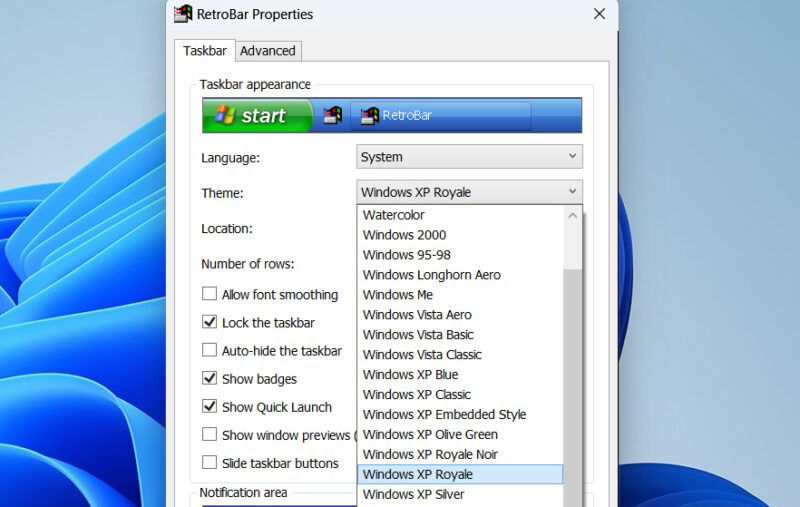
Want to feel truly ancient? RetroBar will return you to Windows 95 days on your Windows 11 PC. The tool changes the Windows taskbar to one of the styles from Windows 95 up to Windows Vista, including the Start button, taskbar buttons, clock, and tray. However, interacting with any of the buttons will open the original Windows 11 interface, such as the quick settings or the Start menu.

While the main changes are purely aesthetic, it does include some extra functionality that was removed in the latest Windows updates. You can add rows to show more buttons, move the taskbar position, and even increase/decrease the size of the taskbar.
Right-click on the taskbar while RetroBar is active, and click on Properties to open its options. This allows you to change themes, enable/disable extra features, and change regular taskbar customization options that are available in the Windows 11 taskbar.
2. GadgetPack
Desktop gadgets were one of the most useful and fun features of Windows Vista and Windows 7, but Microsoft quickly got rid of them due to security vulnerabilities and heavy resource usage. While Widgets in Windows 11 do serve a similar purpose, they’re still in a dedicated interface with limited support. If you want to use the old gadgets, GadgetPack is here to help.
GadgetPack adds the same desktop gadgets’ functionality to your Windows PC, with dozens of gadgets available by default. To always keep gadgets in view, you can add them to the sidebar or on the desktop itself. Some of the default gadgets include an analog clock, GPU tracker, CPU meter, calendar, sticky notes, and network meter.
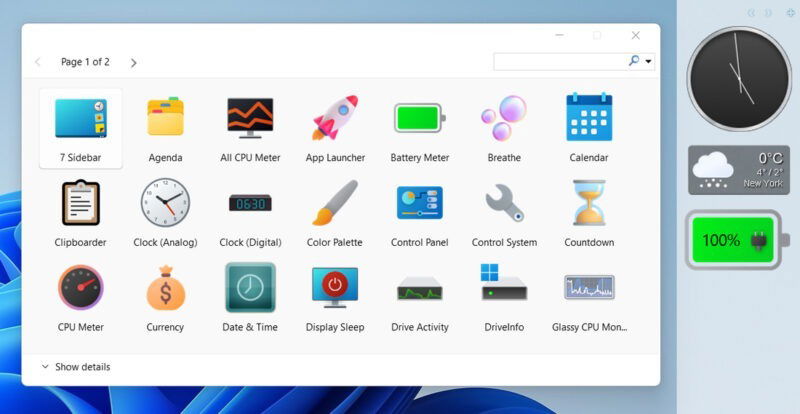
Most of the gadgets have dedicated settings to further customize, and you can also fully arrange and resize the gadgets. GadgetPack supports the installation of third-party gadgets using the .gadget file. However, be careful when downloading from unknown sources, as gadgets can be infected.
3. StartAllBack
While RetroBar does a fine job of replacing the taskbar, it doesn’t replace its functions. StartAllBack goes a step further to replace the functions of the Start menu, taskbar, system tray, and even the Explorer. You have the option to choose styles from Windows 7, Windows 10, and also an edited version of Windows 11.
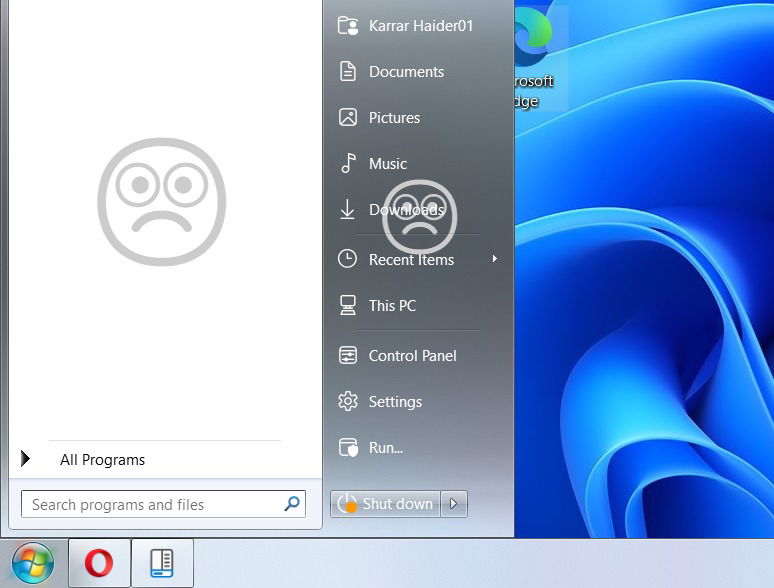
StartAllBack has three main profiles that automatically apply settings based on whether you want Windows 10, Windows 7, or the Windows 11 edited style. After selecting your preferred style, go to the Start Menu, Taskbar, Tray icons, and Explorer sections to edit each individually.
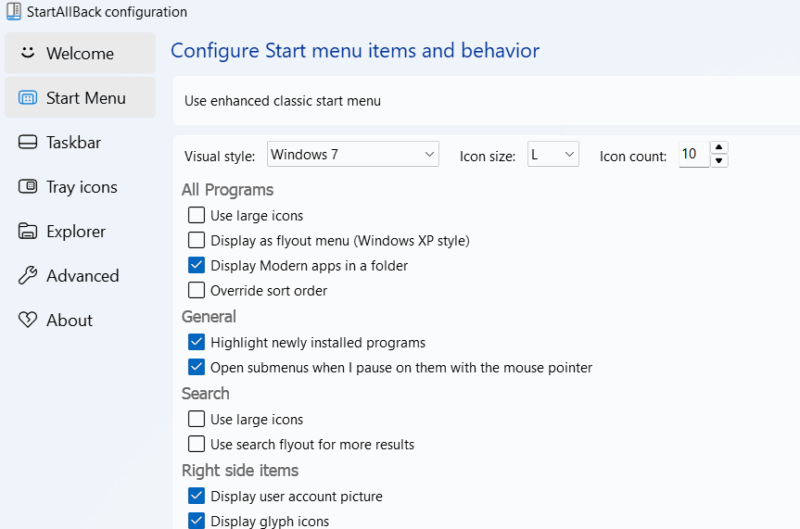
Choose which style of flyouts are used when you click on the Wi-Fi or volume button, enable/disable system icons, adjust the taskbar size and position, and much more. The tool is paid for with a free trial, but you can keep using it for free after the trial if you don’t mind a watermark in the Start menu.
4. Winaero Tweaker
Winaero Tweaker is an all-in-one Windows tweaker with hundreds of tweaks, and some of these can restore old Windows functions. Under the Windows 11 section, you can restore the classic context menu, allowing you to open the classic context menu without clicking on the Show more options button.
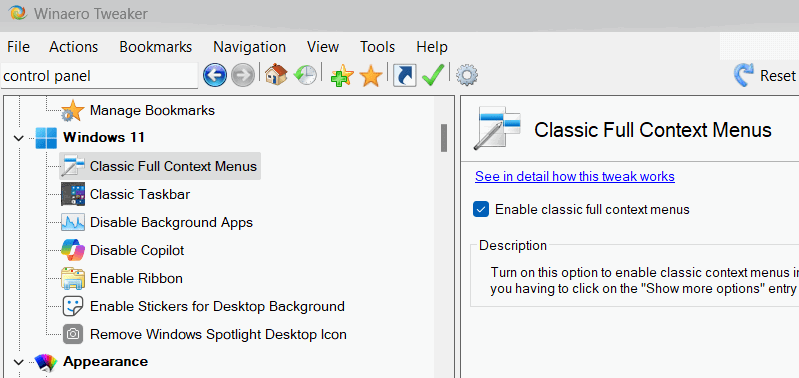
If you liked the Ribbon File Explorer in Windows 10, Winaero Tweaker can help you use it in Windows 11 as well. In the same section, open the Enable Ribbon option, and turn it on. However, this will not permanently turn on in the latest Windows 11 versions, so you may have to use Launch classic File Explorer with Ribbon to manually launch it.
The Aero Lite theme is another feature it can activate that is inspired by the Windows 8 visuals. Once activated, your theme will change to the Aero theme with solid borders and less emphasis on transparency. There are also some smaller functions it can restore, like a boot menu similar to Windows 7 or a startup sound, so it’s worth exploring all settings.
5. Ultimate Windows Tweaker
Ultimate Windows Tweaker is another all-in-one tool with some tweaks that can restore functions found in older Windows versions. Along with some features already covered in the above tools, it has some unique tweaks that make it worth a try.
Go to the Customization section to find all related options under the Windows 11 tab. You can enable the classic Alt+Tab menu from Windows XP that only shows the program icons instead of full previews. Many people prefer this old preview style, as it makes managing many programs easier due to its compact design.
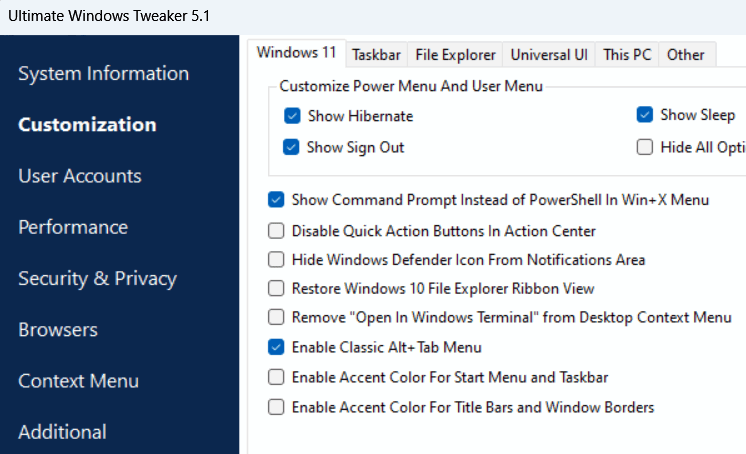
For those who still prefer to use Command Prompt for commands, there is also an option to replace PowerShell with Command Prompt in the power user menu (Win+X), which was the default in Windows 8.1 and Windows 10.
These tools aren’t just for a hit of nostalgia – they will let you add and customize old functions in the latest Windows to have the best of new and old versions. It’s worth mentioning that some of these tools use Registry hacks to restore the functions. If you are comfortable with editing the registry, you can restore them yourself.
Image credit: Vecteezy. Screenshots by Karrar Haider.