The Microsoft Store doesn’t get a lot of love from Windows users, but the apps offered – including free ones – offer a bevy of hidden benefits. Updates are automatic, security is robust, and they integrate well with PC hardware. Read on for the top free apps in the Microsoft Store.
1. QuickLook
Sometimes you just want to preview a file before opening it with the actual program. With QuickLook, you only have to press the spacebar, and it will show you a quick preview of the target file. It feels like the niftiest Microsoft Store invention ever, and I won’t be uninstalling the app anytime soon.
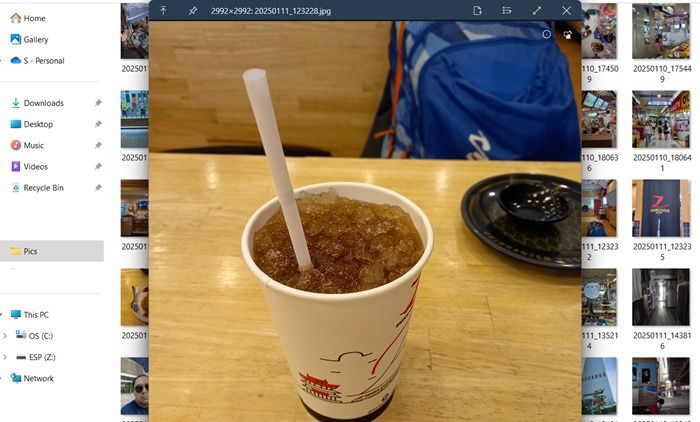
Quicklook supports many file formats but works best with image and video files. Pressing the spacebar instantly displays full-resolution photos or videos on-screen. I discovered a hidden trick: using left/right arrow keys, you can scroll through album collections. For Word or Excel documents, though, you only see the file name in larger text, but it’s still quite useful.
2. EarTrumpet
EarTrumpet is one of my favorite apps. While your laptop’s speakers and volume mixer provide rich, audible sounds, they affect all apps. EarTrumpet allows you to adjust the volume control for individual apps from the taskbar.
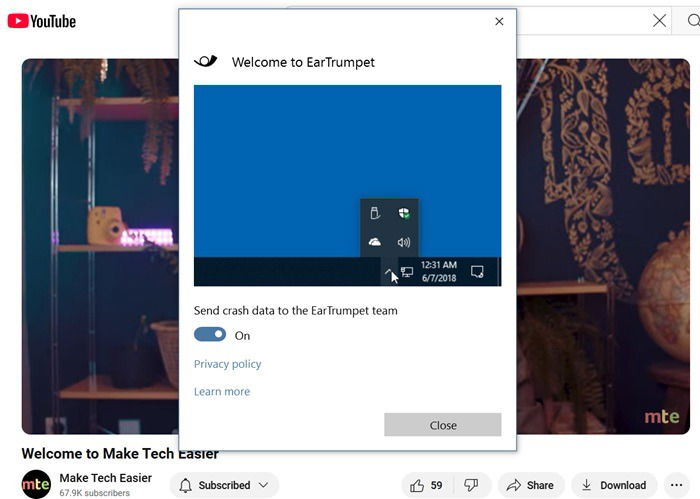
No matter which app you’re on, the audio output can vary according to your taste. It’s easy to ensure that it never gets too loud or inaudible. Switching playback devices can be done using a few hotkeys. Though Windows also has built-in options for this, it is nowhere near as intuitive or easy to use.
3. ShareX
If you are looking for an open source, highly customizable, powerful screenshot and screen recording tool, ShareX is for you. Similar to Windows 11’s built-in Snipping Tool, it can capture all kinds of screenshots. These include full screens, limited areas, a rectangular window, or even scrolling web pages.
ShareX has many useful functions you won’t find in other screenshot capture tools. You can record a video in GIF format and create your own memes. A built-in OCR tool extracts text from your screenshot images. All captures easily transfer to Google Drive, Dropbox, and other services. ShareX includes an image editor, which you can add to the right-click context menu in Windows.
4. IrfanView (32-bit)
There is no dearth of image-viewing apps in Windows. The Photos app is widely used as the system default, and there are many third-party apps. What IrfanView does to gain our attention is that it is super-lightweight. It gently reminds you of how the Windows photo viewing apps used to be two decades ago. They were never a burden on your system, and all photos would open in a flash.
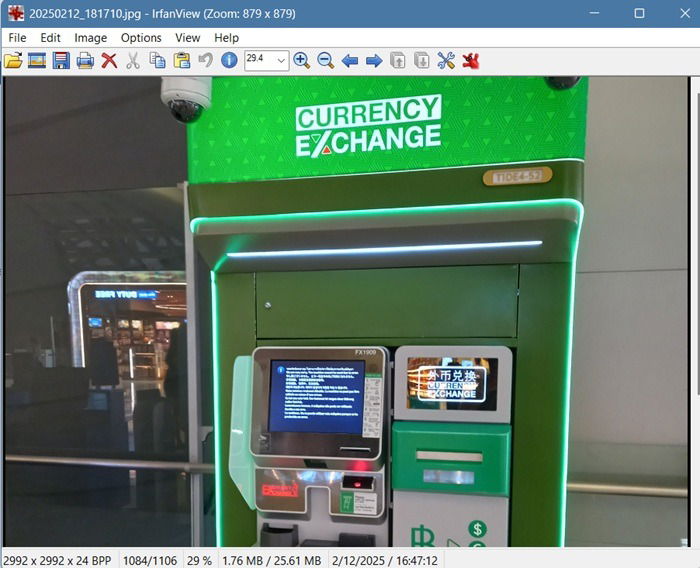
Things have changed. We’ve all faced this issue: during updates or heavy processes, the Photos app often lags. Thankfully, the trusty 32-bit IrfanView solves this, making slow photo-opening delays a thing of the past. Photos and videos are a recurring desktop application in Windows. This makes IrfanView one of my favorite top free apps in the Microsoft Store.
5. Microsoft To-Do
As you can tell from the name itself, Microsoft To Do is the official to-do app from Microsoft. It is pretty lightweight, minimal and easy to use. If you like creating to-do lists for your tasks, try this fabulous Windows app that costs you nothing.
Since there is also an Android and iOS app, you can sync to-do lists between devices. The app has become more advanced. You can use To Do to schedule due dates, customize lists, create subtasks, and use hashtags for sorting. This is a serious app for meticulous planners. The productivity you can get out of it is only limited by your imagination.
6. Ditto Clipboard
We have often faced this problem with Windows’s default clipboard tool. If you do a Ctrl + C more than once, it will forget the previous copy commands. Ditto is a highly customizable Windows clipboard extension that saves all of your clipboard items, allowing you to access them later.
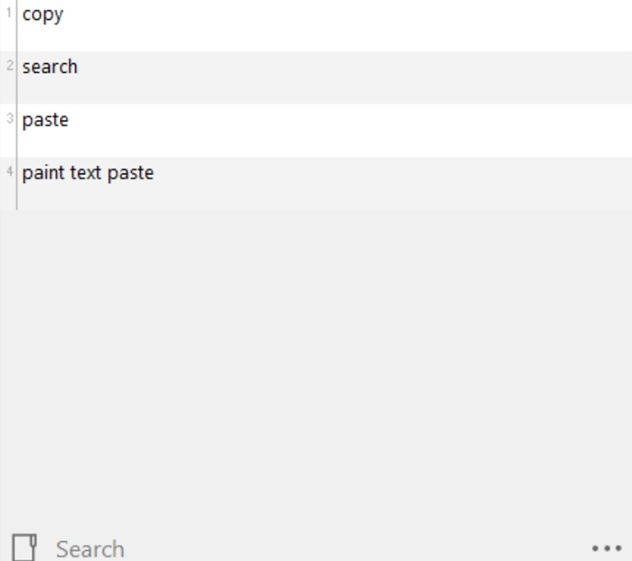
The tool works easily with most clipboard items, including images, media, text, and HTML. There is also a search feature that lets you search for saved clipboard items. The only challenge I noted is that when many clipboard items accumulate, the system can start feeling slower. This can be fixed with a quick PC restart.
7. MusicBee
MusicBee is one of the most popular music players for Windows. It has a wide range of features, supports almost all audio formats, has plug-in support, and is highly customizable. Though MusicBee is filled with features, it is much faster and lighter than Groove music player.
Unlike Groove, you can enjoy seamless playback between different audio tracks. The tool lets you access a wide range of Internet radio stations and manage your podcast subscriptions in one place. If your current audio player feels uninspiring, give MusicBee a try. It will elevate your listening experience to a whole new level.
8. Simple Minesweeper
When Microsoft removed the classic Windows game from Windows 10 and 11, it led to angry reactions from millions of Minesweeper fans. There are a large number of Minesweeper games that you can download from the Store, and indeed, online. But if you want that classic experience, Simple Minesweeper is the best choice out there.
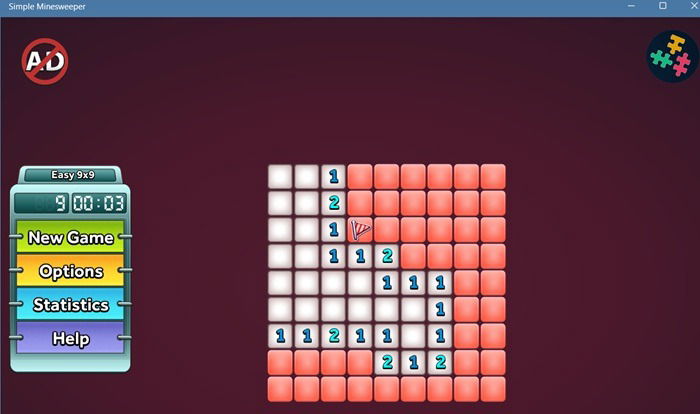
Whether you want to play the game at an easy, medium, or hard level, it just feels like the old Minesweeper program. You can also customize the grid size and add different themes to change up your gameplay.
Likewise, if you’re missing the old Solitaire game, Solitaire Classic feels very similar to the old version.
9. F.lux
F.lux is one of those apps that everyone should be using. It is a simple app that is designed to reduce blue light emitting from your screen at nighttime. Eye strain from monitors is a real problem, and there are many brightness control apps that serve to reduce the problem. But F.lux goes a few steps further, making the artificial computer screen light look like a real bedtime lamp.
Drag a slider to a comfortable length, and F.lux does the rest. Your screen feels much less bright than before. It helps you relax and unwind slowly. If you want more technical details on how this is done, there’s a term called learn about “nit of screen brightness.”
10. OneNote
OneNote doesn’t need much introduction, as it is one of the best when it comes to note-taking, clipping, and organizing. The store version of OneNote looks slightly different from the regular Windows application but has a similar feature set, other than being subscription.
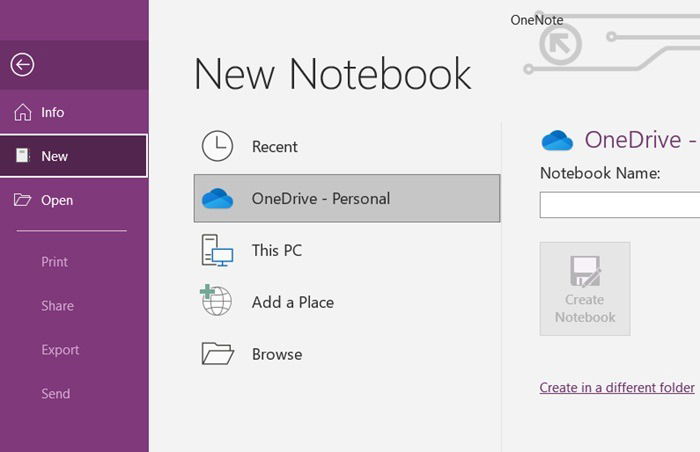
Unlike the preinstalled app, OneNote from the store doesn’t need a Microsoft 365 subscription. However, subscribing unlocks benefits like system updates, 1 TB of OneDrive storage, SharePoint access, and more. For basic usage, though, the free version works without any issues.
11. CrystalDiskMark
CrystalDiskMark is a simple disk benchmark utility that shows how fast your hard disk drive or SSD really is. You get read/write speeds, even for external drives such as USB or external hard drives. With a simple, intuitive design, it’s very easy to adjust test parameters and run benchmark tests.
CrystalDiskMark is not the only free tool, though, that we’d recommend for free system diagnostics and evaluation. There is also CPU-Z and Resource Monitor that are worth checking out. Whether you’re planning to sell or give away your PC, these check notes are useful to the buyer.
Other Top Free Apps in Microsoft Store
To put it simply, there are nearly a million apps in the store, but we need to cover a few more free apps:
- TranslucentTB: enable and disable transparency effects in Windows.
- Codex QR Code scanner: QR code scanning has become very important.
- WhatsApp: the store version of WhatsApp should work with all Android and iOS devices, including older models.
If you’re having any trouble running these free apps from the Microsoft Store, follow our extensive troubleshooting guide.
Image credit: Imagen 3. All screenshots by Sayak Boral.