Controlling your Android (or iPhone) from your Windows PC isn’t new, thanks to the Phone Link app. But now, Copilot takes it a step further. Microsoft’s AI assistant can now perform tasks and retrieve info from your Android device.
Good to know: here are some reasons why Bing Copilot Search works better than Google AI Overviews.
Use Copilot to Control Your Android
Copilot for Windows now includes a new feature called Phone Connection. When enabled, it allows the AI assistant to interact directly with your phone – fetching data or performing tasks such as texting on your behalf.
The new feature streamlines your workflow by letting Copilot handle tasks you’d normally manage through Phone Link manually. Now you can just tell Copilot what to do, in writing. Unfortunately, you can’t speak out your requests yet, which would make the whole process faster and more convenient. Hopefully, this feature will become available at a later date.
Tip: check how you can disable Microsoft Defender for a specific app on Windows.
Take Advantage of Phone Connection in Copilot
Phone Connection only works with Android phones right now, so if you have an iPhone this won’t be available for you at the moment (but maybe in the future.) You also need to have a computer running the Phone Link Windows app (version 1.24112.110.0 or later – the app comes preinstalled) and a working Microsoft account.
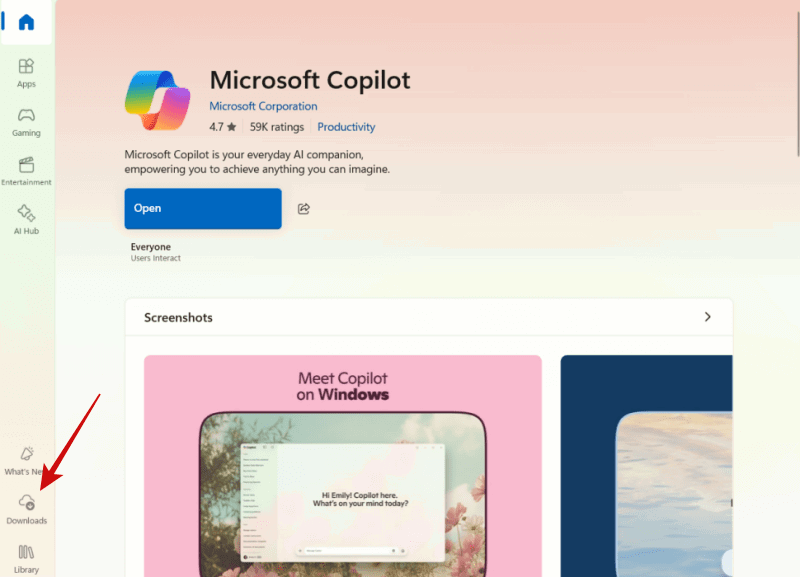
Download the Copilot app if you don’t already have it. If it’s already installed, you’ll need the latest version. Go to the Microsoft Store page and click the Downloads button in the lower left corner.
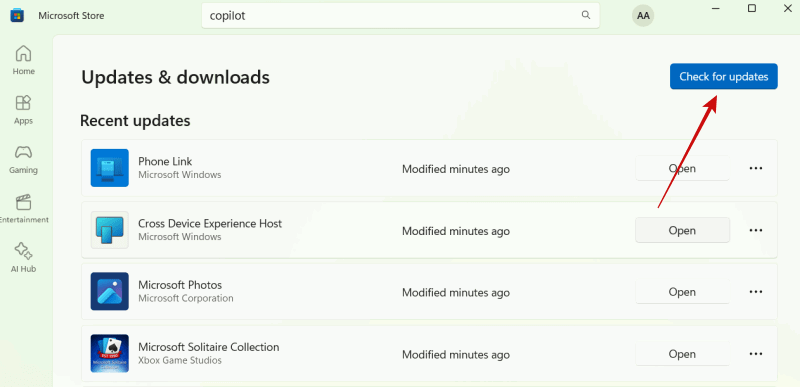
Click the Check for Updates button. This will update your apps, including Copilot and Phone Link.
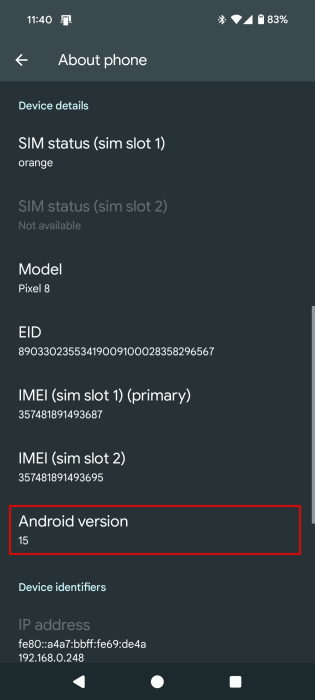
At the same time, you should check to see that your phone is running Android 14 or above. Open the Settings app and navigate to About phone. You should see the Android version in the Device details section.
The next step is to ensure your Android phone is connected to your PC using the Link to Windows app.
Configuring Copilot
Once you’ve established the connection between the two devices, it’s time to configure Copilot on your Windows machine. Launch the app and log in with the same Microsoft account you used to connect your PC to your Android phone.
Next up, click on the person icon in the lower left corner. Click on Settings.
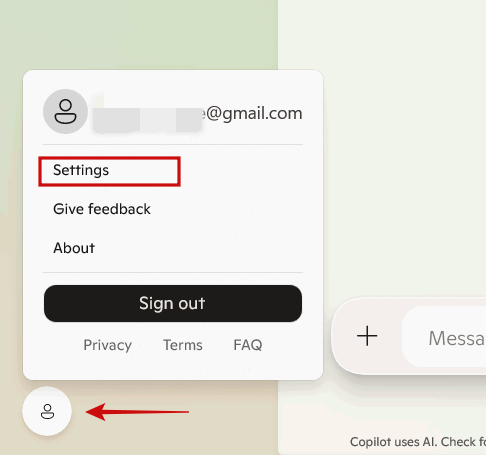
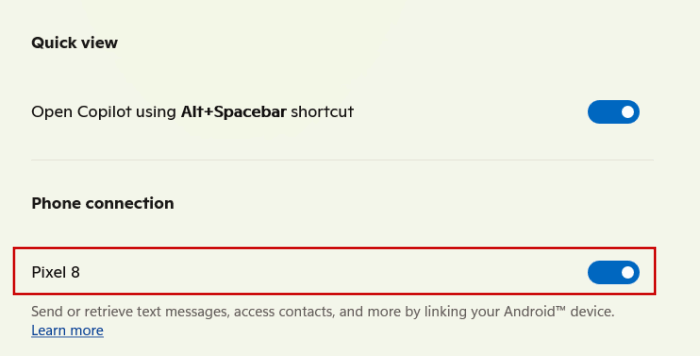
At the bottom, check the Phone connection section. You should see your Android phone and the switch next to it turned on. If it’s not, enable it.
Now you’re ready to finally use Phone Connection. Here are some prompt ideas you might want to try:
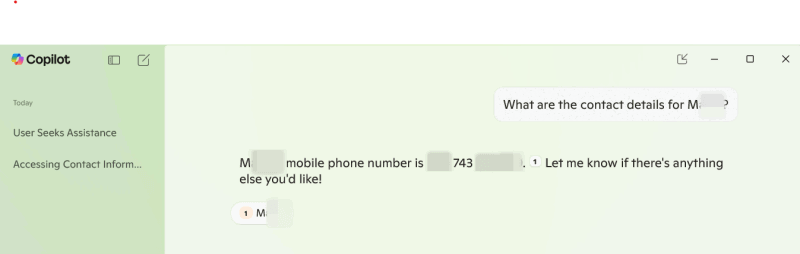
- Ask for contact information – for instance, type something like “What’s Dan’s contact info?” – provided you have Dan saved in your phone’s contacts.
- Set timers – you can ask Copilot to do things like “Set a 5-minute timer for meditation,” making it easy to manage small tasks with minimal effort. If you change your mind, simply type a command like “Cancel the meditation timer” to stop it instantly.
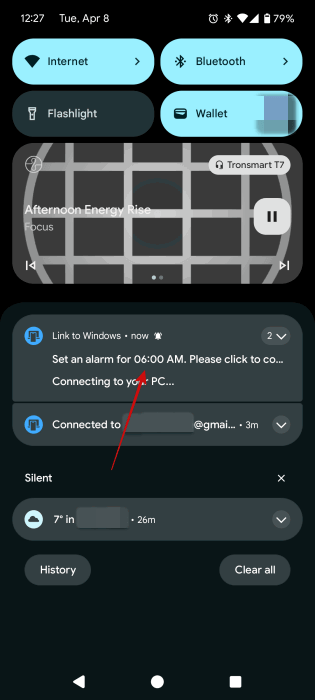
- Set alarms – to schedule an alarm, you may type a request like “Set an alarm for tomorrow at 14:00 PM.” Should you want to remove it later, just send a follow-up command to cancel the alarm.
- Send messages and check messages – Copilot can now help you stay on top of your messages. Just ask something like “Any new messages today?” If you’re ready to reach out to someone, you can type a prompt such as “Send a message to Mona to ask about good Thai restaurants.”
- Locate a place – Copilot can also help you find places in your phone’s map. Try a prompt like “Locate the nearest supermarket on my phone.”
- Start navigation in the map app – once you’ve located the place, ask Copilot to “navigate to the supermarket using my phone” and you’ll be ready to head out in no time.
When you send a request such as locating a place, you’ll receive a notification on your phone from the Phone Link app. Access it, in order to complete the operation on your Android, such as opening the Maps app.
As AI becomes ubiquitous, Microsoft is rushing to introduce Copilot everywhere. Get up to speed with the essential features you can’t ignore in Microsoft 365 Copilot. On the other hand, if you don’t’ really like Microsoft’s AI push, check how to remove Copilot and other AI features in Windows.